
Minecraft is vast. Endlessly vast, to be honest. As a result, you may find yourself lost during an extended play session. Fortunately, both versions of the game have a built-in solution for this: coordinates.
Even better, you can teleport to coordinates. This guide will detail how to do just that, as well as everything else there is to know about coordinates.
Updated 10/10/2025
Prefer To Watch Instead Of Read? Check Out Our New Video!
What Are Coordinates In Minecraft
Coordinates in a Minecraft world are the easiest way to tell where you are in relation to the rest of the generated space. World sizes are infinite, after all, and getting lost is incredibly easy, so having measurements like coordinates is the solution to that.
Coordinates are displayed in three values: the x coordinate, the y coordinate, and the z coordinate:
- X coordinate: The x coordinate is the first on the list, denoting if you’re left or right from the origin point (0, 0, 0). Left is negative of the origin point, as in -257, while right is positive, as in 640.
- Y coordinate: The y coordinate is next on the list, denoting if you’re above or below the origin point. Positive is above the origin point, as in 54, while negative is below it, as in -50.
- Z coordinate: The z coordinate is last on the list, denoting if you’re in front of or behind the origin point. Positive is in front of the origin point, while negative is behind it.
With this understanding of coordinates in mind, you’re probably wondering how to even see these while playing the game. It’s time to learn how to show coordinates in Minecraft.
How To Show Coordinates In Minecraft
There are a few ways to show coordinates in Minecraft, depending on which version of the game you’re playing.
Minecraft: Java Edition
To show coordinates in Minecraft: Java Edition, press F3 no matter if you’re playing on Windows, Mac, or Linux.
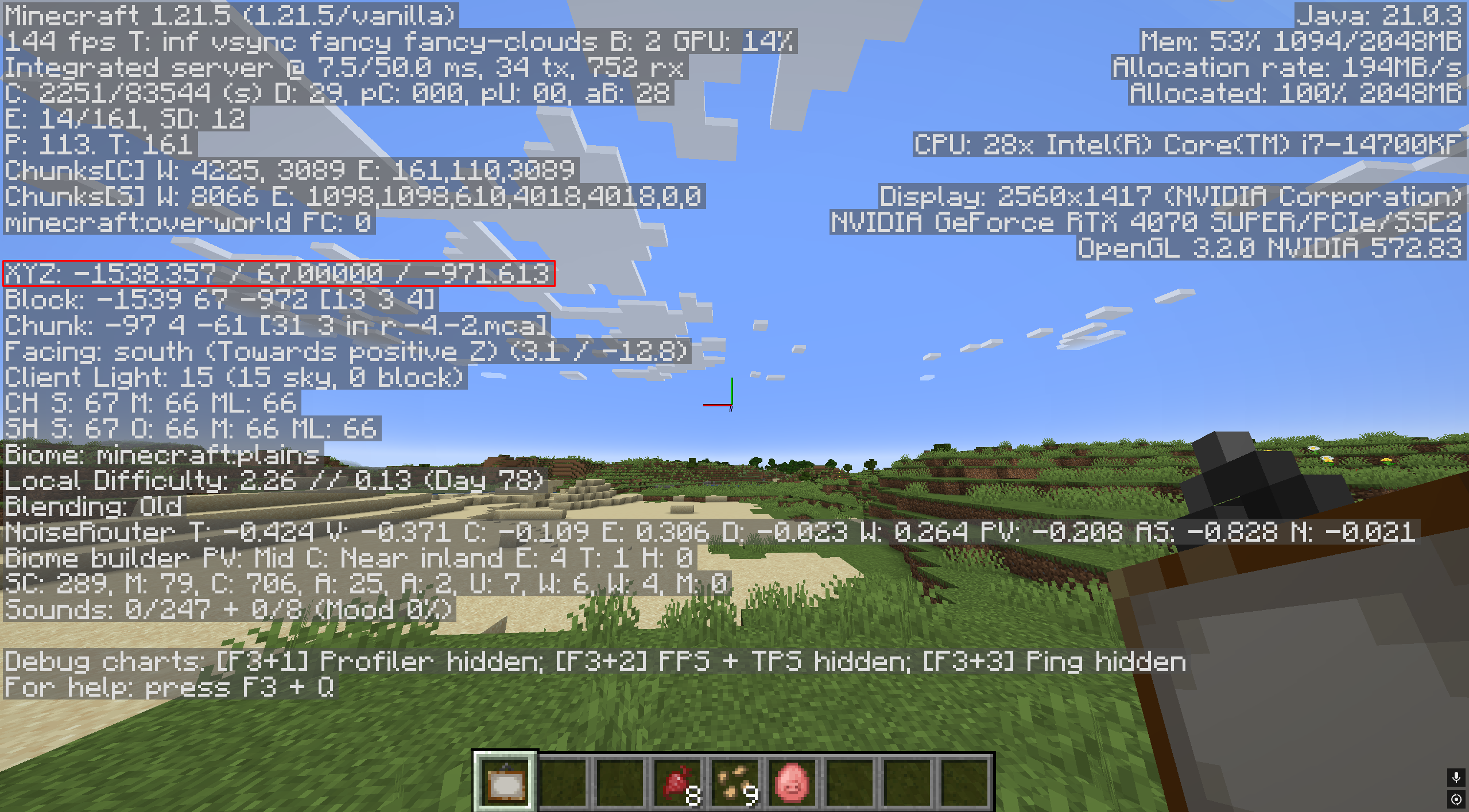
A ton of information will appear, but you’re looking for the XYZ category. It will appear on the left-hand side after the chunk data. We’ve highlighted it in the image above.
Minecraft: Bedrock Edition
Minecraft: Bedrock Edition is a little different. Follow these steps to enable commands.
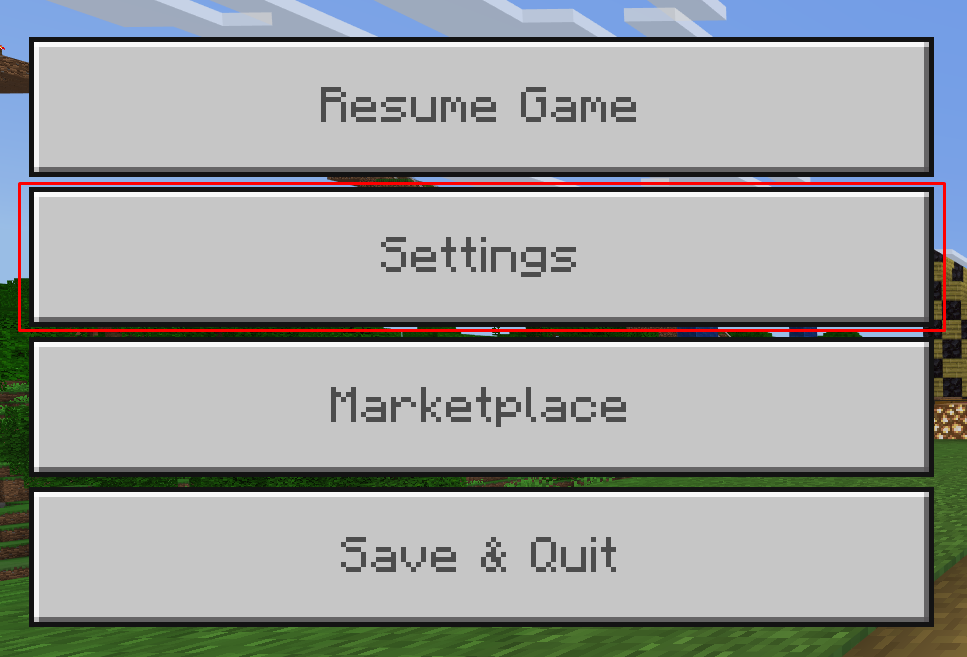
1. Go to Settings
Pause your Minecraft world and navigate to Settings.
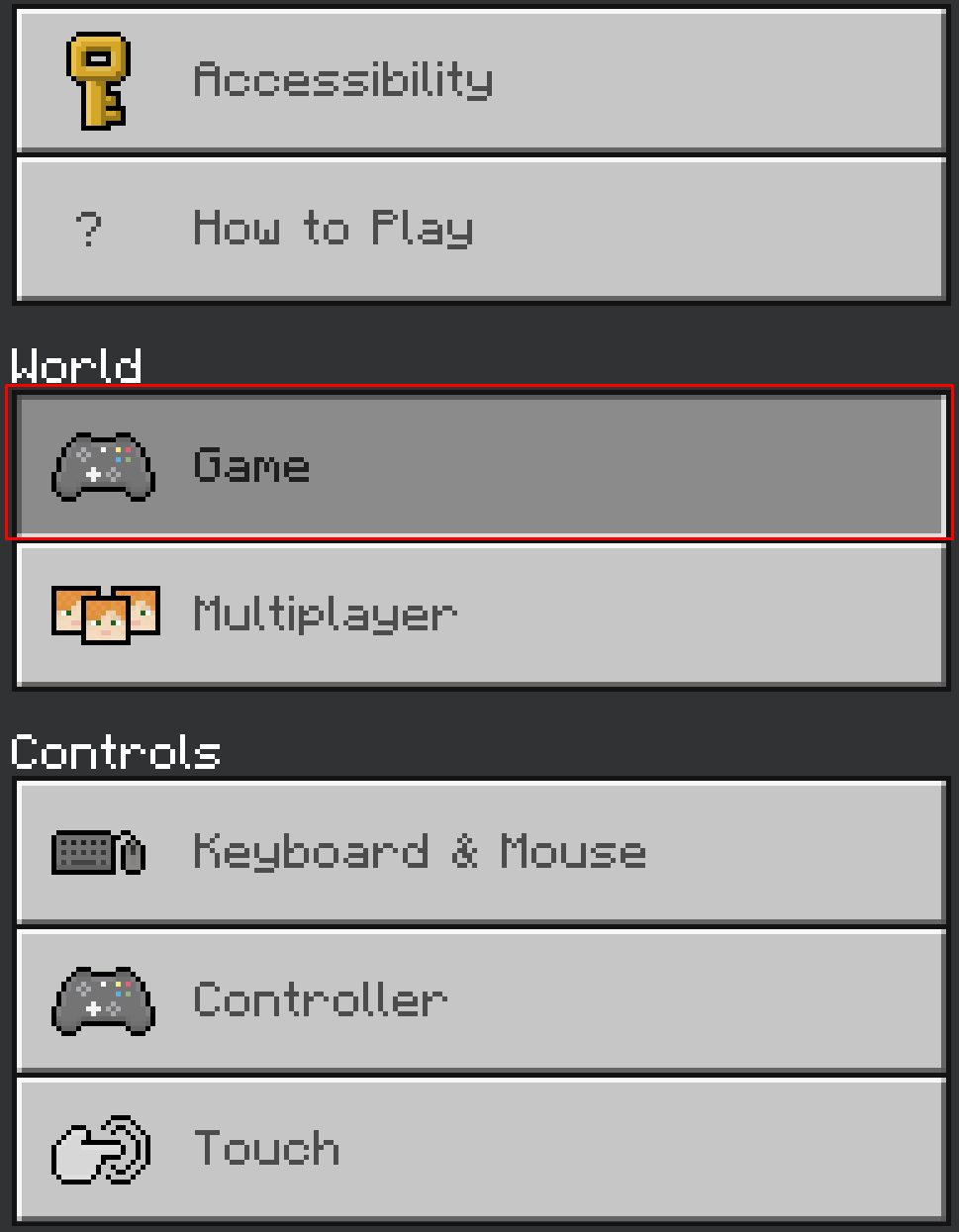
2. Go to the Game Section
Scroll down the list on the left-hand side until you reach the Game section.
3. Scroll to World Options
Scroll to the World Options part of the Game section.
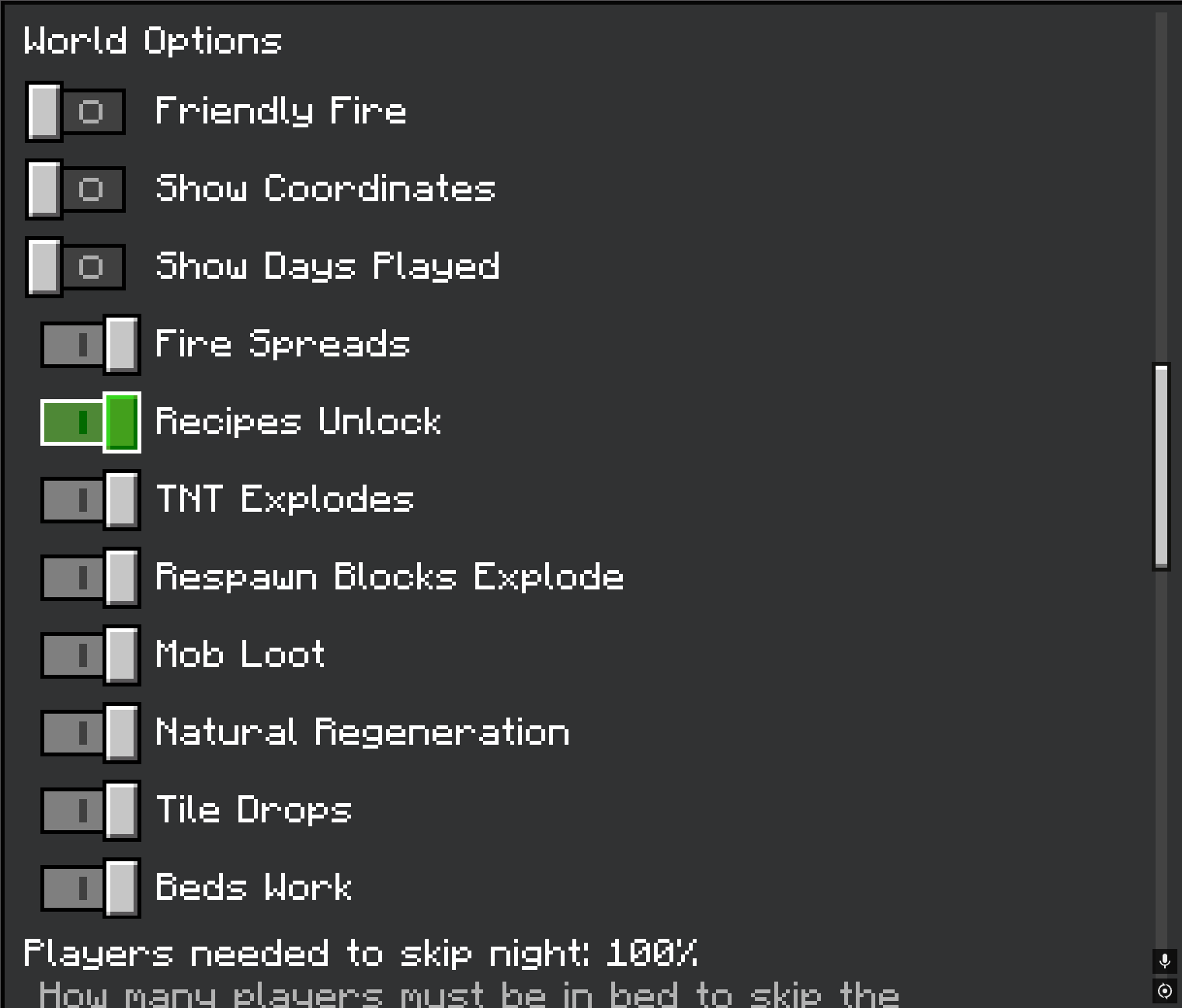
4. Enable Show Coordinates
Enable the Show Coordinates marker in the World Options section.
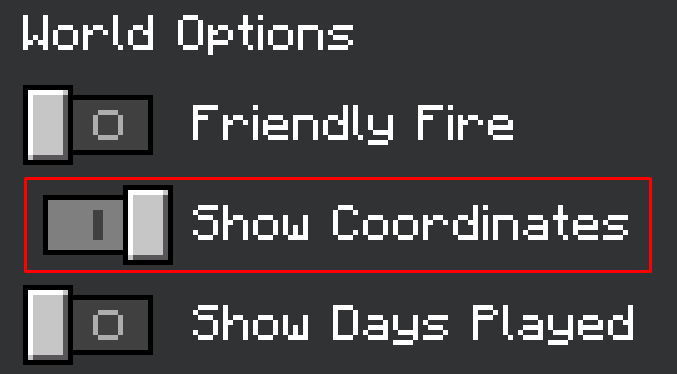
If you followed these steps correctly, your current position should appear on the screen’s left-hand side.
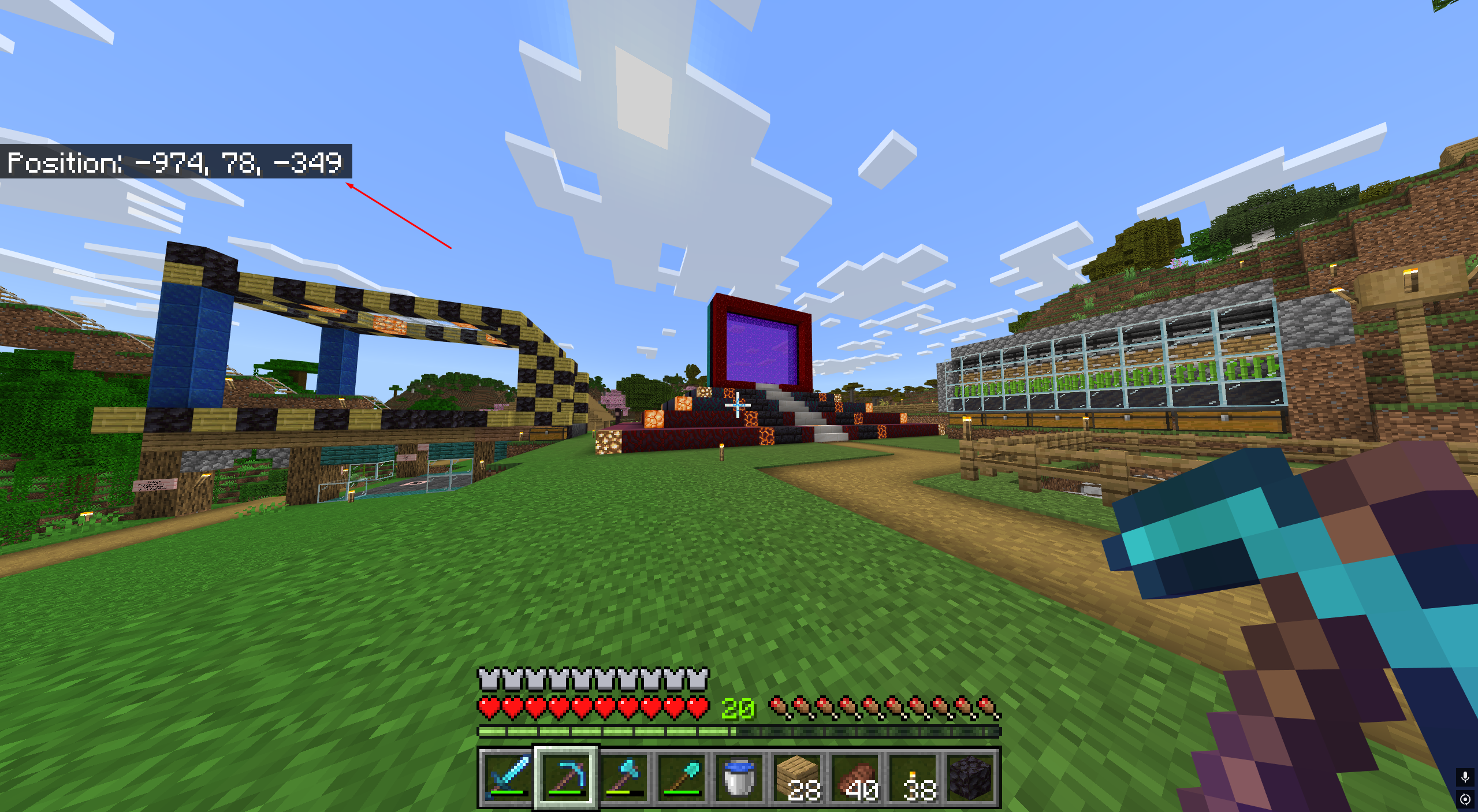
You can also enable coordinates from the Main Menu before you launch your world.
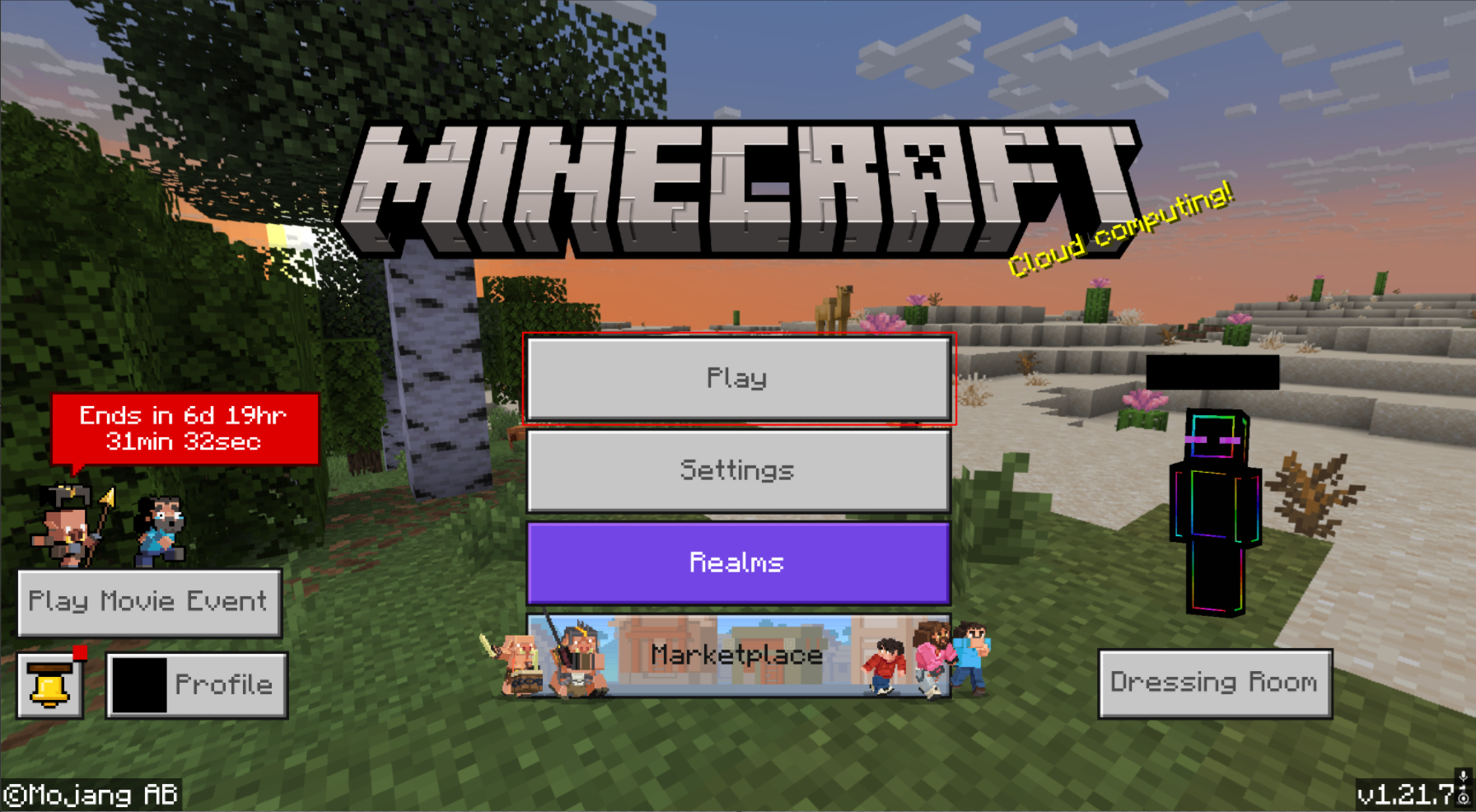
1. Click Play
At the Main Menu, click Play.
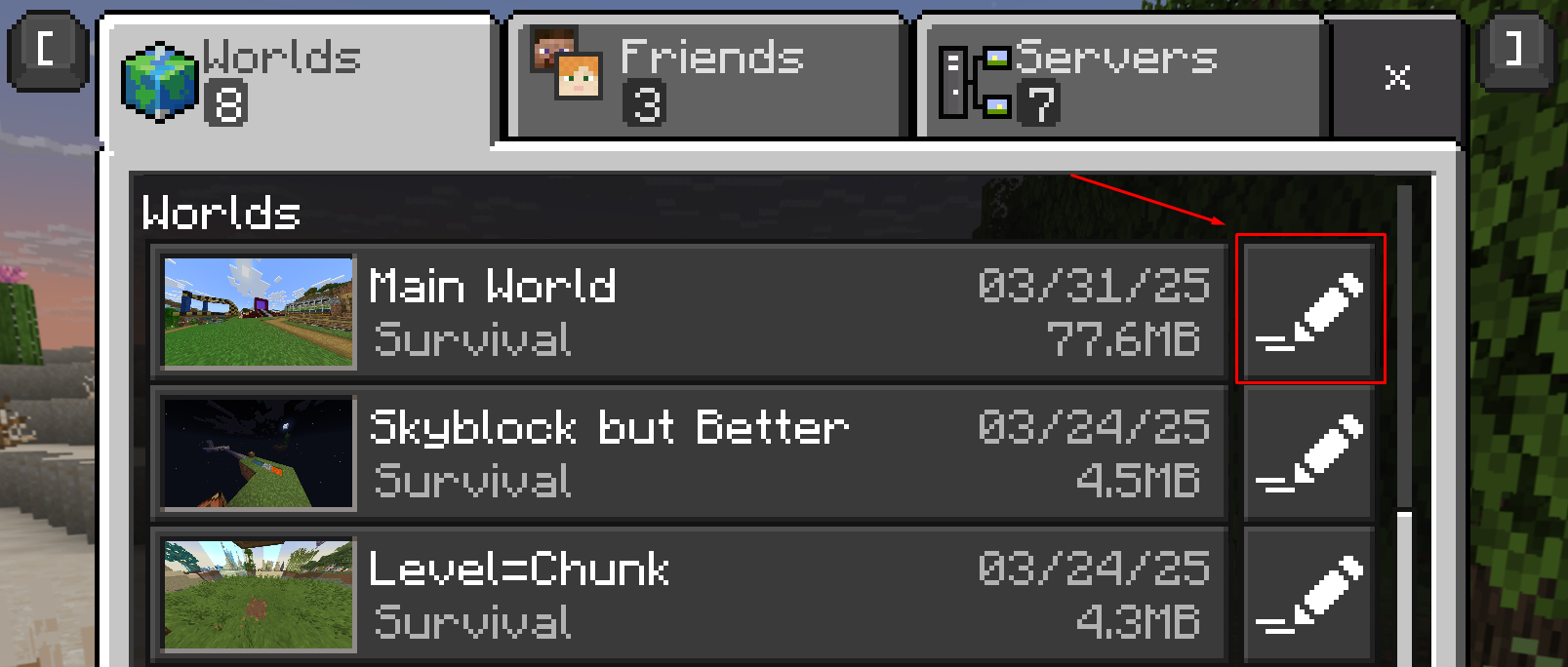
2. Edit Your World
Navigate to your world of choice and select the Edit icon.
3. Go to Advanced
Head to the Advanced section of the world settings list on the menu’s left-hand side.
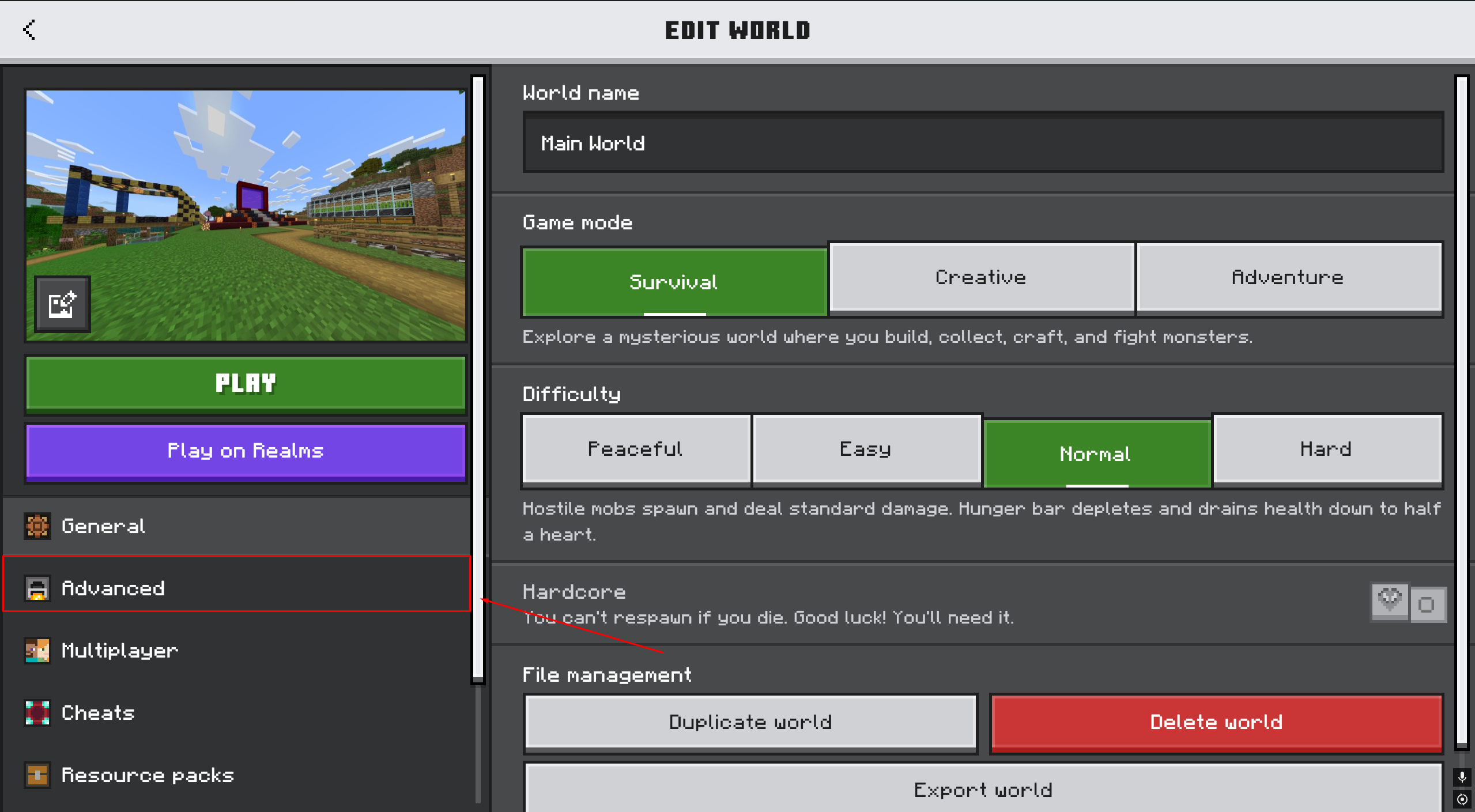
4. Enable Show Coordinates
Enable Show Coordinates on the list. It should be at the top.
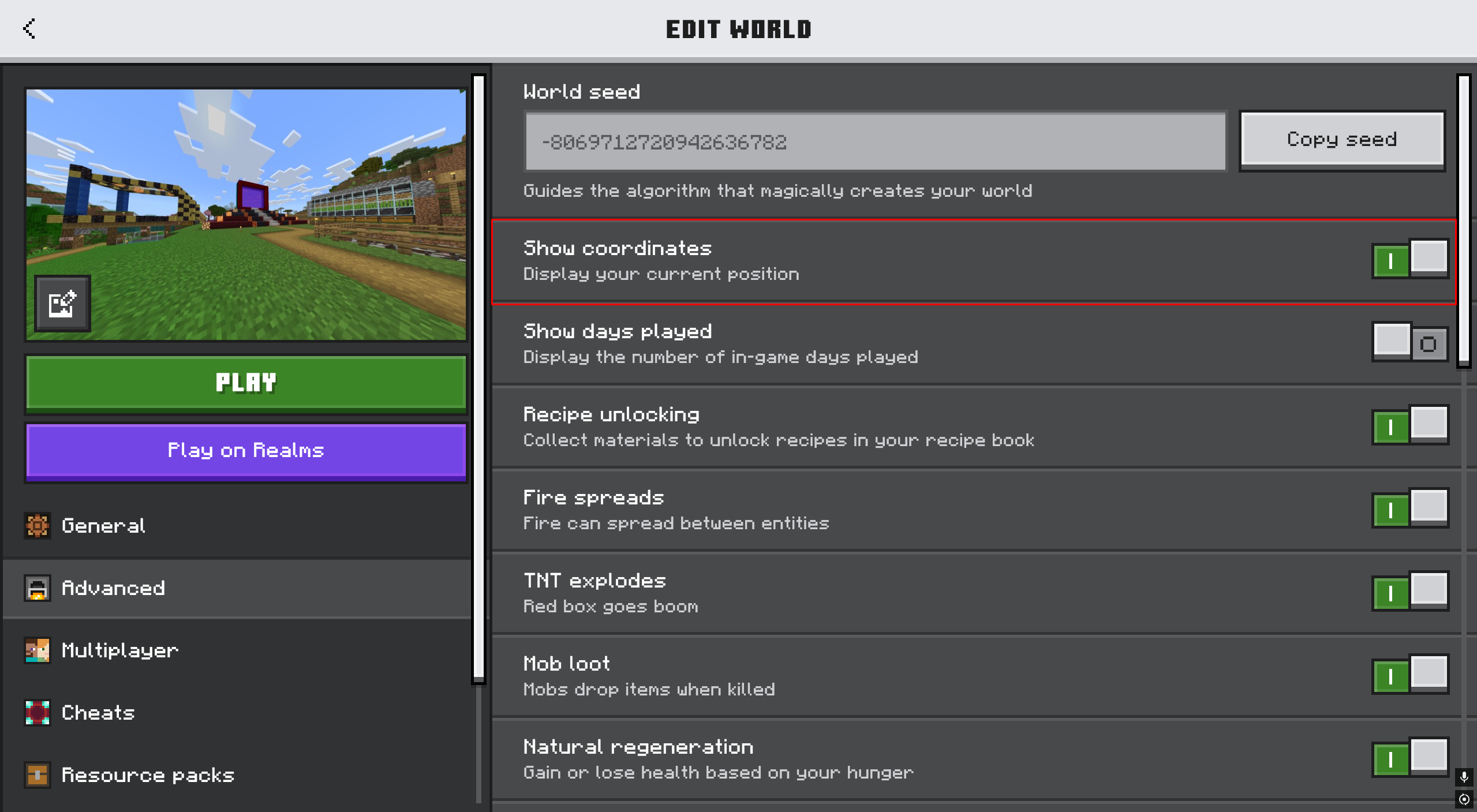
This process should work on any Bedrock Edition game, including PC, Xbox, PlayStation, or Nintendo Switch.
Knowing your coordinates is crucial as it’s how you properly use the teleport command.
Note: It’s a common misconception that the coordinates option is in the enable cheats menu. This is false.
What Is The Teleport Command (TP Command)
The teleport command allows you to teleport to a set of specific coordinates in your Minecraft world. And, since worlds are endless, that means you can teleport to pretty much anywhere. Just try to make sure you’re above sea level. Otherwise you’ll run out of air.
It’s also a command you can use to teleport to friends, the nearest player or to request someone to teleport to you. It’s really all in how you decide to use it.
How To Teleport To Coordinates In Minecraft
Here’s how to use the teleport command in Minecraft: Java Edition.
1. Press /
Start by pressing / on your keyboard. This will open the chat window. Note that you’ll need the Allow Commands option set to ON in your world settings. You can also be in Creative Mode.

2. Type the /tp Command
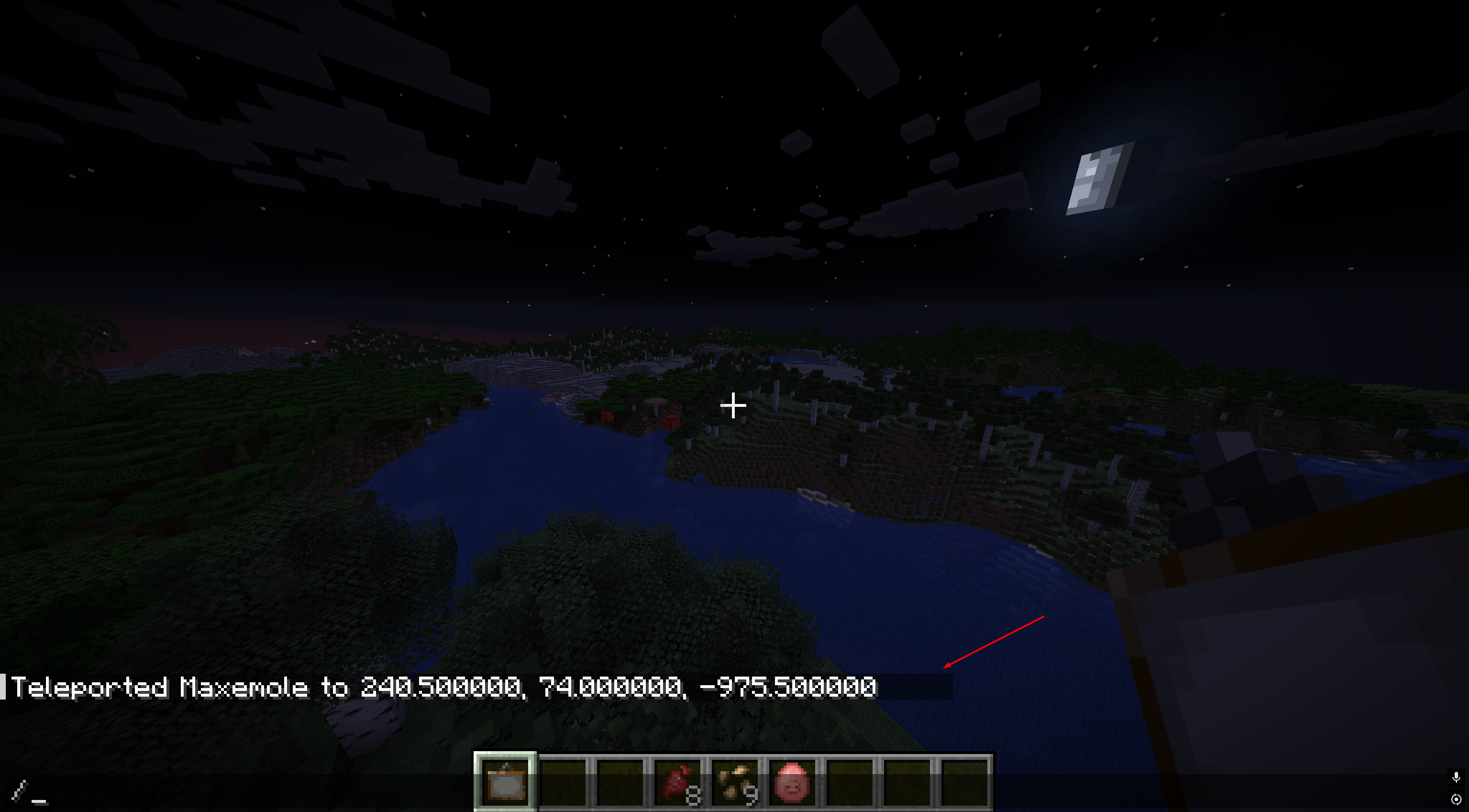
Next, type /tp, your username, and a set of coordinates. For example: “/tp Maxemole 240, 74, -976” without the quotes.

3. Teleport!
Once you’re sure the coordinates are correct, hit Enter, and you’ll be sent to the location. You’ll also receive a chat confirmation.
Here’s how to use the teleport command in Minecraft: Bedrock Edition.
1. Navigate to Cheats
You must enable cheats in your Minecraft Bedrock world to start. Do so by going to the edit world settings as before, but head to the Cheats section on the world’s left-hand side.
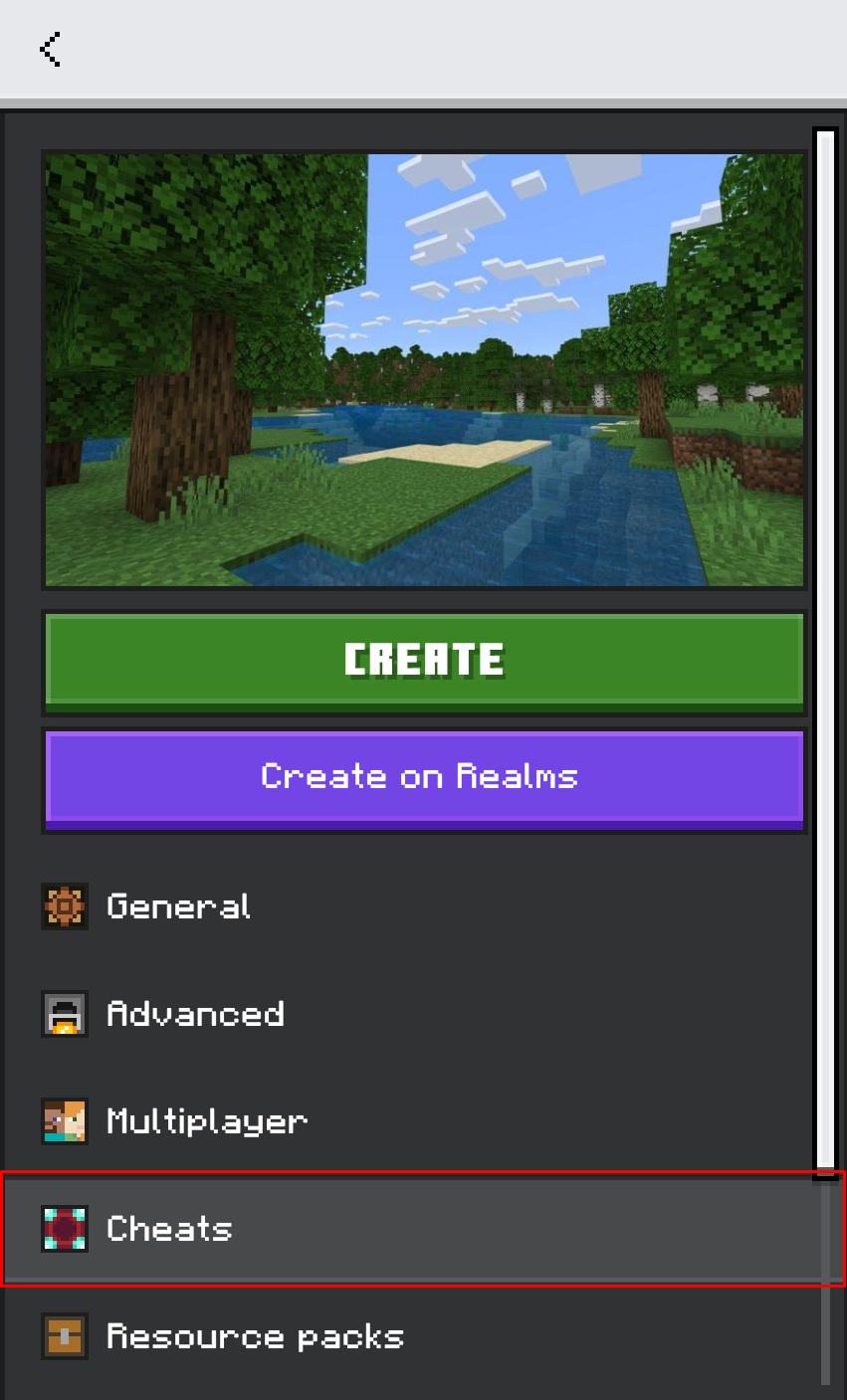
2. Enable Cheats
Click Enable Cheats. It should be the top option. Note that enabling these will remove your ability to earn achievements.
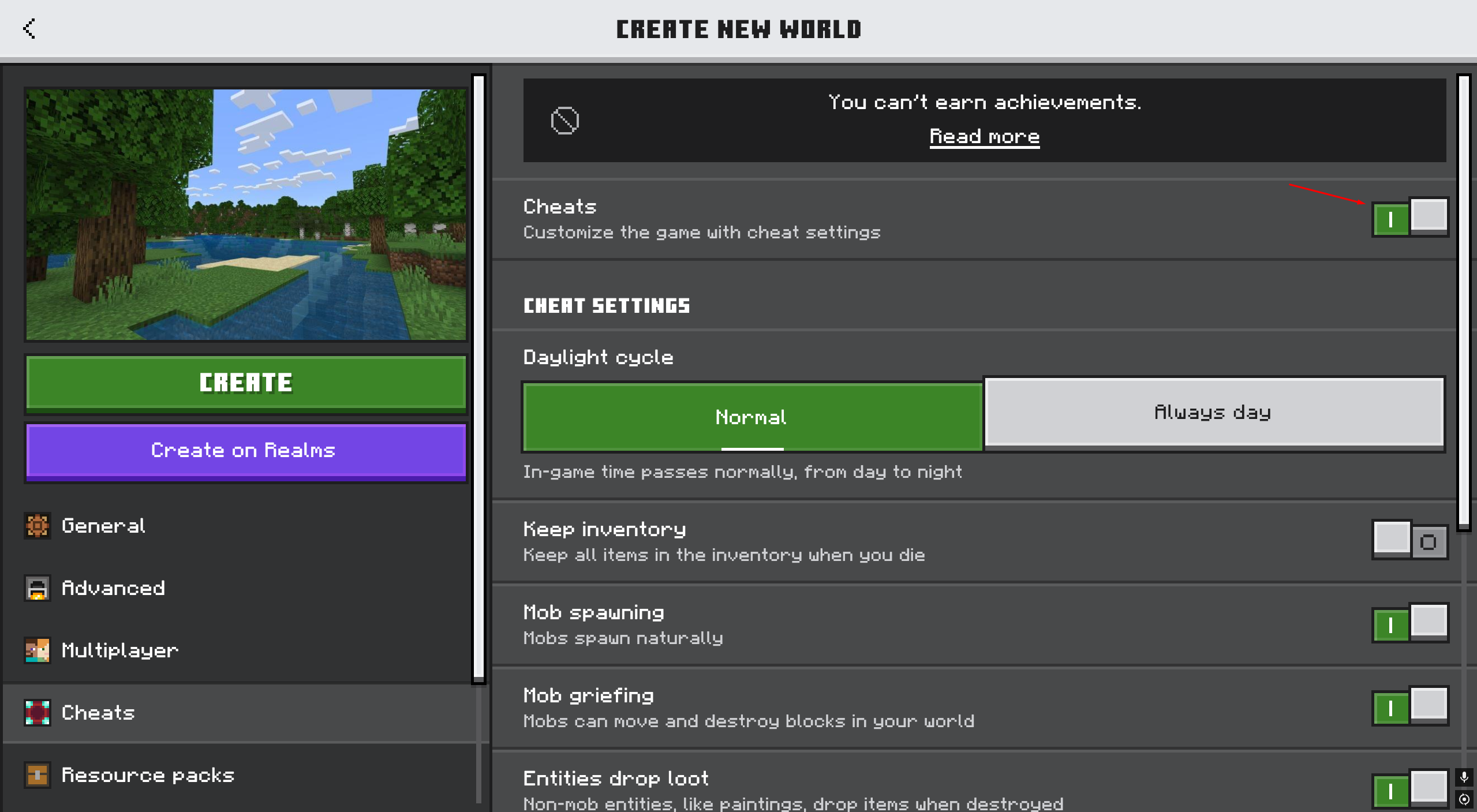
3. Use the Teleport Command
Once in your world, use the teleport command similar to how you would in Java Edition. Open the chat window, type /tp, your username, and a set of coordinates. You don’t need to use parenthesis in Bedrock.
For example, I would type the following command: “/tp Maxemole 82, 50, 987” without the quotation marks.
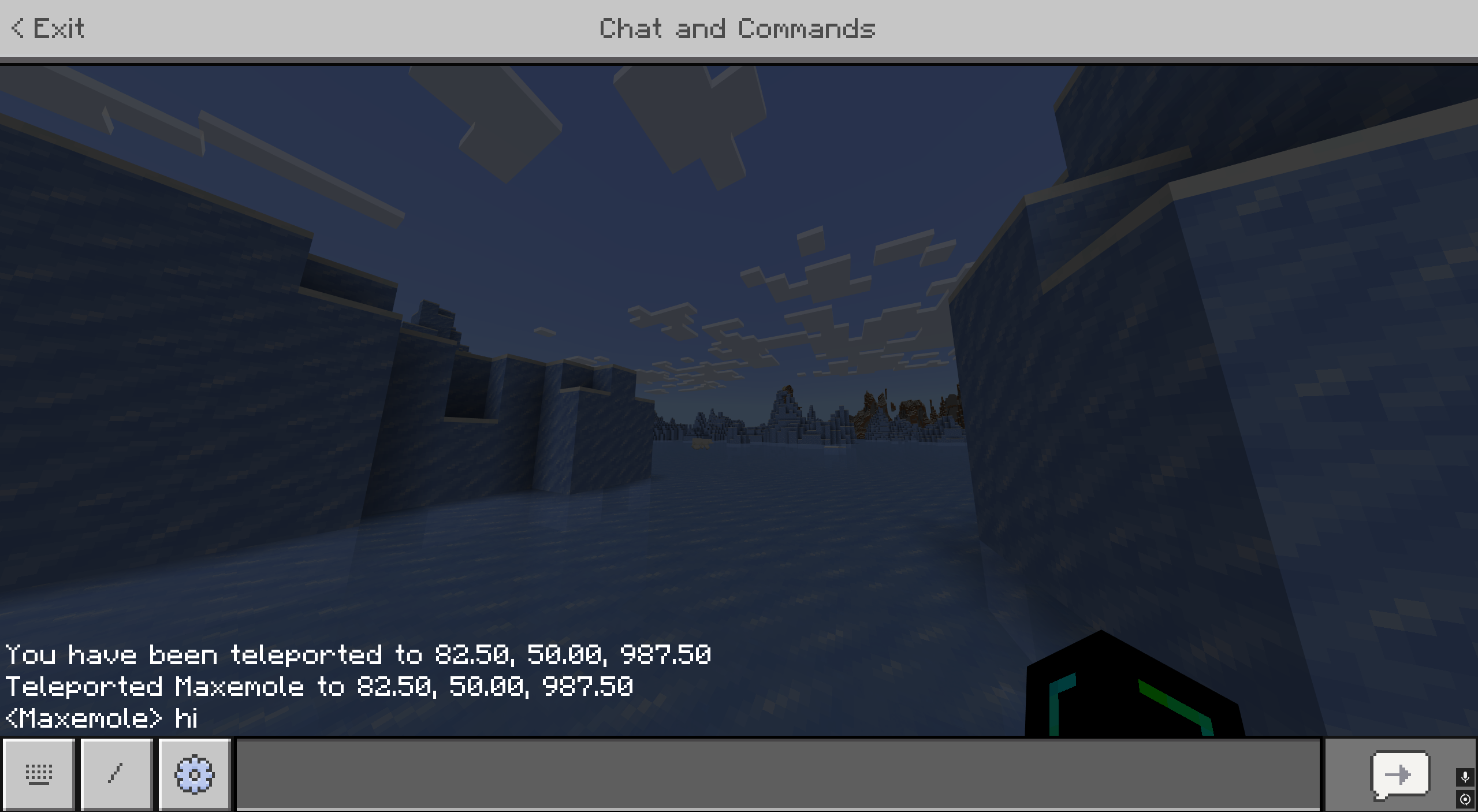
Once done, you’ll teleport to the location alongside a confirmation message.
Note: You can also use Command Blocks to activate the /tp command.
With all of these steps in mind, why not play Minecraft with some buddies to test out the teleport system?
If you’re looking to play Minecraft with your friends, check out NameHero for a comprehensive server solution.
Our servers offer support for up to 32 players, with built-in DDOS protection alongside comprehensive backups. For more information on getting a NameHero server, click here.
NameHero specializes in delivering some of the very best in gaming server tech without breaking the bank. Every Minecraft server comes with DDR4-3200 RAM, NVMe storage, AMD EPYC CPUs, and more!
Already have a server? That’s okay, come hang out with us on Discord!

Max is a freelance writer with a love for gaming and technology. He’s always looking for the next big game to play and tinkers with tech in his remaining free time.
Leave a Reply