
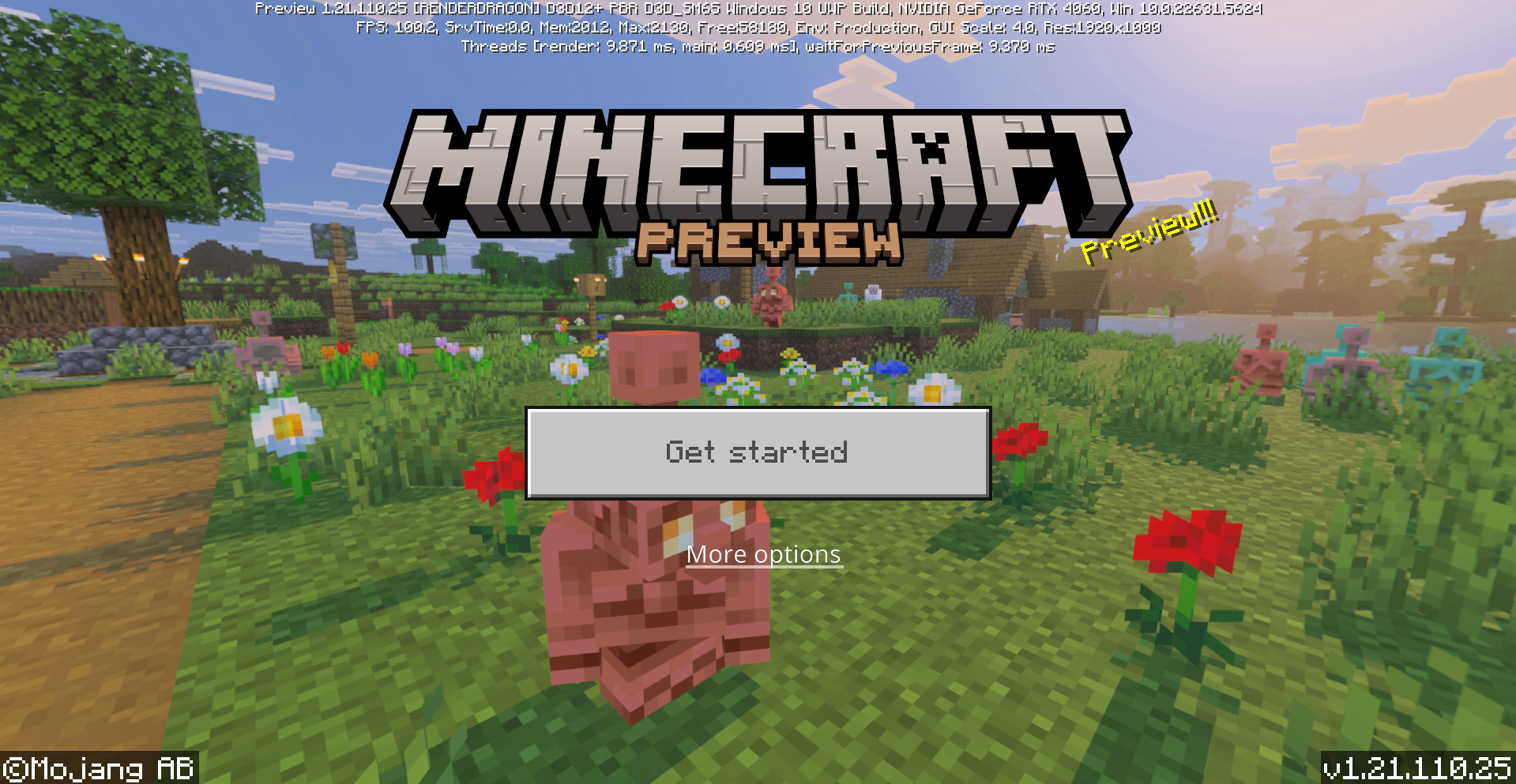
Over the years, Minecraft has come up with various ways to improve the game with new content and features. Players and fans have always anticipated these through teasers and sneak peeks. However, one of the best ways to get player feedback and hype up future updates is through Minecraft Preview, which offers a first look at what the game has in store for the future of Minecraft.
Unlike the main game itself, Minecraft Preview runs on its own, so you can explore experimental content without it affecting your currently saved worlds. Minecraft Preview is also quite accessible, being available on different platforms. As it’s kept as a separate installation, you can test new features to your heart’s content and see how features operate and work seamlessly.
If you’re curious to learn more about Minecraft Preview, then you’ve come to the right place. Our guide below covers the basics of Minecraft Preview, its difference from the Snapshots, features in the latest Preview, and even a guide to installing Minecraft Preview on your own.
What is the Minecraft Preview?
From the get-go, Minecraft Preview is a version of Minecraft that enables players to test features and provide feedback before its public release. Minecraft Preview is also called Minecraft Beta on Android, so there’s a Beta app that players can download. To get early access to upcoming features, you should install and launch Minecraft Preview.
Besides that basic information, you should know that Minecraft Preview isn’t limited to just testing out upcoming content for Minecraft. If you have Minecraft Realms for Minecraft: Bedrock Edition, you can start a Realm while using Preview. However, if you make a Minecraft Realm with Preview-exclusive content, you can only access this through the Preview version of Minecraft. Ensure that you and your friends stick to using Minecraft Preview to continue to play on it.
Moreover, as Minecraft Preview allows players to test features, you should expect to encounter issues and bugs. Preview has unstable builds that may or may not be finalized. Similarly, since Preview is a test environment, don’t expect technical support for issues. But you can still report bugs to the Mojang Bug Tracker and your feedback to Minecraft Feedback.
What’s the difference between Minecraft Beta/Preview and Snapshots?
So, you might also be wondering if there’s a difference between Minecraft Preview, Beta, and Snapshots. Well, there are some differences and similarities between them.
Mainly, Minecraft Preview is exclusive to the Bedrock Edition of Minecraft. It’s supported on the platforms of Android, iOS, PlayStation, and Windows 10 and up.
In terms of Minecraft Beta, this is what will replace your regular Minecraft app on Android, so you need to back up or transfer your worlds’ data to another Android device. For iOS devices, you need to sign up on the TestFlight app for spot to try a new version of Minecraft. Then, for PlayStation, you need to open your Minecraft app’s Settings and select “Preview” to get the Preview version of the game and download it.
For Minecraft: Java Edition Snapshots, these are Java Edition Preview versions of Minecraft.
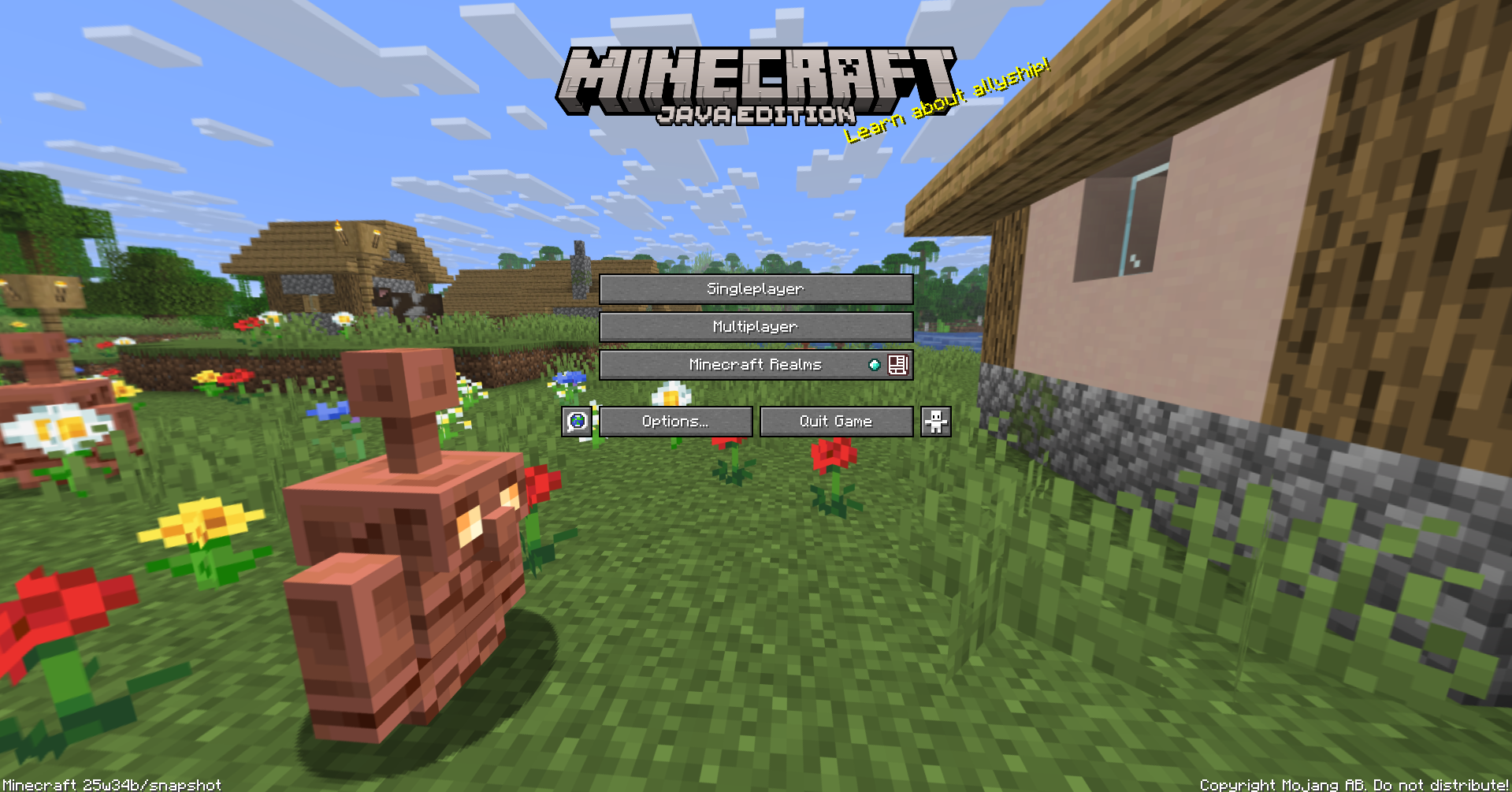
Just like Preview, you get to try working updates and future content that are set to be fully released. Like Preview, Snapshot content is not fully finished, so there will still be bugs and glitches.
New Features coming to Minecraft Preview 1.21.110.20
As you now know about Minecraft Preview and how it works, we can get to the actual Minecraft Preview 1.21.110.20. This release introduces some experimental content, gameplay adjustments, and other fixes that give players an exciting tease for the next Minecraft update.
Shelf
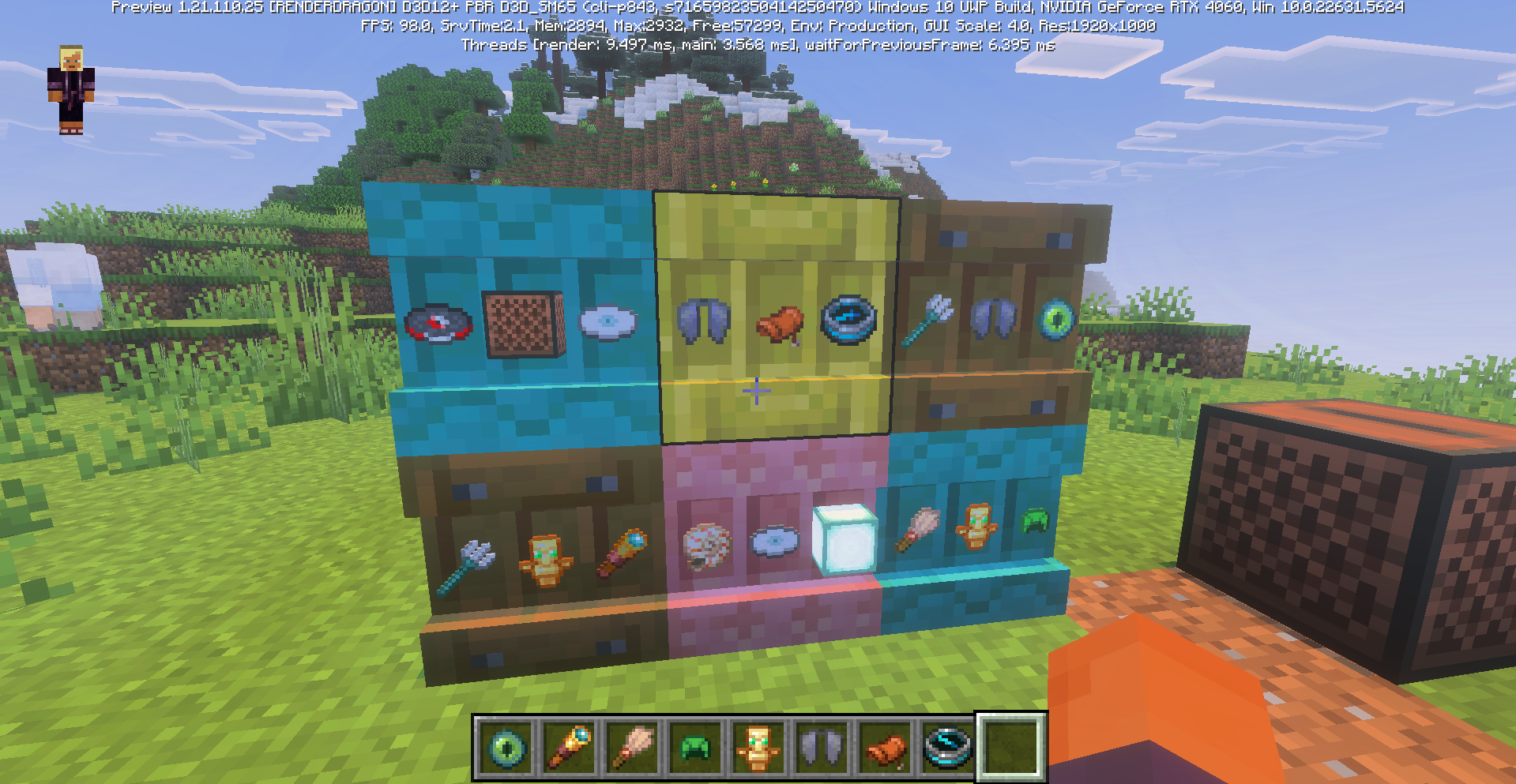
The Shelf is a new decorative block added to Minecraft. It comes in all the different wood variants. So, from Oak, Spruce, Birch, to Bamboo, Crimson, and Warped, there is a Shelf variant for your favorite type of wood.
You can use a Shelf to store up to three item stacks. And crafting it is pretty simple by combining 6 matching Stripped Logs, Stems, or Stripped Bamboo Blocks. This creates 6 Shelves per recipe. Additionally, you can link shelves together with the use of Redstone signals, which can allow you to swap Shelf contents with your hotbar items.
Copper
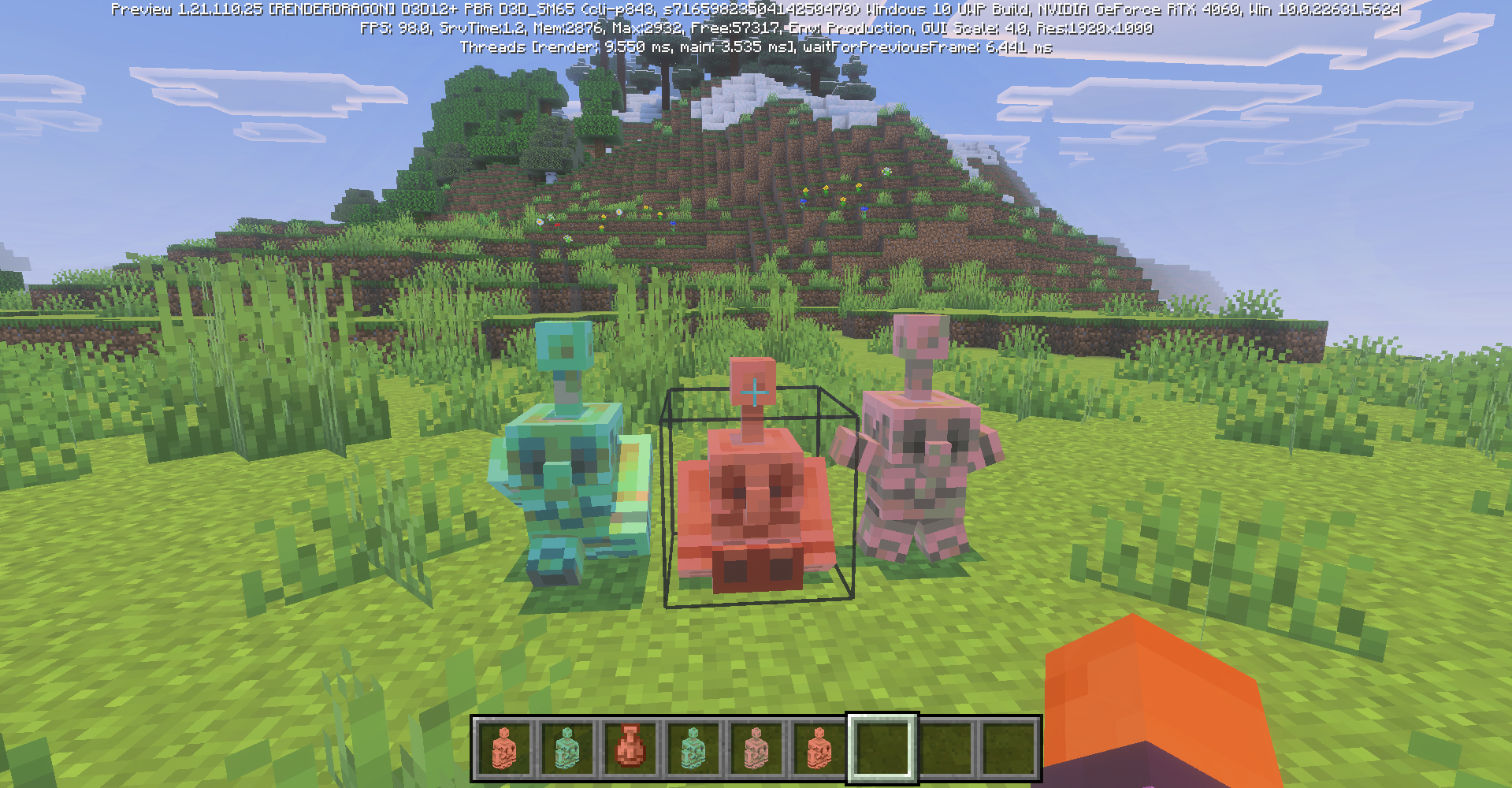
Next, there’s a huge update coming up for Copper. You can expect Copper Blocks to have an expansion in their utility, making them more than just a decorative block.
Copper Golem
The Copper Golem has more functionality. Once a Copper Golem fully oxidizes, it can transform into a Copper Golem Statue Block, freezing in a random pose. The Copper Golem will also keep its Name Tag name when frozen.
Besides that, if you interact with a Copper Golem with an empty hand, the Copper Golem will drop its items. Beyond that, the Copper Golem has also been updated to sort items more efficiently, taking into account differently named items of the same type together, considering item durability, bundles of the same-colored items, and the like.
Copper Golem Statue Block
When it comes to the Copper Golem Statue Block, it will come in both Waxed and Oxidized variants. You can change the post of the Statue Block by interacting with it. Plus, if you connect the Statue Block to a Redstone Comparator, the Copper Golem Statue Block will emit a Redstone signal based on its current pose.
Copper Equipment and Items
Then, for more features in line with Copper equipment and items, Copper Chests will have Copper Textures, and Double Copper Chests will have a groove at the front of their design. In terms of Copper Armor, hostile mobs can now spawn with Copper Armor equipped and even pick up and use Copper Weapons.
Accessibility, Block Updates, and Gameplay Bug Fixes
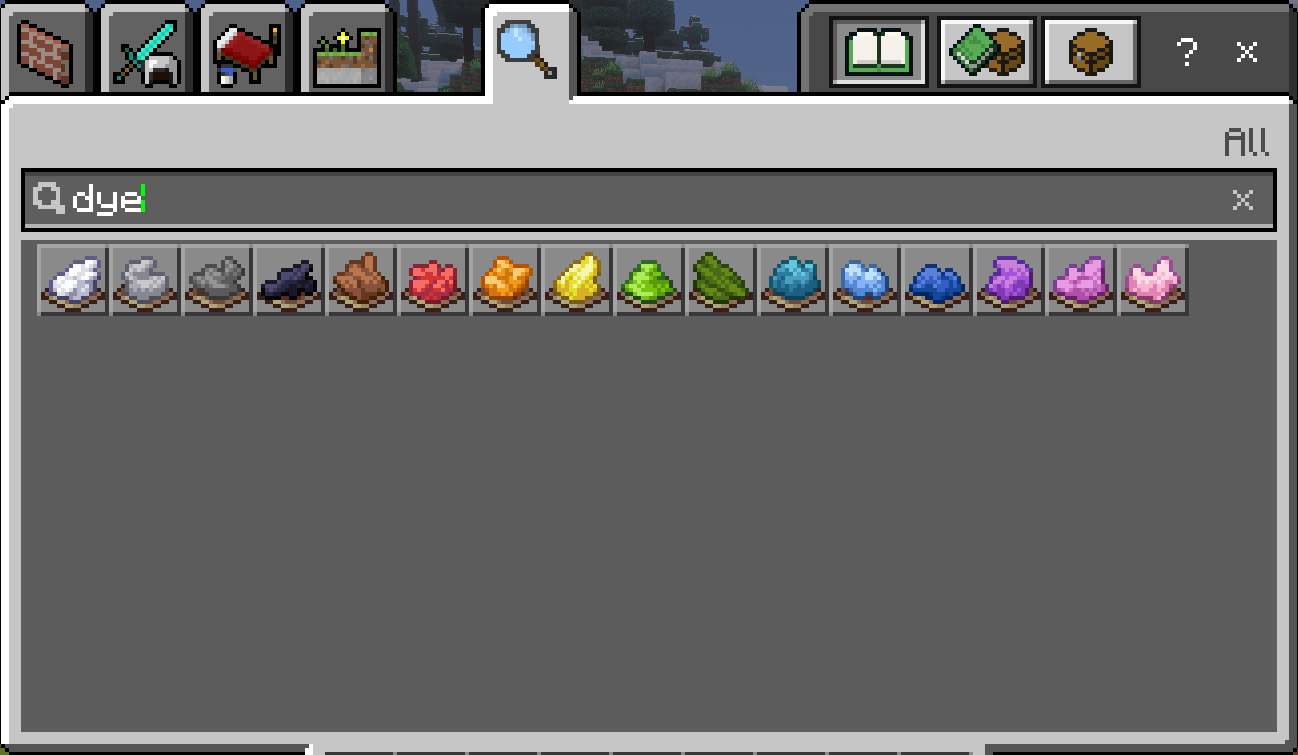
A main accessibility improvement in Minecraft is that dye colors now have updated icons that support colorblind accessibility and create visual cohesion in Minecraft’s interface.
When it comes to block updates, previously non-flammable blocks such as Glass Blocks and Wooden Stairs can now catch fire when exposed to Flint and Steel or fire explosions.
Plus, there’s also been a bug fix on Water being removed when placed on top of a Button or Lever.
Other Technical Enhancements
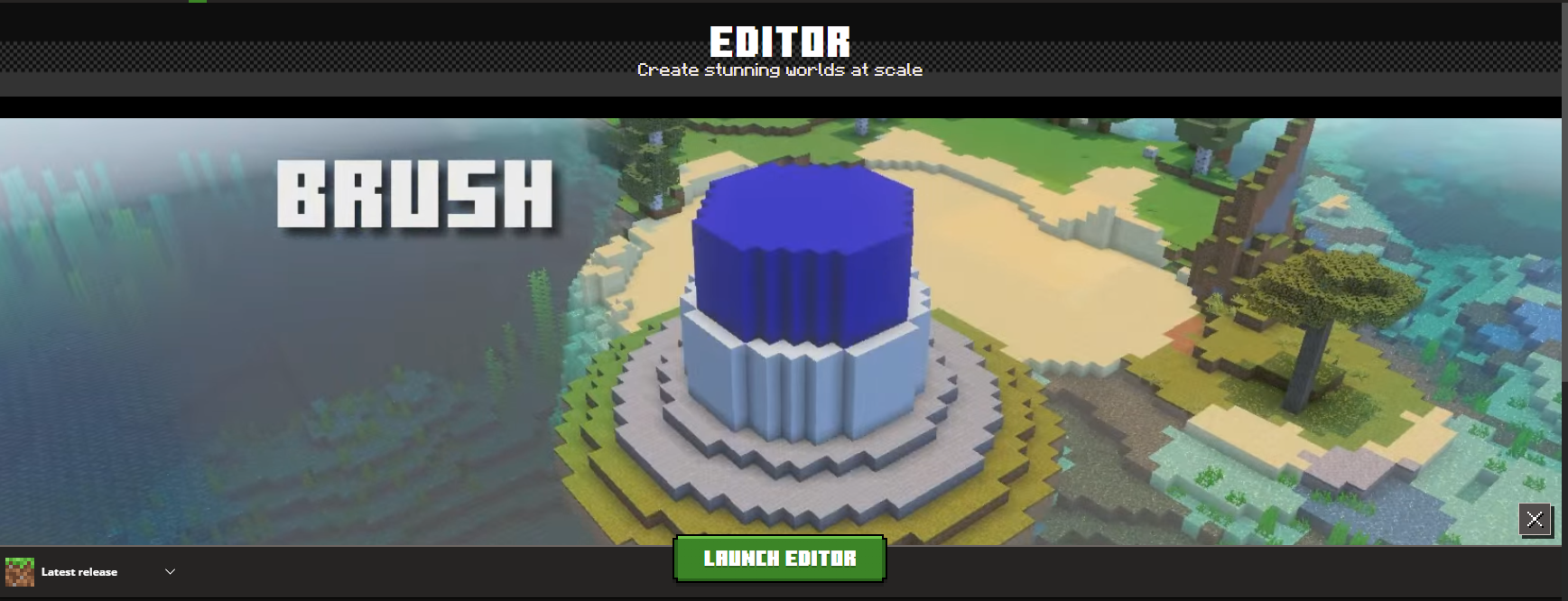
Other technical updates for the latest beta also include the Editor structures that can now export correctly, improvements on animation, graphical updates on Rain, Snow, Lightning, and Nether Portal Effects, and even particle rendering. On the user interface side of things, Minecraft Realms has an updated “Edit World” page and the option to switch between old and new designs. There will also be add-on and scripting API engine updates introduced, giving developers an improved modding and customization experience.
Overall, this latest release of the Minecraft Preview packs a mix of expanded Copper Mechanics, new blocks, and important fixes that improve the playing experience. You can find more details of the latest beta on the Minecraft Preview 1.21.110.20 community article on the official Minecraft website.
How do I install Minecraft Preview?
If all of these new features have you curious to try them out for yourself, we’ll be breaking down below how to get Minecraft Preview for various platforms.
Windows PC
For those on Windows PC, simply open the Microsoft Store and sign in with your account that’s linked to Minecraft.
Then search up “Minecraft Preview.”
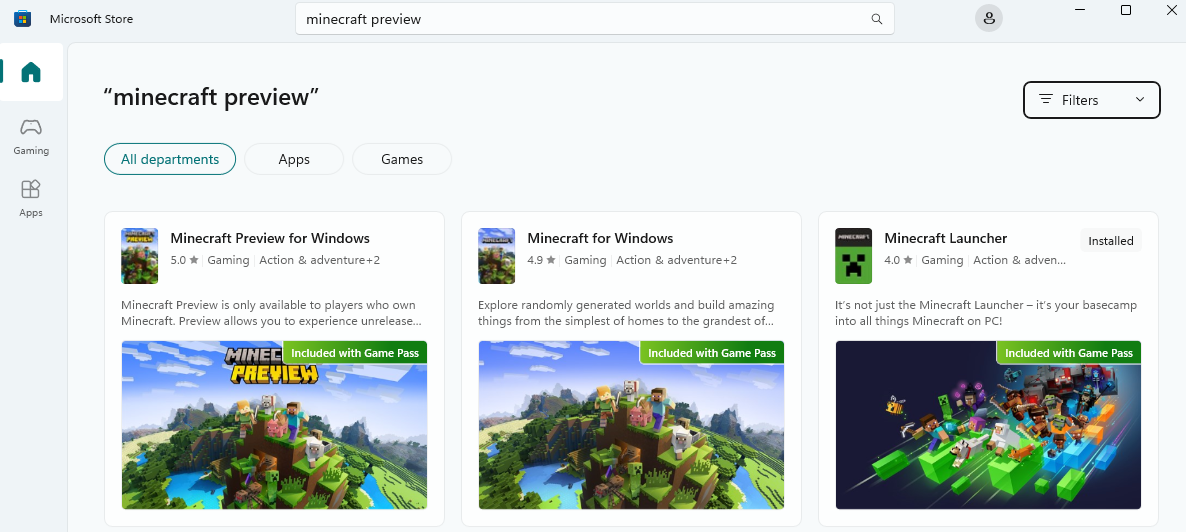
You can then click the “Get” button or the install button to download and install the game to your device.
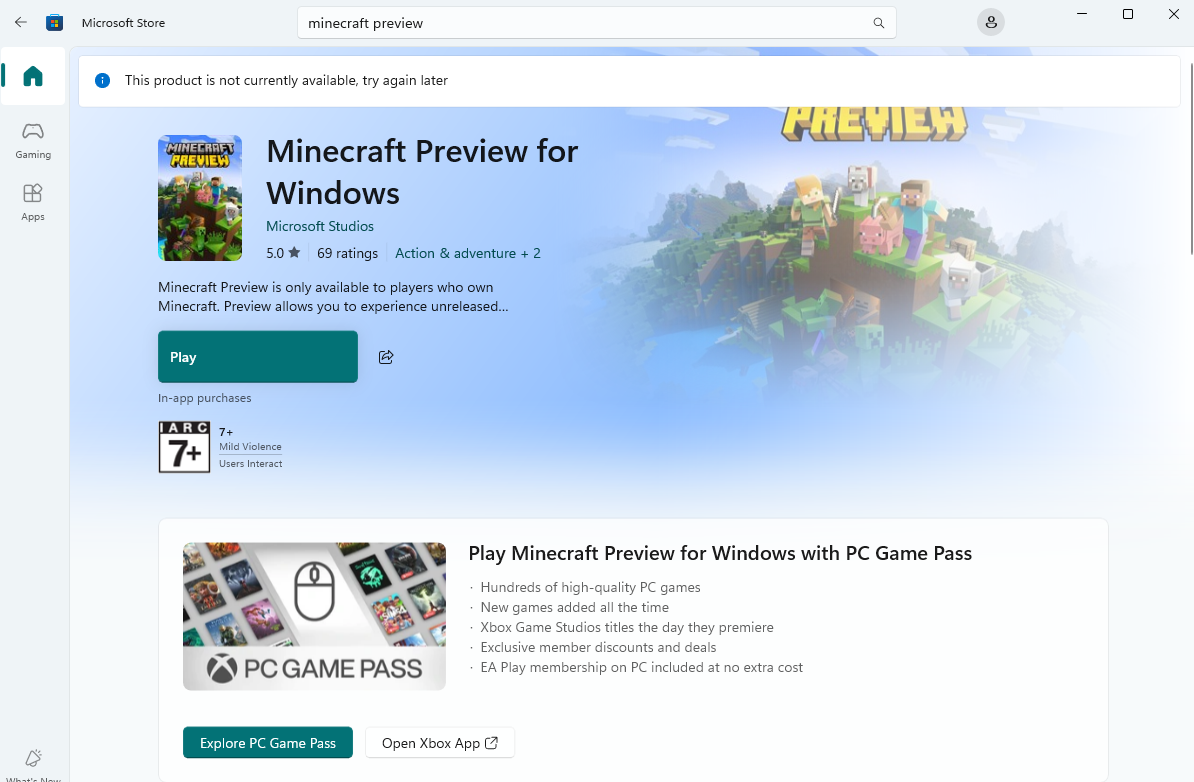
Afterwards, you can launch Minecraft Preview.
Minecraft Launcher
If you have the Minecraft Launcher already installed, though, the steps are a bit easier.
Simply open your Minecraft Launcher and head to the Minecraft: Bedrock Edition tab.
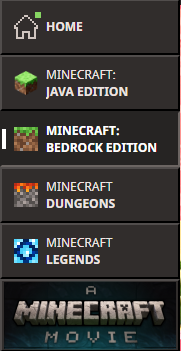
Click the dropdown that says “Latest release” and switch it to “Latest Preview.”
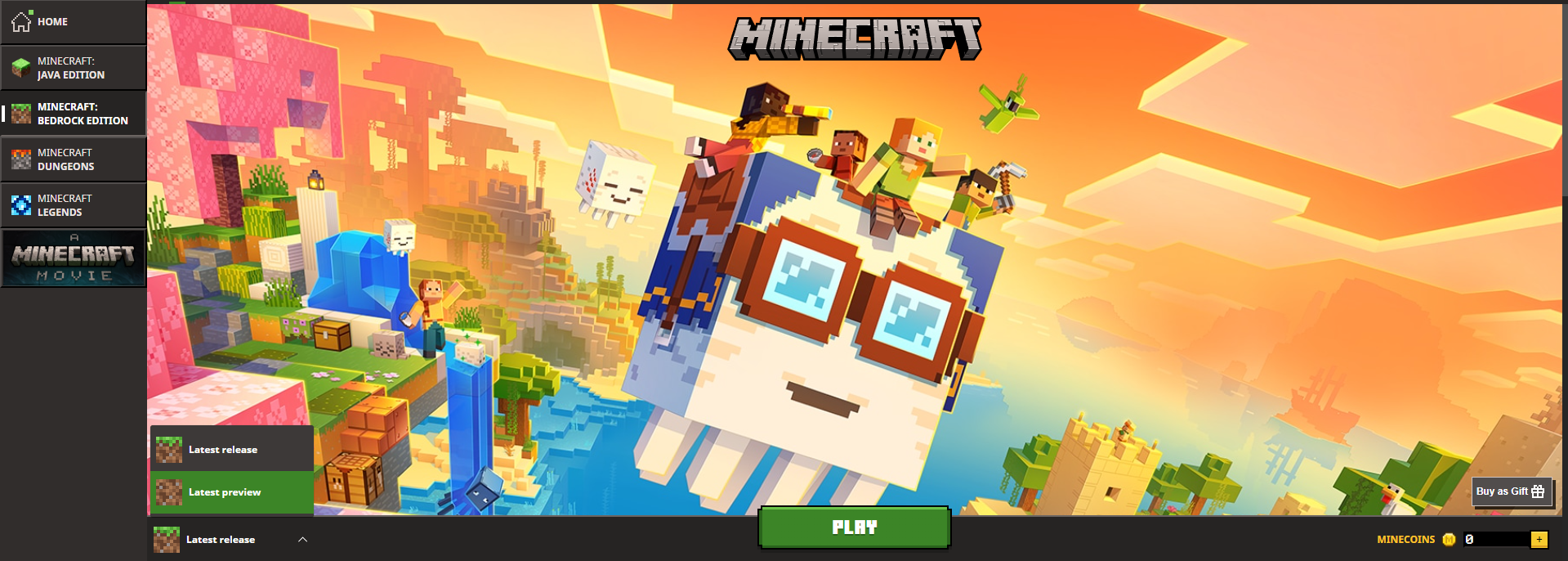
You can now install Minecraft Preview on your Minecraft Launcher.
Xbox
When using the Xbox app on PC or on your Xbox console, simply look for “Minecraft Preview” on the store and install the app.
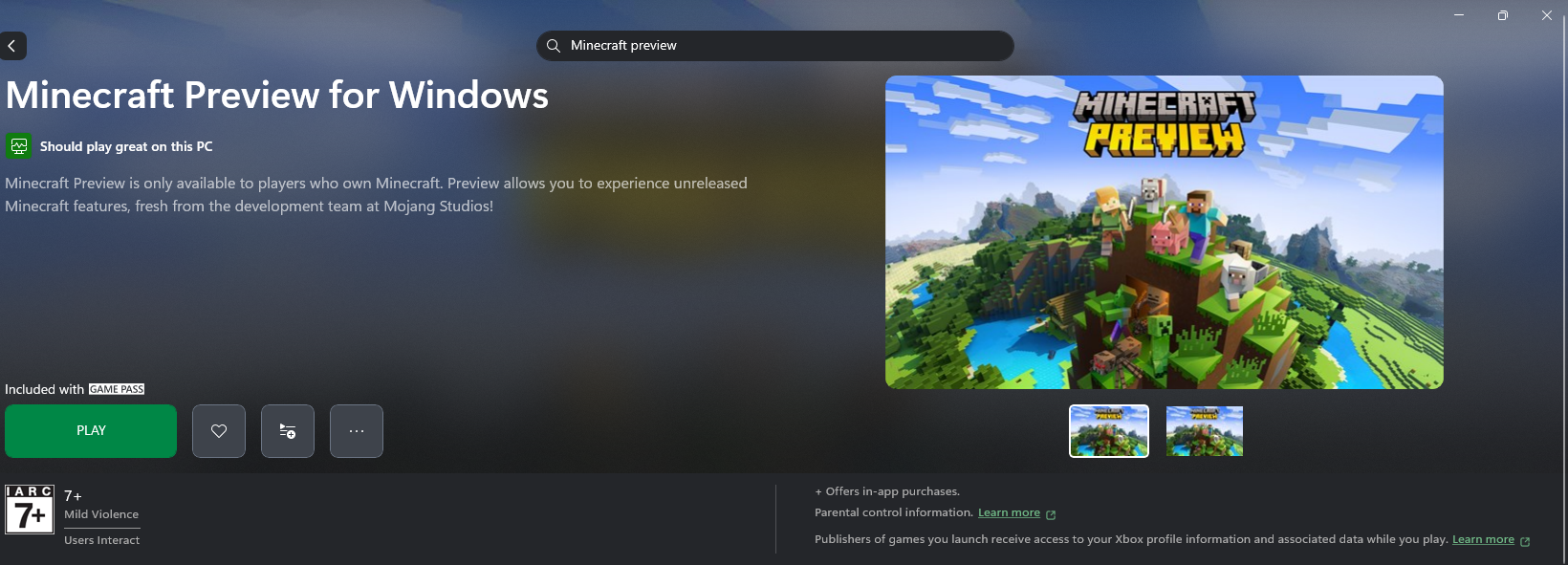
It should appear, and then you can download and install it.
Android
Earlier, we mentioned how you can install Minecraft Preview on Android, and this is through the Minecraft Beta app.
On Google, search for Minecraft Beta.
You’ll find a Google Play Store page link that invites you to join the Minecraft testing program and opt to join.
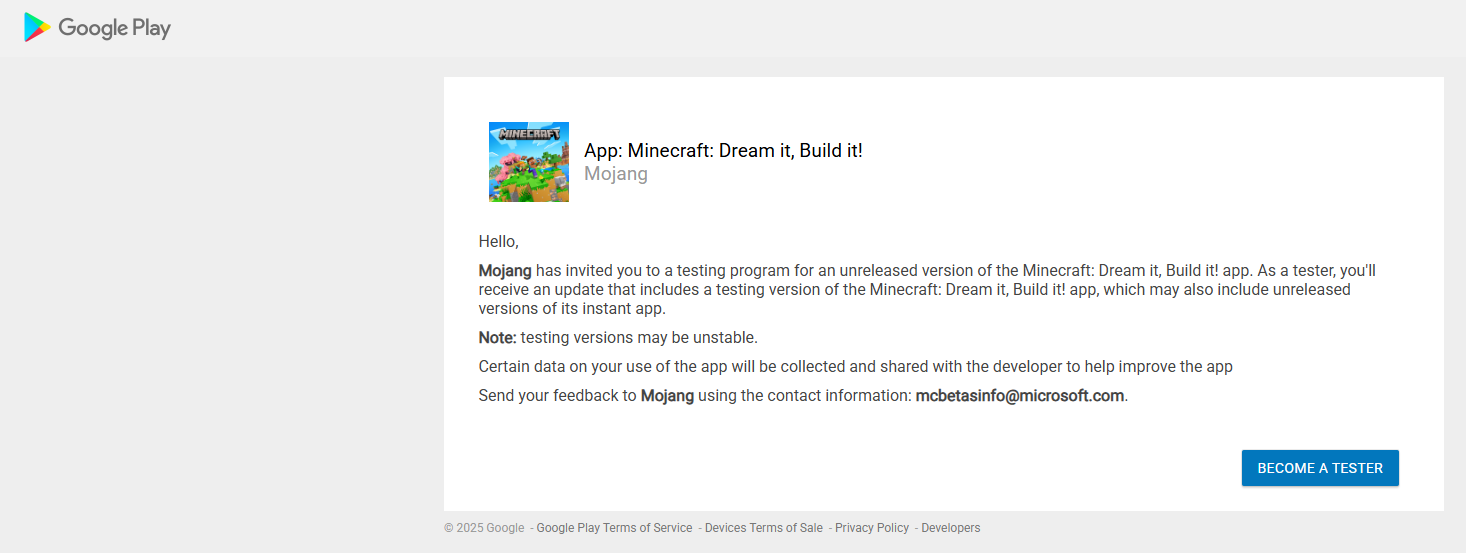
Once you’ve joined, you can install Minecraft on your device.
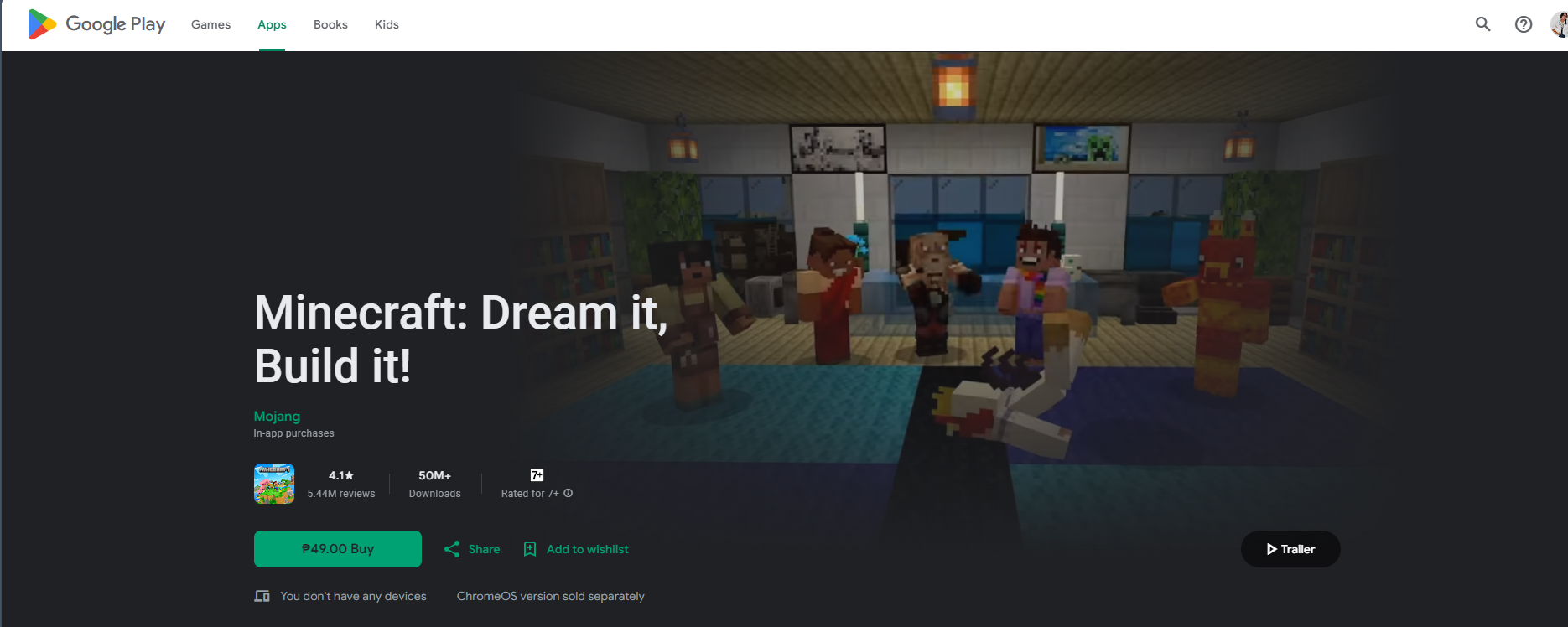
Once it finishes downloading, simply navigate around your home screen to launch the Minecraft Beta app.
iOS
Finally, for iOS users, installing Minecraft Preview is a bit trickier.
You’ll first have to sign up on the TestFlight sign-up page for a slot. Spots are limited, and you won’t always get a spot every time you apply. This example shows that slots for Minecraft Beta are full at the moment.
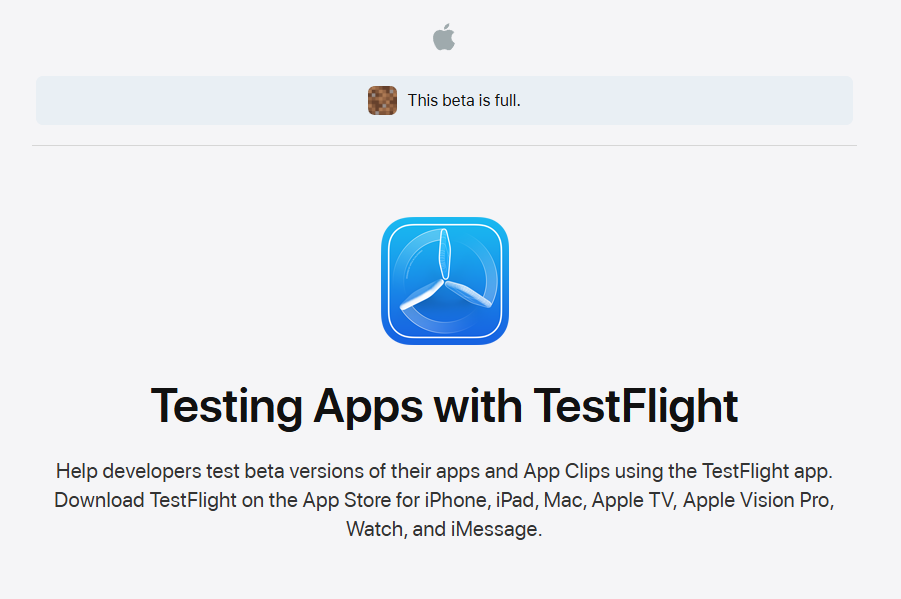
Afterwards, you’ll be emailed and possibly given access to an application’s build for you to test and try.
Minecraft Preview brings in a sneak peek of content for Minecraft players, encouraging excitement and anticipation for Minecraft’s developments as a game. This most recent Preview expands Copper’s mechanics, introduces Shelves, and offers updates that make Minecraft sessions more seamless.
If you haven’t tried Minecraft Preview yet, now’s a great time to jump in and try it. Minecraft Preview offers hands-on ways to experience new content and for players to let the developers know if the content can work with the game, which will improve Minecraft’s future updates.

Renee is a freelance writer with a passion for gaming and pop culture content. While she mainly writes about games, she also does graphic design and illustration work from time to time. With a passion for the creative arts, she blends her skills to tell stories across various mediums.
Leave a Reply