
Minecraft errors are incredibly frustrating to fix. There are so many of them, and few have consistent reasoning. You might suffer a connection error or struggle with needing to port forward an IP address, amongst other computer problems.
It can be annoying, but fortunately there are online guides for these errors so you aren’t entirely alone. Just like this one!
This guide will focus on the getsockopt error in Minecraft. We’ll go over what it is, why you might be suffering from it, and a few solutions when it comes to fixing so you can go back to playing your game.
Updated 8/15/2025
Prefer To Watch Instead Of Read? Check Out Our New Video!
What Is The Getsockopt Minecraft Error?
The Minecraft getsockopt error is a connection error, otherwise known as a connection timed out error. It’s what happens when you cannot connect to a game server or a local area connection (LAN), for whatever reason.
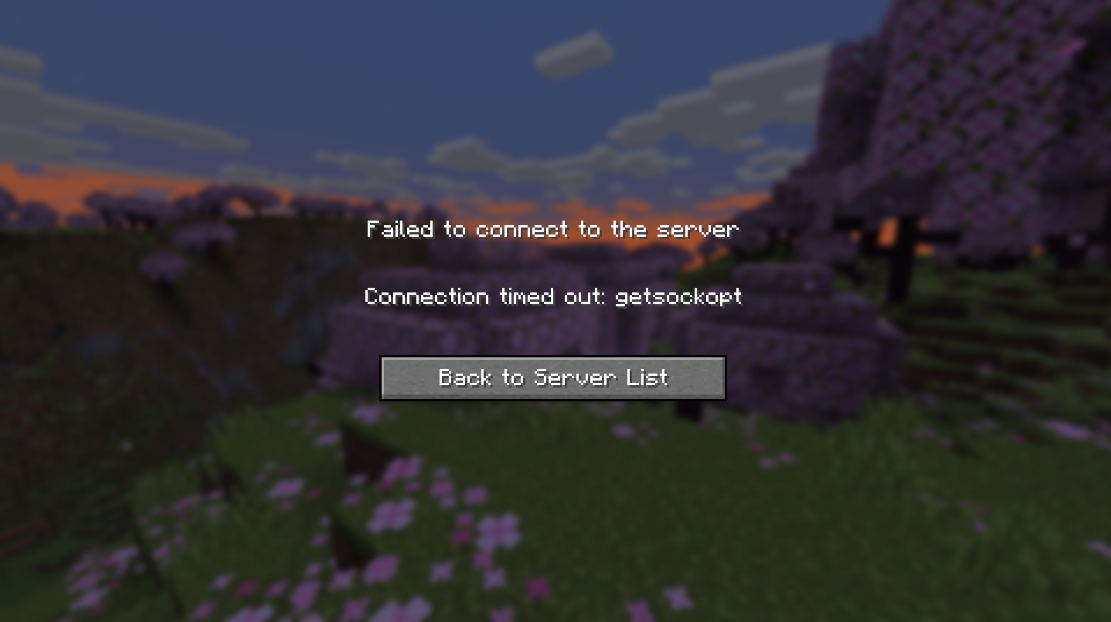
Know that this shouldn’t be a mod issue, or having anything to do with a game installation. You could always try restarting your PC or reinstalling Minecraft — after backing up your worlds of course — but those solutions are unlikely to help. Instead, you’ll need to adjust your connection settings, blocked Firewall settings, and other ip-related issues to join your buddies online.
If you’re experiencing this network issue, let’s go over a few processes to help you out.
Deactivate (Or Allow Through) Windows Firewall
To start, your Firewall may have blocked access to the server’s IP address. While network protection is always good, it’s standing in your way here.
There are two ways around this. Allowing Minecraft through your Firewall or deactivating your Windows Firewall entirely — even if it’s only while you play Minecraft.
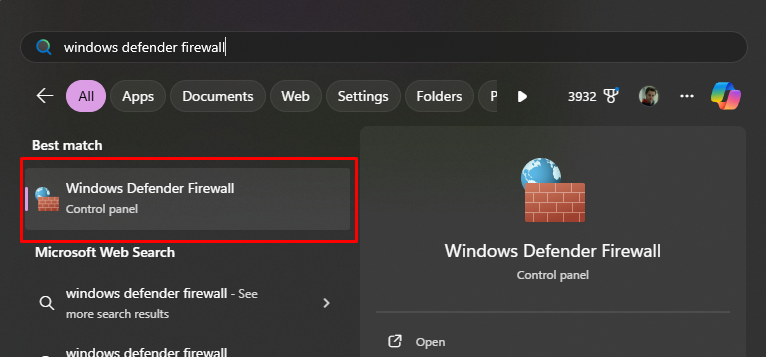
1. Search for Windows Defender Firewall
Search for Windows Defender Firewall via your PC’s search bar. Then, click on the Control Panel option that appears.
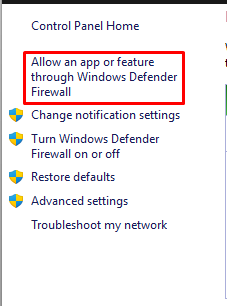
2. Allow an App Through
On the Control Panel’s left-hand side, select Allow an app or feature through Windows Defender Firewall.
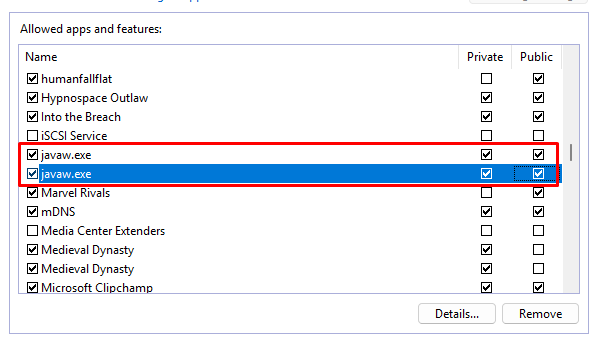
3. Check Java-Related Boxes
Now, click on the Change Settings option to allow yourself to adjust the software.
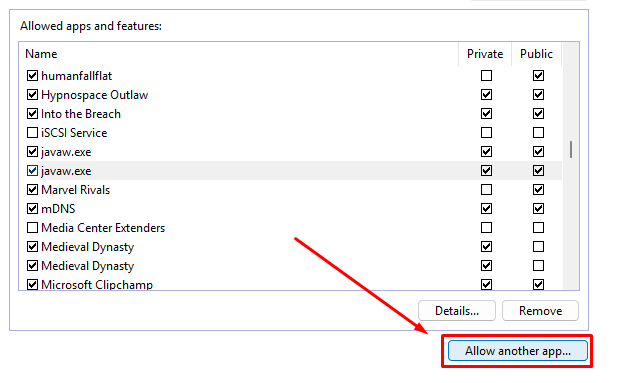
Find any option that reads Java, such as Javaw.exe or Java Platform SE Binary. Then, check the box under both the Private and the Public columns next to any Java-related software.
4. Allow Minecraft
If you’re not seeing Minecraft on that list, click on the Allow another app button.
5. Click Browse
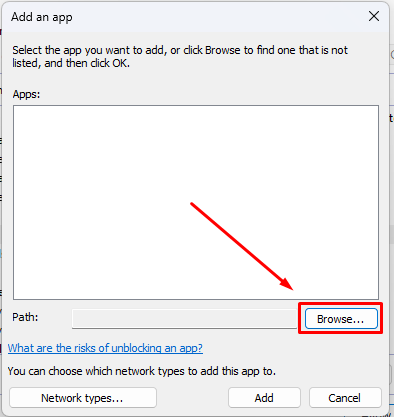
Click on the Browse button in the pop-up menu.
6. Locate Minecraft
Find Minecraft as well as the Minecraft Launcher to allow them through your computer’s Firewall.
Once you’ve listed the software, click Add.
Now, try to join the server once again. If that doesn’t work, you can try disabling your Firewall entirely.
1. Turn the Firewall Off
Note: This process can be dangerous. Turning off your Firewall means opening your PC to threats while you browse online.
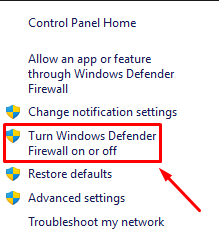
On the left-hand menu, the same one from step 2 in the previous process, select Turn Windows Defender Firewall on or off.
2. Select Turn Off
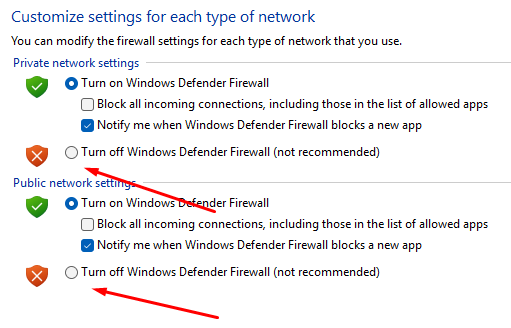
Select the two circles that read Turn off Windows Defender Firewall (not recommended). Then, click OK.If you do this, be careful where you choose to browse afterward.
Should this work and allow you to connect to a Minecraft server, we highly recommend you turn your Firewall back on after playing. It may be frustrating to do this process over and over again, but at least you won’t get the getsockopt error anymore.
That said, if this process didn’t work either, here’s another one to try.
Change Your DNS To 8.8.8.8
Changing your DNS server allows your internet connection to be faster and have more security, as you’re connecting to Google’s domain name service. This is a public service that anyone can utilize, and we’ll show you how to connect to it. This will hopefully fix your server connection failed issue.
1. Open Control Panel
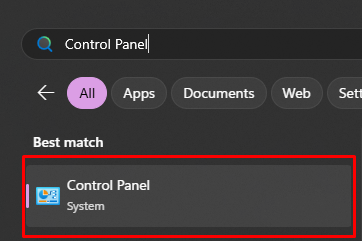
Open the Start menu and type Control Panel. Click on the App.
2. Click Network and Internet
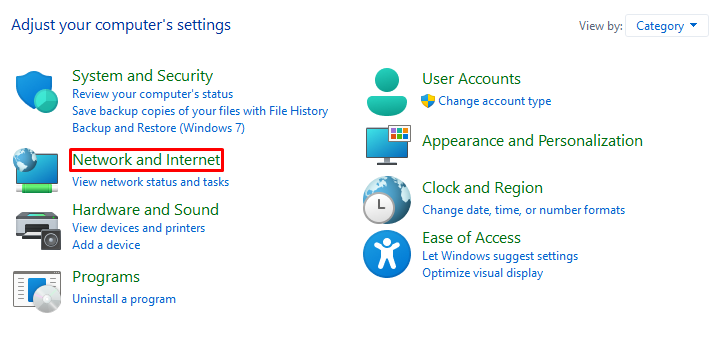
Click on Network and Internet to access those settings.
3. Select Change Adapter Settings
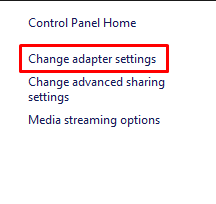
Click Network and Sharing Center, then select Change Adapter Settings on the left-hand sidebar.
4. Click Properties
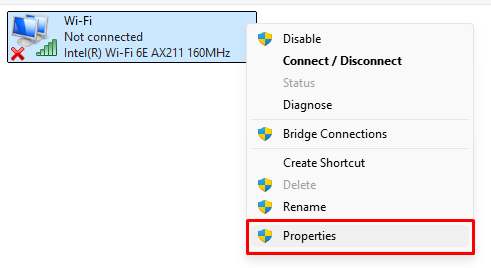
Right-click your Ethernet or Wi-Fi connection and select Properties.
5. Select TCP/IPv4 Properties
Select your TCP/IPv4 connection in the list, then click Properties.
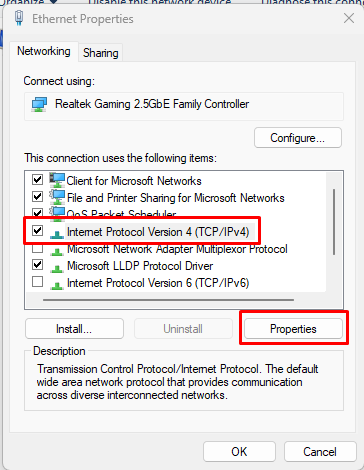
6. Input the DNS Change
Select “Use the following DNS server addresses” and type 8.8.8.8 in the first box and 8.8.4.4 in the second. That second address is another high-profile DNS connection from Google, so it should solve the same problem.
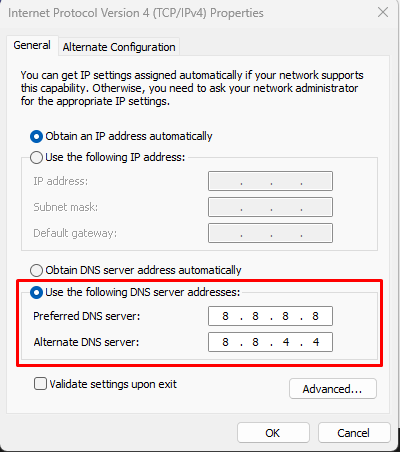
Then, click OK.
You may want to restart your computer after this, but hopefully it helps.
If none of these options work, but you’re trying to connect to a friend’s server, they can try port forwarding their router.
We have a guide on port forwarding a Minecraft server, so check that out if you’re trying to fix the getsockopt error.
If none of these solutions worked, try filing a ticket with Mojang Studios’ support team for more assistance. They have certainly tested and reported on all kinds of issues like this. You can also make a post on their bug report page.
Trying to mitigate these issues so you can get back to playing the game? NameHero has you covered.
If you’re looking to play Minecraft with your friends, check out NameHero for a comprehensive server solution.
Our servers offer support for up to 32 players, with built-in DDOS protection alongside comprehensive backups. For more information on getting a NameHero server, click here.
NameHero specializes in delivering some of the very best in gaming server tech without breaking the bank. Every Minecraft server comes with DDR4-3200 RAM, NVMe storage, AMD EPYC CPUs, and more!
Already have a server? That’s okay, come hang out with us on Discord!

Max is a freelance writer with a love for gaming and technology. He’s always looking for the next big game to play and tinkers with tech in his remaining free time.
Nice breakdown of a frustrating issue. Changing the DNS to 8.8.8.8 was the trick that worked for me when everything else failed—worth trying if firewall tweaks don’t help.
Hi.
Thanks for the post, it really helped. The one that worked for me was changing the DNS and restarting the pc. =)
thanks, this helped, really aprreciate it. You also have a good taste in games, Hypnospace Outlaw is one of my favourites of all time
everything i do is not working
Hello. Is this happening when you try to connect to any server or a specific one?
for me yes, it only on my own server. but my other friend can join
im also still having this problem, only on hypixel, i can join other servers normally
If I did the 8888 8844 solution and it worked, do I still have to have my firework off or can I turn it on while playing?
Great guide! I’ve been struggling with this error for days, and your steps finally helped me fix it. Thanks a lot!
what do I do if my computer keeps saying I don’t have permission from the addmin to add Minecraft into the windows defender firewall? It won’t allow no matter what I do.