

Running a Minecraft server requires all sorts of work. From managing server hardware to building new structures for players to explore, there’s always something to improve — and that’s just if you’re paying to host a server.
If you’re looking to run a server from your own PC, you’ll have to manage another process: port forwarding.
Port forwarding is one of the only ways other players can access your locally hosted server.
This guide will cover the basics of port forwarding, as well as how to port forward a Minecraft server.
- Prefer To Watch Instead Of Read? Check Out Our New Video!
- What Is A Port?
- What Is Port Forwarding?
- How To Port Forward A Minecraft Server
- Allow A Server Port Through Your Firewall
- Come Hang Or Give NameHero Game Servers A Try!
Updated 5/1/2025
Prefer To Watch Instead Of Read? Check Out Our New Video!
What Is A Port?
Before we get into port forwarding, let’s define a port.
In networking, a port is how a device sends and receives information.
When receiving or sending information, a computer assigns each piece of info a port number ranging from 0 to 65,535.
Some ports are assigned to specific tasks, like port 443, which tells your computer how to process HTTPS (hypertext transfer protocol secure) information.
HTTPS is the protocol that unencrypts secure websites.
What Is Port Forwarding?
When creating a local Minecraft server from your own PC, you’re creating a private local area network through your router (or gateway) in which other devices can connect — assuming they’re connected to your Wi-Fi, of course.
However, when creating Minecraft servers for players outside of your local network, such as a friend who lives across town, you’ll need to set up some port forwarding.
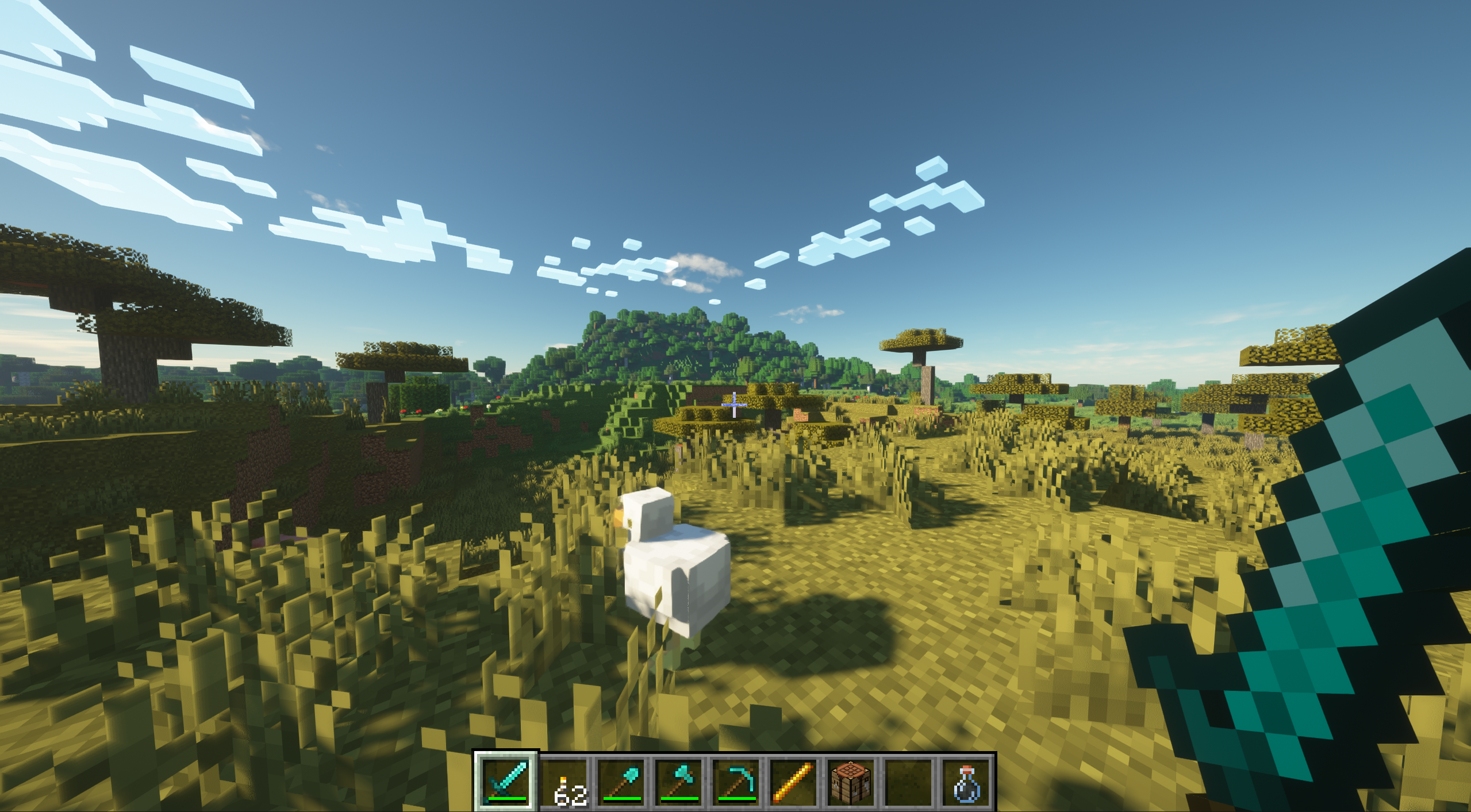
Port forwarding involves assigning a port on your router that’s open to outside connections.
From there, users with specific network information can connect to it at any time, making your Minecraft server open to anyone you choose.
How To Port Forward A Minecraft Server
You must first find your router’s IP address to start the port forwarding process.
Here are two ways to find your router’s IP address on Windows.
Note: For this process to work, you must set up a static IP address. A static IP address prevents your IP address from changing every time your device reconnects to your router. You can usually create a static IP address through your router settings.
Find your router’s IP address on Windows Through Command Prompt
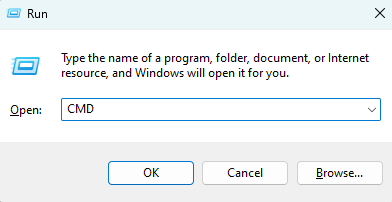
1. Open Run
Open Run by pressing Windows Key + R. Then, type CMD into the bar and press Enter. This will open your command prompt.
2. Type Ipconfig
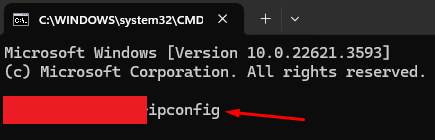
Input Ipconfig into your command prompt and press Enter.
3. Find Default Gateway
Find the Default Gateway list item and note the IP address.

Find your router’s IP address in System Settings
1. Open Settings
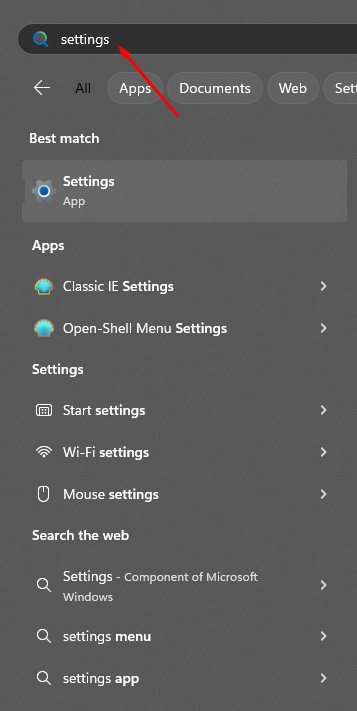
Open your Windows Settings by clicking the Start button on your taskbar and entering Settings in the search bar.
Then, select the Settings app.
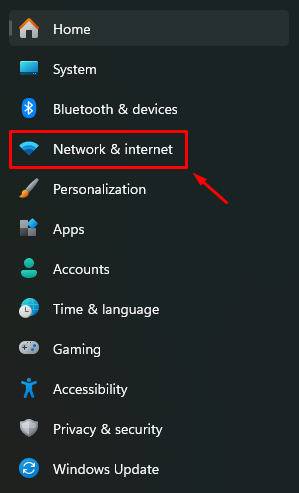
2. Select Network & Internet
Select Network & Internet from the settings list.
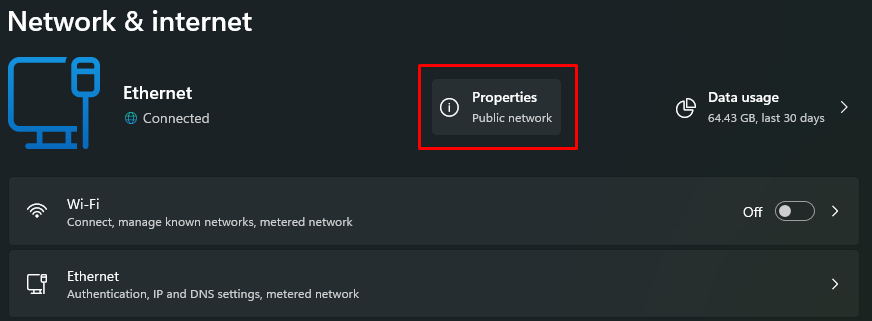
3. Select Properties
Click the Properties option under the Network & Internet header.
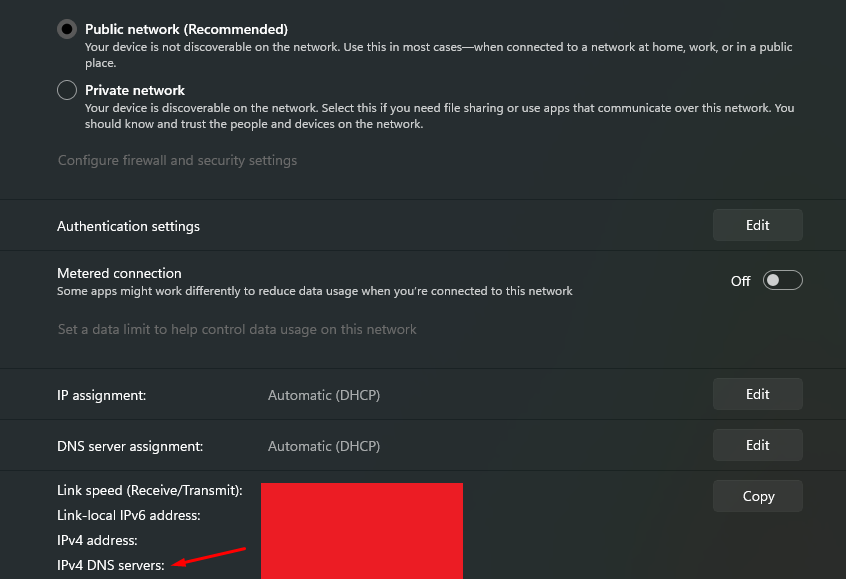
4. Find your IPv4 DNS address
Find your router IP address next to the IPv4 DNS servers list item. It should be right next to the normal IVv4 address list item.
Computers often have multiple local IP address types, but you only need this item for our current task.
Log into your router
Now that you know your IP address, it’s time to log into your router to start the port forwarding process.
1. Enter your IP address in your browser’s address bar
Open your browser and enter your IP address in its address bar. Then hit enter.
You should be taken to your router’s login page.
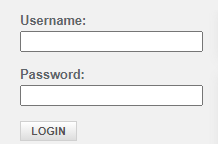
Log into your router with its username and password.
If you haven’t logged into your router before, you can typically find its username and password at the bottom of the device.
Note: If the Default Gateway address generates an error, try your normal IPv4 IP address instead.
2. Find your port forwarding settings
Navigate to your port forwarding settings page.
The router in this guide has them under the Advanced tab.
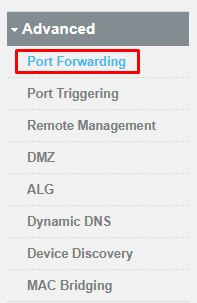
3. Set up port forwarding
While every router will have a different port forward setup process, they should all include sections for your IPv4 address and port settings.
Before entering any information, make sure your service type includes TCP and UDP.
Some routers may require you to follow this process once for each service type, but this router allows for both at once.
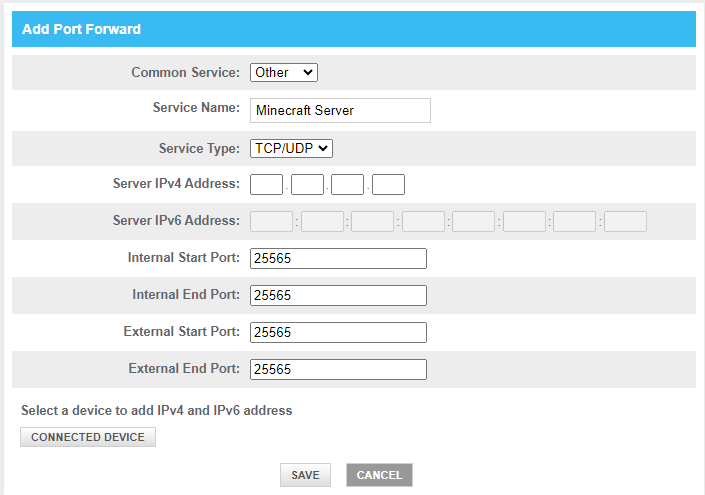
Input your IP address from before, and put 25565 in for your port number. This is the default Minecraft port number.
If you changed your server’s port number during the Minecraft server setup process, you must go into your server properties and find it or switch it back to the default port number.
Click Save.
4. Reboot your router
Reboot your router and your Minecraft server. Most routers reset after only a few seconds.
Now, you can share your IP address with friends, and they should be able to access your Minecraft server even when outside your wi-fi network!
Note: If your router’s connection to your computer isn’t working, you may need to try this while plugged into an ethernet cable.
Allow A Server Port Through Your Firewall
If your friends are still having trouble connecting to your Minecraft server, you may have to allow your Minecraft port through your system’s firewall.
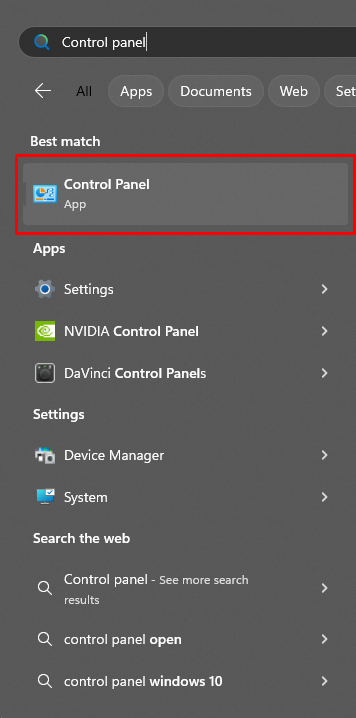
1. Open Control Panel
Open the control panel by typing Control Panel into your start menu’s search bar.
2. Select Windows Defender Firewall
Select Windows Defender Firewall, then click Advanced Settings in the following list.
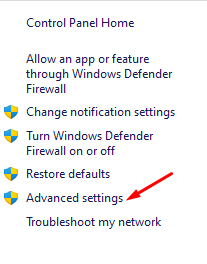
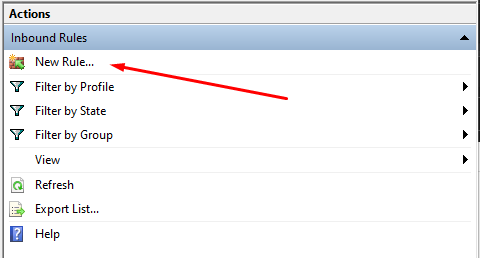
3. Set a new rule
Select Inbound Rules on the left-hand sidebar, then select New Rule on the right-hand sidebar.
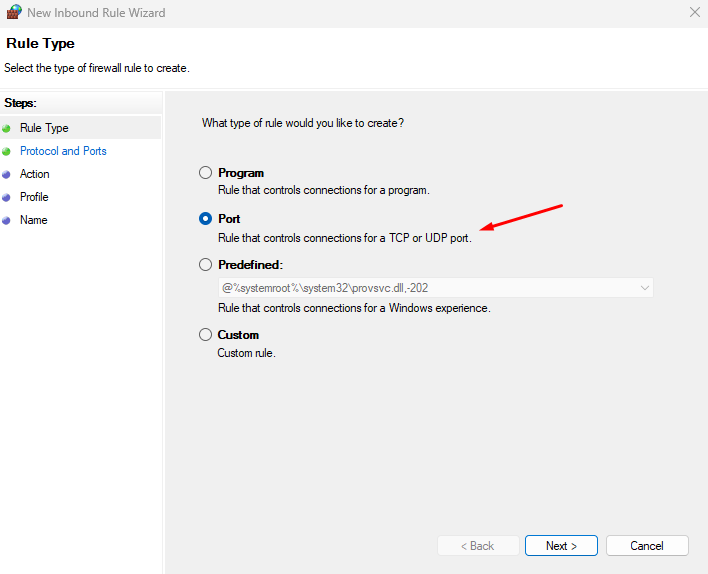
4. Define your port settings
Select Port from the list of rule settings, then click Next.
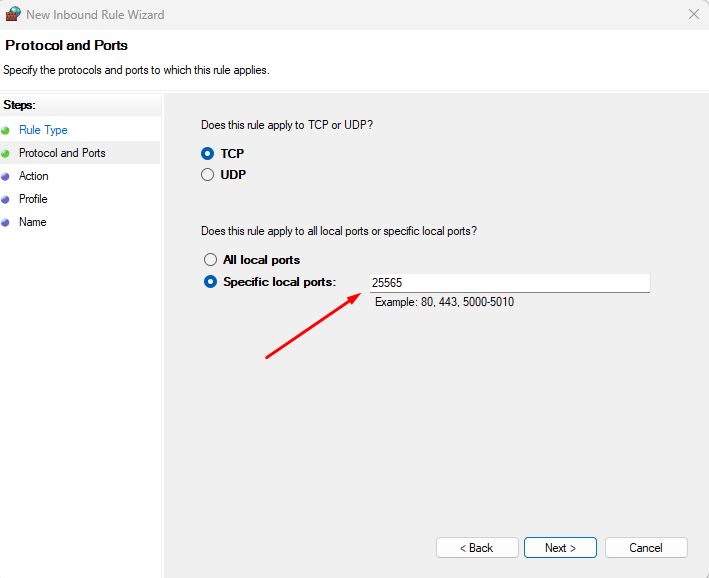
5. Apply the rule
Select either TCP or UDP, pick specific local ports, and enter 25565 into the text box.
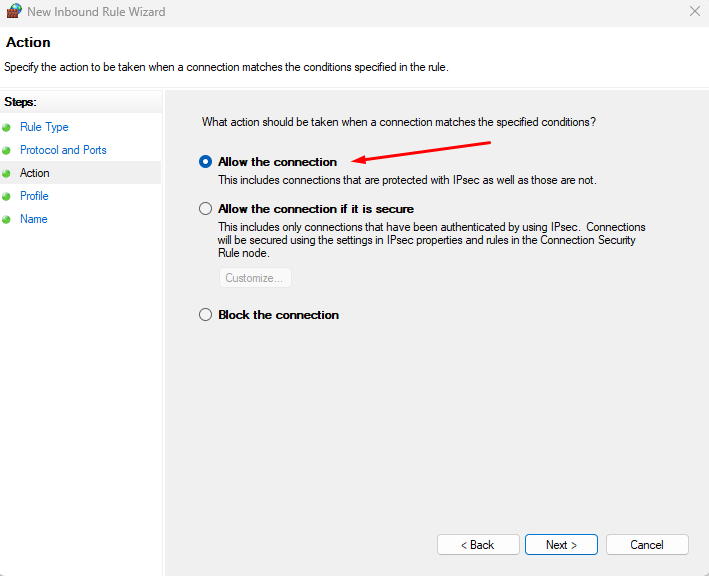
6. Allow the connection type
Select Allow the connection and click Next.
7. Apply the rule
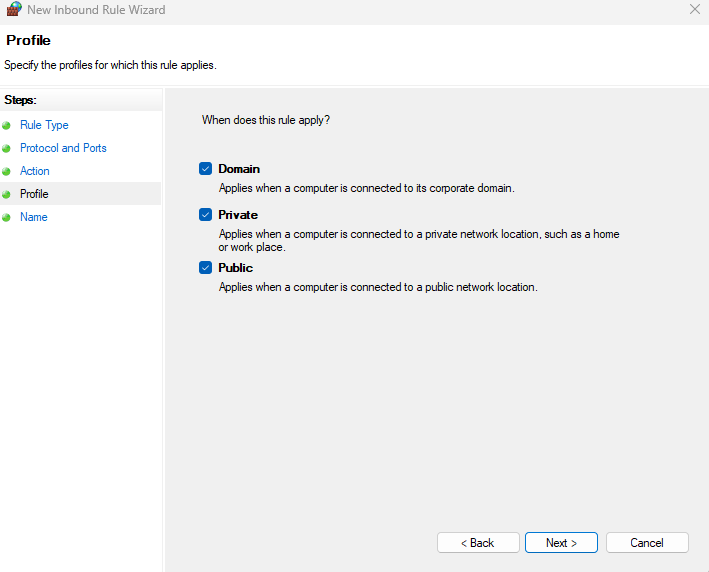
Allow the default options for the Profile page and click Next.
8. Name the rule
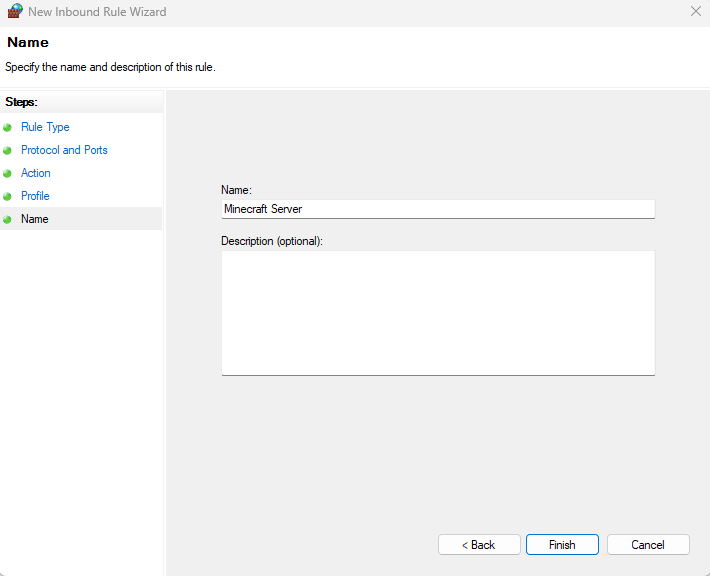
Name the rule Minecraft Server or whatever you prefer. Then click Finish.
Congratulations! You should be all set. Enjoy hosting your Minecraft server!
Come Hang Or Give NameHero Game Servers A Try!
NameHero specializes in delivering some of the very best in gaming server tech without breaking the bank. DDR5 RAM, NVMe storage, RYZEN 7950X CPU’s and more come with every Minecraft server!
Already have a server? That’s okay, come hang out with us on Discord!

Max is a freelance writer with a love for gaming and technology. He’s always looking for the next big game to play and tinkers with tech in his remaining free time.
Leave a Reply