

Despite its looks, Minecraft can be an intense game for your PC to manage. It’s only natural that you’d want to increase your frame rate in any way possible. Fortunately, you can improve frame rates and performance and enjoy other Minecraft enhancements through the Optifine mod client.
This guide will cover everything you need to know about how to download Optifine, how it enhances your game, and what the mod can and cannot do.
Updated April 7, 2025
Prefer To Watch Instead of Read? Check Out Our New Video!
How to Download Optifine Installer
1. Navigate to Optifine.net
Head to this link to start the Optifine download process.

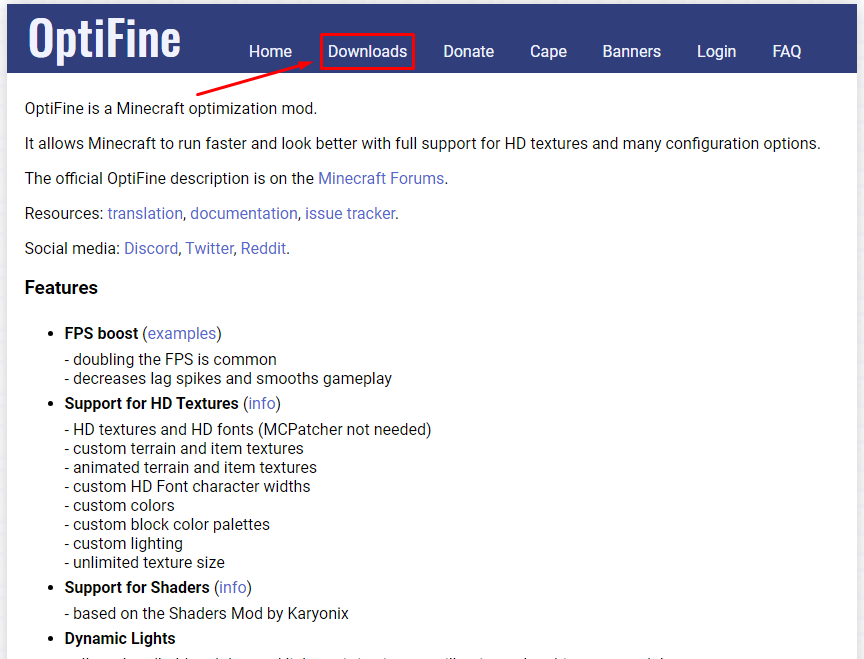
2. Click on Downloads
Select Downloads on the top bar.
3. Select Your Game Version
There are multiple versions of Optifine to pick from. You’ll want the one that applies to your version of Minecraft: Java Edition.

You can check your Minecraft: Java Edition version on the bottom left-hand corner of the Minecraft Launcher.

4. Select Download
Download the Optifine version that’s compatible with your version of Minecraft by clicking the Download button.

5. Click Download (Again)
Clicking the first Download button will make an ad appear. Skip the ad and click the Download button on the following page. This will download the Optifine installer.

6. Select An Install Folder (Installing Optifine)
Windows Explorer will open up, allowing you to choose where to install Optifine. Select the folder or location where you’d like to install Optfine, then click Save.

The Optifine installer will now download. From here, you can open the installer to install Optifine.
The Optifine installation process will automatically detect your Minecraft installation folder and install the latest version of Optifine you have downloaded.
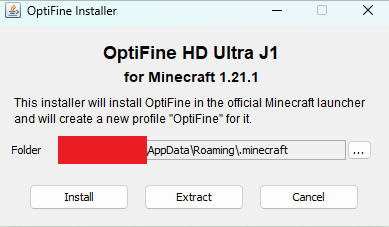
Once you install Optifine, you can launch Minecraft through the Minecraft Launcher and choose the Optifine version of Java. The Optifine profile should automatically appear in the Minecraft Launcher.
If you need help with installing Optifine, check out this guide.
What Is Optifine?
Now that you know how to download Optifine, you might want to know a bit more about it. Well, Optifine is technically a mod client more than it is a mod. This means that it alters your game at a deeper level than a traditional mod, adding new video settings and harnessing your PC’s power in ways the original game could never.
Let’s go over some of the Optifine additions.
Increased Framerates
The number one reason anyone installs the Optifine mod is to increase their frame rates. That’s right — Optifine settings go so deep that they can provide you with higher frame rates even on a lower-powered machine.
It has been said that Optifine prevents the need for some players to buy a new PC or laptop to play Minecraft. That’s how powerful this mod client can be.
Additional Video Settings
Every version of Optifine includes many additional video settings to enhance your visual experience. Here are a few of them.
Support for Shader Packs
Optifine naturally includes a Shaders folder in which you can download and install Minecraft Shaders.

Shaders alter how Minecraft renders its lighting and shadows, making for wildly different experiences based on which you install.
There are endless types of Minecraft Shaders you can install, depending on your Minecraft version. And thanks to Optifine, you can swap between them at the press of a button.

Performance Settings
There are a few key performance settings that improve your gameplay experience as well.
You can enable Smooth FPS that smoothes out your graphics driver buffering, or you can adjust how fast the game updates chunks. Slower chunk updates mean a higher frame rate.
Dynamic updates is another feature — one that will load more chunks per frame when you’re standing still. This can improve your frame rate as the game will be updating more when you’re not moving vs. when you’re roaming around.

Advanced Render Distance Settings
Through Optifine, you can adjust your game’s render distance from 2 chunks to 64 chunks. Chunks are the 16×16 sets of blocks that make up the Minecraft world. This means that every time you increase your chunk render distance, your PC must load more and more sets of 16×16 blocks while you play.

An increased chunk render distance will increase how far into the world you can see. In a way, it’s like removing the fog of war that covers everything up.
From here, you can choose to adjust the simulation distance. Simulation distance adjusts how many chunks are getting actual updates. Increasing either your simulation distance or your chunk render distance can significantly impact your frame rate.
Now, if you like to play Minecraft with mods, you probably use the mod installer. If that’s the case, read on before you install Optifine.
What Is Minecraft Forge?
You may want to use Optifine while also playing with mods through Forge. Forge is a mods manager for quickly installing and swapping mods around to enhance your Minecraft experience. However, the process is a bit more involved than simply installing Optifine like you do for vanilla Minecraft.
We discuss Forge in detail in our Optifine installation process article, so check it out if you need additional help.
Now that you’re aware of how to download Optifine, maybe you want to install it and play on one of our servers?
NameHero specializes in delivering some of the very best in gaming server tech without breaking the bank. DDR4-3200 RAM, NVMe storage, AMD EPYC CPU’s and more come with every Minecraft server!
Already have a server? That’s okay, come hang out with us on Discord!

Max is a freelance writer with a love for gaming and technology. He’s always looking for the next big game to play and tinkers with tech in his remaining free time.
Hi, it didn’t fully worked for me…
Basicly, when i download the install folder, it dose not indicate me with what i should open it. So i tried a few folders in the java one before giving up.
if anyone could help me that would be great!
Hello!
Do you have Java installed? If you download optifine you need to have the latest java version installed and open it with java.
https://www.oracle.com/java/technologies/downloads/
If it still does not prompt you, you can scroll down to select an app and choose java.