• Skip to primary navigation
  • Skip to main content
  • Skip to primary sidebar
NameHero's Gaming Blog

NameHero's Gaming Blog

In-Game Tutorials, Gaming Server Guides, & More!

  • AI Agents
    • OpenClaw
    • Claude Code
    • n8n
    • Hermes Agent
    • Open WebUI
    • Docker
  • Hosting
    • Web Hosting
    • WordPress Hosting
    • WooCommerce Hosting
    • Enterprise Hosting
    • Email Hosting
    • HeroicGuard
    • GPU Hosting
    • Website Builder
  • VPS
    • Managed VPS
    • Unmanaged VPS
    • Flex VPS
  • Reseller
  • Gaming
    • Minecraft Hosting
    • Palworld Hosting
    • Rust Hosting
    • Soulmask Hosting
    • Stardew Valley Hosting
    • Terraria Hosting
    • DayZ Hosting
    • Project Zomboid Hosting
    • Hytale Hosting
  • Domains
  • Account
  • Blog Home
  • Categories
  • Authors

Fixing The Minecraft Bedrock Waiting On Install Error: Quick Guide

Max Moeller

Published on: May 29, 2025

Categories: Minecraft 1

Minecraft is an expansive game. But all of that expansiveness can lead to some errors, which impede your gameplay experience. Some of those errors are easily fixable, while others can be a bit more confusing to solve.

This guide will break down one specific error, the Minecraft: Bedrock Edition waiting on install error. We’ll get into what that error is, why it may occur, and possible steps for you to solve it.

Table of Contents
  • What Is The Minecraft Bedrock Waiting on Install Error?
  • How To Fix The Bedrock Install Error In The Minecraft Launcher?
    • Reinstall Minecraft
      • 1. Open the Bedrock Edition Tab
      • 2. Open the Installation Tab
      • 3. Click Uninstall
      • 4. Select Latest Release
      • 5. Click Install
      • 6. Select a Drive
    • Windows Update To the Latest Version
      • 1. Open Windows Update
      • 2. Click Check for Updates
    • Update The Xbox App
      • 1. Open the Microsoft Store
      • 2. Search for Xbox
      • 3. Click Update
    • Repair The Microsoft Launcher
      • 1. Open Settings
      • 2. Open Apps
      • 3. Find Minecraft Launcher
      • 4. Select Advanced Options
      • 5. Click Repair

What Is The Minecraft Bedrock Waiting on Install Error?

This error can occur when you’re trying to launch Bedrock Edition from the Minecraft Launcher. As you may know, the Minecraft Launcher is a hub on Windows operating systems that allows you to manage and play the various Minecraft games, including Bedrock or Java Edition.

When you want to install a game from the Minecraft Launcher, you typically navigate to the game and click Install.
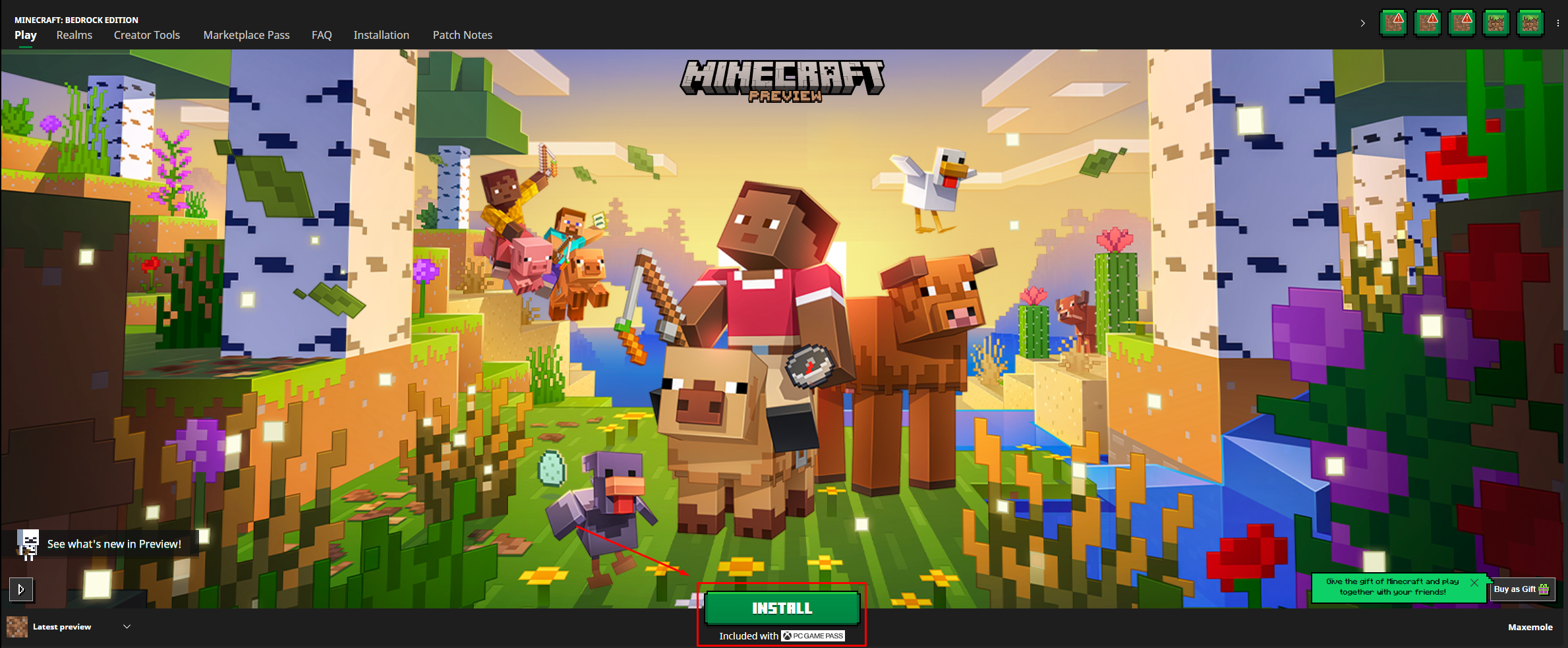
The Launcher notices that Minecraft Preview isn't installed in the first place. When I click install, it will download the file.

Once you click install, the game should download and install properly, and it should show you the installation process as well. You may also click the Install button when the game has any pending updates.

However, sometimes you may come across an error where the button says “waiting on install” and it never progresses past this. This is a problem, as it means the game won’t install properly and you can’t get into it.

The Launcher is stuck on the Waiting on Install button. This prevents you from updating to the latest version. Source: Reddit

If you’re trying to play Bedrock Edition (also known as Minecraft Windows), you may come across this issue.

How To Fix The Bedrock Install Error In The Minecraft Launcher?

While we cannot guarantee a fix, there are a few solutions you can try to solve this error.

Reinstall Minecraft

If you already have the game installed and you’re getting this error when trying to update to the latest version, you can try to uninstall and reinstall Minecraft. You can do this via the Minecraft Launcher or the Microsoft Store, though we’ll break down how to do it via the Launcher.

Make sure to back up your worlds before going through with this process.

1. Open the Bedrock Edition Tab

Head to the Bedrock Edition tab of the Minecraft Launcher.

You can find this tab on the left-hand side of the Launcher.

2. Open the Installation Tab

Click on the Installation tab on the Launcher’s top navigation bar.

This tab allows you to manage your game installs.

3. Click Uninstall

Click on the Uninstall button to begin the uninstallation process.

This will uninstall Bedrock.

On the next pop-up, click Uninstall once again. Make sure to follow the linked guide there to back up your worlds if needed.

The linked guide will help you back up your world save files so you don't have to do a full reset.

Once you’ve uninstalled the game, it’s time to reinstall it.

4. Select Latest Release

In the drop-down menu on the Launcher’s bottom left-hand side, select Latest Release.

This will install the most updated version of Minecraft.

5. Click Install

Click on Install to start the installation process.

Make sure you're logged into your Microsoft Account (Xbox account) as well.

6. Select a Drive

Finally, you’ll be asked which drive to install the game on. Select one and click Install.
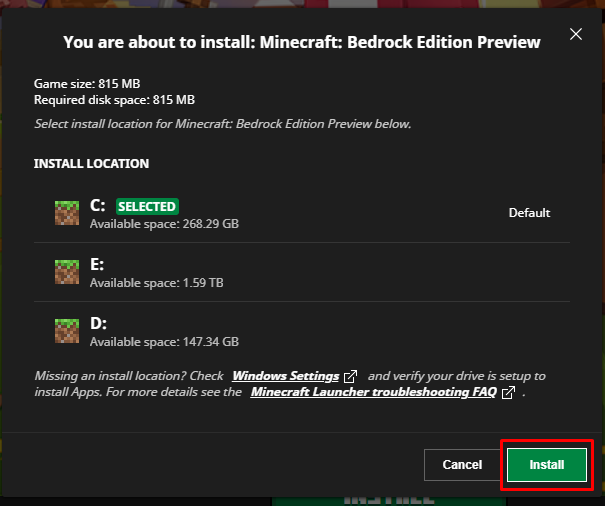
Select a PC Windows drive to download the game.

Hopefully your game will properly install.

Windows Update To the Latest Version

If that doesn’t work, try updating your PC using Windows Update.

1. Open Windows Update

Open Windows Update by going to your PC search bar and typing in Windows Update Settings.

These settings ensure your computer is entirely up to date. This process may restart your PC.

Click on the Settings to open them.

2. Click Check for Updates

Select Check for Updates, and install any updates your PC may require.

Windows Update is intended to keep your machine running as smooth as possible. If you're ever having software issues, try this solution.

Update The Xbox App

If the previous steps don’t work, you can try updating the Xbox app.

1. Open the Microsoft Store

Open the Microsoft Store, which should be installed on your PC. You may have encountered it before when installing other apps.
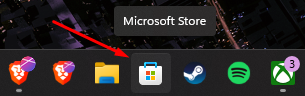
The Microsoft Store icon is a briefcase with the Windows logo.

2. Search for Xbox

Type Xbox in the search bar at the top.
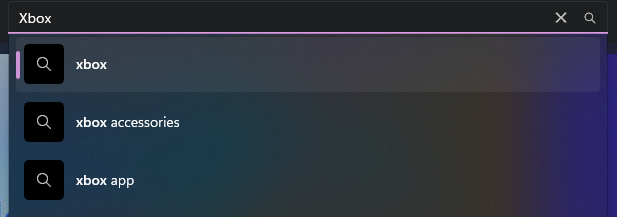
Confirm that you're searching for this in the Microsoft Store, not on other related apps.

Click Xbox in the search results.

Updating the Xbox app may resolve some of your issues.

3. Click Update

Next to the Open button, you should see one that says Update. Click on it.

Press on the update button to download the latest version of the Xbox app from the internet.

Once the Xbox App is updated, try going into it and relaunching Minecraft via the Minecraft Launcher. If the game lets you install it, you should be good to go.

Repair The Microsoft Launcher

You can also try repairing the Minecraft Launcher to help with this issue.

1. Open Settings

Open your PC’s Settings app by going to its search bar and typing in Settings.

This is one additional step to take to fix your MC game issues.

2. Open Apps

On the menu’s left-hand side, click on Apps.

This will show all of the apps on your device.

3. Find Minecraft Launcher

Scroll down the list, or search for Minecraft Launcher in the app’s search bar.

We won't delete the app, but you can also do that here.

4. Select Advanced Options

Using the elipses on the right-hand side, select Advanced Options.

Following these steps may be frustrating, but they should help.

5. Click Repair

Scroll down the list and select the Repair button. This will go through the repair process and may fix your app.

You can also do this with Java Edition if you're having any issues with that version of the game.

Hopefully one of these steps helped you with the installation error. If they didn’t, try filing a ticket with Mojang Studios’ support team for more assistance. They have certainly tested and reported on all kinds of issues like this. You can also make a post on their bug report page.

Once you get your game up and running, why not get some friends together to play online?

If you’re looking to play Minecraft with your friends, check out NameHero for a comprehensive server solution.

Our servers offer support for up to 32 players, with built-in DDOS protection alongside comprehensive backups. For more information on getting a NameHero server, click here.

NameHero specializes in delivering some of the very best in gaming server tech without breaking the bank. Every Minecraft server comes with DDR4-3200 RAM, NVMe storage, AMD RYZEN CPUs, and more!

Already have a server? That’s okay, come hang out with us on Discord!

Max Moeller

Max is a freelance writer with a love for gaming and technology. He’s always looking for the next big game to play and tinkers with tech in his remaining free time.

Related Posts

Minecraft Structures: The Ultimate Guide

Learn about generated structures, how to find them, the different structures the game has, and learn about structures that have the best loot.

8 Best Minecraft Cherry Blossom Seeds For Bedrock

Discover the best Minecraft cherry blossom seeds for Bedrock to create stunning landscapes. Enhance your gameplay and transform your world.

Vibrant Visuals In Minecraft: The Ultimate Guide

This guide will go into everything about the Vibrant Visuals update, including what changes are being made and how to play this version.

How Long Is A Minecraft Day: The Ultimate Guide

Discover the length of a Minecraft day and how the daylight cycle affects gameplay. Get the insights you need to optimize your adventures!

Reader Interactions

Comments

  1. MountWard1 says

    June 29, 2025 at 9:40 pm

    Have they actually tried this? When I go to installations I have C: and under that it states [Waiting on install] next windows says [Check for Updates] but is unable to be clicked as the launcher is waiting for install.

    Next you have Minecraft: Bedrock edition Preview installation and below that a box that states [Waiting on Install]

    I am just curious how if you are stuck on [Waiting on install] you will ever get the option to [reinstall]?

    Reply

Leave a Reply Cancel reply

Your email address will not be published. Required fields are marked *

This site uses Akismet to reduce spam. Learn how your comment data is processed.

Primary Sidebar

Get Started With a Minecraft Server


Looking to create your own gaming server? It only takes a few minutes.

Create Server Learn More

Most Popular Posts

Minecraft Chiseled Bookshelf: The Ultimate Guide

7 Cozy Minecraft Fireplace Designs to Keep Your Base Warm

Minecraft Mobs: Everything You Need To Know

How To Make A Hopper In Minecraft: A Complete Guide

Minecraft Trial Ruins: The Ultimate Guide

Minecraft 1.21.5 “Spring to Life” Update: Everything You Need to Know

How To Make Netherite Armor In Minecraft

How To Set Tick Speed In Minecraft

Minecraft Snapshot Update: New Mobs And More

Minecraft Windows VS Bedrock? A Clear Comparison

Join Our Gaming Discord!

Come hang out or get support!

Top Categories

  • Palworld
  • Minecraft
  • Soulmask
  • Rust
  • Stardew Valley
  • Terraria
  • Hytale
NameHero

NameHero® proudly provides web hosting to over 40,000 customers with 99.9% uptime to over 750,000 websites.

  • Master Card
  • Visa
  • American Express
  • Discover
  • Paypal
Products
  • Web Hosting
  • Managed VPS Hosting
  • Unmanaged VPS Hosting
  • Flex VPS Hosting
  • WordPress Hosting
  • WooCommerce Hosting
  • Reseller Hosting
  • Enterprise Hosting
  • GPU Hosting
  • Email Hosting
  • HeroicGuard
  • Domains
  • Website Builder
  • AI Agent Hosting
Gaming Products
  • Game Hosting
  • Minecraft Hosting
  • Palworld Hosting
  • Rust Hosting
  • Soulmask Hosting
  • Stardew Valley Hosting
  • Terraria Hosting
  • DayZ Hosting
  • Project Zomboid Hosting
  • Hytale Hosting
Help & Support
  • NameHero Blog
  • NameHero Gaming Blog
  • Support
  • Help Center
  • Migrations
  • Affiliates
  • Gaming Affiliates
  • Call 1-855-984-6263
Company
  • About Us
  • Contact Sales
  • Reviews
  • Uptime
  • We're Hiring

Copyright © 2026 Name Hero, LLC. All rights reserved.
NameHero® is a registered trademark.

  • Privacy Policy
  • Terms of Use
  • Acceptable Use Policy
  • Payment Policy
  • DMCA