
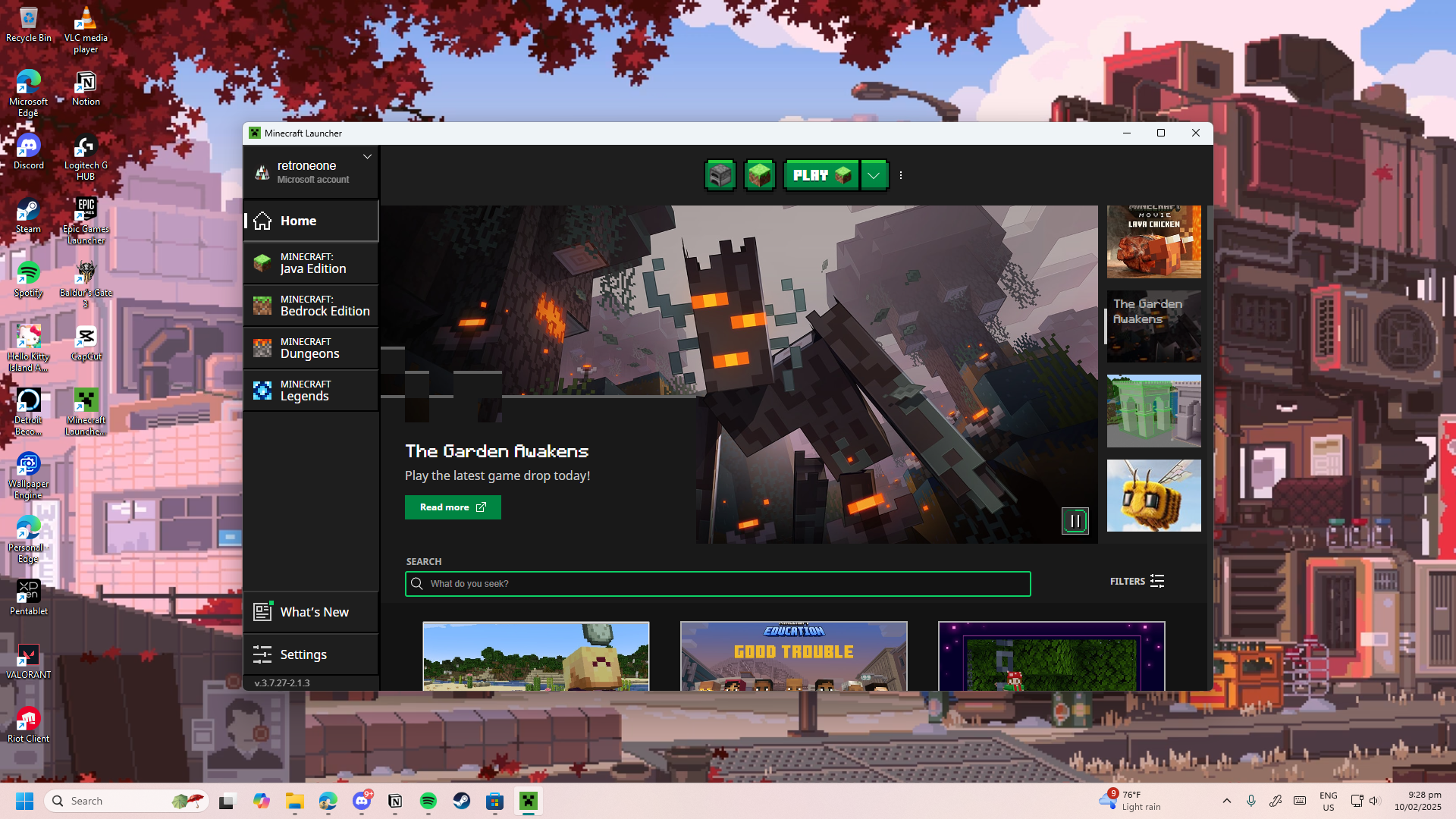
As you’re playing Minecraft, you might be grinding the game often, having multiple play sessions throughout the day. This asks you to access the game anytime from your device immediately. Instead of looking for your Minecraft Launcher on your desktop, you can easily spot and open it with just one click. Regardless of the operating system you use, you’ll be able to do this by adding your Minecraft Launcher to your desktop.
With this guide, we’ll be helping you learn how to add the Minecraft Launcher to your PC. Regardless of your Windows version, the process to do this on your computer or laptop is fairly simple.
We’ve gathered some key information and simple steps you can follow. From knowing about the Minecraft Launcher, where you can download it, and even how to add a desktop shortcut, we’ll make things easier for you with our essential guide below.
What is the Minecraft Launcher?
Before getting into adding the Minecraft Launcher to your desktop, you should first have an idea about what the launcher is and what it does.
Basically, the Minecraft Launcher is a dedicated application for playing the game, Minecraft. Based on its Microsoft Store description, it is “your one-stop portal into the Minecraft universe.”
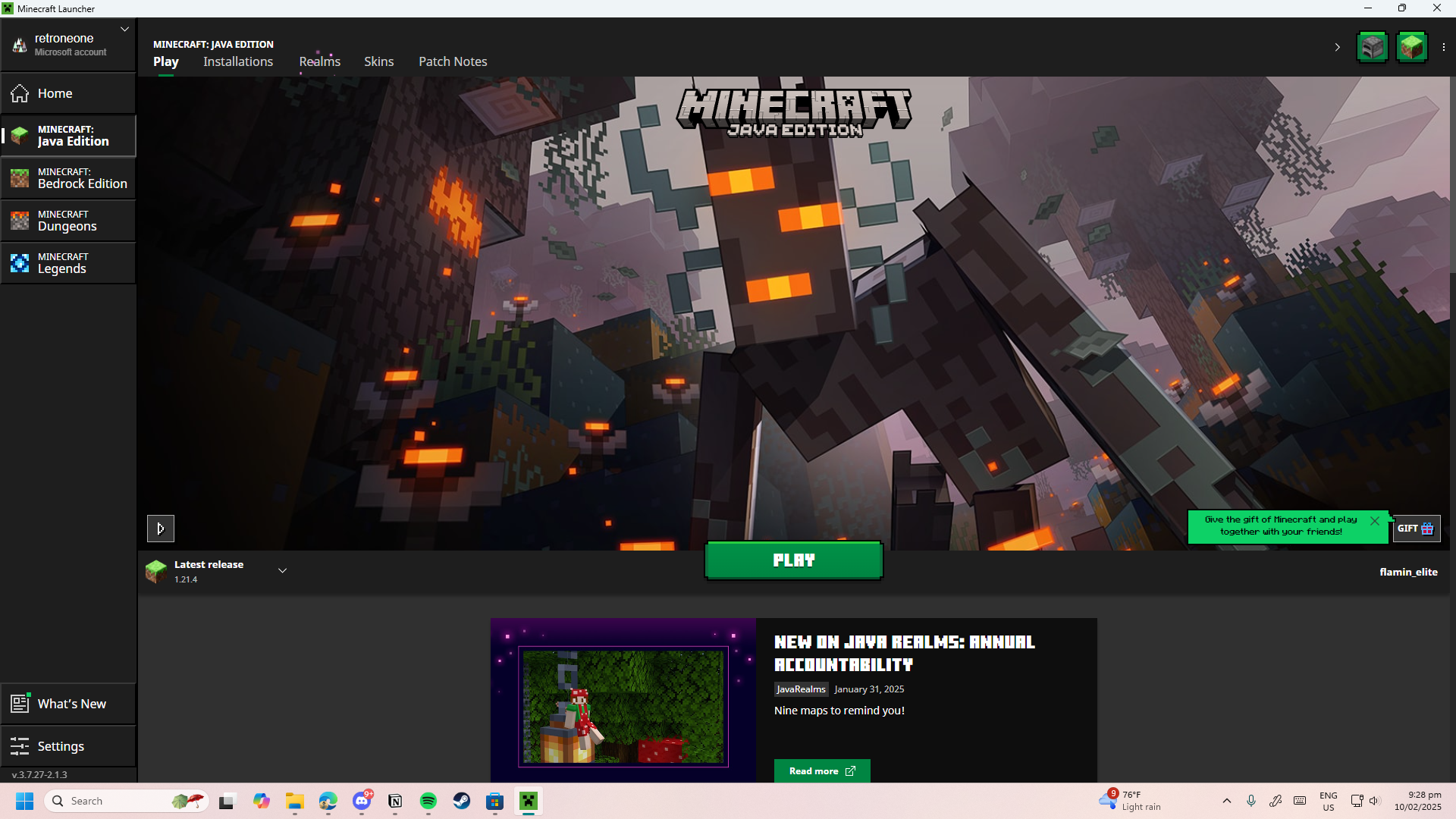
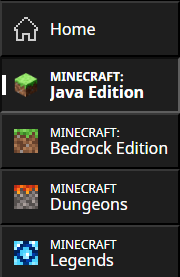
You’ll be able to play different versions of Minecraft on the launcher. You won’t have to download separate versions of the game for all things Minecraft. Additionally, you’ll have access to different Minecraft programs such as Minecraft Java Edition, Minecraft Bedrock Edition, Minecraft Dungeons, and Minecraft Legends all in one application. However, some of these variations may come at additional prices.
Besides getting access to the various Minecraft games, you’ll also get updated news and information on new game updates, patch notes, and official news from Mojang. The launcher also connects you to your Microsoft account, making it seamless for you to play Minecraft across different devices.
Why should I add the Minecraft Launcher to my Desktop?
If you’re not yet convinced to get the Minecraft Launcher installed, here are a couple of reasons why you should get it.
First, the launcher is an easy way to save time and streamline your Minecraft playing experience. As mentioned earlier, you won’t have to search for the different Minecraft versions you want to play.
You won’t even resort to looking for sketchy third-party launchers just to play Minecraft on your PC.
Next, having the Minecraft Launcher on your desktop means that you can have immediate access to the game’s updates.
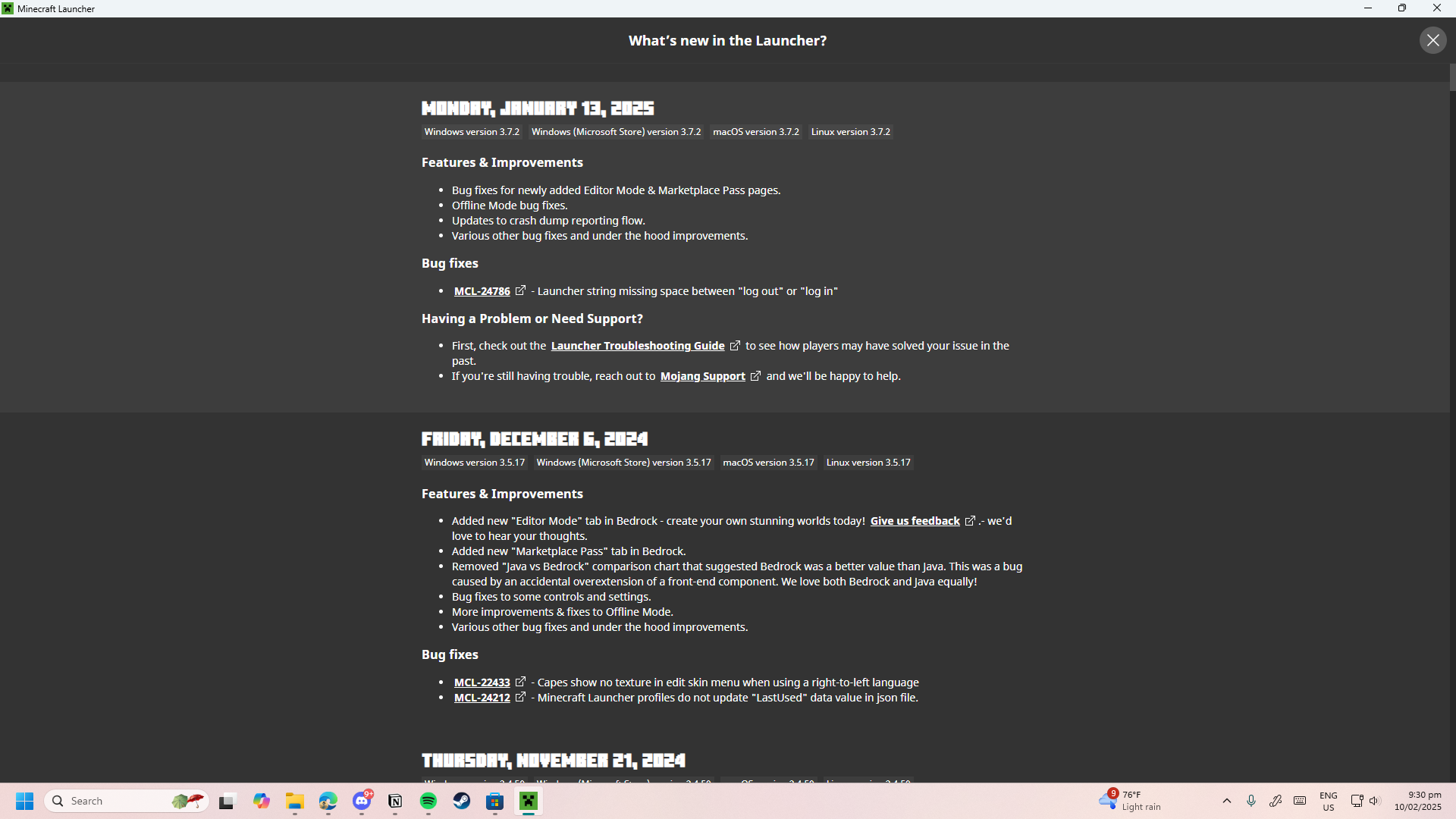
Your game’s program files will automatically update when you’re connected to the internet, so you can be the first to try out new content from the game.
Moreover, having the launcher on your desktop allows you to play across different versions of the game.
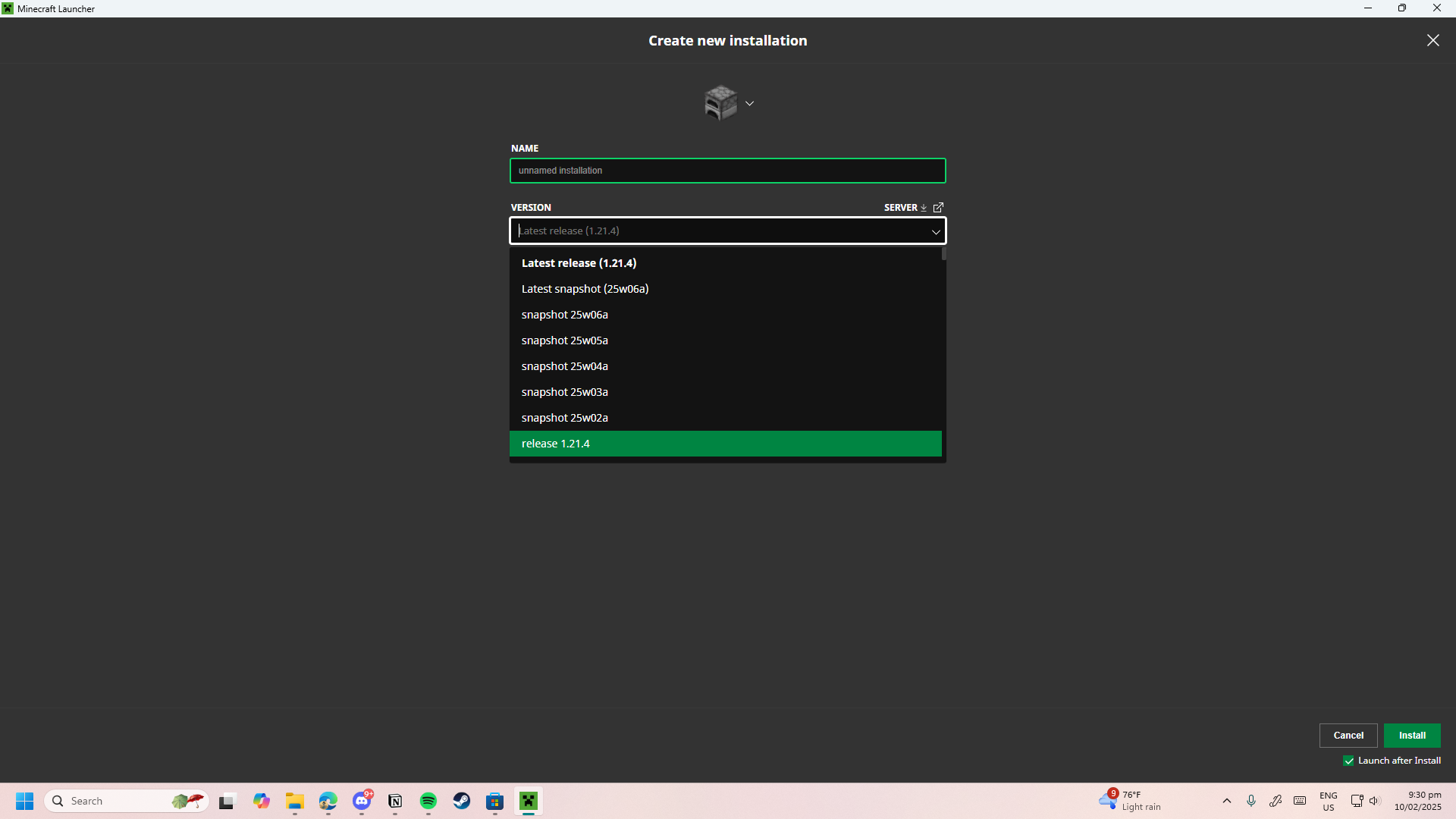
If you’re playing with friends on modded multiplayer servers, you’ll be able to easily organize player-based mods that require specific game versions to run properly. The launcher has snapshots and old versions of the game. Knowing this, you can choose which update or particular content you want to have or avoid having.
Where do you download the Minecraft Launcher?
Now that you have an idea about what the Minecraft Launcher is and why you should get it, you can then get to downloading the launcher. The Minecraft Launcher is the official launcher the game has produced and distributed to its players to access the different Minecraft apps.
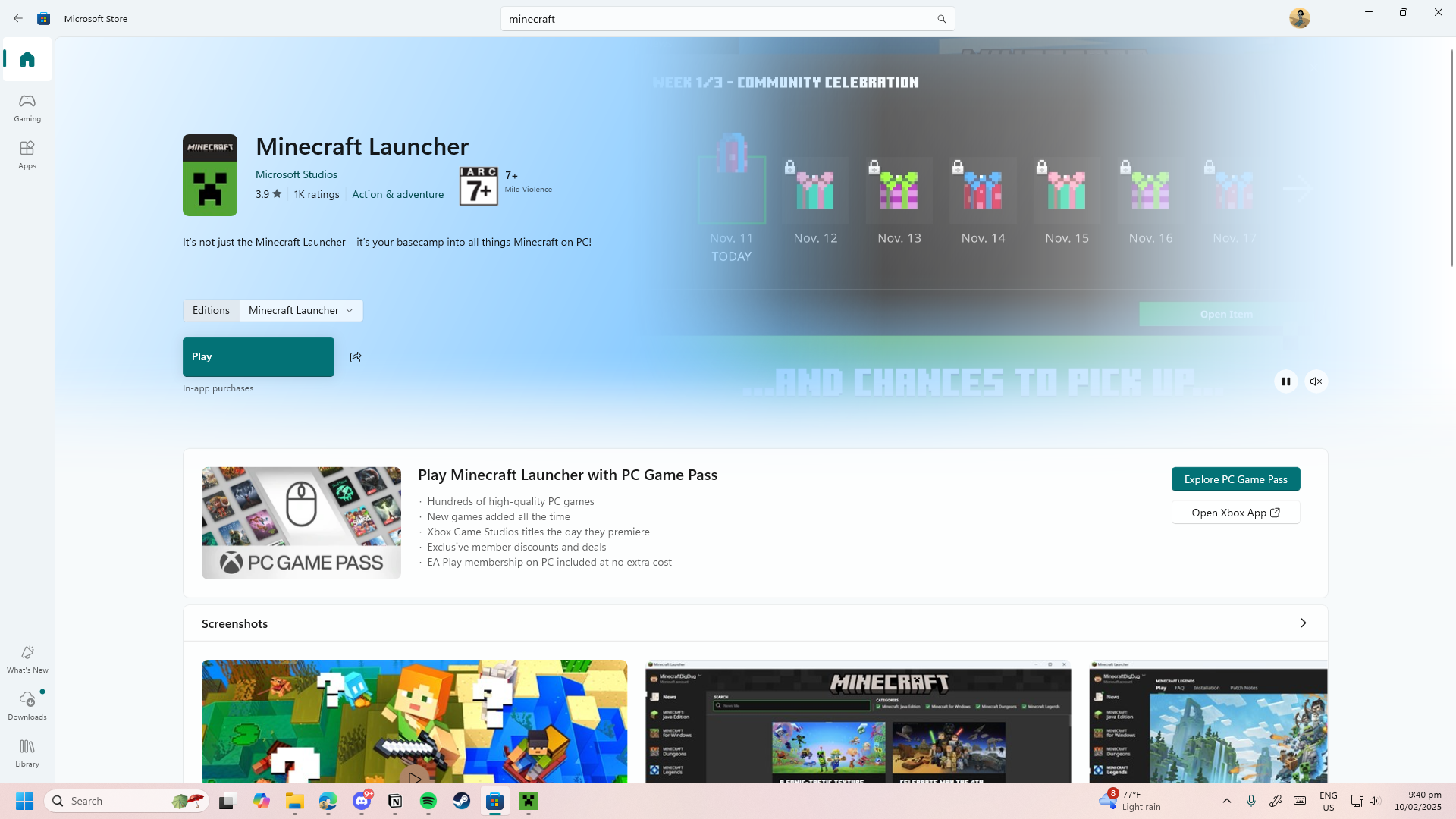
You can get the Minecraft Launcher either from the Minecraft Website or through the Microsoft Store (for Windows users).
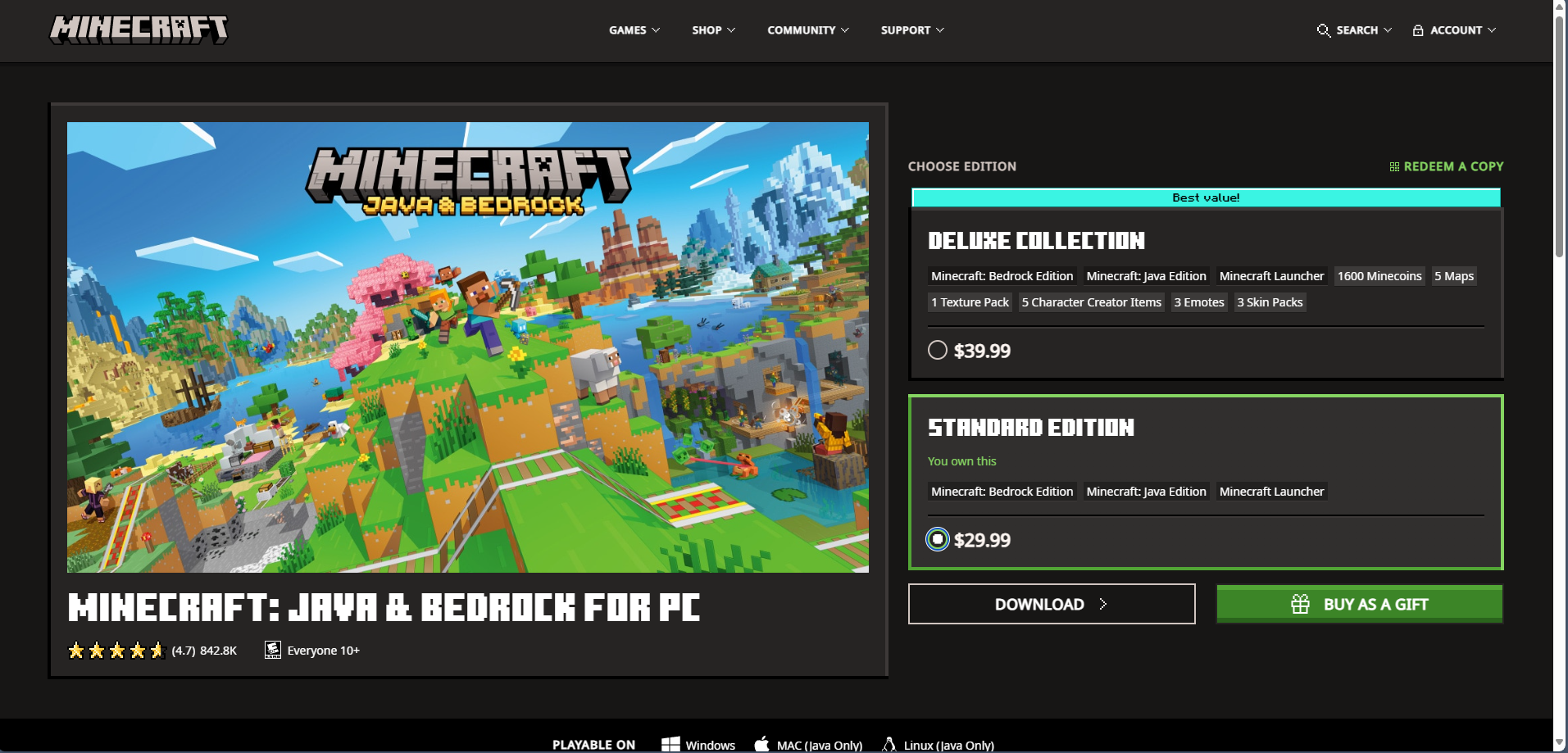
The launcher for Minecraft: Java and Bedrock for PC is priced at $29.99 for the Standard Edition. While the Deluxe Collection is priced at $39.99. This edition comes with Minecoins, maps, texture packs, and more.
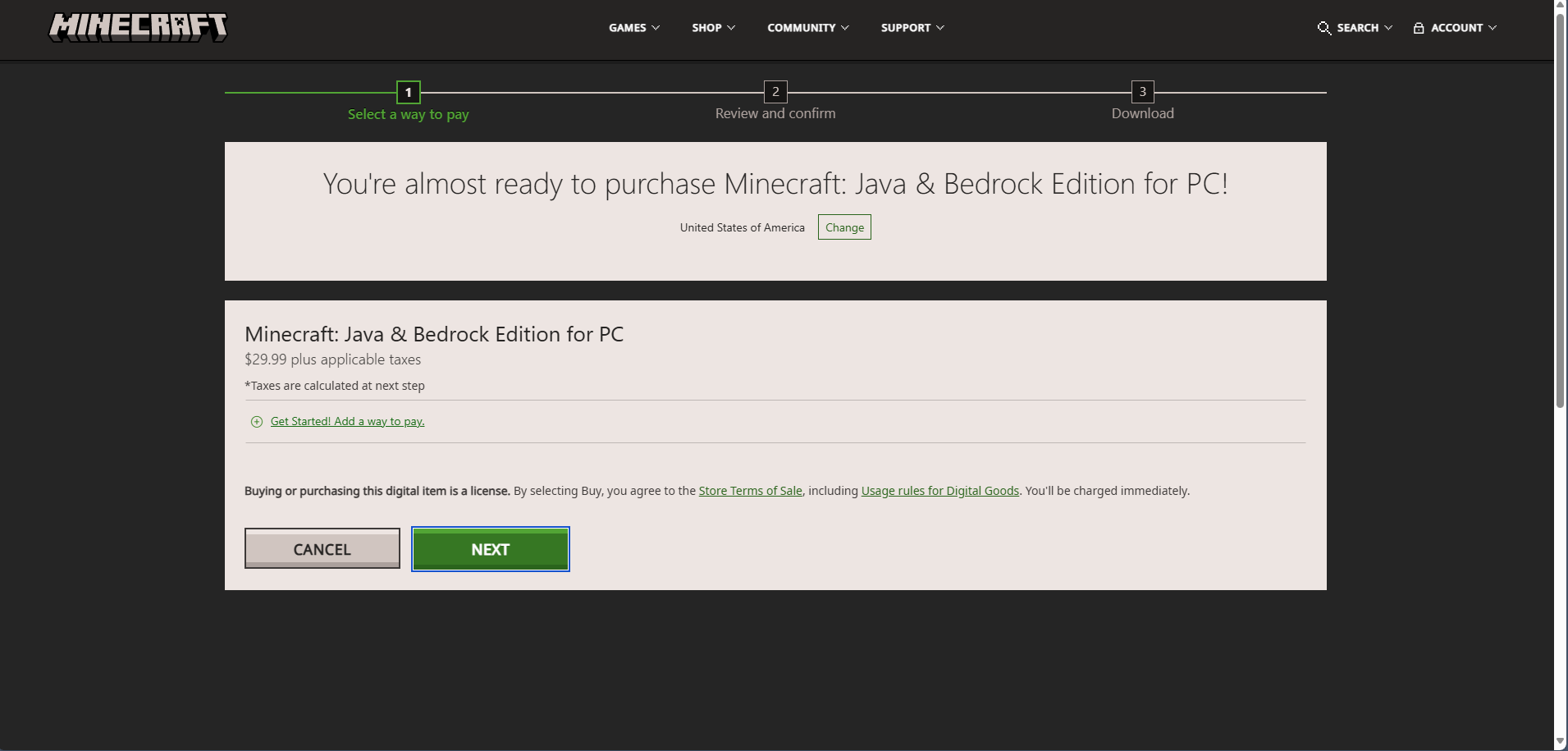
After checking out the game, the website will then ask you to put your payment details to purchase the launcher.
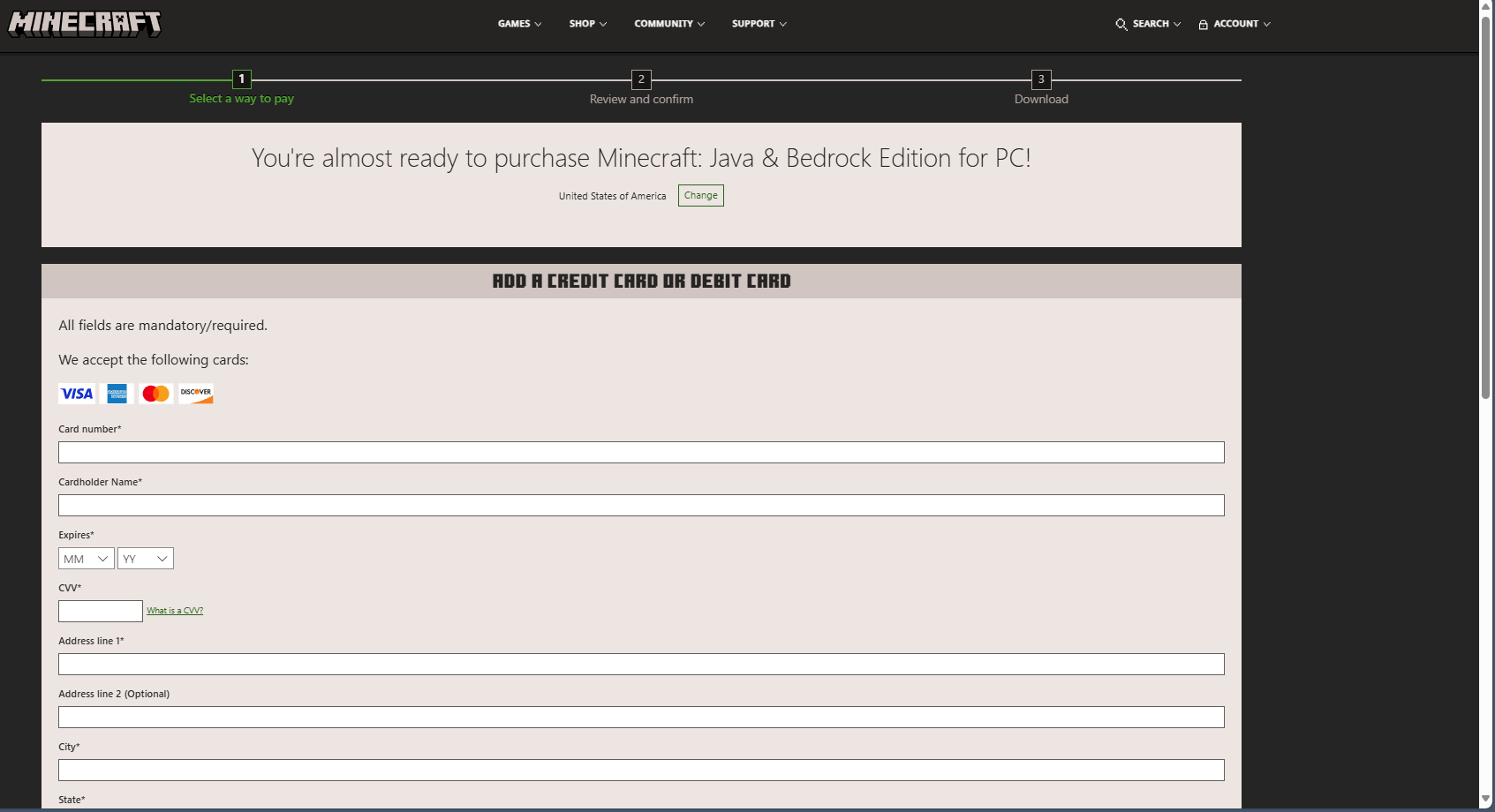
On the other hand, for the Microsoft Store, you’ll have to click “Buy” and do the same process of indicating payment details to purchase it. This example below uses the Deluxe Collection edition. You’ll see how the price converts to local currency.
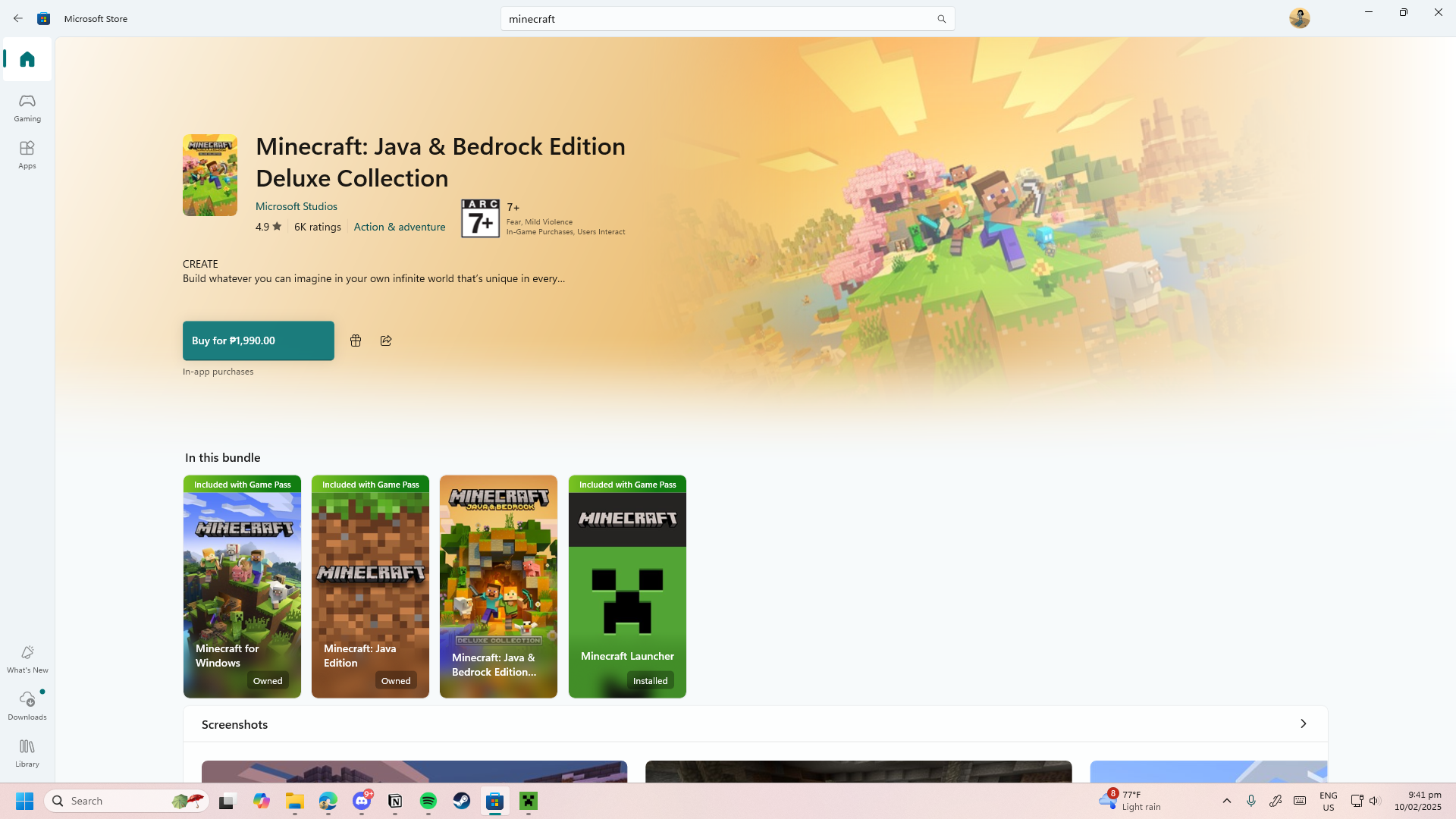
Once you’ve purchased the launcher, you’ll simply have to download the Minecraft installer, install the launcher file, and you’ll have the launcher running, ready for you to play.

How do I add the Minecraft Launcher to the Desktop?
Adding the Minecraft Launcher to your desktop is pretty easy. Once you have Minecraft installed, simply navigate to the Minecraft app on Windows or Mac.
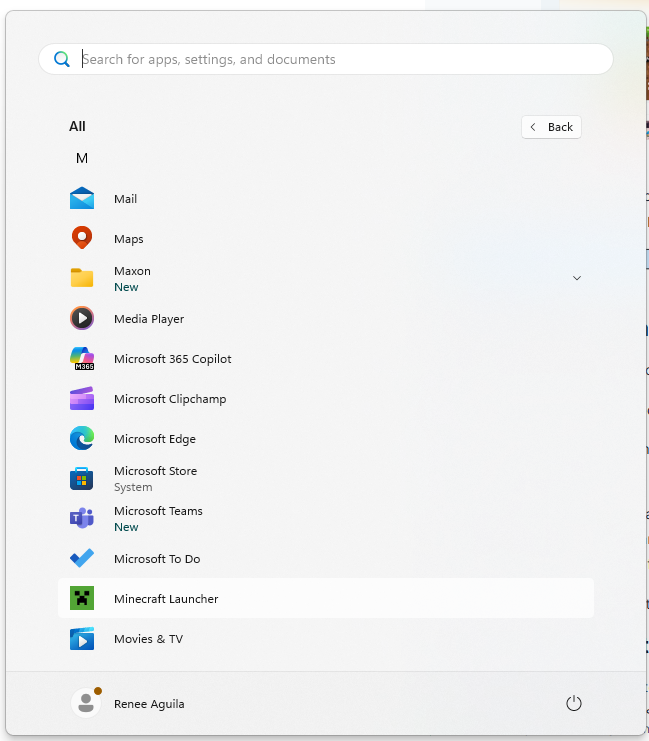
When you’ve found the icon of the application, right-click on the app and you’ll get a few options on what to do with the application.
You have the option to “Pin to Start” which will add it to your Windows Start Menu or “Pin to Taskbar” to pin the application on the taskbar.
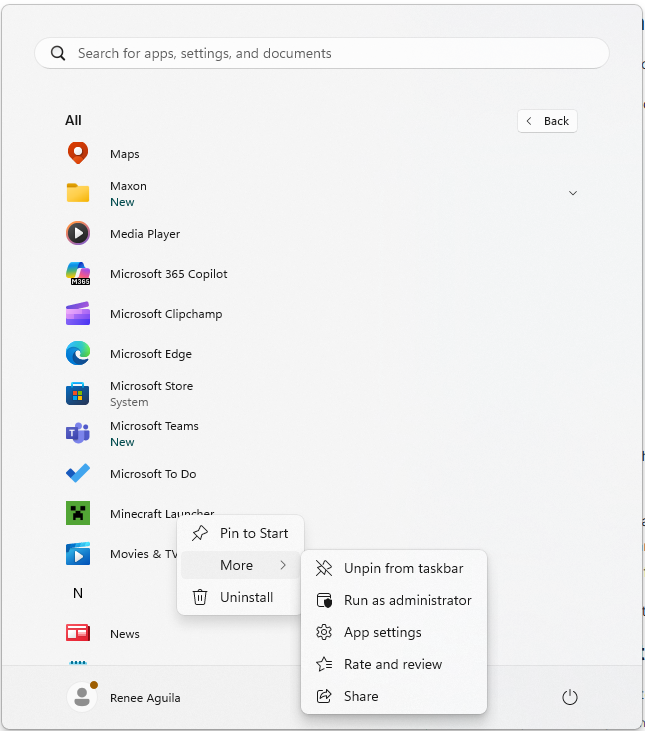
It’s more convenient to add it to your taskbar so that whenever you open your PC or laptop, you can find the Minecraft Launcher immediately.
After clicking on your desired option, you’ve then added Minecraft Launcher to your desktop’s taskbar or Start Menu.

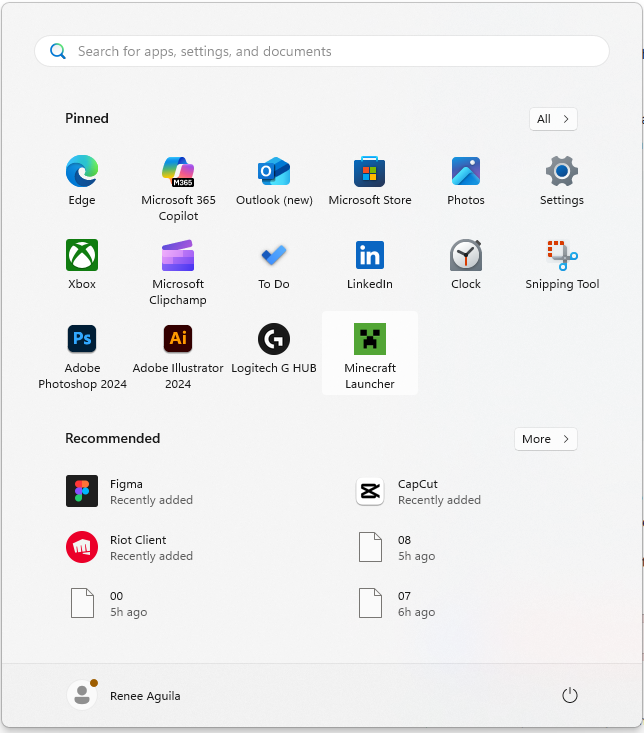
How do I add a Desktop Shortcut for Minecraft?
When it comes to adding a desktop shortcut for Minecraft, you’ll find this on your desktop screen on top of your desktop wallpaper. This is also convenient if you don’t want to drag your mouse down to the taskbar or open up the Start Menu.
If you have your Minecraft Launcher installed on Windows, creating a shortcut isn’t as easy as you’d think. This is because simply right-clicking on the launcher doesn’t give you the option to add it on your desktop.
The first thing you have to do is press “Windows + R” and then type “shell:AppsFolder.”
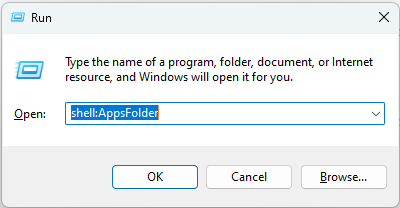
This will open up an Applications Folder that displays all the applications you have currently installed.
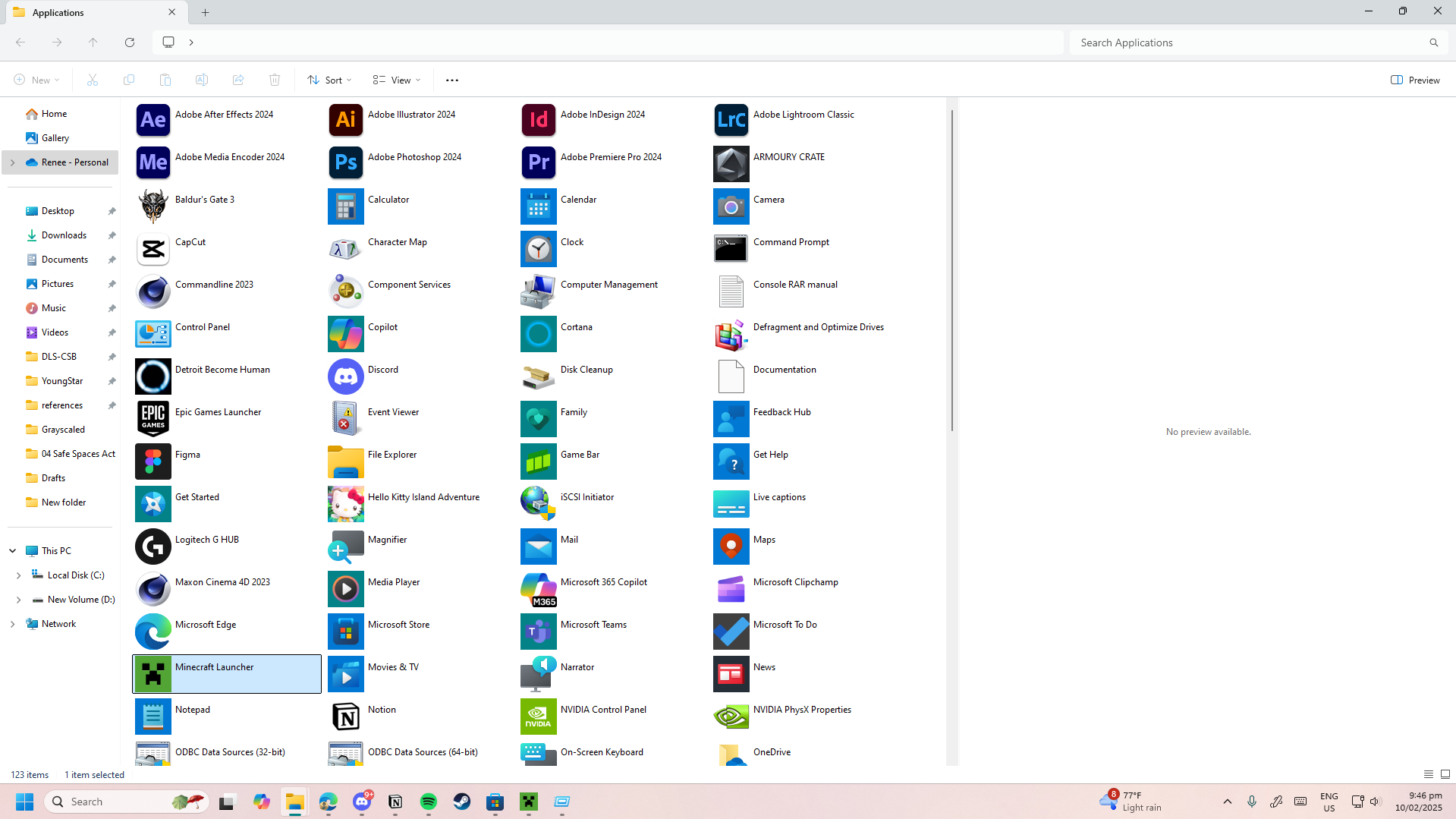
You’ll have to look for your Minecraft Launcher. Once you do, simply right-click it. You’ll get an option that says “Create Shortcut.”
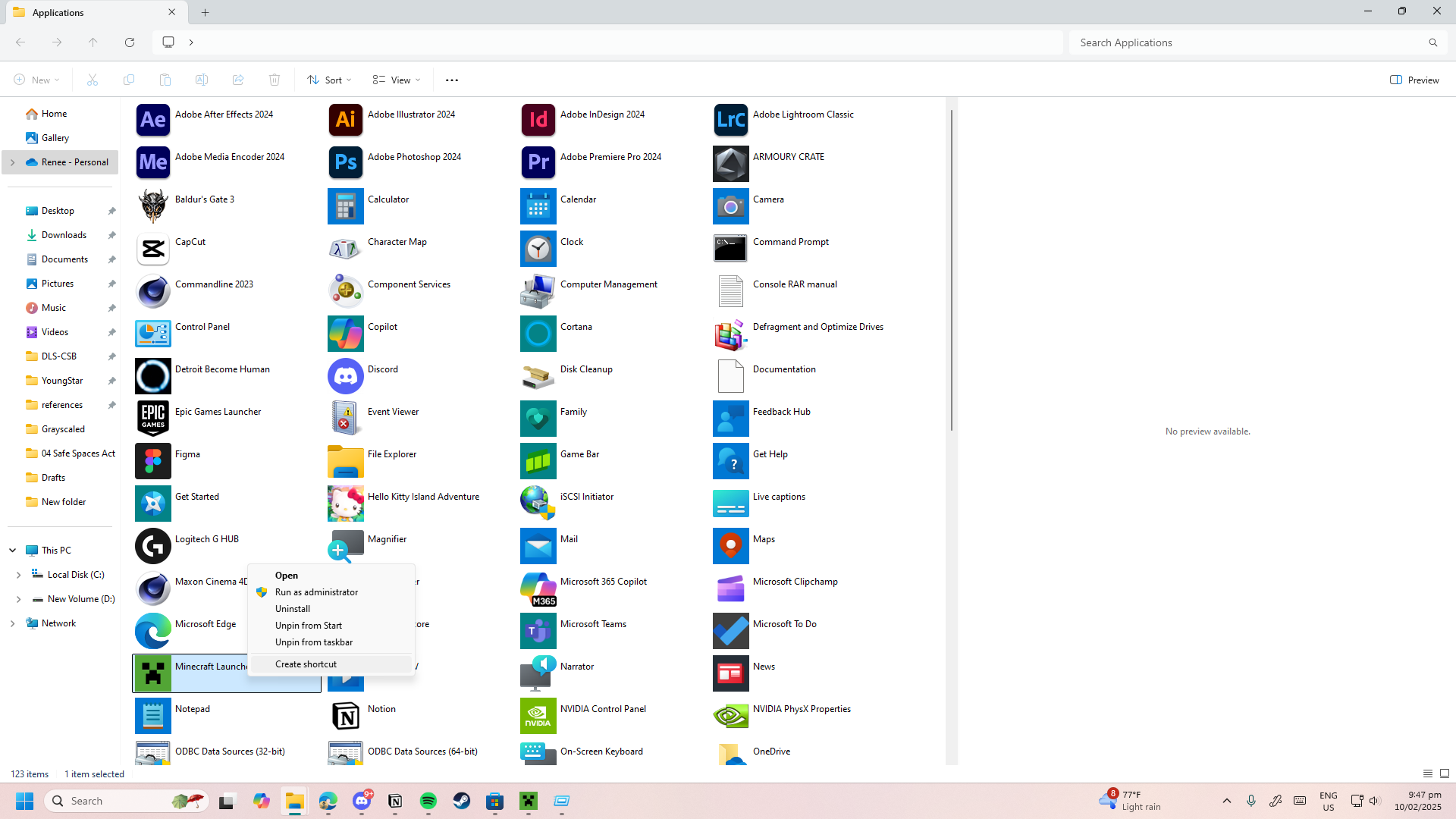
With that, you now have your desktop shortcut for Minecraft.
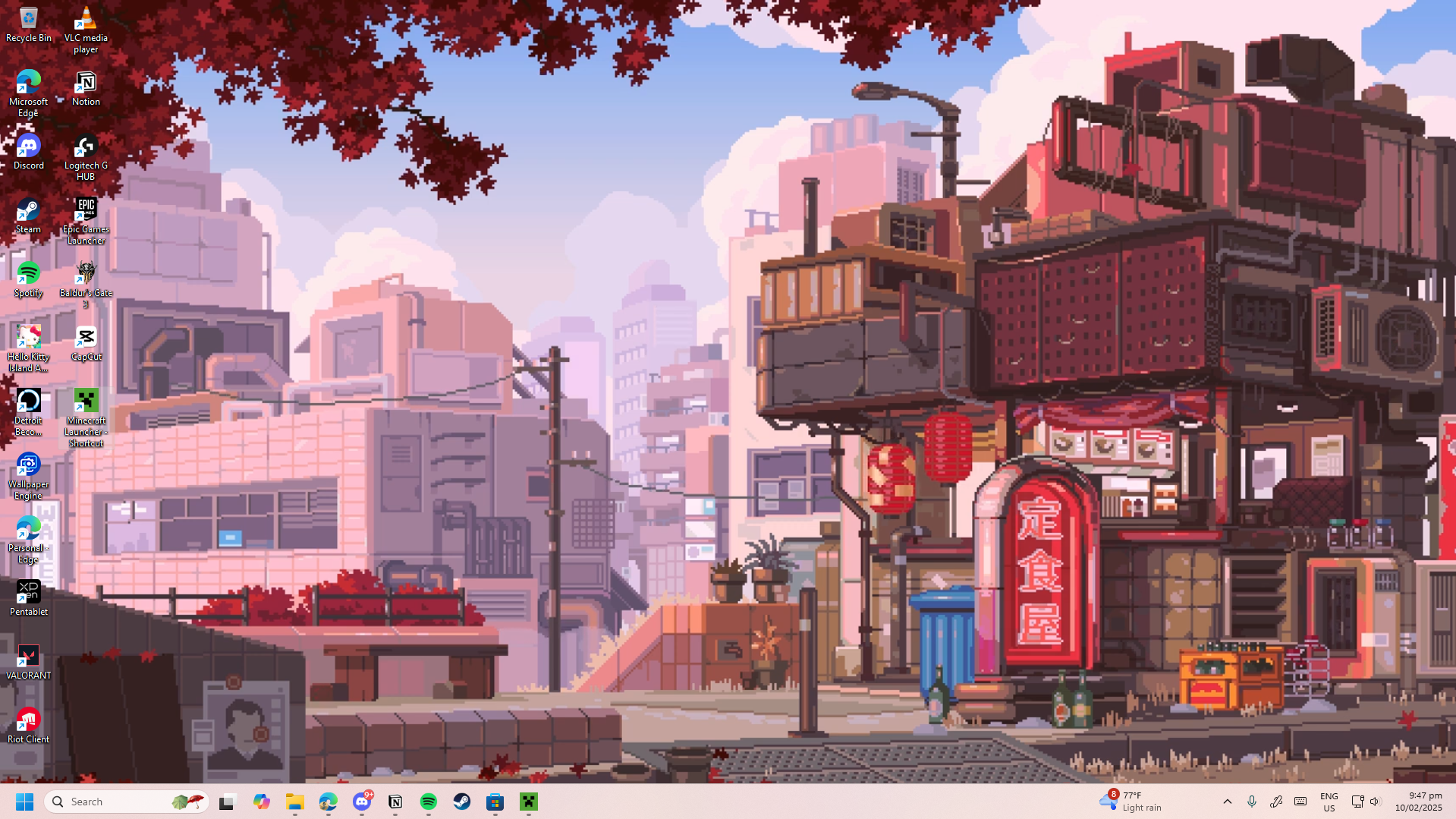
Through just a couple of steps, you’ve made it easier to streamline your playing experience for Minecraft. You can either add it to your taskbar or have it as a shortcut on your desktop. This small change can create a huge difference in how you access Minecraft.
Whether you’re playing through long sessions or get the sudden burst to play from a gaming hiatus, adding the Minecraft Launcher readily available enhances your overall experience.

Renee is a freelance writer with a passion for gaming and pop culture content. While she mainly writes about games, she also does graphic design and illustration work from time to time. With a passion for the creative arts, she blends her skills to tell stories across various mediums.
Leave a Reply