
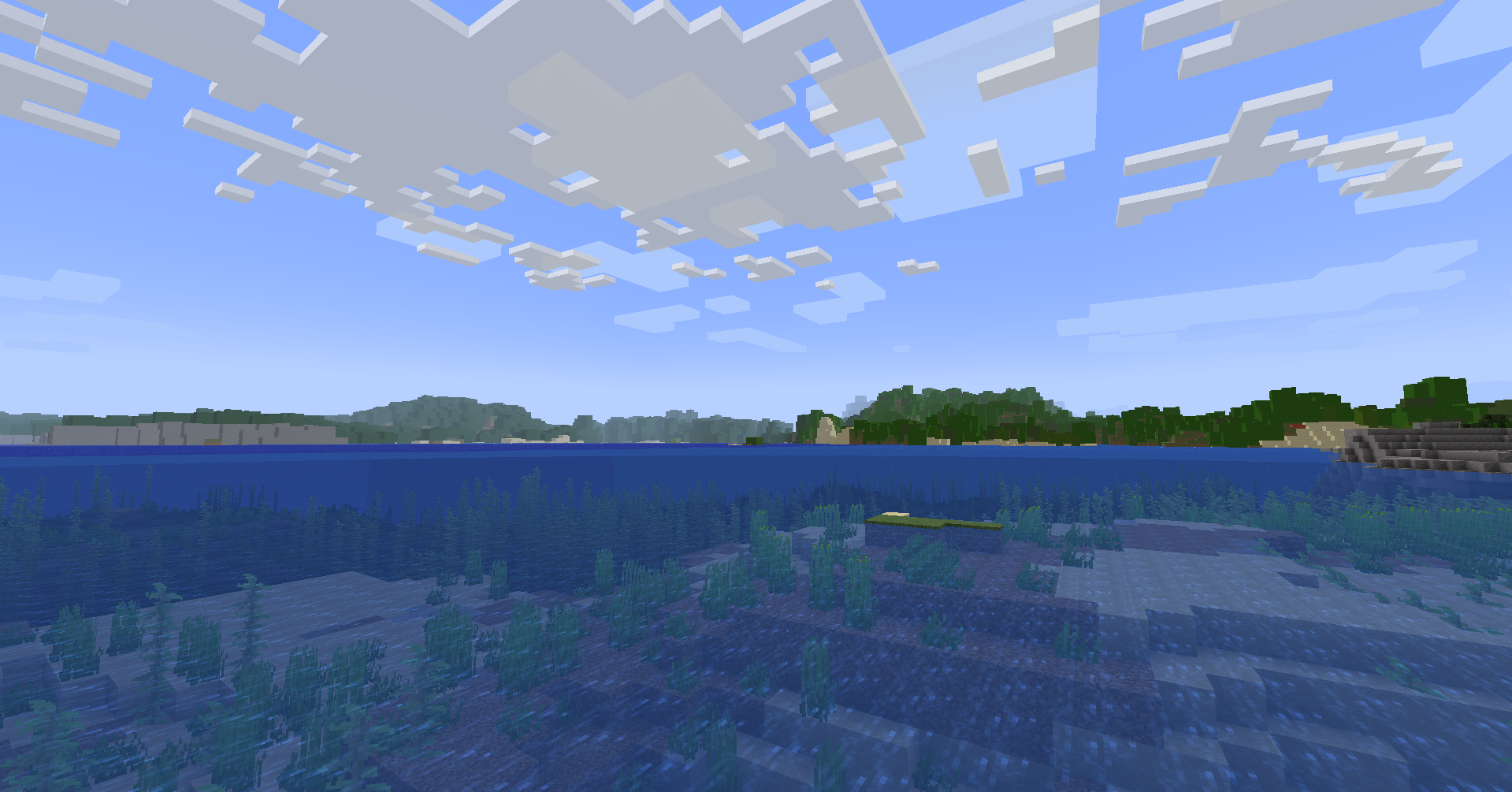
As you’re playing Minecraft, you may think that you can already see the far-out world before your eyes. The game has been updated and improved over the years, bringing new content and more visually breathtaking graphics However, some players may not always see that far beyond the game’s limits, especially on lower-end devices. This is where mods such as the Distant Horizons Mod come in as they can extend the game’s render distance.
Changing Minecraft settings which loads fully detailed chunks can limit your device’s performance. But the mod doesn’t do that which means you’ll be able to enjoy the sceneries without lag. All it takes is just learning how to install Distant Horizons and fine-tuning its settings to your preference.
If you’re considering trying out Distant Horizons, you’ve come to the right place. We’ll cover everything beginners should know about this mod, why they should use it, how to install it, the best settings, and some tips when using it.
- What is Minecraft Distant Horizons?
- Why should I use Minecraft Distant Horizons?
- How do I install the Distant Horizons Mod in Minecraft?
- Step #1: Download and install a mod loader like Fabric or Forge
- Step #2: Download the Distant Horizons Mod
- Step #3: Open your Minecraft Launcher
- Step #4: Locate the Distant Horizons Mod for Fabric in your files
- Step #5: Add the Distant Horizons mod to the Minecraft mods folder
- Step #6: Run Minecraft with the Distant Horizons mod installed
- Step #7: Adjust your settings for the Distant Horizons Mod
- What are the best settings for Minecraft Distant Horizons?
What is Minecraft Distant Horizons?
So first off, what is Distant Horizons? Well, Distant Horizons modifies the render distance past Minecraft’s default view distance in-game.
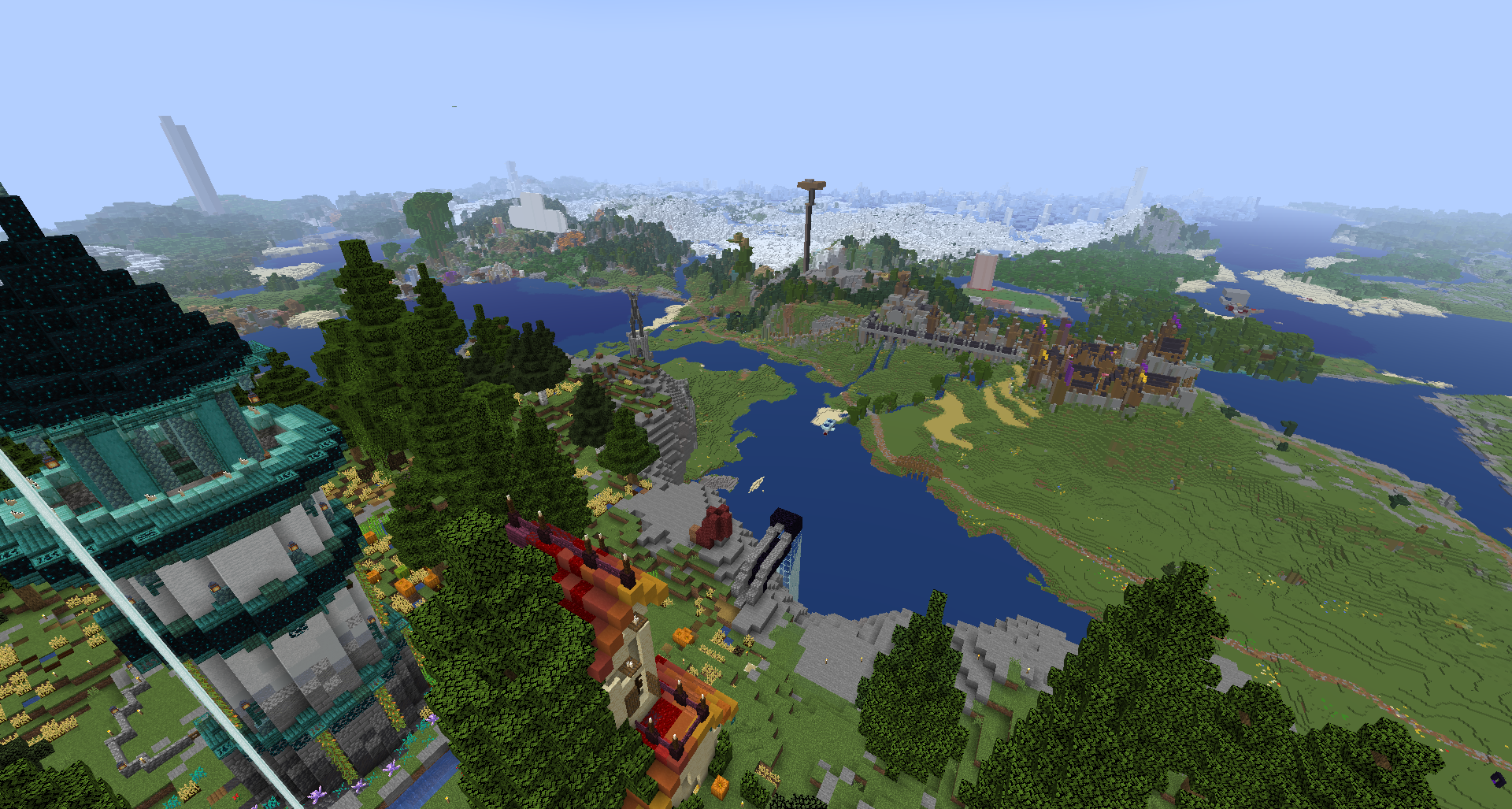
Render distance in Minecraft determines how far a player can see in the game. This controls how many chunks are loaded. If you’re seeing far landscapes, structures, and biomes easily, then you have a high render distance. It’s the opposite if you’re seeing more “fog” within the game.
To get into further detail about the mod, according to the official Distant Horizons mod page on CurseForge, “it adds simplified terrain past Minecraft’s default view distance to improve performance and allow for longer draw distances.” This was created by James_Seibel and currently, it still is in Alpha which means there may still be issues that arise with the use of the mod.
Distant Horizons allows you to further your perspective when it comes to exploration and creating large-scale creative builds. Your visual experience in Vanilla Minecraft will certainly improve if you have this on your client side.
Why should I use Minecraft Distant Horizons?
Now that you know a bit about the Distant Horizons mod, why should you use it? While you think that the default render distance settings in Minecraft are enough, you need to consider what kind of experience you want to get in the game.
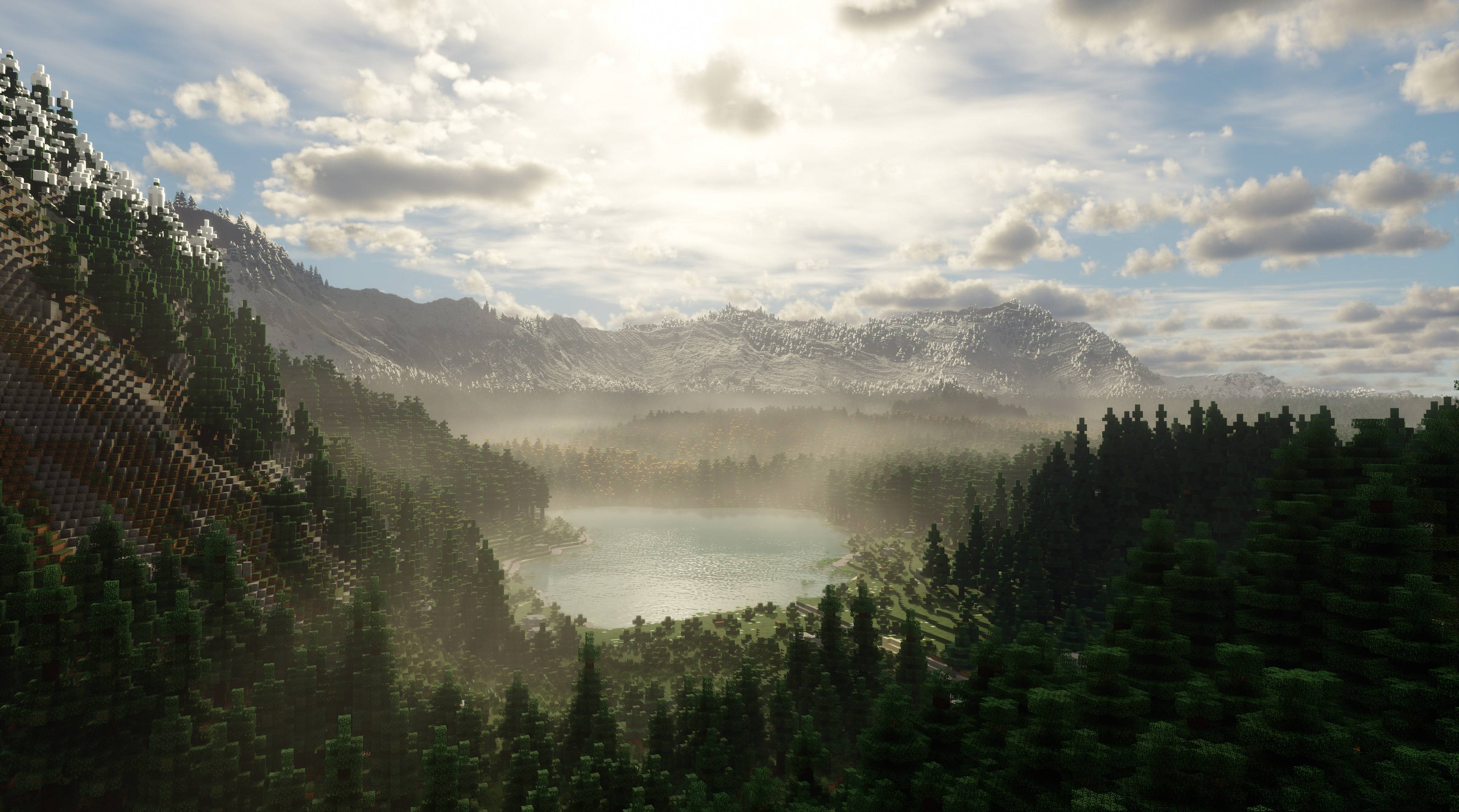
Mainly, you’ll get enhanced exploration and visual immersion in Minecraft. In just a few seconds, you’ll immediately see far landscapes, biomes, and structures. It’ll be easier for you to explore and navigate harsh terrains in Minecraft. With the Distant Horizons mod, adventuring in Minecraft will certainly be easier for you and your friends.
Next, you’ll get improved performance. The mod will allow you to play Minecraft without straining too much on your device. The Level of Detail system that comes with the Distant Horizons mod responds quite well and it will load your chunks efficiently. This is useful if you have large servers that have heavy content.
Finally, Distant Horizons is a mod that’s a definite must-have because of its compatibility with other mods and performance enhancers. With other mods such as OptiFine, Sodium, and Iris, you’ll be able to use this mod alongside shaders and resource packs to render stunning visuals. You’ll be able to adjust the mods and balance them out for optimal performance and render quality.
How do I install the Distant Horizons Mod in Minecraft?
With those benefits in mind, you may be considering installing Distant Horizons already. Keep in mind, however, there are a couple of steps you have to go through before proceeding to download the mod on the CurseForge site, especially if it’s your first time with mods. We’ll be detailing below the steps you need to take to install on the client side.
Step #1: Download and install a mod loader like Fabric or Forge
Firstly, you should download a mod loader. This allows you to properly run any Minecraft mods you plan to install alongside Distant Horizons. Here, we’ll be using Fabric. This can be downloaded on the official Fabric website.
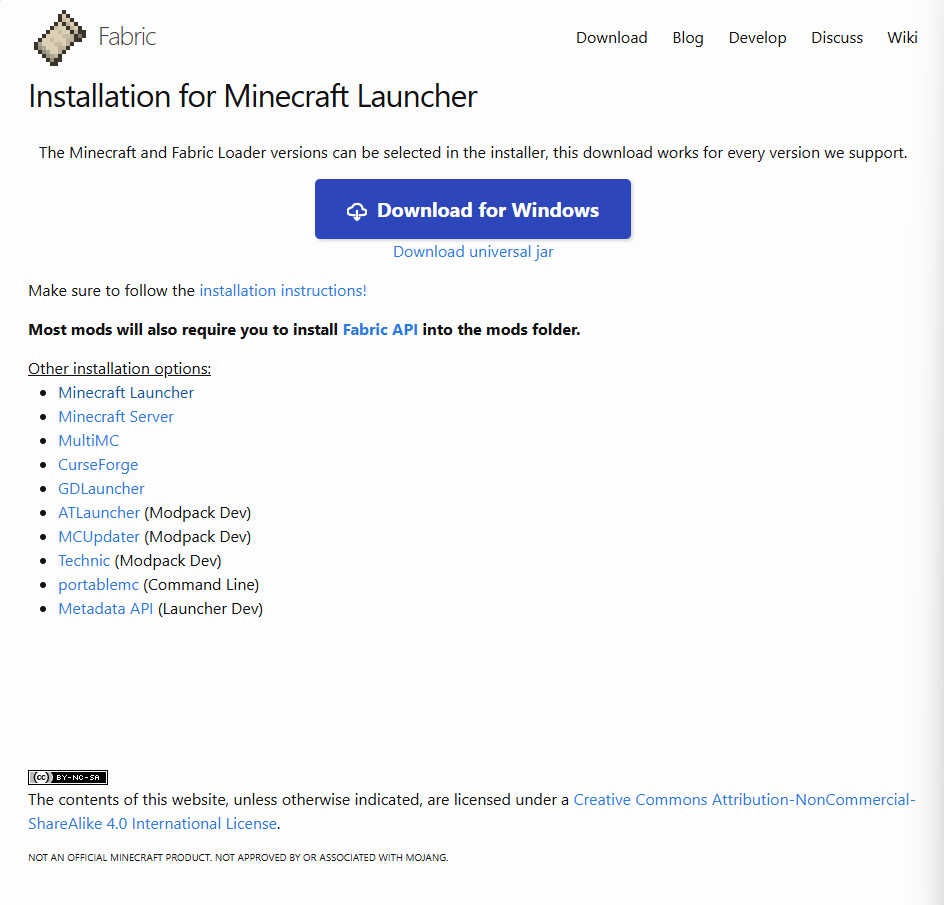
Ensure that you download Fabric version 1.21.4. When downloading the Distant Horizons Mod later on, this should be the same version too.
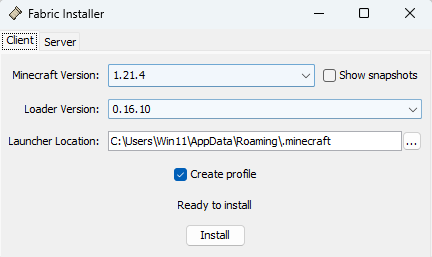
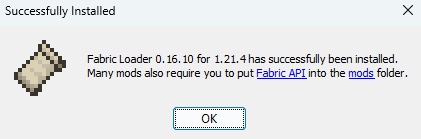
Additionally, tick the “Create Profile” box so that you can see a profile of this version of Minecraft under Fabric on your launcher. Once you’ve done that and you see a “Successfully Installed” pop-up window, we can get to downloading the Distant Horizons Mod.
Step #2: Download the Distant Horizons Mod
For the most updated version of the mod, you can find this on the Distant Horizons official Discord Server. The CurseForge website only has up to version 1.21.1 of the mod.
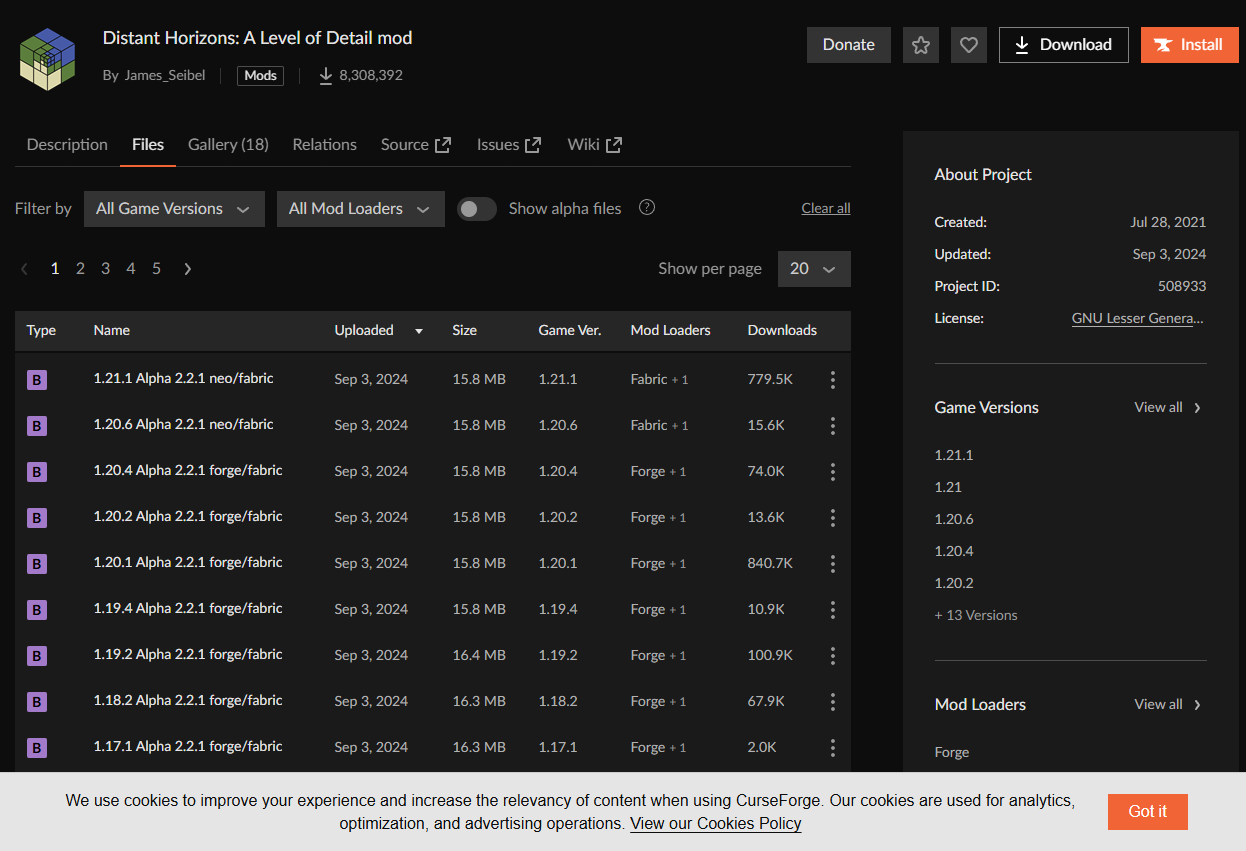
Simply download the version 1.21.4 mod file and open the folder where the zip file of the mod is located.

Step #3: Open your Minecraft Launcher
Next, open your Minecraft Launcher and the Fabric version of the game should appear.
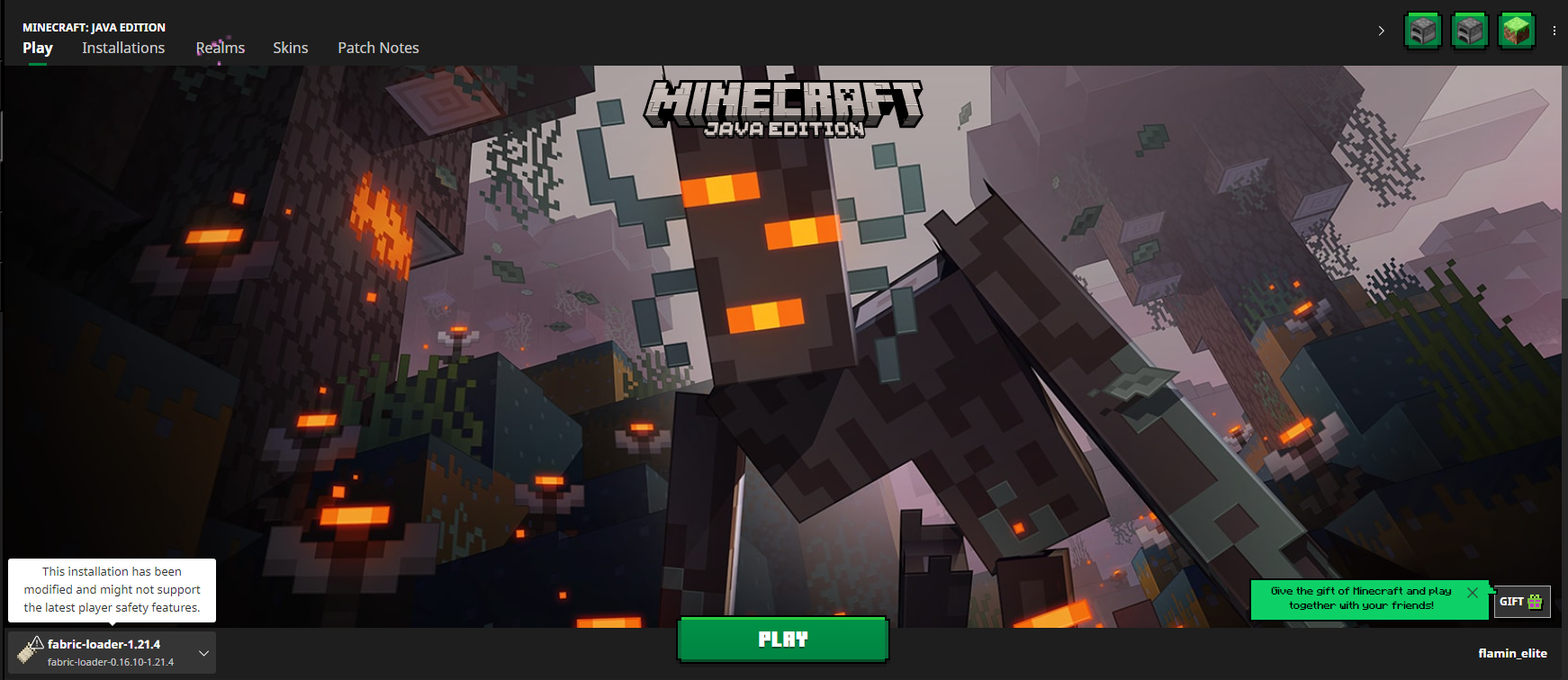
Head to the “Installations” tab of the launcher. Then click on the folder icon to open the game instance of this version’s Minecraft installation.
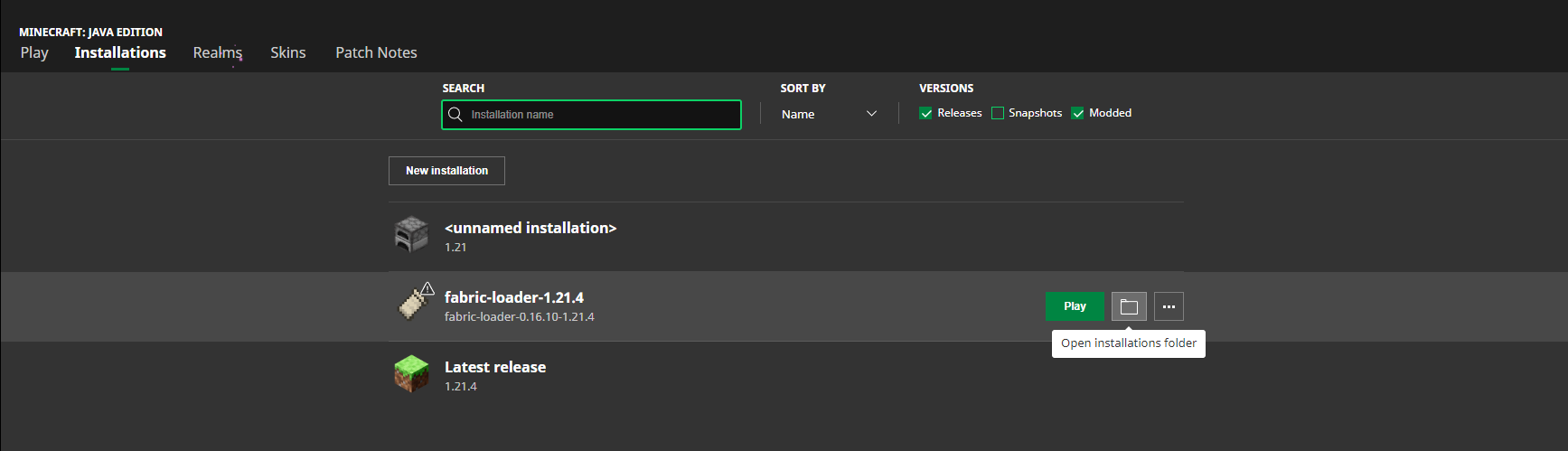
Upon clicking the folder, you should see a new window open of a “.minecraft” folder file. Navigate to the mods folder.
Step #4: Locate the Distant Horizons Mod for Fabric in your files
Then, head back to your opened folder where the zip file of the Distant Horizons mod is located. Extract the jar files from this folder and if there are multiple files, distinguish the one that’s for Fabric.
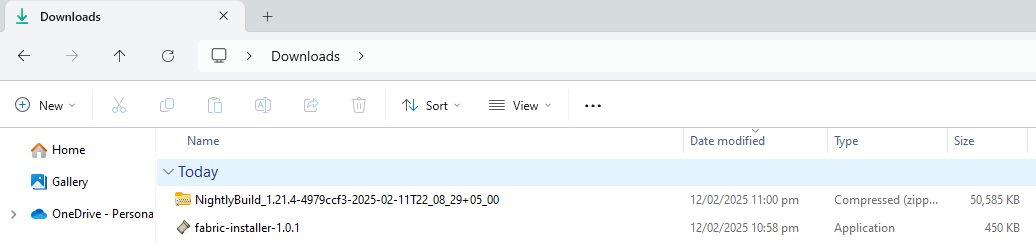
You’ll add this to the mod folder of your game instance later on.
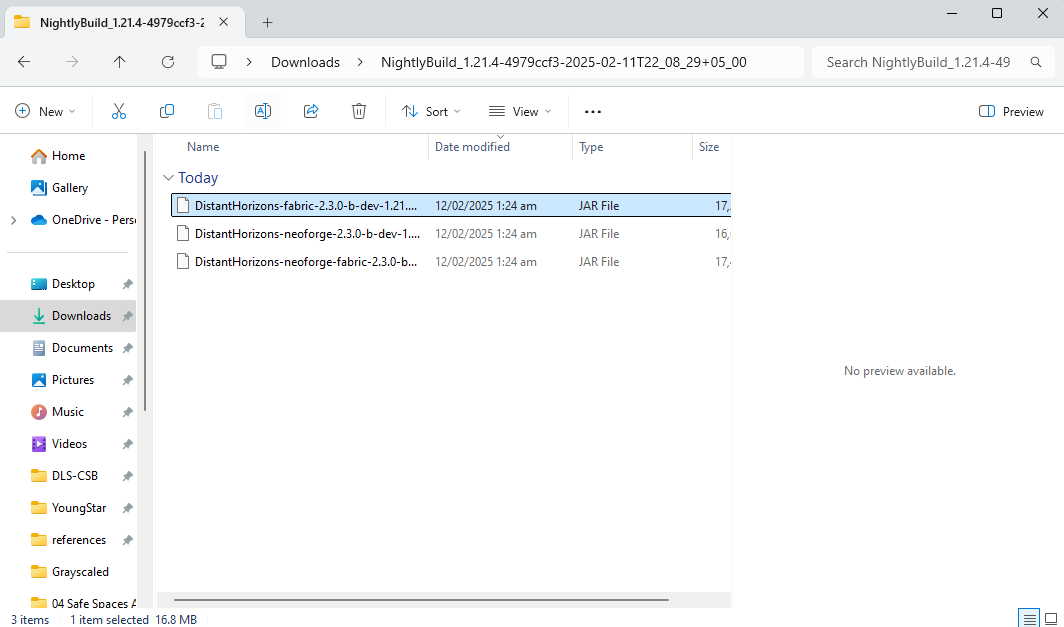
Step #5: Add the Distant Horizons mod to the Minecraft mods folder
You can either copy and paste or drag your jar file to the mods folder. Do this to similar mods you also want to add. Ensure that all your mod versions are version 1.21.4.
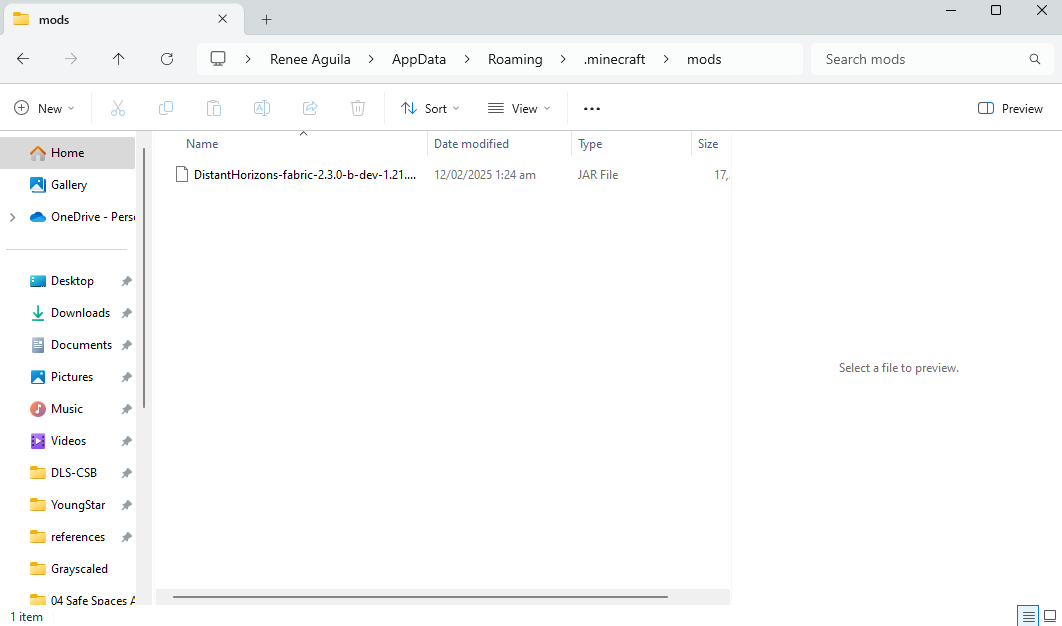
Step #6: Run Minecraft with the Distant Horizons mod installed
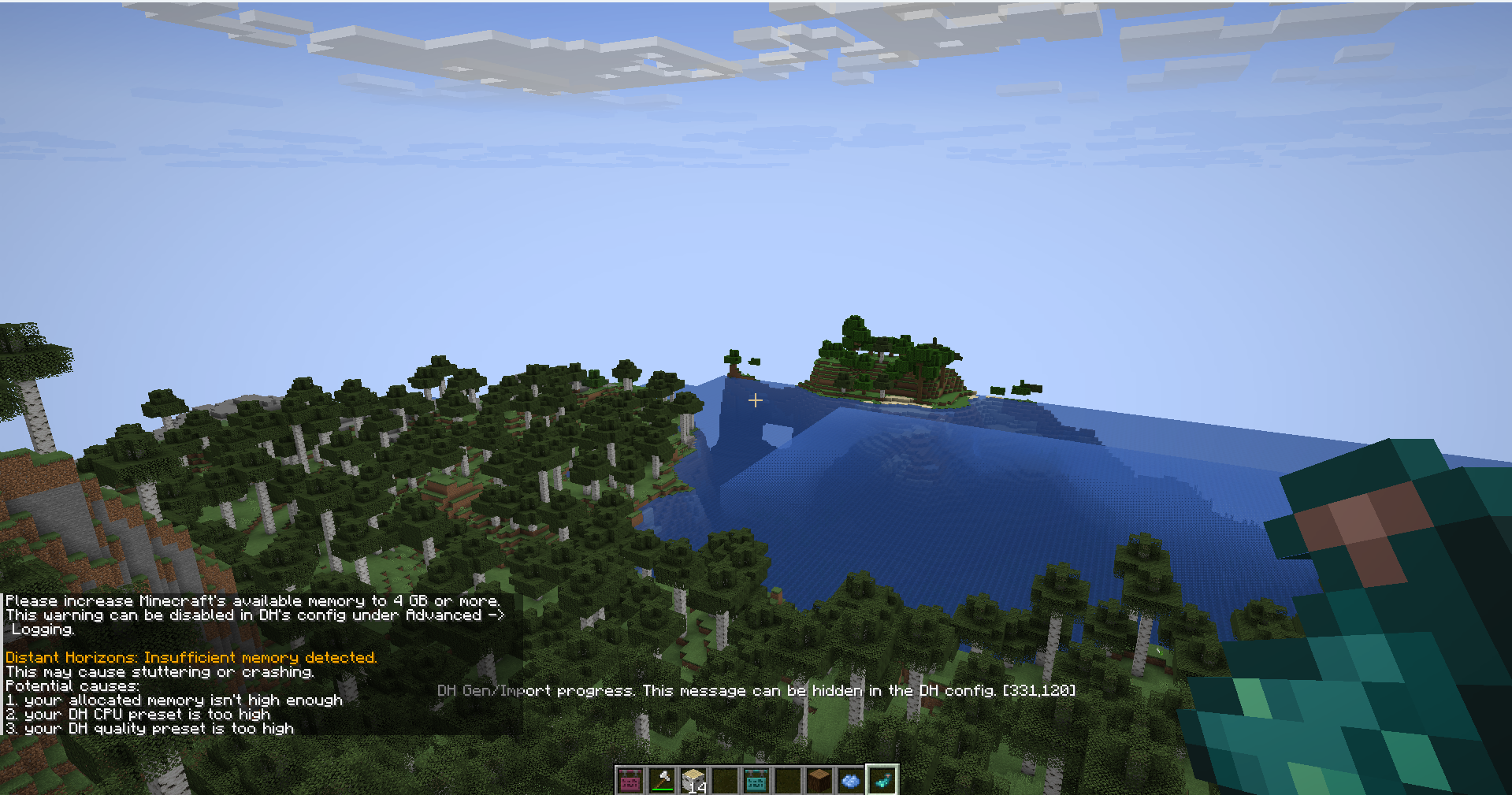
After adding the mod, you can then close the folders and launch that version of Fabric Minecraft.
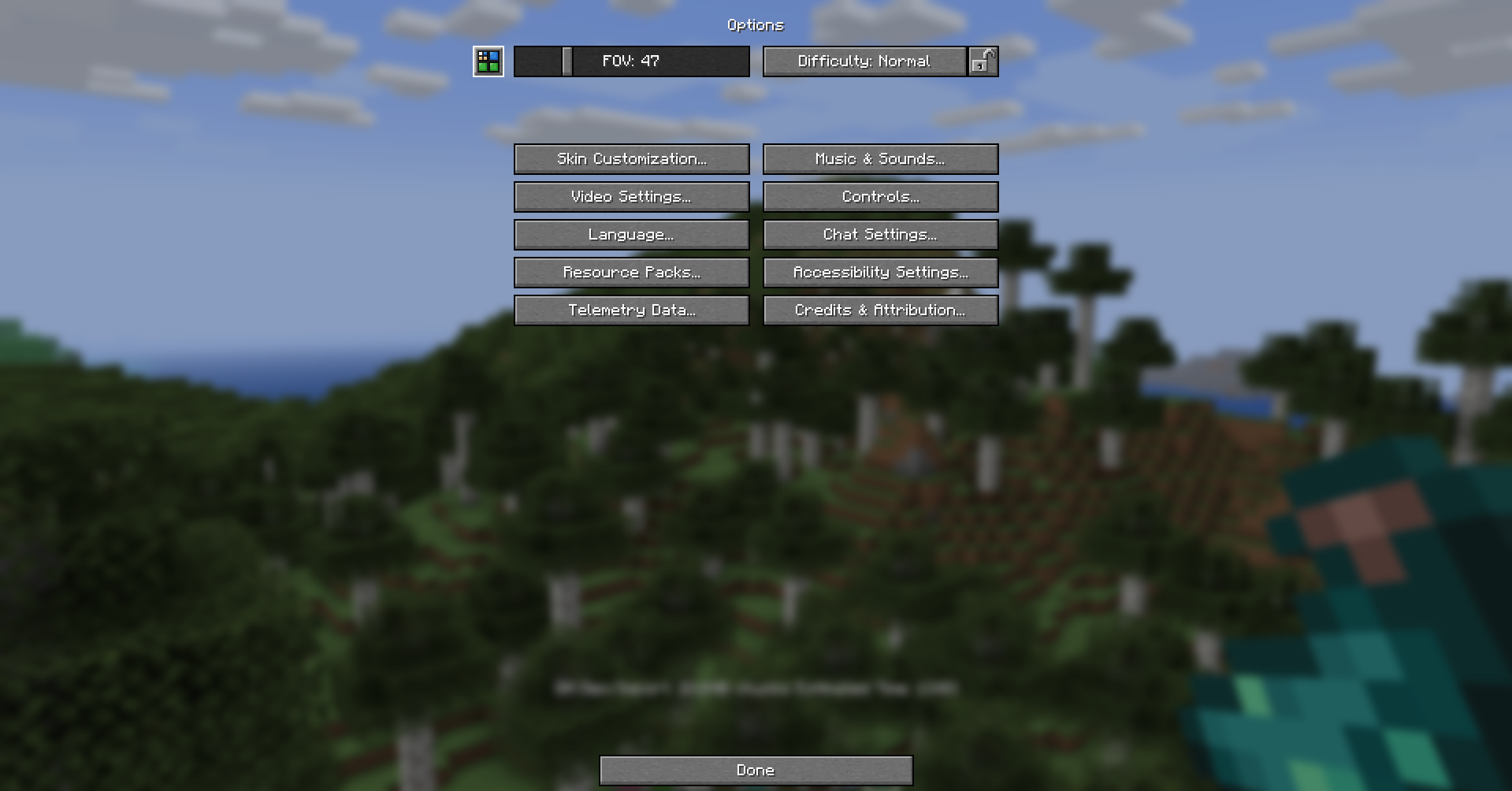
You should be able to see within the Video Settings menu the mod settings for Distant Horizons. There’s a window-like icon beside the “FOV” setting in the menu of Minecraft.
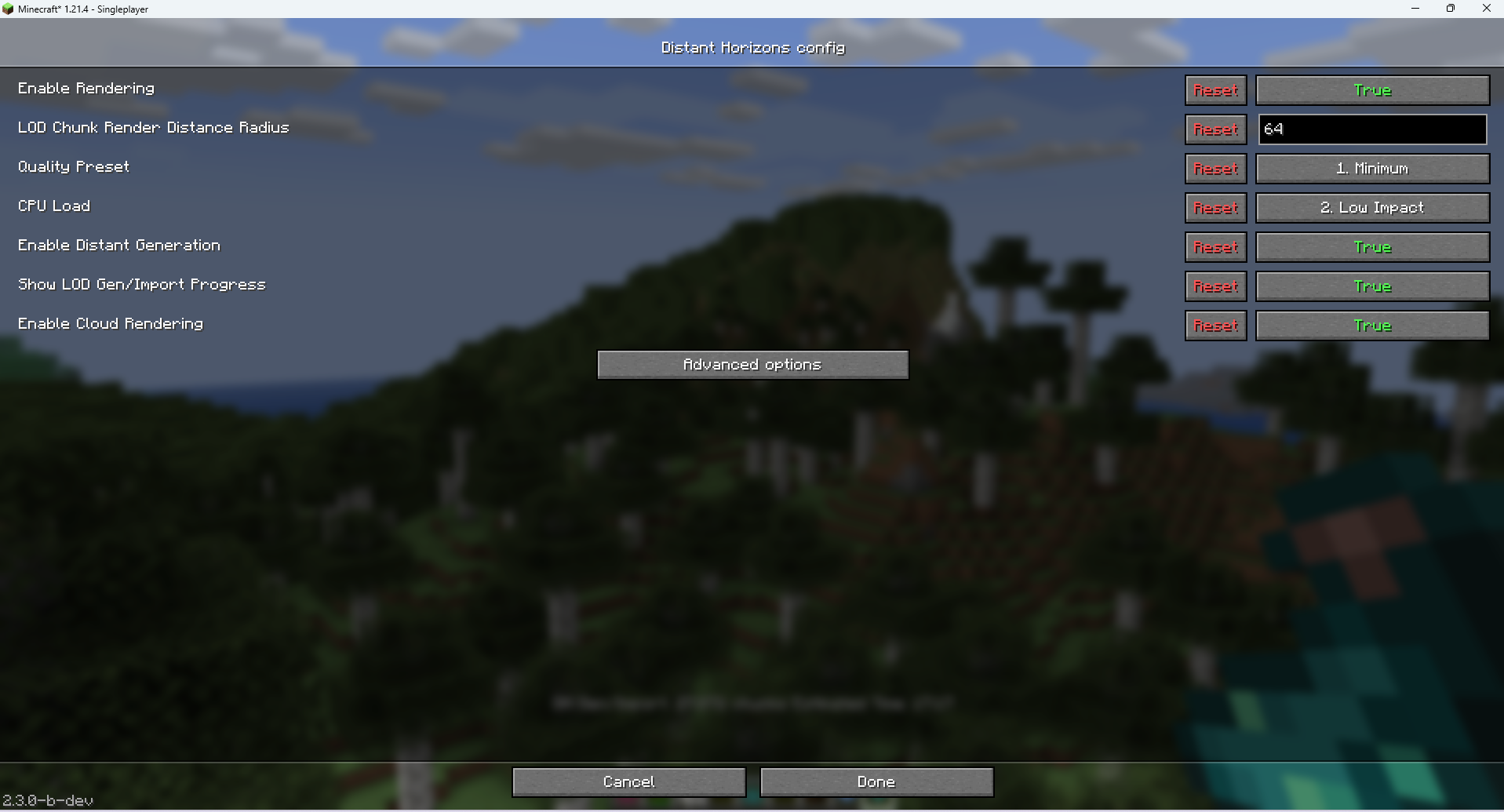
Step #7: Adjust your settings for the Distant Horizons Mod
Lastly, adjust your settings by playing around with your preferred settings for the mod. These automatically adjust within a few seconds of changing each setting.
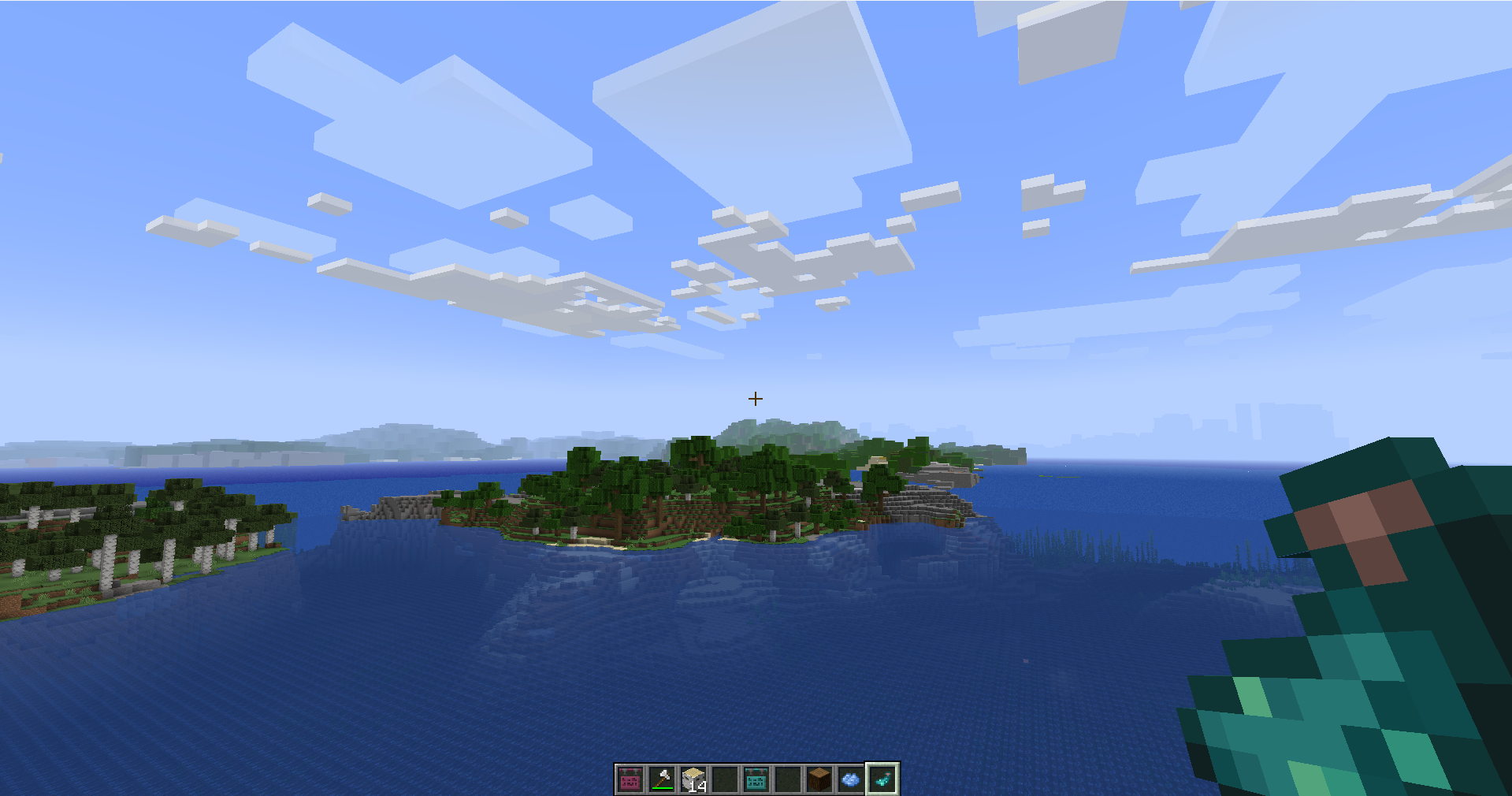
Once you’ve decided, close the mod and begin playing.
What are the best settings for Minecraft Distant Horizons?
Since you’ve learned how to install the Distant Horizons mod, you can then adjust your mod’s settings as you please. Some of the recommended settings are as follows:
- Enable Rendering – True
- LOD Chunk Render Distance Radius – 64 for low-ended devices, and 128 for devices with higher specs
- Quality Preset – Low for low-ended, and Medium for higher-end specs
- CPU Load – Low Impact or Balanced
- Enable Distant Generation – True
- Show LOD Gen/Import Progress – True (you can disable this if you’re satisfied with your tests on the Distant Horizons Mod settings)
- Enable Cloud Rendering – True
Adjusting these settings will ensure that you’re not suddenly straining your device. You’ll also get decent visual quality in-game. Your Minecraft world’s generation will be stable and smooth at the same time.
Overall, use the Distant Horizons Mod with utmost care. Avoid automatically setting the mod to maximum settings to not overload your device. Gradually adjust the settings based on the specs of your system and tweak it slowly from there.
Moreover, continue to monitor your FPS, chunk loading, and Minecraft’s stability. Experimenting with different configurations will allow you to best optimize the mod for a great visual experience. With that, you’ve mastered the Distant Horizons Mod. You’ll be able to better enjoy adventuring through vast landscapes or simply enjoying the distant views within the game.

Renee is a freelance writer with a passion for gaming and pop culture content. While she mainly writes about games, she also does graphic design and illustration work from time to time. With a passion for the creative arts, she blends her skills to tell stories across various mediums.
Leave a Reply