

Minecraft is a game in which time is always passing. It has a day and night cycle that’s integral to the experience, and other time-passing experiences include growing crops or cooking items, among many others.
Of course, Minecraft can’t play in real time. Otherwise, these processes would take forever. Instead, Minecraft has an in-game time-tracking solution called tick speed.
This guide will cover everything you need to know about tick speed, including the game’s default tick speed, how to adapt to tick speed changes, and how to set tick speed.
Updated 8/20/2025
Prefer To Watch Instead Of Read? Check Out Our New Video!
What Is Tick Speed?
Tick speed in Minecraft is one instance of a game loop, and a game loop is the time in which a game factors in player input and updates to react to your interactions.
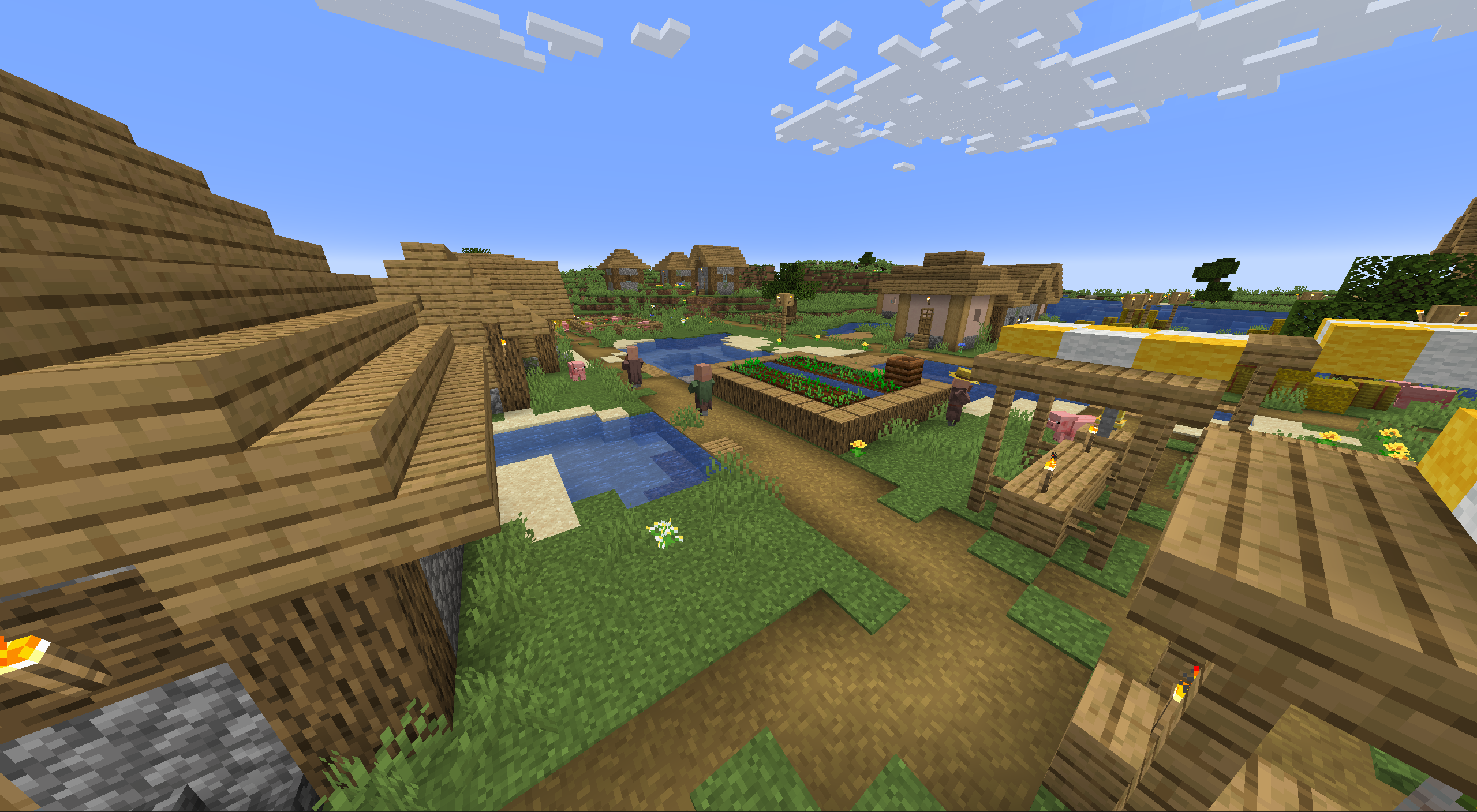
Minecraft’s normal tick speed is 20 ticks per second (TPS), meaning one tick occurs every 0.05 seconds. One in-game day is made up of 24,000 ticks. This equates to 20 minutes.
Something interesting here, though, is that if your computer is too slow to run Minecraft properly, the game will run at a lower tick speed, and in-game time will pass slower. For example, if your game runs at 10 TPS, time will pass half as fast. If you have a slower computer, you can play on a server that handles most of the processing.
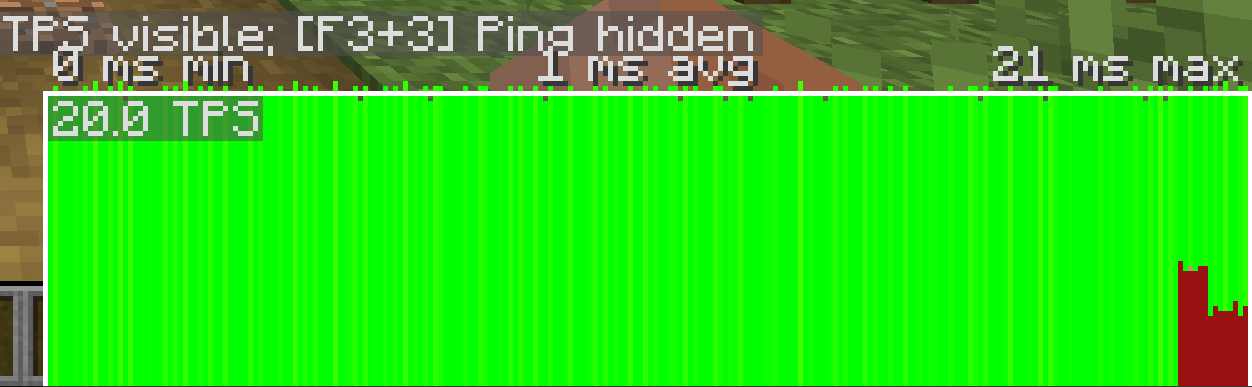
You can check your tick speed in Minecraft by pressing F3 + 2 and checking the bottom right-hand corner.
What Does Tick Speed Affect?
As mentioned above, tick speed affects everything. It factors in mob spawning and despawning, in-game events like raids, day-night cycles, and weather cycles, and it updates dimensions like the Nether or the End.
Tick speed also factors into chunk loading. In Minecraft, a chunk is a 16×16 set of blocks, reaching from Bedrock at -64 to the sky’s peak.
While tick speed has an effect on everything, there are a few major instances that increase lag if you’re on a server.
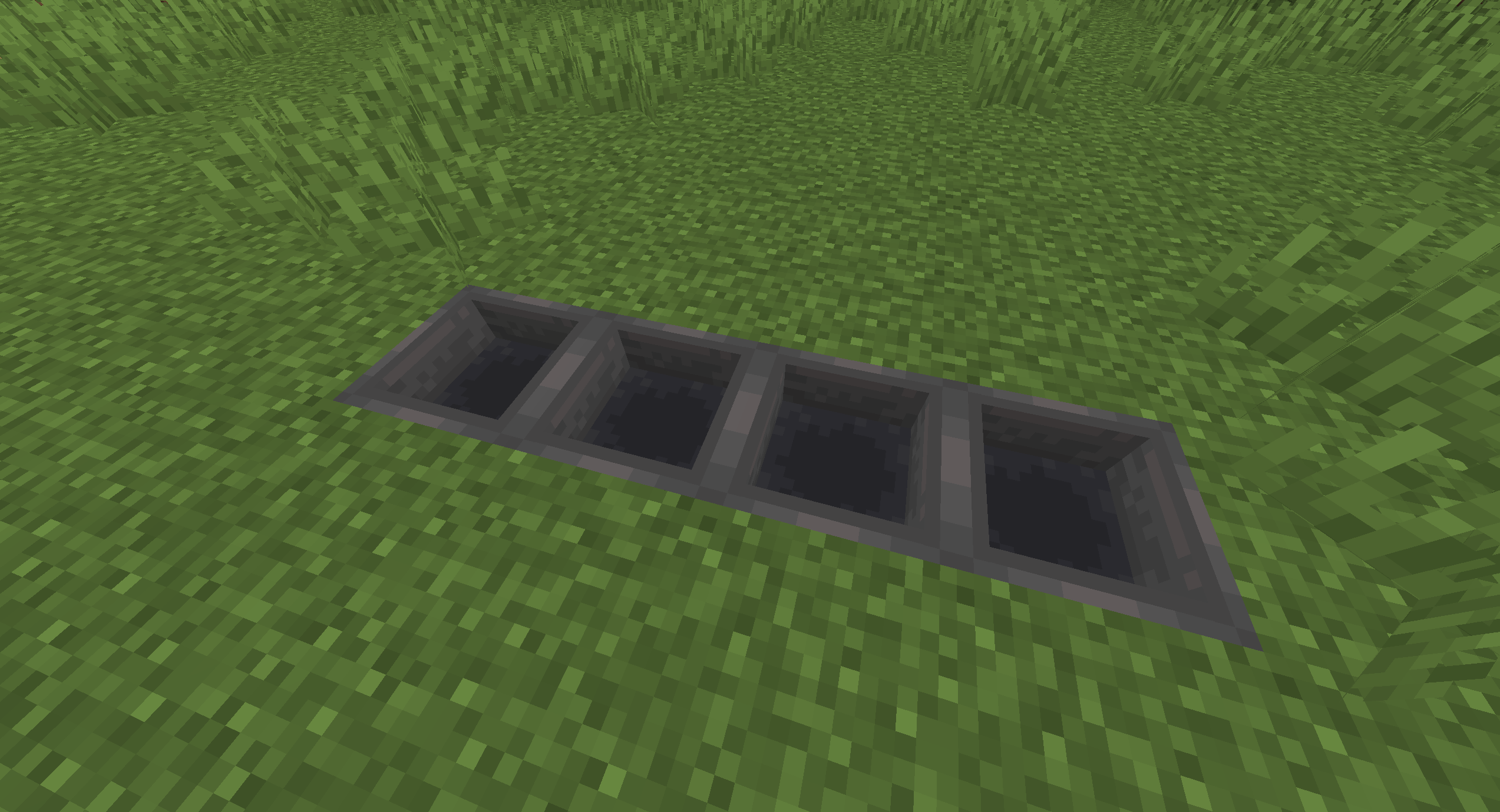
One mechanic that will add a lot of lag is the Hopper. With every tick, Hoppers are attempting to capture items. The more Hoppers you have around, the more bandwidth they’ll take up.
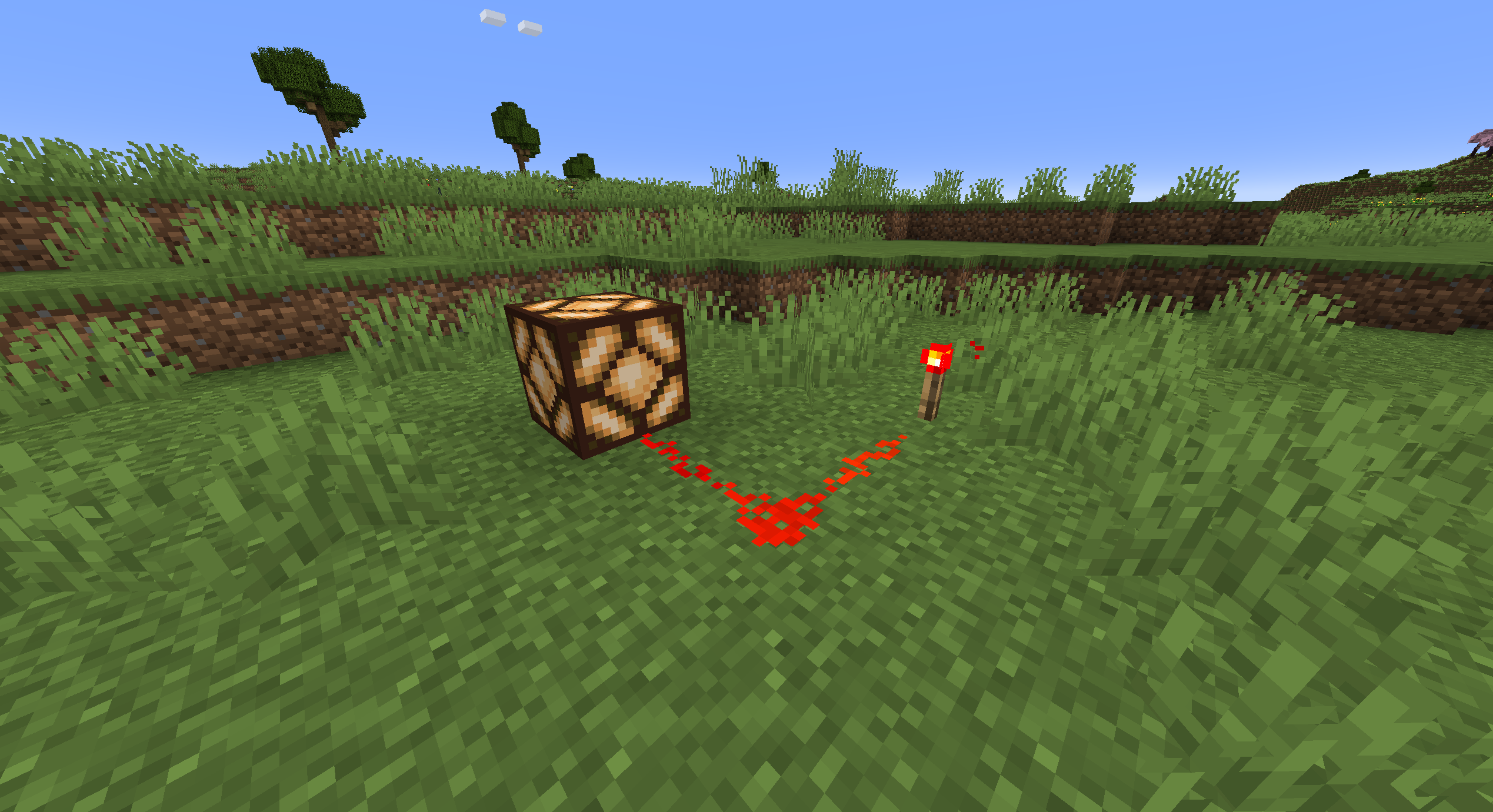
Redstone contraptions function almost entirely through tick speed. Complex Redstone machines will only contribute to the available tick speed more and more, increasing lag over time.
Finally, mobs are entirely managed by tick speed. Everything they do is based on ticks, so having a ton of mobs around can contribute to server lag.
How To Set Tick Speed In Minecraft
If you’d like to set your tick speed in Minecraft, you must utilize the random tick speed command. Type the command as follows in your game chat, but make sure to put an actual number, like 500, in the number section.
/gamerule randomTickSpeed [number]
Upon doing so, Minecraft will run at the updated tick speed. Keep in mind you will need Cheats enabled in your world to enable this command. If you’re playing on a server, you need an Operator role or higher to activate this command.

However, before doing this, it’s important to understand how random tick speed works in the first place.
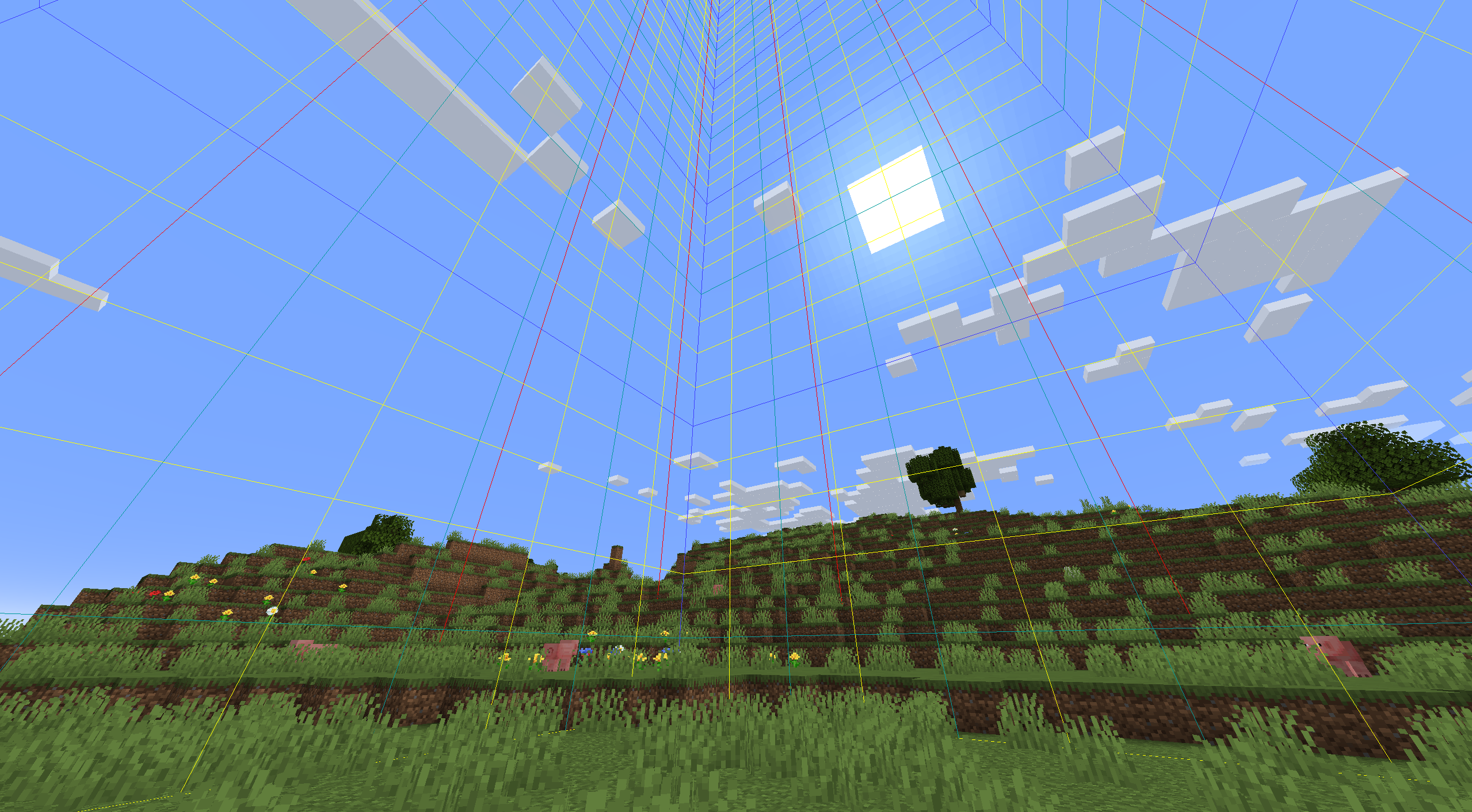
If you press F3+G while playing Minecraft, you’ll activate chunk borders.
While you can see all of the chunk borders through this viewer, you’ll notice blue boxes stretching up into the sky. These are called subchunks. Random tick speed decides how many blocks within one subchunk are updated each time there’s a game tick.
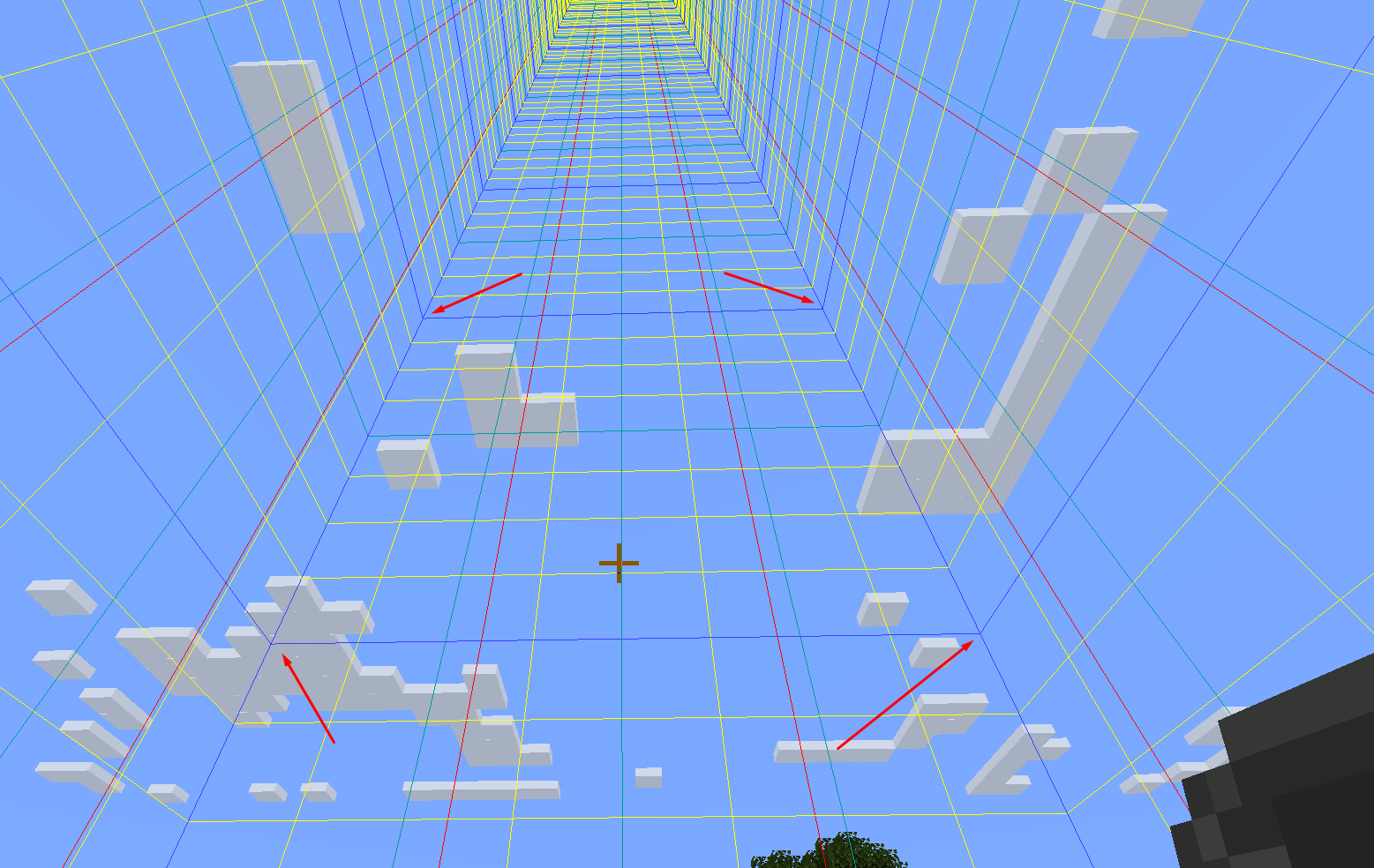
In Java Edition, the default random tick speed is 3. This means that three random blocks within a subchunk are updated with every tick. If you increase the random tick speed, more blocks will get updated with every game tick.
If, for some reason, you don’t want any block updates, you can set the Minecraft tick speed to 0.
Why Use The Random Tick Speed Command?
Using the random tick speed command is helpful for a few reasons.
Faster Farming
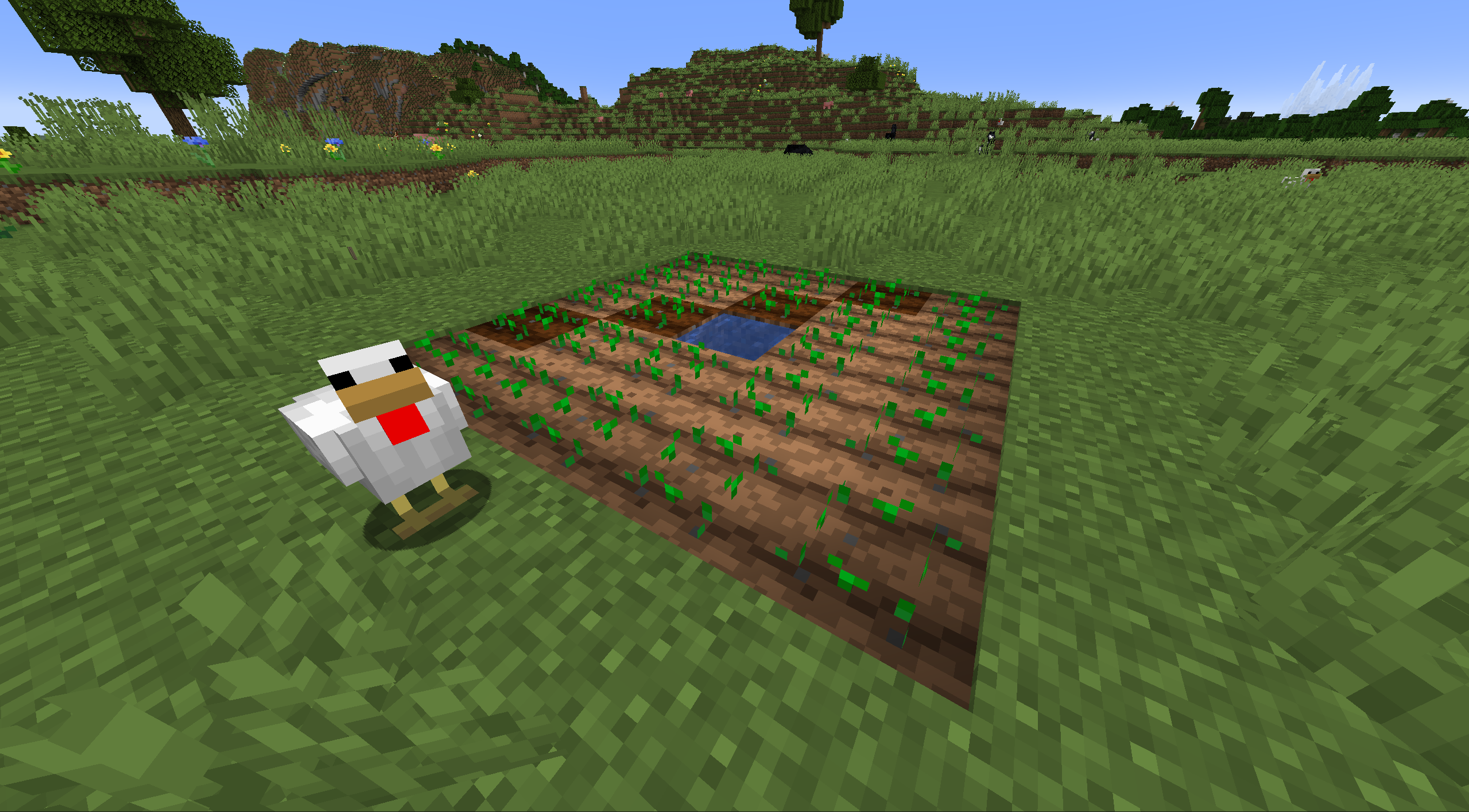
If you’re growing a ton of crops in a farm, the random tick speed command will increase their growth speed. Sometimes, you’ll see crops grow instantly if you set the right speed.
Environment Changes
If there’s a fire in your world that you’re struggling to put out, or if you’re looking to cover a bunch of dirt blocks with grass, you can adjust the random tick speed to speed up the end of these events.
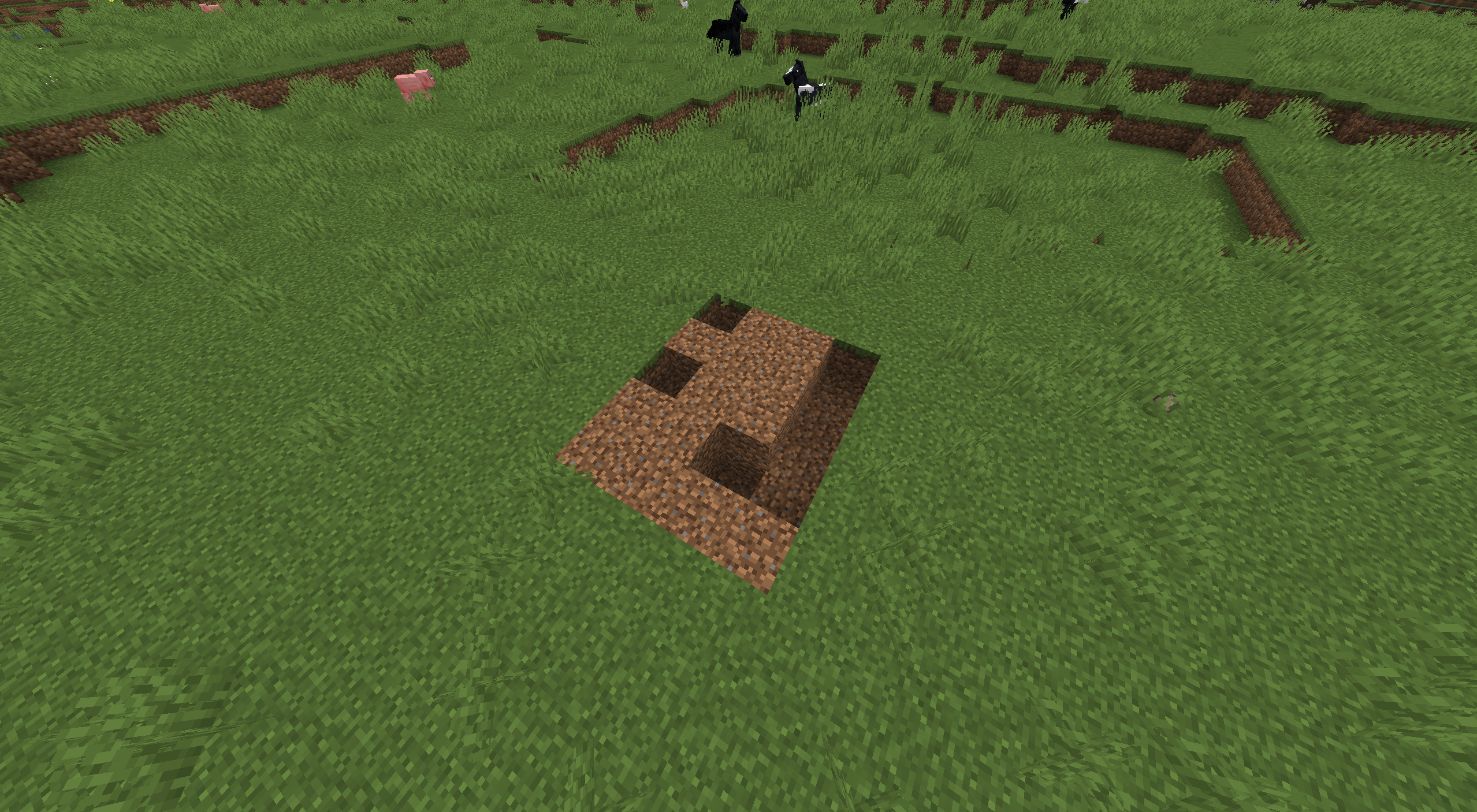
For example, Dirt blocks grow into grass over time. A patch of Dirt blocks will turn into grass almost immediately if you increase the random tick speed.
However, there are a few things to remember when you change tick speed in Minecraft.
If you Minecraft world is lagging after you increase the tick speed, drop it back down. Increasing your tick speed means messing with Minecraft’s intended gameplay behavior. Depending on your device, it may struggle and even lag with the faster processing power required to handle this. This goes double if you’re playing on a server and it’s lagging.
Now that you’re aware of how to adjust your tick speed in Minecraft, as well as how to take advantage of its features, why not get some friends together to enjoy the benefits together?
If you’re looking to play Minecraft online with your friends, NameHero has you covered. Our Minecraft server packages support up to 50 players, support up to seven layers of DDOS protection, and even offer a 72-hour money-back guarantee so you can try them at no risk.
For more information on NameHero servers, check out this page.

Max is a freelance writer with a love for gaming and technology. He’s always looking for the next big game to play and tinkers with tech in his remaining free time.
Leave a Reply