

Minecraft is better with friends, no doubt. However, it’s highly unlikely that all of your friends are on the same platform. Fortunately, Minecraft features cross-platform support, allowing you to play with your cross-platform friends.
This guide will cover everything you need to know about playing Minecraft with friends on different platforms and versions like Minecraft Windows and Bedrock , including support for the different game versions and how to play on PlayStation, Xbox, Nintendo Switch, and more.
Updated: April 10, 2025
Prefer To Watch Instead Of Read? Check Out Our New Video
Is Minecraft Cross Platform?
The short answer to the question “Is Minecraft cross-platform?” is yes. The long answer, however, is more complicated. We will go over all the different methods to crossplay Minecraft.

Minecraft Bedrock Edition supports cross-platform play on the following devices:
- Windows PC
- Xbox consoles
- PlayStation consoles
- Nintendo Switch
- iOS mobile devices
- Any Android mobile device above a certain version
- Some Chromebook devices
Long story short, if your device can run Minecraft Bedrock Edition, it can play Minecraft cross-platform with other devices.
However, the answer is a bit different if you’re a Minecraft Java Edition player.
Minecraft: Java Edition is available on Windows PC, Linux, and Mac. This version supports cross-platform play through custom servers and Realms, Minecraft’s official server solution and a plugin called geyser that allows bedrock and java edition to play together. Anyone who hosts a Java Edition Realm can open it to players on these three devices.
Unfortunately, Minecraft: Bedrock Edition isn’t available on Mac or Linux, so you must have a supported device if you want to play Minecraft with Bedrock friends. Also, everyone must play on the same version number this can be tricky with all the different versions out there. However, you can start a java server and use a plugin called geyser to allow bedrock and java players to cross play together on the same server.
How To Cross Play Java & Bedrock with Geyser
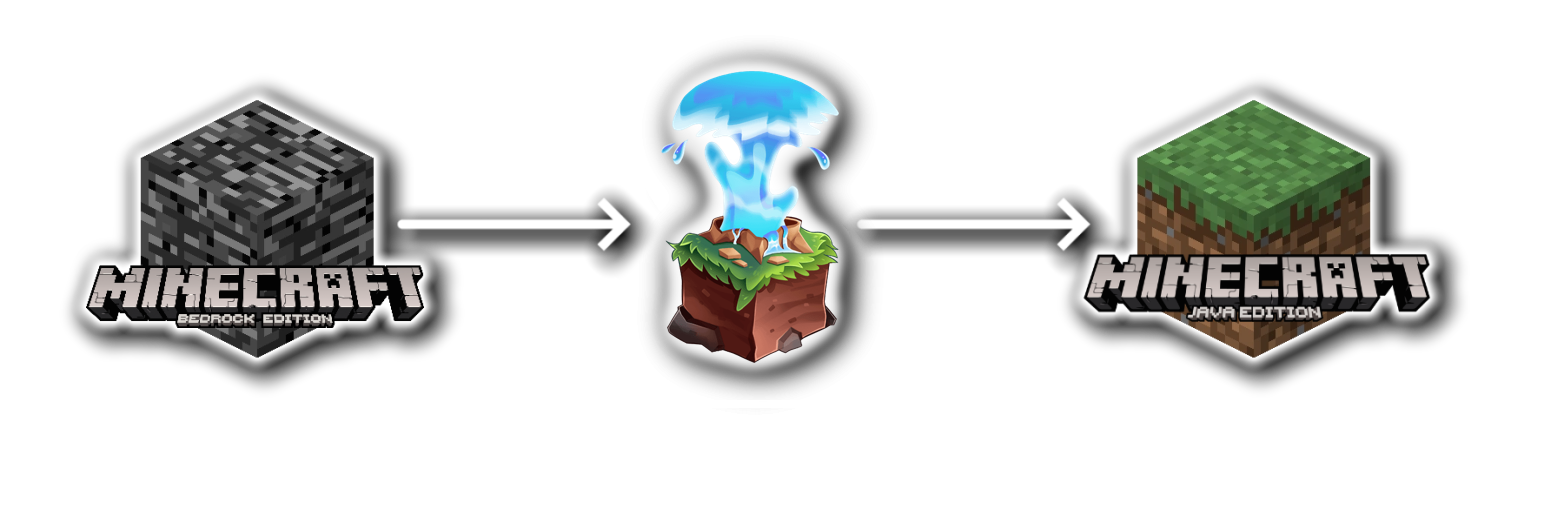
This is the most effective way to play any Minecraft edition is with a plugin called geyser. This allows pc and other platforms to play Minecraft together on a Java server. This allows all players to not be on the same edition of Minecraft. If a friend or player is on a different platform this is the best way to play.
You can follow the full official GeyserMC setup guide here.

To cross-play Minecraft Java and Bedrock editions using Geyser, you’ll first need to install the Geyser plugin on your server. Geyser acts as a proxy, allowing Bedrock players to join Java servers. Simply upload Geyser to your server’s plugins folder, configure the Bedrock port in the config file, and ensure your server is running a compatible version of Minecraft. NameHero’s Minecraft hosting simplifies this process with its user-friendly control panel, making it easy to install Geyser and other plugins without any technical hassle. Once set up, both PC and console players can enjoy the same Minecraft world seamlessly!
How To Start Cross Platform Play With Minecraft Bedrock Edition
There are a few ways to engage in crossplay through Bedrock Edition. But first, everyone playing will need an Xbox account (also known as a Microsoft account) through Microsoft. This will allow you to friend invite players to your server with the xbox gamertag.
To start, we’ll cover LAN crossplay.
Starting a LAN Crossplay
LAN cross play allows you to play Minecraft on a local network, rather than paying for a Realm or a server.
1. Create a New World
Click Create New on the Worlds page.

2. Create a New World
Now, click Create New World on the next menu.

3. Select Multiplayer
Click on the Multiplayer tab on the Create World page.

4. Turn on Multiplayer Game
Make sure that Multiplayer game is turned on and Visible to LAN players, and customize the player invite settings.

5. Click Create
Select Create, and it will create your multiplayer world. From there, your invited friends can join it. Bedrock is the only version that can join with this method.

If you’d like an always online alternative to LAN, you can join Minecraft Realms.
Creating a Realm
1. Create a Realms Server
Follow the same steps as above, but click Create instead of Create on Realms Server.

2. Select a Player Count
Select either a 10-player Realm or a 2-player Realm based on the number of friends you want to join.

3. Click on Subscribe Now
You’ll be taken to the Realms Plus subscription page. Click on Subscribe Now.

4. Name Your Realm
Give your Realm a name, agree to the Terms and Conditions, and click Subscribe Now again.

5. Enter a Payment Method
You’ll log into your Microsoft account and input a payment method from here. Then, click Subscribe for a final time. Minecraft will create your Realm.

How To Start Cross Platform Play With Minecraft Java Edition
To play cross-platform on Minecraft Java Edition, each player must have a Microsoft account, just as with Bedrock.
You can launch the game through the Minecraft Launcher and begin the crossplay process.
Just like with Bedrock Edition, we’ll start by covering LAN play.
Starting a LAN Crossplay
1. Click Single Player
Start by creating a multiplayer world. Ironically, you’ll start by clicking Single Player.

2. Create a New World
Click Create a New World and customize the options as you see fit. Then, click Create New World to start the generation process.

3. Click Open to LAN
Next, start your world and click Open to LAN.

4. Customize the LAN Settings
Enter your desired gamemode, if you want commands on or off, and adjust the port number if needed. Then, click Start LAN World.

Once done, others on your network can join via the Multiplayer tab.
Starting Java Edition Realms
1. Click Minecraft Realms
Navigate to the Minecraft Realms section of the main menu.

2. Select Buy Realm
Click on Add Realm and click Buy a Realm! on the subsequent menu. Minecraft will take you through the Realm creation process.

3. Create/Sign Into An Account
Sign into your existing Microsoft account or sign up for a new one.

4. Select Buy Now
Click on the Buy Now button.

5. Input a Payment Method
Input a payment method, or choose one that already exists if you had a previous Microsoft account. Then, click Subscribe.

Once you click Subscribe, you’ll be able to access your Java Edition Realm in-game. From there, you can invite friends through the friends tab and build a persistent world.
Of course, while these official Minecraft server solutions are a valid way to play with friends and other players, you can also check out a NameHero server for increased customization and more control over your experience.
If you’re looking to play Minecraft online with your friends, NameHero has you covered. Our Minecraft server packages support up to 50 players, support up to seven layers of DDOS protection, and even offer a 72-hour money-back guarantee so you can try them at no risk.
For more information on NameHero servers, check out this page.

Max is a freelance writer with a love for gaming and technology. He’s always looking for the next big game to play and tinkers with tech in his remaining free time.
I want to play this game.