What Is Self-Hosted WordPress?
In this post, we’ll differentiate self-hosted WordPress from WordPress.com, and discuss the benefits of the former.
On this page

If you plan to create a website, you’ve likely looked at WordPress and discovered that there are hosted and self-hosted options. So what is self-hosted WordPress, and should you use it?
Self-hosted WordPress gives you full control and flexibility over your website. However, you’ll need to choose your hosting provider, buy a domain name, and install the WordPress software. Fortunately, there are ways to simplify the setup process.
In this post, we’ll differentiate self-hosted WordPress from WordPress.com, and discuss the benefits of the former. Then, we’ll show you how to set up a self-hosted WordPress site and present an easy alternative for beginners. Let’s get started!
#Self-Hosted WordPress vs WordPress.com
WordPress is one of the most popular content management systems (CMS), powering over 43 percent of all websites.
However, there are two versions of WordPress: a hosted version and a self-hosted version. Both of them utilize the robust WordPress software.
The hosted version (WordPress.com) is the quickest way to set up a website:
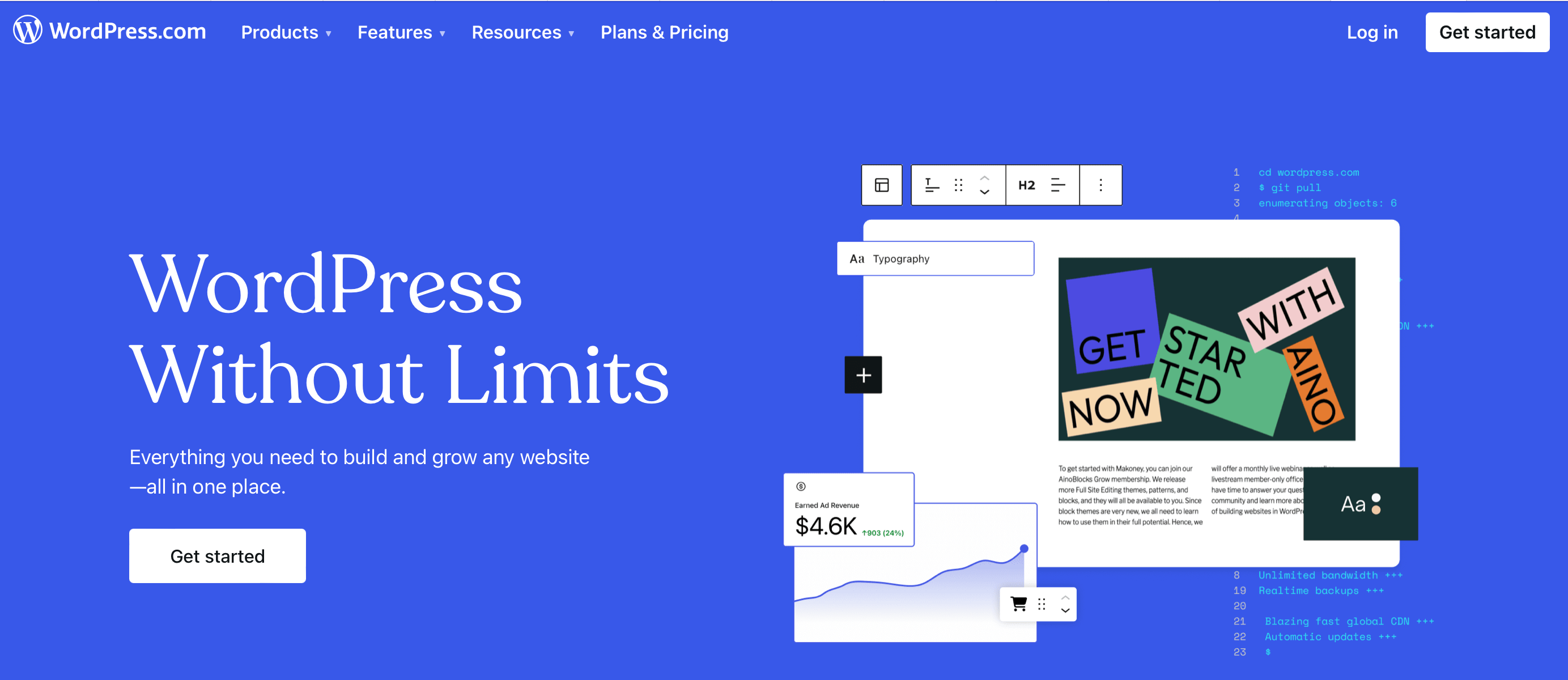
You just have to register for an account. If the free plan isn’t sufficient for your needs, you can upgrade to a paid subscription package.
All the technical aspects of running a site are handled for you, so you can focus on creating content. However, customization options are limited, especially with the free and standard plans.
You won’t get full access to your site’s code, which restricts advanced customizations. Plus, there are limitations on the plugins and monetization methods you can use, and you don’t get to choose your web host.
If you opt for self-hosted WordPress (WordPress.org), you have to download the software and install it on a hosting server of your choice:
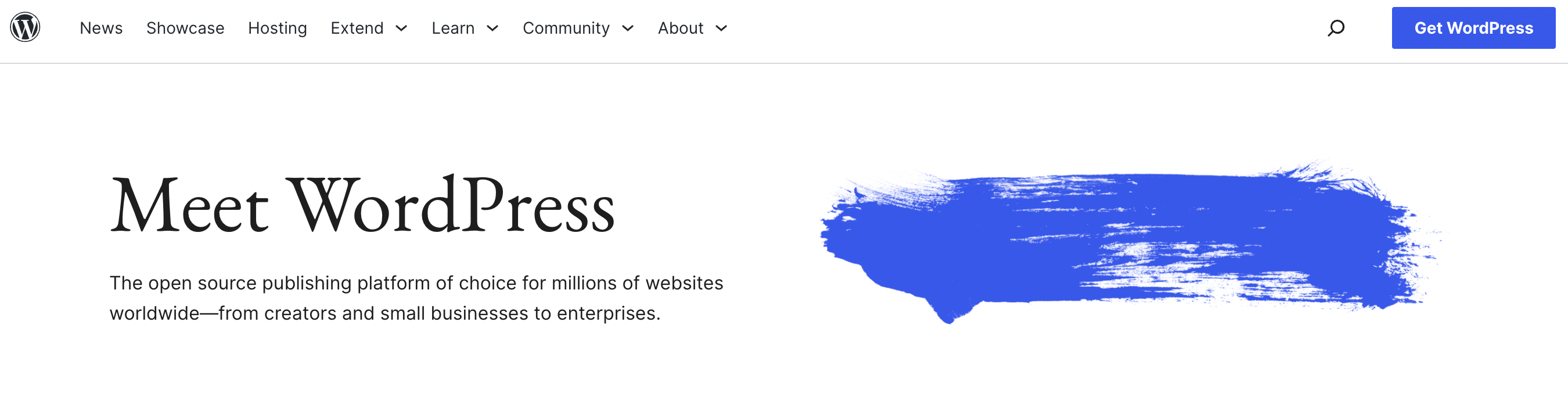
You’ll get complete control over your site’s appearance, functionality, content, and data. However, there are more steps involved in setting it up.
You’ll need to purchase a domain and register with a web hosting provider. And, you’ll be responsible for site maintenance like updates, backups, and security (although many hosting providers handle this for you).
#The Benefits of a Self-Hosted WordPress Site
Self-hosted WordPress offers more control and flexibility than its hosted counterpart. Other benefits include:
- Customization. Self-hosted WordPress lets you set up a truly unique site that reflects your branding. You can modify nearly every aspect of your WordPress theme using the built-in Customizer, page builder extensions, and CSS code.
- Advanced functionality. Unlike WordPress.com, self-hosted WordPress has no restrictions on plugins. While we recommend sticking to tools from trusted sources, you’re free to extend the base CMS with ecommerce plugins, form plugins, membership plugins, etc.
- Monetization opportunities. There are tons of ways to earn money through a self-hosted site. You can display ads, use affiliate links, create a membership site, and even sell your products through a fully-fledged online store.
- More design options. WordPress.com is great for using free themes, but it’s tricky to install any other templates. With self-hosted WordPress, you can easily install custom themes, free themes, and premium themes from third parties.
- Enhanced data security. Self-hosted WordPress provides full control over your site data. That means you get to choose how it’s stored and secured. This is useful if your website gets hacked, and it ensures GDPR compliance.
- Peace of mind. While you’ll have to adhere to your hosting provider’s rules, WordPress.org isn’t bound by strict terms and guidelines. So, you don’t have to worry about your WordPress site being taken down without your consent.
If you want to run any kind of site besides a simple blog, it’s better to choose self-hosted WordPress. This is far more affordable, and flexible, and it gives you complete control over your content and data.
#How to Set Up a Self-Hosted WordPress Site (In 4 Steps)
Here’s what’s involved in setting up a self-hosted WordPress site.
1. Find a Domain Name
The first step to launching a WordPress website is finding a domain name.
If you’re creating a business website, you can secure a domain that matches your business name. This establishes credibility with new customers and it gives your website a more professional look.
The simplest way to purchase a custom domain is to use a registrar like NameHero:
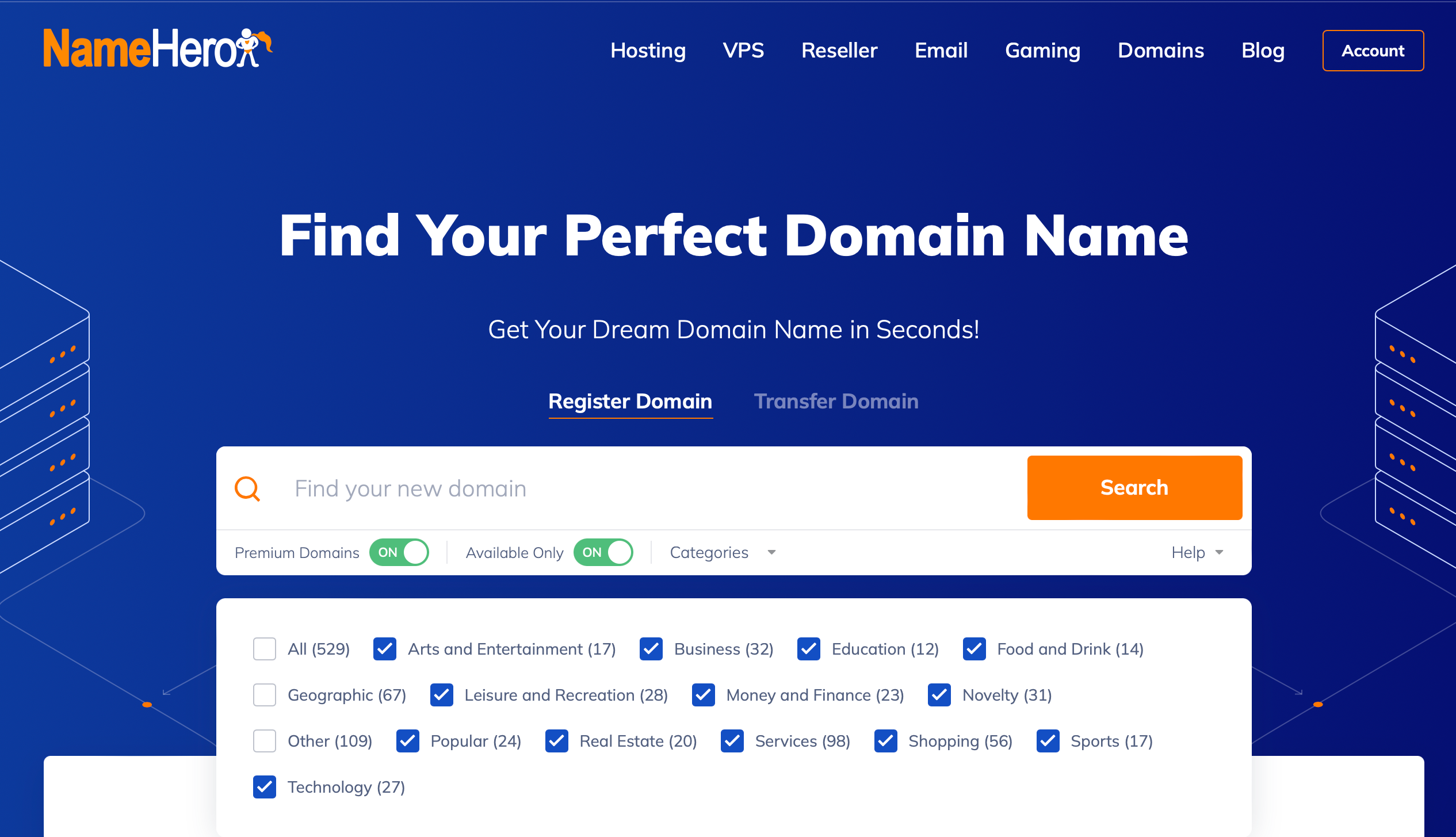
You can use the free domain search tool to browse potential options and filter the results by industry and availability.
You’ll also need to consider the type of domain extension you’ll use (e.g. .com is the most widely recognizable). A good domain is also a key part of your branding strategy, so be sure to choose something memorable and/or include relevant keywords.
2. Create a Web Hosting Account
Since we’re dealing with self-hosted WordPress, you’ll have to find a web host to store key website files.
There are different types of services. Shared hosting is the most affordable, but you might prefer managed WordPress hosting.
With a managed service, your web hosting provider handles maintenance for you. You’ll also get access to other useful features.
For example, NameHero offers WordPress hosting plans, some of which come with a free domain and a free SSL certificate:
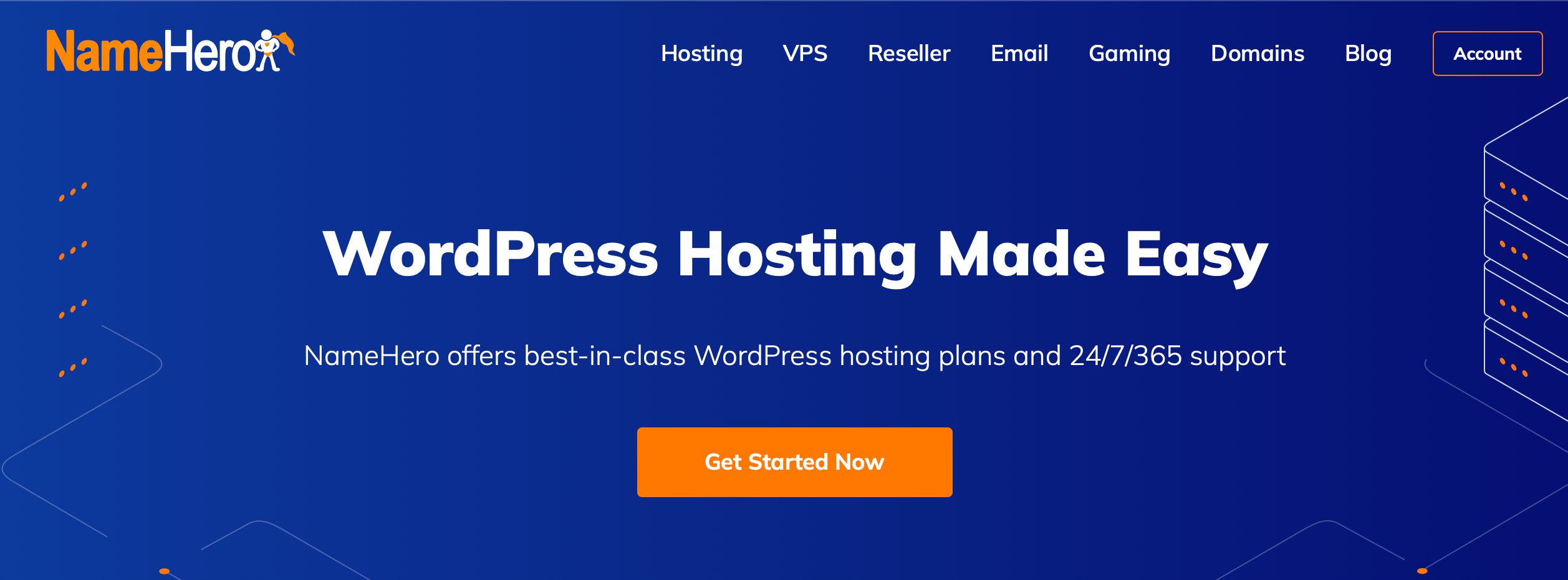
All packages also include regular backups, automatic updates, and robust security measures like firewalls and malware scans.
There are several plans available, which vary in terms of server space, bandwidth, and memory. The choice between them depends on the size and complexity of your website.
3. Install WordPress
Next, it’s time to install the WordPress software. You’ll only have to do this manually if you opt for VPS or dedicated hosting.
In these instances, you have to install WordPress yourself. To do so, you’ll need to download the WordPress core from the official website and upload the files using an FTP client.
If that sounds too technical, don’t worry. Most managed hosting providers (like NameHero) provide automatic WordPress installations. Typically, this is a user-friendly one-click process, available in the control panel.
4. Customize Your Website
Once you have access to the WordPress dashboard, you’re able to customize your website.
Simply navigate to Appearance > Themes > Add New Theme to install your preferred template:
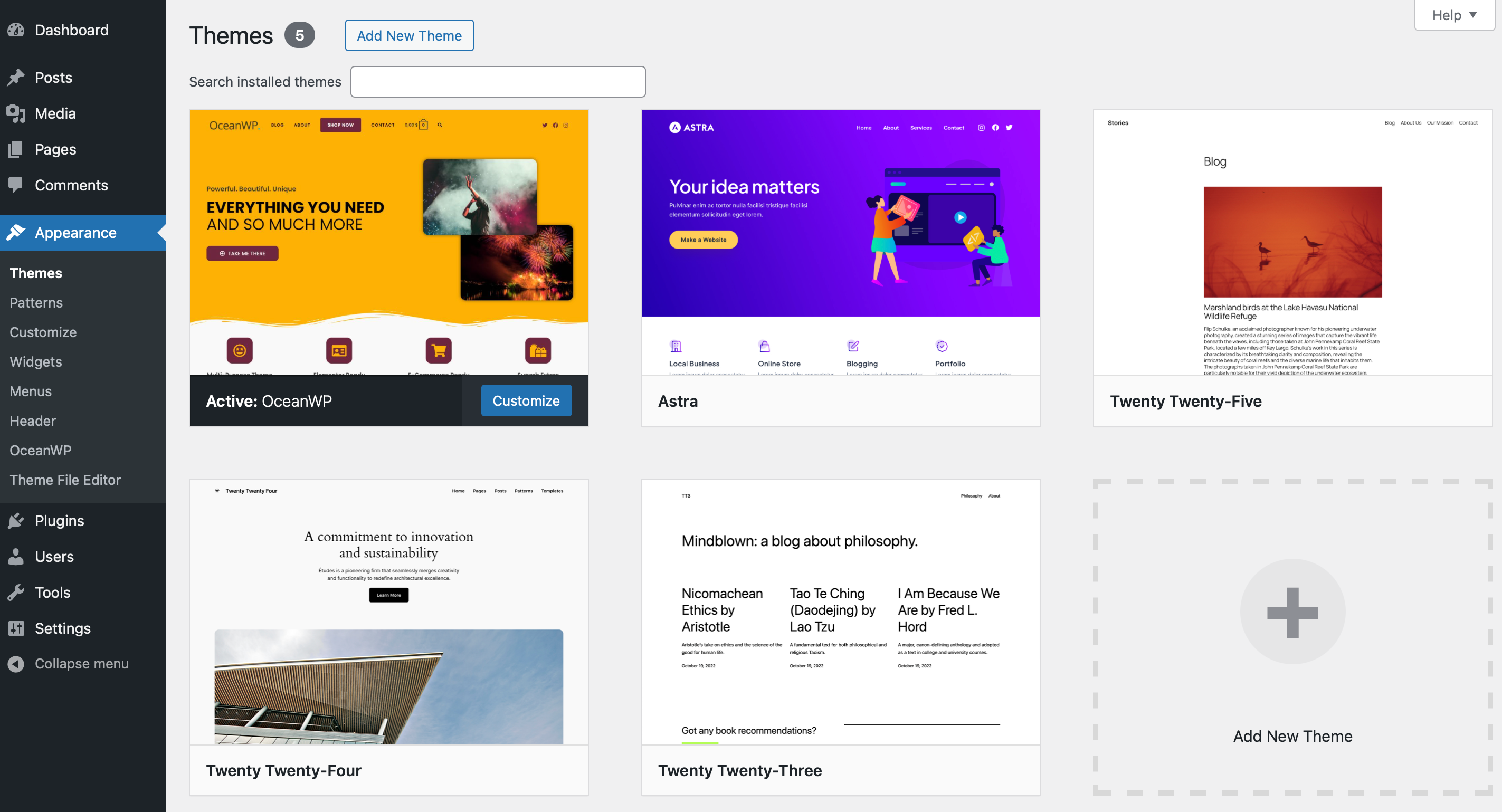
Then, you can use the customization options in the intuitive Customizer to create custom menus, edit footers, apply brand colors, and more.
Additionally, you can use plugins to extend the base functionality of your WordPress site. Just head to Plugins > Add New Plugin and use the search feature to find the right tool:
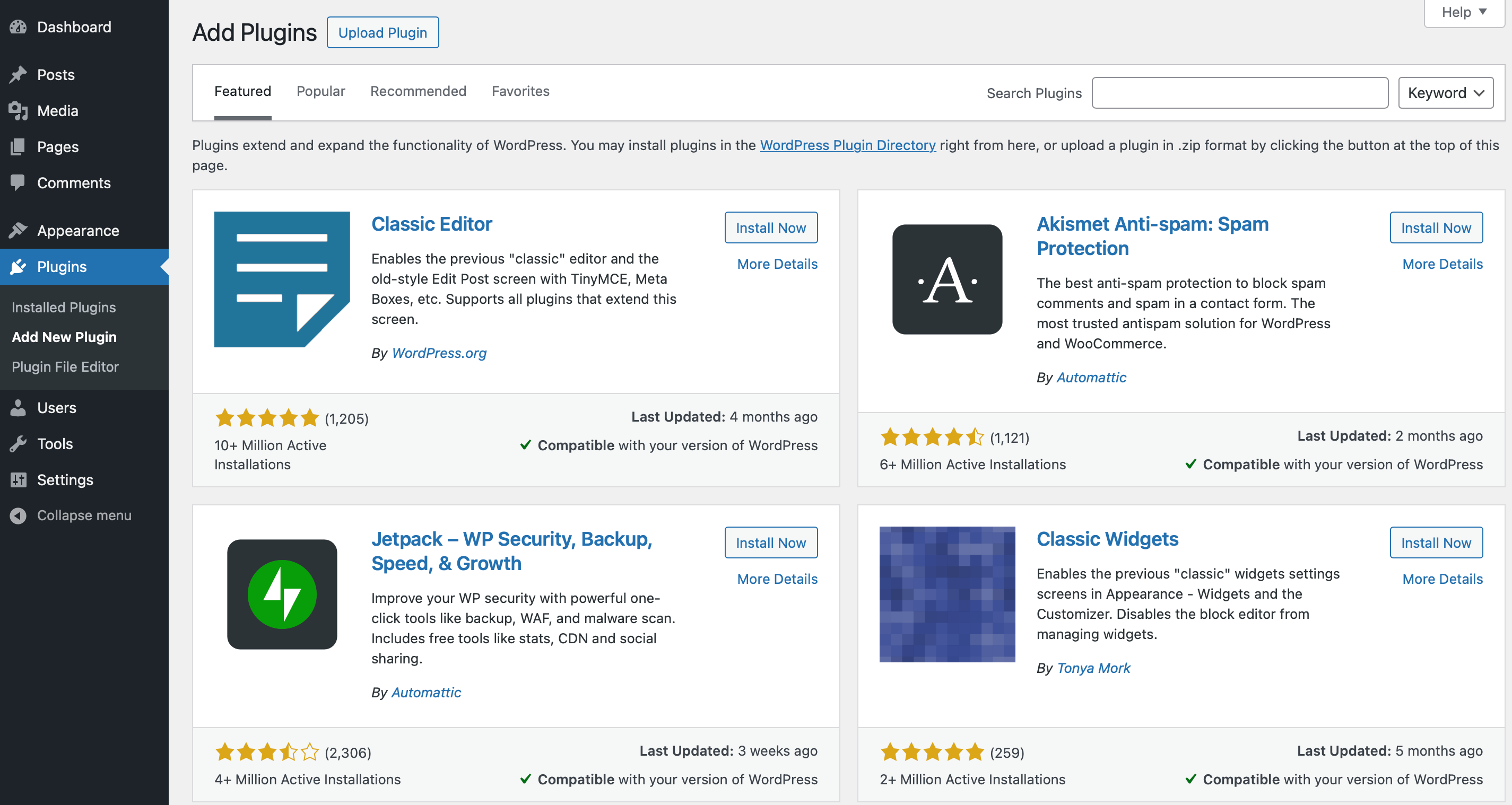
There are tons of free plugins including SEO plugins, security plugins, form plugins, ecommerce plugins, and more. You can also purchase paid plugins and themes from third parties.
#Is There an Easier Way to Launch a Self-Hosted WordPress Website?
Self-hosted WordPress is the go-to CMS platform if you prioritize flexibility and control.
That said, even with a good hosting provider, beginners often find that it comes with a slight learning curve. There are many guides and tutorials available, but it will be easier to use a website builder like HeroBuilder:
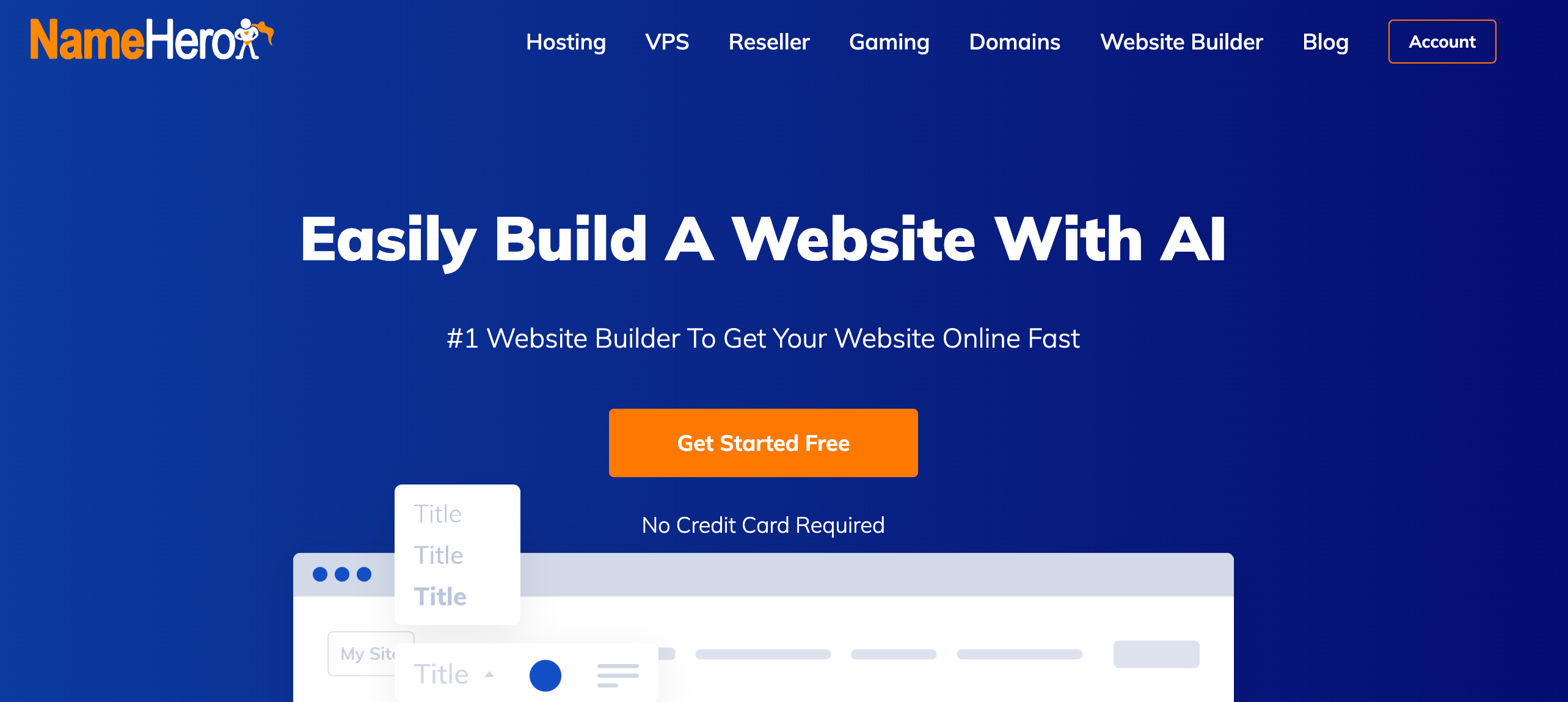
This AI tool will design your website based on your needs and preferences. You can use it for free for up to four days, then upgrade to a paid plan.
Your website will live on NameHero’s LiteSpeed web servers, so you don’t need to worry about hosting. You’ll also be able to connect your site to a custom domain name.
Once you’ve registered for an account, you need to provide some details about your website, including its name, tone, and goals:
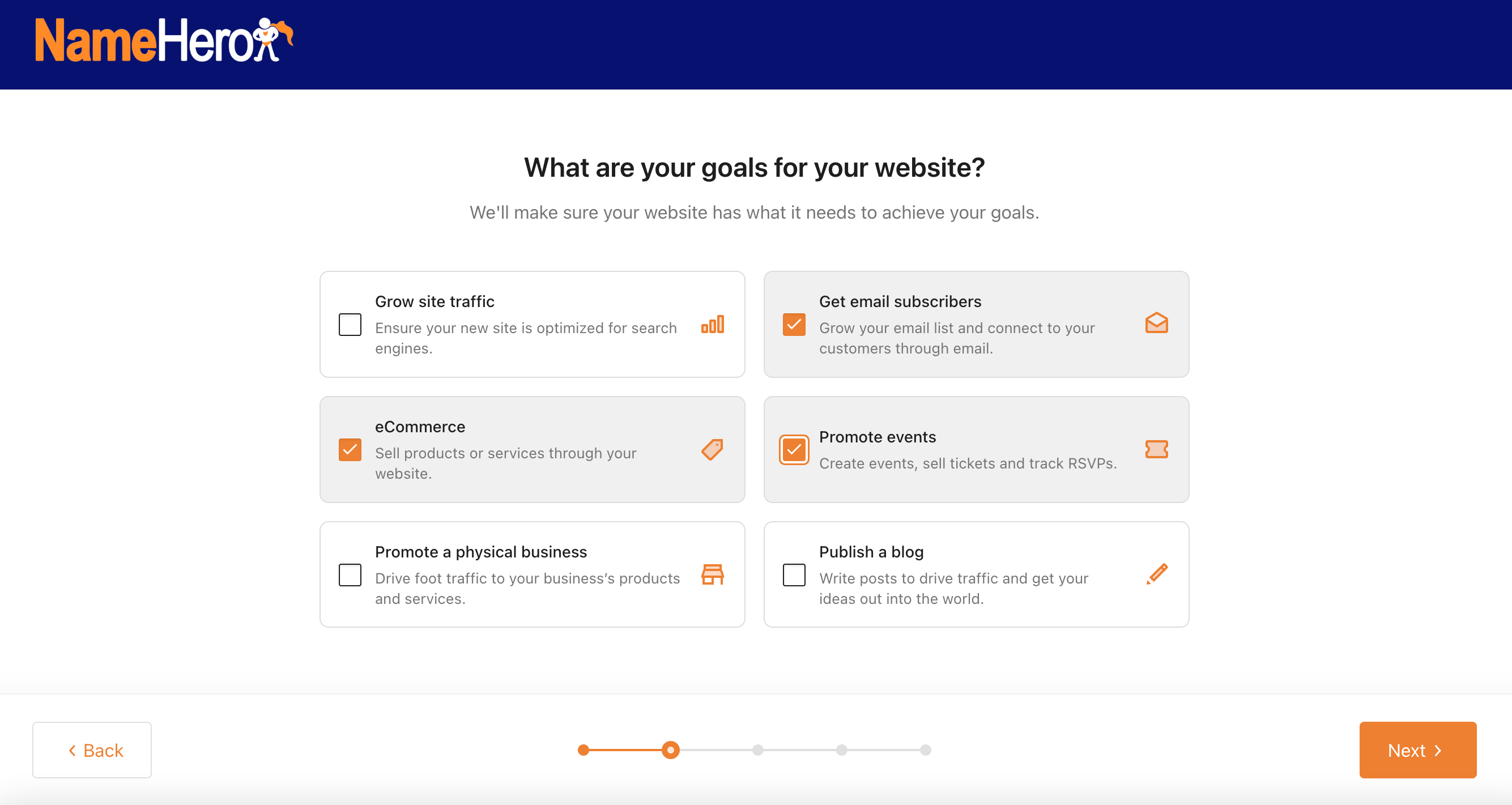
For example, you might wish to publish a blog, sell products, or grow site traffic. After that, HeroBuilder generates a collection of pre-made themes, based on your input:

Each theme comes with several key web pages (e.g. contact page, blog page, about page, etc), but you can add more if needed.
HeroBuilder will then generate your website and open it in the site editor. Here, you can add, modify, or remove different elements. You might also change the fonts, color scheme, layout options, and more.
Plus, you’ll have full access to the WordPress dashboard. You can install additional plugins, configure permalinks, and customize the rest of your website.
#Conclusion
The WordPress software is perfect for setting up blogs, membership sites, and ecommerce stores. While WordPress.com can be pretty convenient, self-hosted WordPress provides more control, flexibility, and customizability.
To recap, here’s how to set up a self-hosted WordPress site:
- Find a domain name.
- Create a web hosting account.
- Install WordPress.
- Customize your website.
If that sounds too technical, you can use a website builder like HeroBuilder. This way, all the heavy lifting is done for you, so you can launch your site in minutes. Get started for free today!