


Content loss is a website owner’s worst nightmare. It can happen to anyone, either due to a hack, web server failure, or a simple mistake. However, if you regularly back up your site, you have less to worry about.
When you back up your entire WordPress site you can quickly restore your content should anything go wrong. Some hosting providers like NameHero include daily backups in their managed plans, but you can also make copies of your site manually or with a plugin.
In this post, we’ll take a closer look at why backups matter. We’ll also show you different ways to back up your WordPress website. Let’s dive right in!
Why It’s Important to Make Site Backups
Backups serve as a safety net when something happens to your site. Even if you implement security measures like strong passwords and a firewall, no system is completely foolproof.
WordPress in particular is a common target for hackers, as it’s the most popular content management system (CMS). Cybercriminals can hack your site through vulnerabilities in plugins and themes. They may even carry out brute-force attacks, where they try thousands of credentials to log into your site.
While backups cannot stop these attacks, they will minimize the damage. If you lose data and content due to a cyber attack, you will be able to restore everything from a backup.
There are other things that can lead to a site crash or malfunction. You might install a poorly-configured plugin, or switch to a theme that breaks your site. In these scenarios, a recent backup can be a lifesaver, too.
Ideally, you should back up your site at least once a week. If you publish new content on a daily basis, you’ll want to make backups more frequently.
It’s also important to save your content before making any major changes, like redesigning the site or installing a new plugin. If possible, use a staging site to test new software, and push your changes to the live website when you’re confident that everything works properly.
How to Back Up Your WordPress Site (3 Ways)
There are different ways to back up your WordPress site, depending on your needs and level of comfort with technology.
Let’s look at the three main methods you can use.
1. Use a Backup Plugin
Plugins make it easy to schedule and manage backups if you lack technical know-how. Popular tools include UpdraftPlus and Jetpack VaultPress Backup.
Since UpdraftPlus is a free plugin, let’s use it for this tutorial. Go to Plugins > Add New Plugin and use the search bar to look for UpdraftPlus:
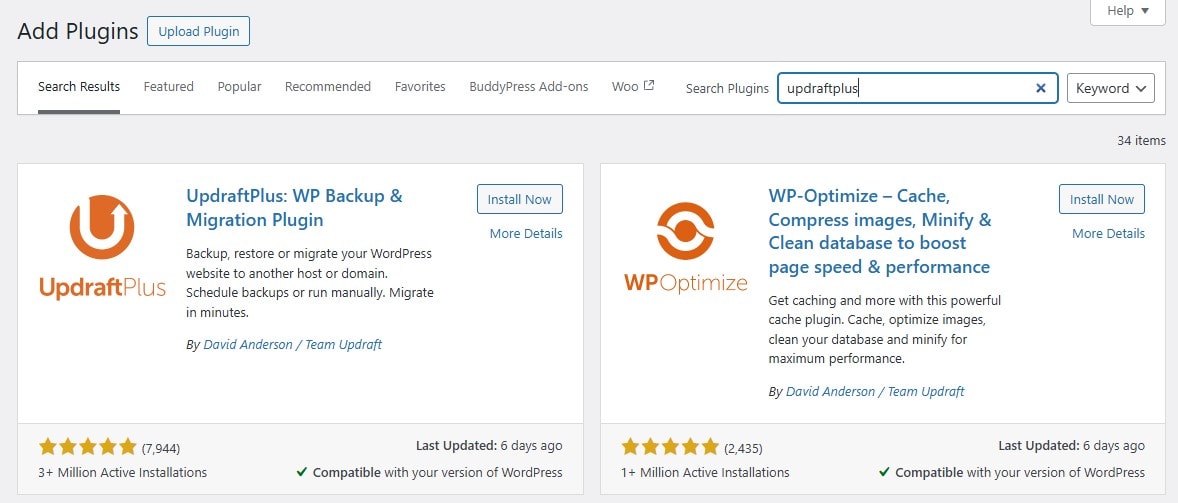
Click on Install Now, followed by Activate.
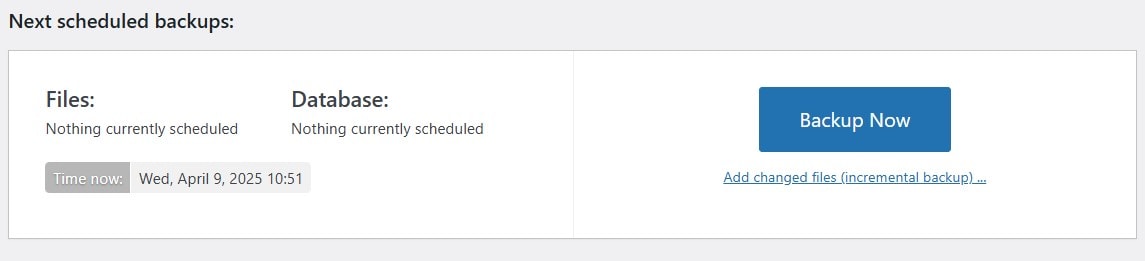
Next, go to UpdraftPlus in your WordPress dashboard and simply hit the Backup Now button:
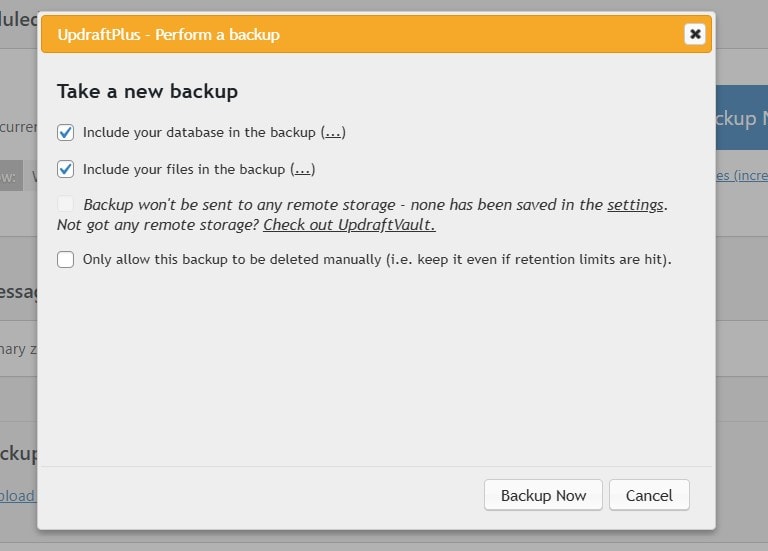
Make sure to include both the database and the files for a complete backup:
The backup process will take a while, depending on the size of your website. UpdraftPlus will create your backup as a ZIP file. You have the option to download this to your computer, or save it on a cloud platform like Google Drive or Dropbox.
If you upgrade to the premium version of the plugin, you’ll also be able to set up incremental backups (e.g. every week) and automatically update your website before major updates. You’ll also get additional storage options for your backup files, including Microsoft OneDrive and Azure.
Other backup plugins will have a similar setup. However, the free version is typically limited in terms of cloud storage integration and other functionality.
2. Perform a Backup Manually
Manual backups give you full control over the content you save, but you’ll want to proceed with this method only if you feel confident accessing your site’s back end.
You’ll be backing up two main parts:
- Your WordPress files (themes, plugins, media, etc.)
- Your WordPress database (posts, pages, user data, settings)
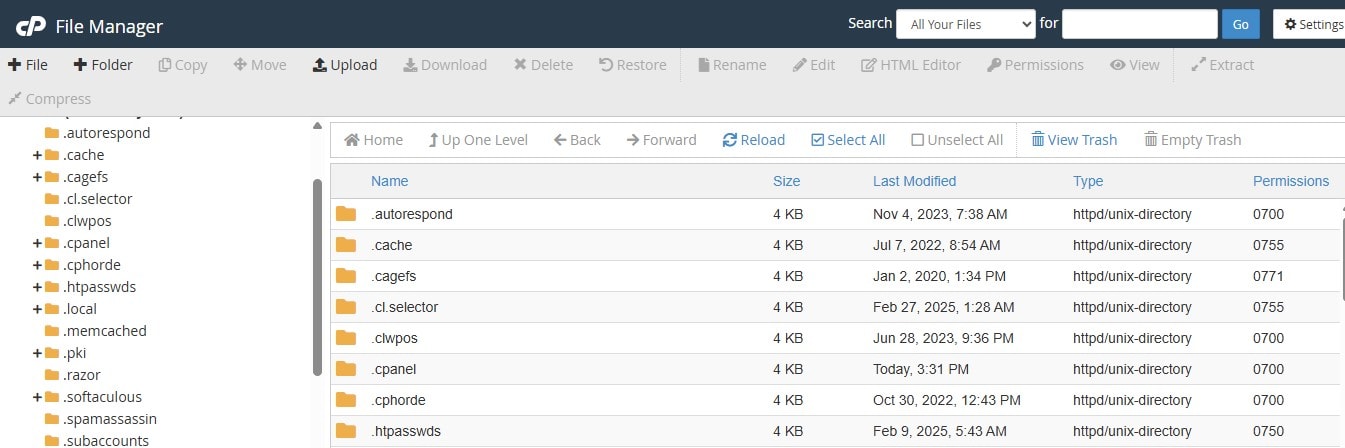
Let’s start with the files. You can access them via the File Manager in your hosting account (you’ll need to log into the cPanel):
Alternatively, you can connect to your website using a file transfer protocol (FTP) client like FileZilla.
Navigate to your WordPress root folder. This is usually labeled public_html or www, or named after your domain, and contains essential files and folders, including:
- wp-content, which holds your themes, plugins, and media uploads
- wp-config.php, which contains important configuration settings
- .htaccess, which contains permalink and server rules
You’ll want to download all the files within the root folder. Then, save them in a secure location, such as a cloud storage service like Google Drive or Dropbox.
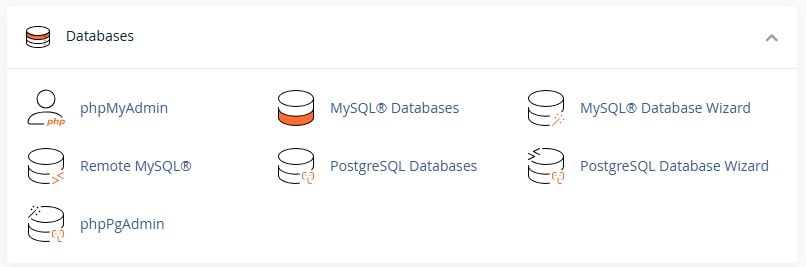
Next, you’ll need to do a database backup. Log into the cPanel again, navigate to the Databases section, and click on phpMyAdmin:
Now, you’ll see a list of existing databases. Select your WordPress database and click on the Export tab:
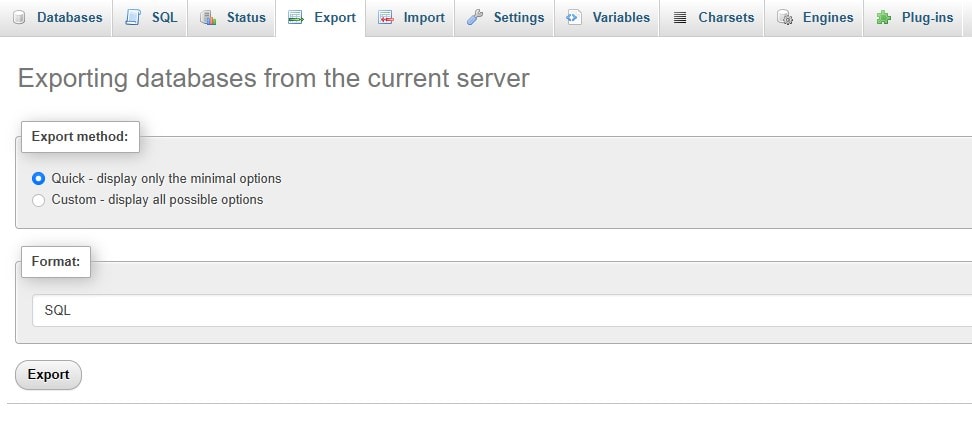
You can leave the export method set to Quick, and the format to SQL. Click on Go to download the database.
Once again, you’ll want to save the file in a secure place.
Note that you might not have access to your site’s files and database, depending on the hosting provider you use. Some web hosts will even have a custom control panel, so it’s best to contact your provider if you need assistance with manual backups.
3. Choose a Managed Hosting Plan
As you can see, performing a backup is easy if you use a plugin. You also have the option to do it manually through your hosting account or an FTP client.
However, if you’re busy running a business or creating content, you might not have the time for scheduled backups. Plus, you’ll need to remember to back up your site every time you make a change.
Some premium plugins let you set up automated backups, but if there’s a problem with the software, your content might not get saved properly.
This is why it’s smart to opt for managed WordPress hosting. Many web hosts offer automated backups with managed plans.
At NameHero, daily backups are included in your plan for free:
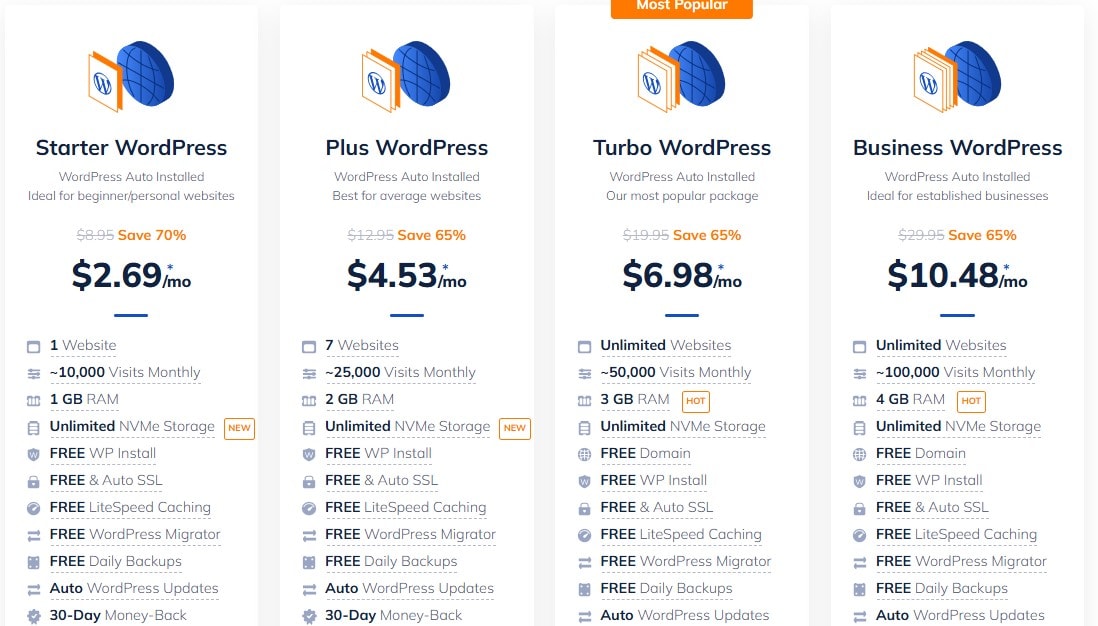
This provides extra peace of mind. You’ll always have a recent copy of your site, which you can easily restore in the event of data loss or a malfunction.
NameHero’s plans also include features like a free SSL certificate and auto-updates for added security. Our Business and Turbo plans even get advanced security, including DDoS protection to safeguard your site against common attacks.
NameHero gives you enterprise-grade backup and security solutions built right into your plan — no extra plugins or manual steps are required to run your website safely.
Conclusion
Backing up your WordPress site is a must, even if you run a blog or small store. If your website experiences a cyber attack, you’ll risk losing valuable content and data. The same thing can happen if a new plugin or theme breaks your site.
Here are three ways to create backups in WordPress:
- Use a WordPress backup plugin like UpdraftPlus.
- Manually backup your site through your hosting account.
- Choose a managed hosting plan for automatic backups.
At NameHero, our managed hosting plans for WordPress sites include free daily backups so you’ll never have to worry about losing your content. Sign up for a plan today!

Sophia is a staff writer at WordCandy.co, where she produces quality blog content for WordPress plugin and theme developers, hosting providers, website development and design agencies, and other online businesses.
Leave a Reply