
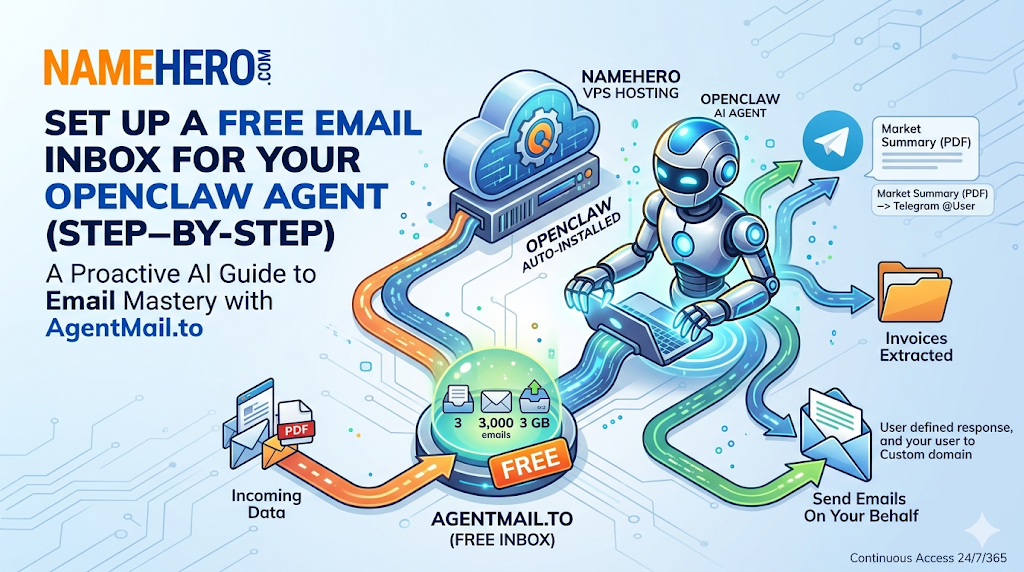
One of the first things I did with my own Openclaw AI agent was setting up an email inbox for it.
An email inbox for AI agent enables it to receive and send emails instead of you giving it access to your own personal email address. I definitely wouldn’t recommend this right off the bat if whatever you are trying to accomplish can be done with an agent having it’s own email inbox.
The good news is I’ve found a really awesome service – AgentMail.to – that I’ve tested extensively and the best part is it’s free to sign-up and even no credit card required. No affiliate program or paid promotion here – it’s just a good service. Now, let’s start from the beginning on setting it up.
Don’t have an OpenClaw instance yet? Check out NameHero’s VPS instance with auto-installed OpenClaw. Get up and running in a few minutes.
What An Email Inbox Does For An OpenClaw AI Agent
Instead of manually pasting content into OpenClaw, you give your agent its own inbox. Anything sent to that inbox becomes something it can process:
- documents
- links
- alerts (calendars, confirmations, etc.)
- forwarded emails
Once it’s wired up, your agent can monitor that inbox and take action automatically: summarize, extract, route, notify, or store. No prompting required.
Why You Might Set Up An Email Inbox For Your AI Agent
Let’s start with my own real world example.
I pay for a market newsletter for professional investors. The PDF’s are sent via email as an attachment every morning around 8-9 AM EST. They are lengthy in some editions (2-3 pages) and I wanted my OpenClaw bot to receive the email, summarize it, and give it to me a customized brief format in Telegram (this is where I route everything so it’s all in one spot).
This has saved me time by allowing me to get the high level overviews and see if I want to dig into each daily issue further. It also maximizes the value I’m getting out of my newsletter subscription because instead of simply leaving them completely unread, I am reading at least the briefs. In addition to my use case, here are a few more off the top of my head:
1. Turn Incoming Information Into Actions
Email is still where a lot of information shows up—support tickets, reports, invoices, notifications, exports. Instead of checking and processing those manually, your agent can handle them in the background.
You’re not asking, “What’s in this file?”
You’re saying, “When something arrives, deal with it.”
This is especially helpful for things that arrive repeatedly, as you can set a rule or routine check very easily.
2. Create A Universal Input Channel
Not everything integrates cleanly with APIs, but almost everything can send an email!
That makes an inbox a simple bridge:
- forward from other tools
- send files from your phone
- trigger workflows from services without integrations
It’s low-friction, reliable, and maybe can help you dodge an API cost as some of them can get super pricey but often times throw in email for free.
3. Send Emails On Your Behalf
Everyone is busy and sometimes crafting simple emails just feels like a waste of time. After all, OpenClaw is branded as a potential office assistant.
Gmail has picked up on this the last few months and gotten more aggressive with their email content creation and predictive text which is nice but I’ve found a lot of value with having my agent craft some of my own emails.
If you do this, you’ll need to setup a custom domain, this is critical here for deliverability, which you can also setup easily with NameHero! Otherwise you will be using the agentmail.to domain and people may be confused about who the sender is.
Why This Is Preferred Vs. Giving Access To Your Existing Email
Look, there are pros and cons to nearly everything with OpenClaw. Giving an AI agent access to your main or personal email inbox is certainly going to be the easiest integration but I would recommend not doing that to start out for security reasons. The safer solution is setting up an email inbox specifically for them.
With my AI agent, I simply setup an email forward within Apple Mail that allowed me to still receive a copy of the email but it also auto forward it (with attachment) to my AI agent’s inbox. Took only a few clicks.
Once you get comfortable with your AI agent, and do an audit of all the emails you’ve received to make sure you aren’t receiving anything too sensitive, then you can always change the wiring for your agent to access your existing email inbox.
How To Setup An Email Inbox For AI Agent
The setup is straightforward:
- Create a free account (no credit card required) at AgentMail.to and create your API key
- Install the skill or ask your OpenClaw agent to install it via TUI
- Tell your agent what to do with incoming messages
Remember, if you purchase an OpenClaw Hosting plan from NameHero, the service will be running 24/7/365 so you’ll have continuous access to your agent and it’s email inbox.
#1. Create Your AgentMail.to Account & Setup Your API Key
Pretty straightforward and no credit card required is nice.
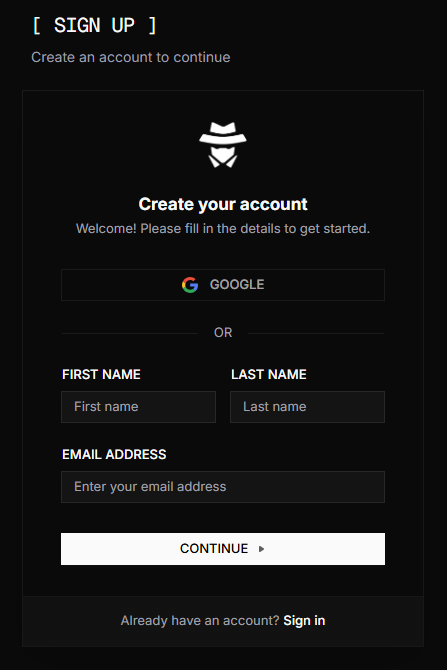
As part of the free plan, you get the following which is really a fantastic free offering as it’s a ton of email:
- 3 inboxes
- 3,000 emails/month
- 3 GB storage
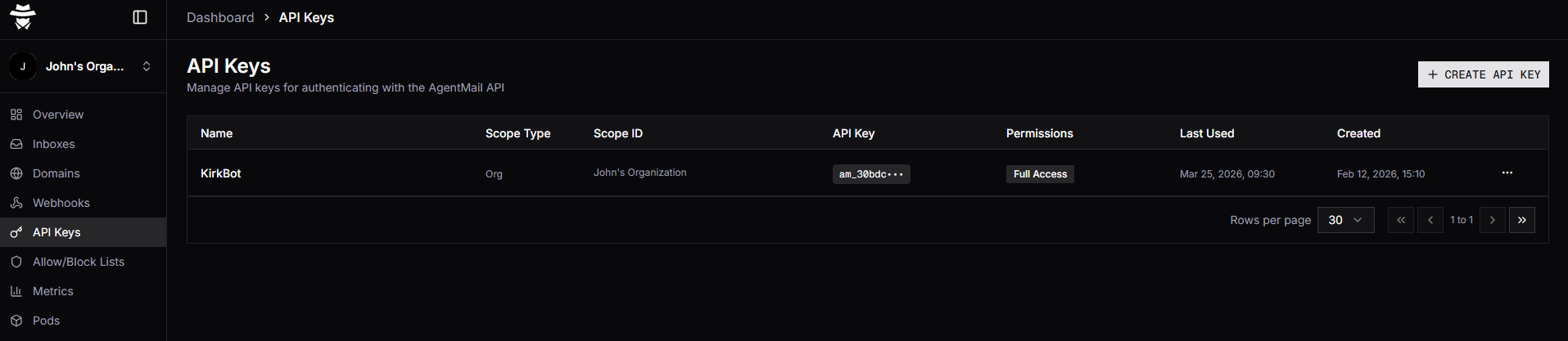
Once you are logged in, simply create your API key, name your application, and you are done in the AgentMail.to interface.
#2. SSH Into Your VPS Server
Login to your NameHero Client Area and grab your IP and the command to SSH, it will look like this but with your server’s IP address:
ssh [email protected] -p 37980You can also use the browser-based Terminal within the NameHero Client Area if you don’t have a SSH client. I am using Command Prompt on a Windows machine.
#3. Open OpenClaw TUI and Ask It To Install
The beauty of having an AI agent is that you can ask it to install things instead of installing yourself. It kind of makes you feel silly that there’s even a tutorial for this!
Once you are connected to your server, simply run this command unless you’ve got a channel setup already like Telegram (I’m assuming you don’t yet).
openclaw tui
The TUI brings up a terminal and direct way to talk with your agent:
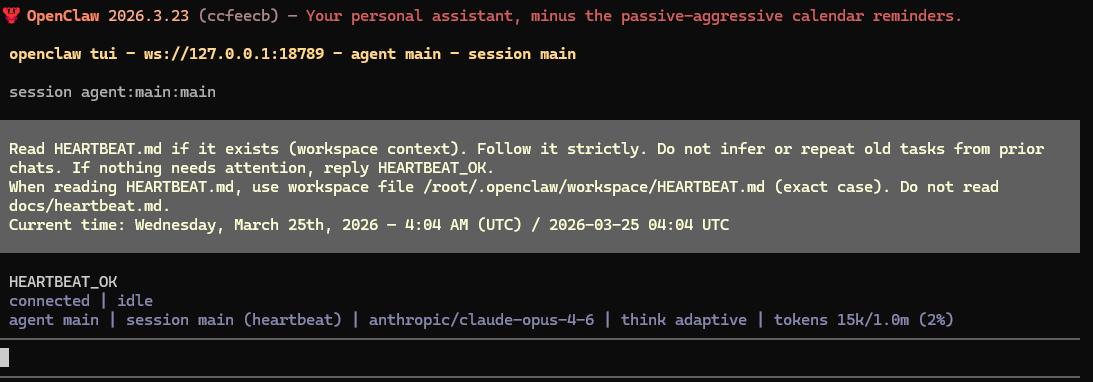
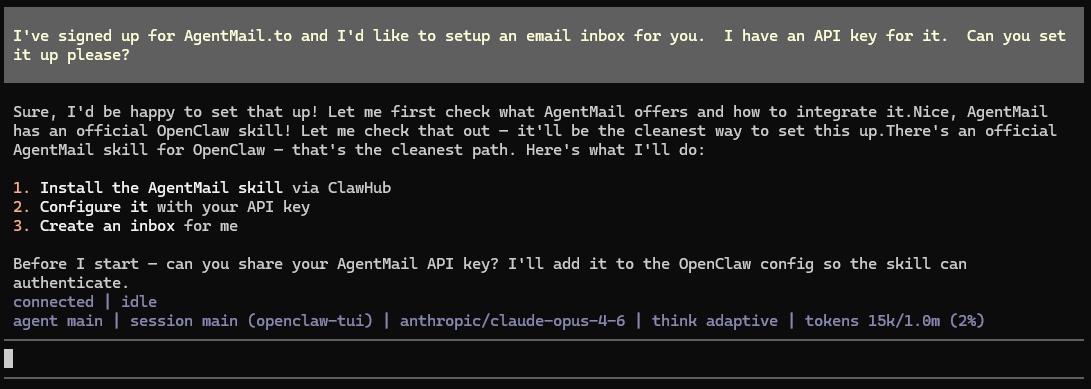
Now give it a prompt basically:
I’ve signed up for AgentMail.to and I’d like to setup an email inbox for you. I have an API key for it. Can you set it up please?
It’s nice to be polite with your agent. You should get this response and once you paste your API key, it should be smooth sailing:
#3. Now Tell It What To Do
Now that the email inbox is setup, you have to actually define the task that you would like to accomplish.
Here are some examples:
- “When a PDF arrives, summarize it and send to Telegram”
- “When an email contains an invoice, extract key fields”
- “When a link is sent, save and categorize it”
- “When a inbound lead comes in, respond immediately with this questionnaire.”
- “Send this email and 3 follow ups if you don’t get a response”
Once defined, it runs continuously.
Give NameHero OpenClaw A Try
This is one of the most practical uses of OpenClaw that I’ve found and my limited examples don’t do it justice. Having a completely free email inbox service for your AI agent is truly what bridges the gap between reactive ChatGPT and proactive OpenClaw AI assistant.
Give our OpenClaw Hosting a try for just a few bucks a month – with OpenClaw auto-installed. You can also register a domain with NameHero and setup a custom domain if you’d like to use it for support emails, sales agent email abilities, and more!

John is the COO of NameHero and is an entrepreneurial, data-driven digital marketer and business operator with +16 years of experience across many different marketing channels, industries and strategies (B2C & B2B).
Leave a Reply