
Next up in our n8n tutorials is our workflow that will save us about 30 minutes per day and should apply to almost anyone with a blog… If you’re using WordPress or another popular blog platform, this is for you.
My problem: I would type up a blog post in Google Docs or Microsoft Word and have to painstakingly copy paste it into WordPress, insert images, links, clean up meta title and description for SEO, etc.
Solution: Create a workflow where I can upload a .docx and it will automatically create a draft for WordPress that is ready to publish.
What you’ll need
Here’s the short list before you start:
• An n8n account (14-day trial or self-hosted)
• A WordPress site you have admin access to
• An API key for whichever LLM you want to use (ChatGPT or Claude)
• A blog post saved as a .docx to test with
Building the workflow
So as we did our first one, let’s first start with a prompt. Remember, always provide as much information as possible. If you don’t have an n8n account yet, you can sign up for a 14-day free trial as well.
Quick word on self-hosting since I keep bringing it up. n8n is open source, so instead of paying for their cloud plans you can run it on your own VPS and just pay for the hosting itself. Every workflow run is free at that point, which matters for something like this that fires every time you publish. Your content and credentials also stay on your own server instead of someone else’s. And if you already have a VPS with NameHero, you can run n8n right alongside your WordPress site.
As a refresher, n8n is an automation tool very similar to Zapier but uses AI to automatically do things for you vs. just connect them.
First, type up your blog post within Google Docs or WordPress. I typically recommend not using AI fully for this but you could create your n8n workflow to actually generate this as well. I think it’s okay to use AI to clean up a blog post but I think there will be a day when AI generated content will be devalued personally.
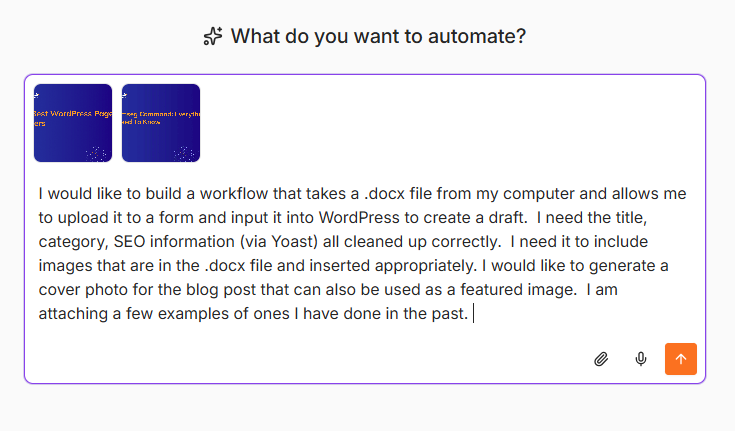
Second, prompt your n8n AI assistant to build your workflow
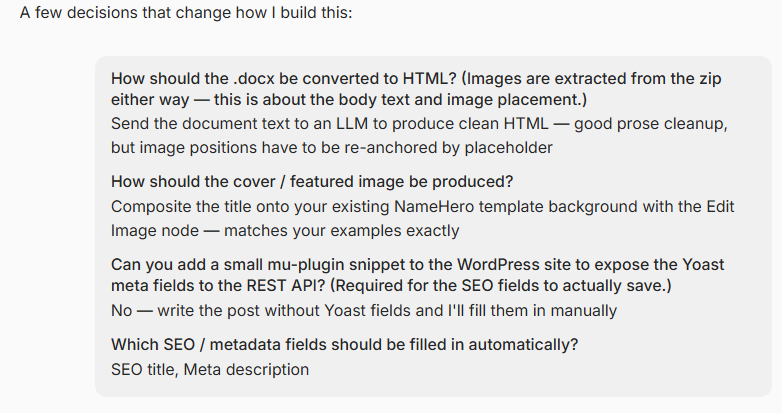
After prompting, you usually need to clarify a few things… depending on your prompt, your clarification questions may be slightly different. You are just using your best judgment at this point and I would recommend trying to keep it simple if possible.
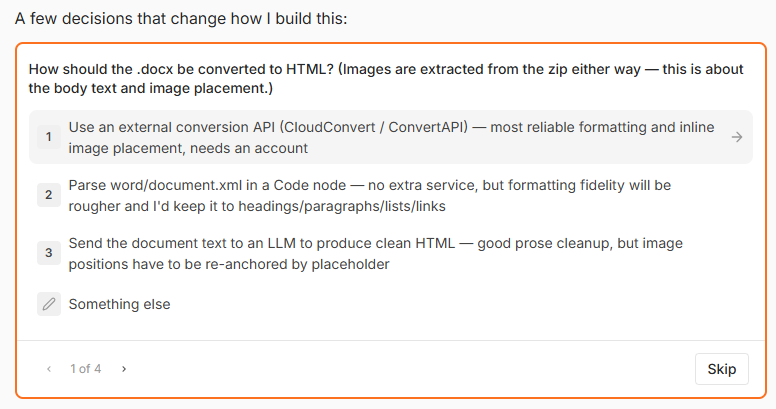
As a general rule of thumb, I try to first start with using LLMs (like ChatGPT or Claude) vs. involving another service that requires an account because it can be a lot to manage. You can always go back and change it if needed.
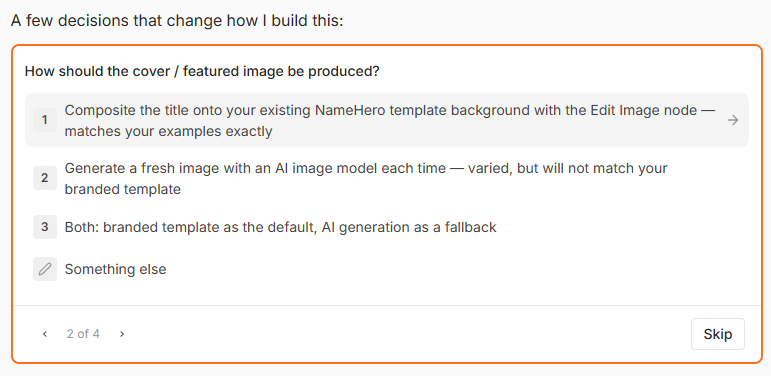
Here’s a recap of what we selected… I opted to not let it write anything from scratch. I just want it to format and clean up what I upload.
Connecting everything
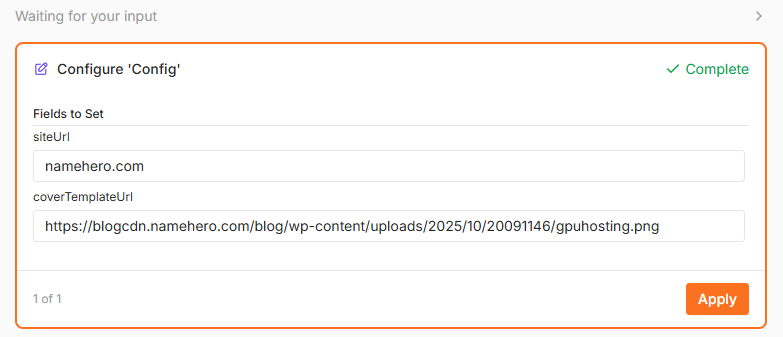
Connect your WordPress site, your LLM and any other services you may have chosen to include. In this case, you simply need to go to your profile within WordPress and create an application password to provide to n8n.

Configure your image generation component… in this case, it’s asking for a blank template so I can easily provide that below. I just hosted the template file in the Media section of WordPress to make it easy and specified the URL for my blog
Testing it out
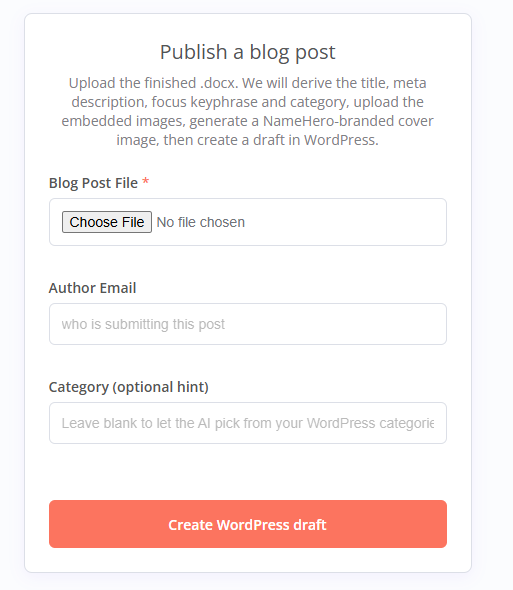
Test with your form. This should be on your VPS if you used n8n hosting so you can ask the AI assistant for the URL if not provided.
If you wanted to simplify this whole thing, I would recommend getting rid of the image generation piece since that was the fussiest part to configure. The core of it (docx in, WordPress draft out) works fine without it.
And that’s it. Upload a .docx, get a formatted draft sitting in WordPress with the images, links, and SEO fields already handled. It still lands as a draft, so you get a final look before anything goes live, which is exactly how I want it. That’s 30 minutes a day I’m not spending on copy-paste cleanup anymore.

John is the COO of NameHero and is an entrepreneurial, data-driven digital marketer and business operator with +16 years of experience across many different marketing channels, industries and strategies (B2C & B2B).
Leave a Reply