

Today, technology is an integral part of our lives, influencing the way we work, communicate, and access information. Whether we’re browsing the web, sending emails, or running applications, seamless connectivity is crucial. The Domain Name System (DNS) acts as the an address book, translating human-readable domains like domain.example into IP addresses that computers use to identify each other on the network. 198.51.100.56 is an example of an IPv4 address would like.
What Does Temporary Failure In Name Resolution Mean?
The “Temporary Failure in Name Resolution” error typically indicates that a system or application is unable to resolve a domain name to an IP address. What this means is that that the device is having issues translating the human-readable domain. This name resolution error can be caused by a variety of issues but today we are going primary going to focus on client side issues to resolve domain names. To elaborate in this post we are not going to focus on issues you can run into when you own your own domain name and use either a managed service provider or host your own DNS servers.

Checking Network Connectivity Issues
First thing we want to do is verify the internet connection. Lets start off by using the ping command to verify connectivity without DNS, so that we can verify an active and working internet connection.
Here a a few IP’s that are well known and easy to remember perfect for testing
- 1.1.1.1 (Cloudflare DNS)
- 8.8.8.8 (Google DNS)
- 9.9.9.9 (Quad9 DNS)
To use the ping command on the Linux system, if you don’t specify the amount of ping traffic you want to send it will run till it is stopped. To solve that we want to use the -c flag and set it to something reasonable like 5.
Using 1.1.1.1 in this example this is what the following command call would look like.
ping -c 5 1.1.1.1
And the output would look something like this
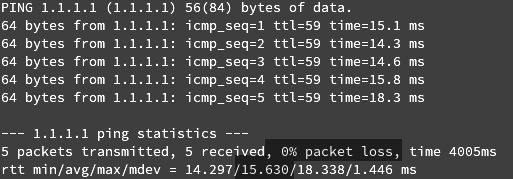
For now we are focusing on the packet loss percentage and the average rtt (round trip time). On a properly functioning network you should see 0% packet loss and your average ping time should be below 500ms.
If you are seeing a high percentage of packet loss or ping time it could potentially indicate network connectivity issues. At that point it is recommenced to contact your networking administrator or provider, for further assistance determining if there is a networking related issue.
DNS Related Issues
So you have been able to confirm you that were able to ping outside of your home network.
The next thing is to dig into DNS and start troubleshooting for the ease of understanding it have been broken up into sections.
If you can’t get to any websites but can ping outbound start at the DNS Server Configuration section otherwise feel free to skip to the Checking DNS Resolution section.
Checking DNS Resolution
Here we are going to dig further into DNS to see if we can narrow down an issue with your local DNS or if is something on the domain owners side.
We can do this a few different ways but sticking with the command line for the moment let’s us the dig utility.
Be aware that not all Linux systems will come with dig preinstalled but it should be available though the package manager, if you don’t see dig try looking for dnsutils.
Using dig lets check to see if the domain in question resolves at some known good name servers listed above.
For example replace domain with the domain you are having issues with:
dig domain @1.1.1.1
If that results in an IP address you can resolve the issue by setting your DNS entries following error the DNS Server Configuration section.
If not lets move on to seeing if other people this could be an issue other people are facing as well. Some websites we can use to test this are listed bellow.
First I would recommend using a DNS checker that checks from multiple Geo-graphical locations like https://www.whatsmydns.net/or https://dnschecker.org/. If the site is resolving to different IP’s or not resolving at all this could be an indication of am issue that the domain owner would need to resolve.
Another things to keep in mind is that most larger companies have a status page so you may be able to find information there if you suspect the issue is on there end.
DNS Server Configuration
If you can’t get to any websites but can ping outbound or you can resolve the domain else where you may want to try changing the Linux systems DNS configuration.
To set the DNS resolver on Linux generally it will be one of two places which are covered below but I do recommend looking at the Linux Distributions documentation to confirm the official way for configuring DNS servers.
Using the /etc/resolv.conf file.
Note: Keep in mind that some Linux distributions dynamically generate the /etc/resolv.conf file, and manual changes may be overwritten. In such cases, there is a good chance there are notes in this file stating not to edit and directing you to the correct place.
- The /etc/resolv.conf file contains information about the DNS resolvers. You can edit this file manually or use a text editor like nano or vim.
- Open the file with a text editor, e.g., sudo nano /etc/resolv.conf.
- Add lines specifying the DNS servers you want to use, for example using Cloudfare and Google DNS:
nameserver 1.1.1.1 nameserver 8.8.8.8 - Save and close the file.
Using the systemd-resolved service (systemd-based systems):
- On systems that use systemd, the systemd-resolved service manages DNS resolution.
- You can use the systemd-resolve command to set DNS servers. For example:
sudo systemd-resolve --set-dns=1.1.1.1 --set-dns=8.8.8.8 - To check the current DNS settings, you can use:
systemd-resolve --status
Note: that this is temporary and does not persistent across system reboots please refer to system specific for setting permanently.
Resolving DNS Cache Issues
Not all Linux systems will have a local DNS cache setup but it is still possible so lets look at how one would go about clearing the more likely ways it can be configured.
Systemd Resolved:
sudo systemd-resolve --flush-caches
Or in some cases you may need to use this second command
sudo resolvectl flush-caches
NetworkManager:
sudo nmcli general reload dns-full
Examining The /etc/hosts File
The /etc/hosts file is a file that allows you to bypass/override public DNS and point a domain elsewhere. This file only get added to manually so unless you or someone else using the same started device manually editing the file it is not likely. That said this is also often used during migrations to test a migration before going live on a new server or cluster so it isn’t impossible either.
To look at the file you can use you favorite text viewer like cat or less.
Below is an example of what a host file might look like

Keep in mind is that lines starting with # are commented out so they can be ignored. Also it is normal to have localhost entries and one for the hostname.
If you have any other entries, specially for the domain you are having issues with it you may want to try removing those lines. To do that you will want to open the /etc/hosts file using sudo.
sudo nano /etc/hosts
Once removed or commend out save and close the file
Firewall Restrictions
If none of the above solved the issue there is a chance that a firewall restriction could be causing the issue. That said we can’t cover every Linux firewall also don’t forgot if you have a network firewall in place issues could stem from there.
At that point our recommendation is to refer to the documentation for the firewall and software packages you are using to troubleshoot further.
Conclusion
In conclusion, the “Temporary Failure in Name Resolution” error can stem from various factors, including connectivity issues, DNS-related issues, and even firewall settings and restrictions. By exploring and addressing some of these common causes, we hope this guide has been helpful in resolving the issue you encountered.

Embracing a lifelong passion for technology since childhood, CJ delved into the intricate workings of systems, captivated by the desire to understand the unknown. This innate curiosity led to his discovery of Linux, a revelation that resonated deeply. With more than 7 years of on the job experience, he’s honed his technical skills as a Geek and Senior Linux Systems Administrator.
Leave a Reply