
Both df and du are Linux commands for estimating disk usage, but they differ in their focus. Df stands for “disk free”, and du stands for disk usage. The first shows the amount of free space available on a volume, and the second shows the amount of space used by specific directories. Both commands have extensive options, allowing you to customize the reports to display only what you need. I’ve personally used both of them together to drill down and free up disk space, since df gives a hint when something is wrong, and du is like a diagnostic tool, allowing you to drill down into specific problem areas.
Below, we’ll look at how both commands work, useful flags for each, and how to use them together to solve problems.
Using df to See Free Space
Using a single df command, you can see if there’s a problem on your system that you need to be aware of. For example, just type:
df -h
And you get a result like this:

This command shows all the mounted volumes and the free space on each of them. You’re noticing a lot of “tempfs” volumes, but those are temporary volumes used by services. The important entry is the second one – the one that shows me that my disk volume size is 24G, out of which 19G is already used, meaning that my disk is 82% free, with only 4.4G remaining.
Depending on what I’m using my server for, this could be a symptom of a growing problem, or it could be just fine if my server isn’t planning to use more space as time goes by. As we’ll see, we can use the “du” command in conjunction with df to drill down into the problem and get a better look at what’s using up so much space.
Useful Flags for df
The “df” command is much more useful with flags. Here are some of the most useful ones:
-h : We saw this in the above section. It stands for “human-readable”, and it provides the usage numbers in terms that we can easily understand. That means, we get “G” for “Gigabytes” and “M” for “Megabytes”, etc. Without this, it becomes hard to understand what’s going on.
–total : Using this puts a final sum of usage space at the bottom of all the entries. It looks like this:

You can get a clearer picture of the disk usage situation by only allowing df to display actual partitions like this:
df -h | grep -E "^(Filesystem|/dev)"
This gives us:

This is a much more useful view, compared to the one that shows all the extra “tmpfs” mounted volumes.
Using du to See Directory Space Usage
Unlike with df, du shows you how much space is used. By default, it shows you the usage of the directories and subdirectories in the current directory. So the following command:
du -h
It will give you a long list of entries, as it recursively goes down the directory tree and shows you how much is used by each. To only show the top-level directories, we use:
du -h --max-depth=1
This gives us:

These are the top-level directories in my current directory. Note, however, that it doesn’t really tell us why the previous “df” command was showing 19G of space used. The above command doesn’t show the disk usage of directories on the entire disk. For that, we have to specify the root folder like this:
sudo du -h --max-depth=1 / | sort -h
The above command tells “du” to show the top-level directories’ disk usage starting from the root folder “/”, and sorts it by the space consumed in ascending order. Because this requires root permissions, it’ll ask you for the sudo password. Here’s how you can add your user as a sudo user.
This gives us the following:

And now we see where the 19G usage is coming from. It’s coming from the “var” directory!
Drilling Down the Directories to Get the Culprits
We can now repeat this process to find the directories that are using the most space. In the screenshot above, the “var” folder is consuming almost all the space. So we can use the following command to see what’s up:
sudo du -h --max-depth=1 /var | sort -h
And here’s what we get:

We see that out of the 19G of space, 17G is coming from /var/lib. Now we repeat the process again and again till we find the folder that’s causing most of the problem.
sudo du -h --max-depth=1 /var/lib | sort -h
And now we get to the culprit:
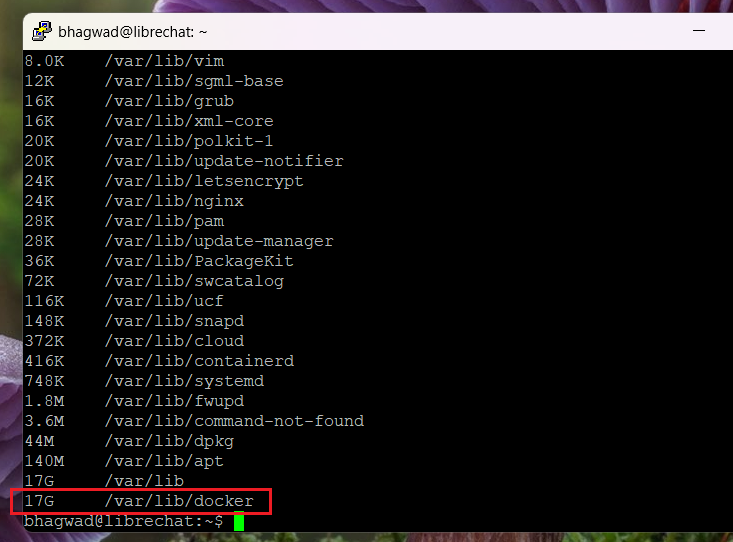
This screenshot shows us the real problem. On this server, I’m running an open-source project via Docker, and that’s the one causing the problems. Once I know the source of the disk usage, I can then investigate further.
Using the df Command to Reclaim Docker Space
These days, many applications are installed via containers, and for these, it doesn’t make much sense to keep drilling down into folders, since the data isn’t stored in a regular format. You can’t go around deleting folders in a Docker container, or you risk blowing everything up.
Instead, programs like Docker have their own implementations of “df”, which allows you to see what’s happening inside the container, and free up space if necessary. For Docker, we use the command:
sudo docker system df
This “Docker version” of “df” has the same function as the regular df command. Here’s the output:

In the above screenshot, we see that the Docker images take up 9.37GB, out of which 51% is “reclaimable”. To reclaim it, we run the following command:
sudo docker system prune -a --volumes
The above command removes unused and stopped containers, unused images, networks, and volumes. After confirmation, Docker will do what’s necessary. If you want to learn more about cleaning up Docker images, check out our tutorial.
Verifying the Cleanup
Now that we’ve cleaned up everything, we can run the “df” command once again:

Where previously I had a disk usage of 82%, now it’s only 61%. All with a single command! We were able to do this by troubleshooting using a combination of du and dh.
Conclusion
As you can see, df and du serve different purposes. While df shows you the free space in mounted volumes, du shows you how much space is used within individual directories. They’re both used in conjunction with each other, as df gives you hints on what to look for, and du allows you to drill down into the specific folders and find the ones that are causing all the trouble.
Finally, not all disk space issues can be resolved at the folder level. Some applications, like Docker, spread their data around in unintuitive ways, and it’s dangerous to delete folders without going through the proper channels. These programs have their own versions of the “df” and “du” commands that you should use instead.

I’m a NameHero team member, and an expert on WordPress and web hosting. I’ve been in this industry since 2008. I’ve also developed apps on Android and have written extensive tutorials on managing Linux servers. You can contact me on my website WP-Tweaks.com!
Leave a Reply