


A WordPress favicon is the small image next to your website’s name in the browser tab. This site icon feature can help reinforce your branding and increase credibility. However, you might not know how to create one for your WordPress site.
Fortunately, the process is very easy. You can use an existing logo, or create a favicon with an image generator tool. Then, you can upload your favicon through the WordPress Customizer, or use a dedicated plugin.
In this post, we’ll take a closer look at why you should add a favicon to your site. Then, we’ll guide you through two easy steps to create a WordPress favicon. Let’s jump right in!
Prefer to watch a YouTube walkthrough instead? Check out this video by Ben!
The Benefits of Creating a WordPress Favicon
A favicon is a little icon that appears next to your domain name in the browser tab. This element makes it easy to recognize and find a website when switching between tabs:

One of the main benefits of using a WordPress favicon is that it can help increase your branding and boost brand recognition. It can also improve usability for your visitors.
For instance, when users have many open tabs in a browser, it isn’t always possible to view the full site name. A favicon enables the user to identify your website even when the domain isn’t visible.
Additionally, a WordPress favicon can make your site look more professional and add credibility to your brand. As such, it enables you to build trust with customers, which may lead to more sales.
Regular customers or loyal followers might add your site to the home screen on their mobile devices. In this instance, your favicon will appear as the thumbnail, which can help create a more cohesive aesthetic for your website.
How to Create a WordPress Favicon (In 2 Easy Steps)
Now that you know why it’s important to create a WordPress favicon, let’s take a look at how to set this up on your website.
Step 1: Design a Favicon Picture
If you already have an existing image for your site’s favicon, you can skip ahead to the next step. If not, you’ll need to create an icon first.
You can build a custom WordPress favicon with image editing software like Photoshop or Gimp. However, these tools come with a steep learning curve and require some knowledge of graphic design.
If you’re looking for a more beginner-friendly option, you might want to try using an online tool like RealFaviconGenerator:
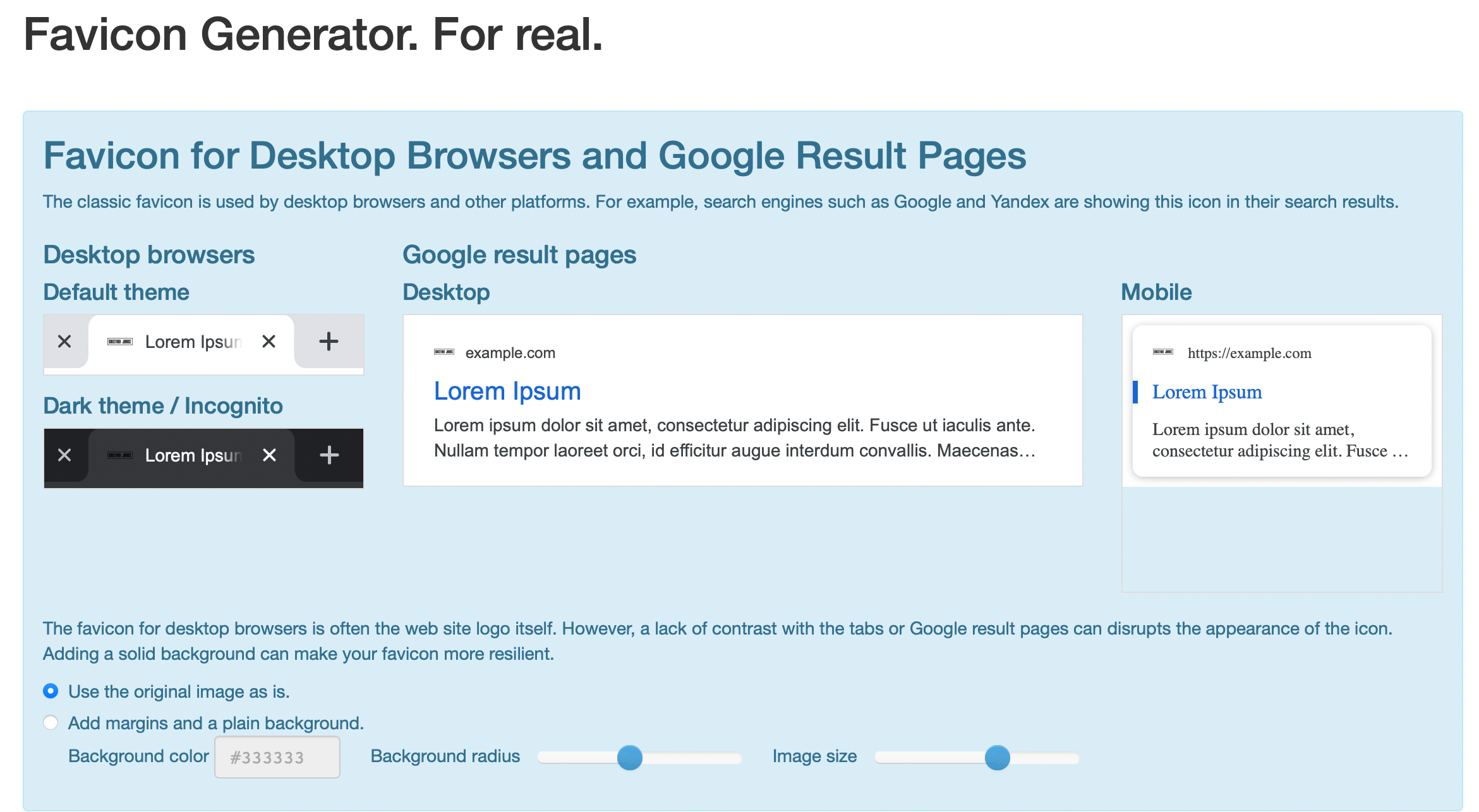
To create your favicon, click on Select your Favicon image and upload a PNG, JPG, or SVG image. This could be your company logo or a photo that represents your niche.
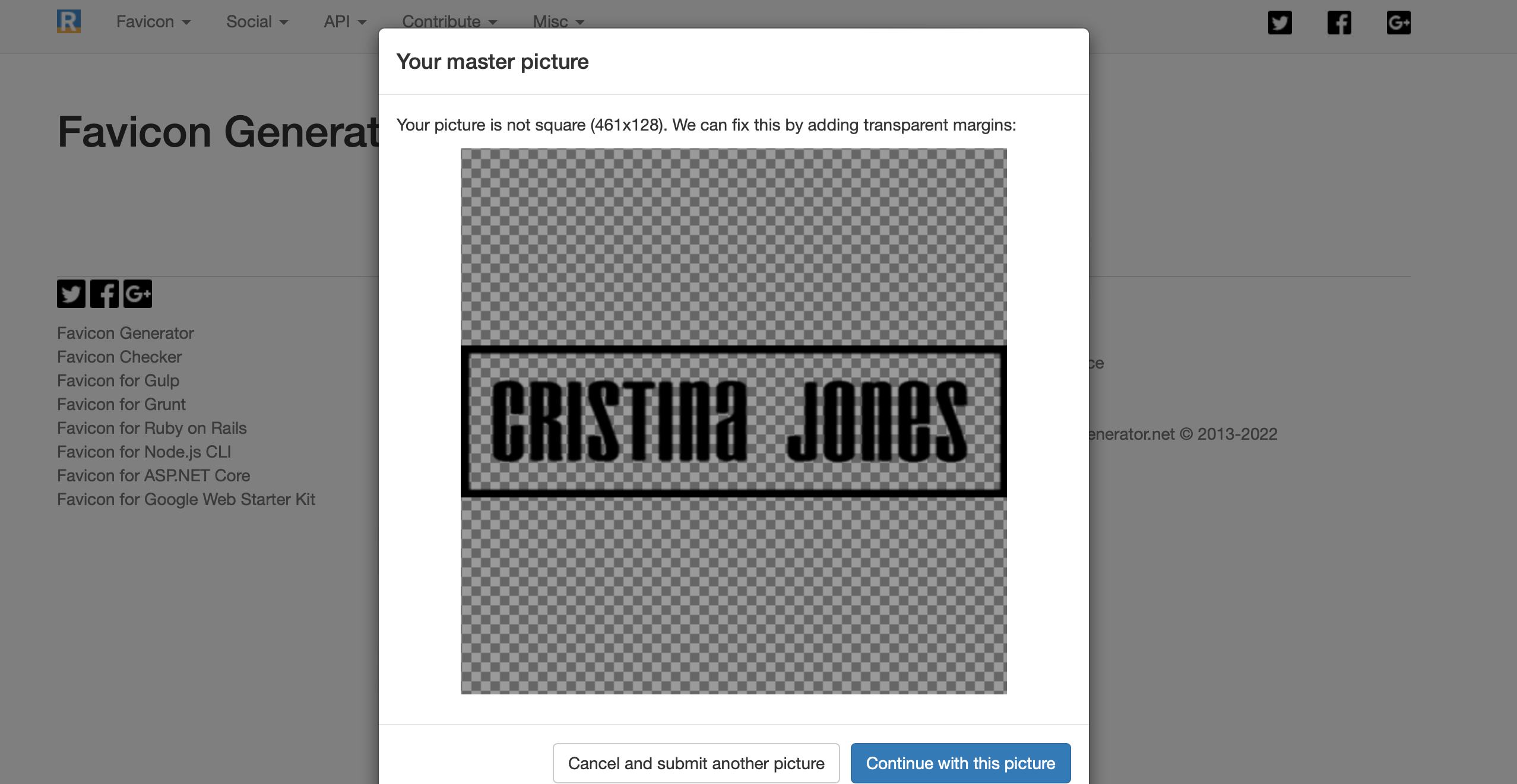
For example, if you have a food blog, you might upload an image or vector icon of a spoon. It’s important to make sure that the image is at least 70 by 70 (although 260 by 260 is recommended for optimal results).
Once you’ve uploaded your file, you’ll receive tips for optimizing the favicon. For instance, the tool might recommend that you change its shape, since a square image looks better in web browsers:
It will also show you what your WordPress favicon will look like across mobile and desktop devices. You can even see it displayed in Google search results:
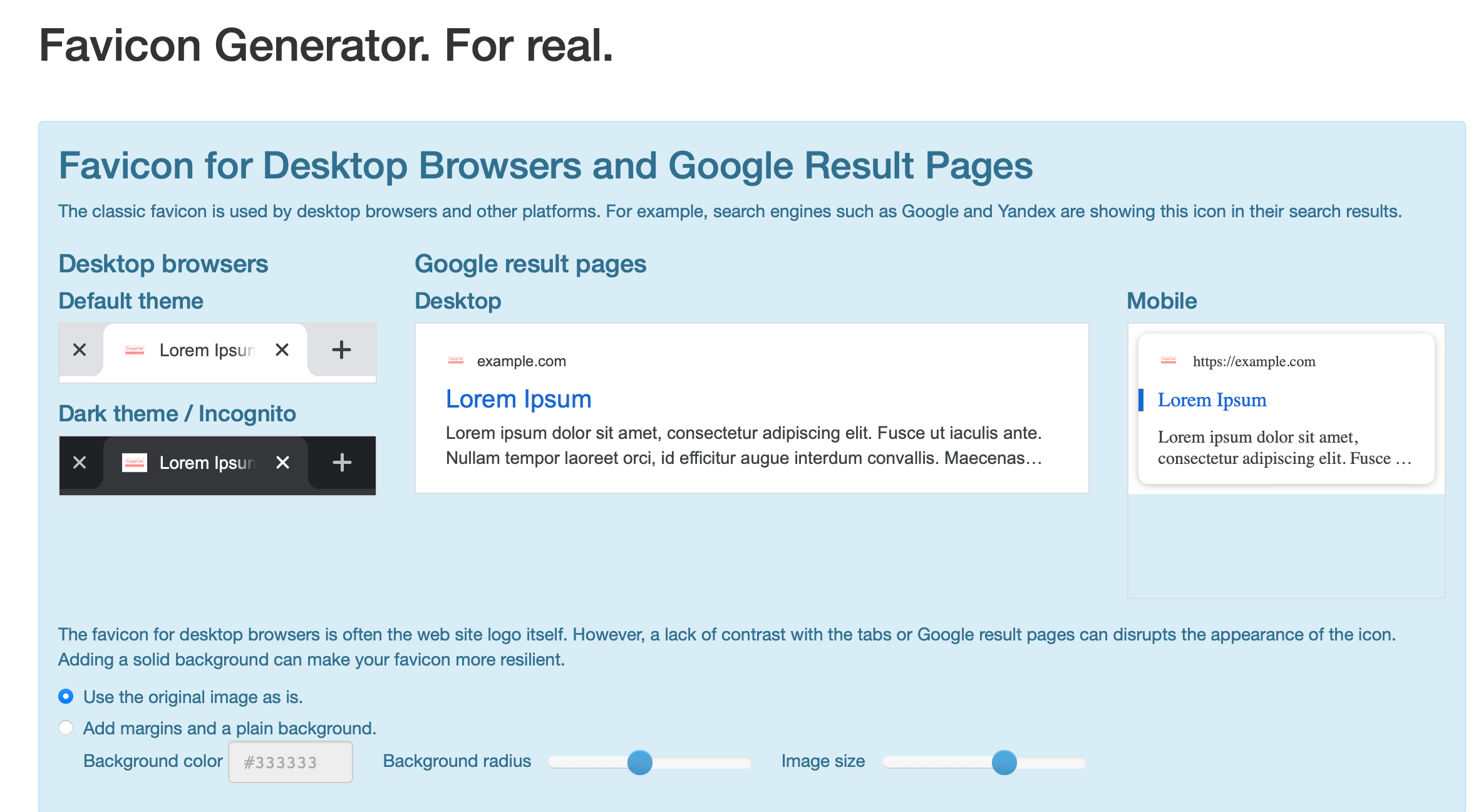
Below the preview section, you’ll see an option to add a background color. This can help you create a starker contrast between the site icon and the tabs.
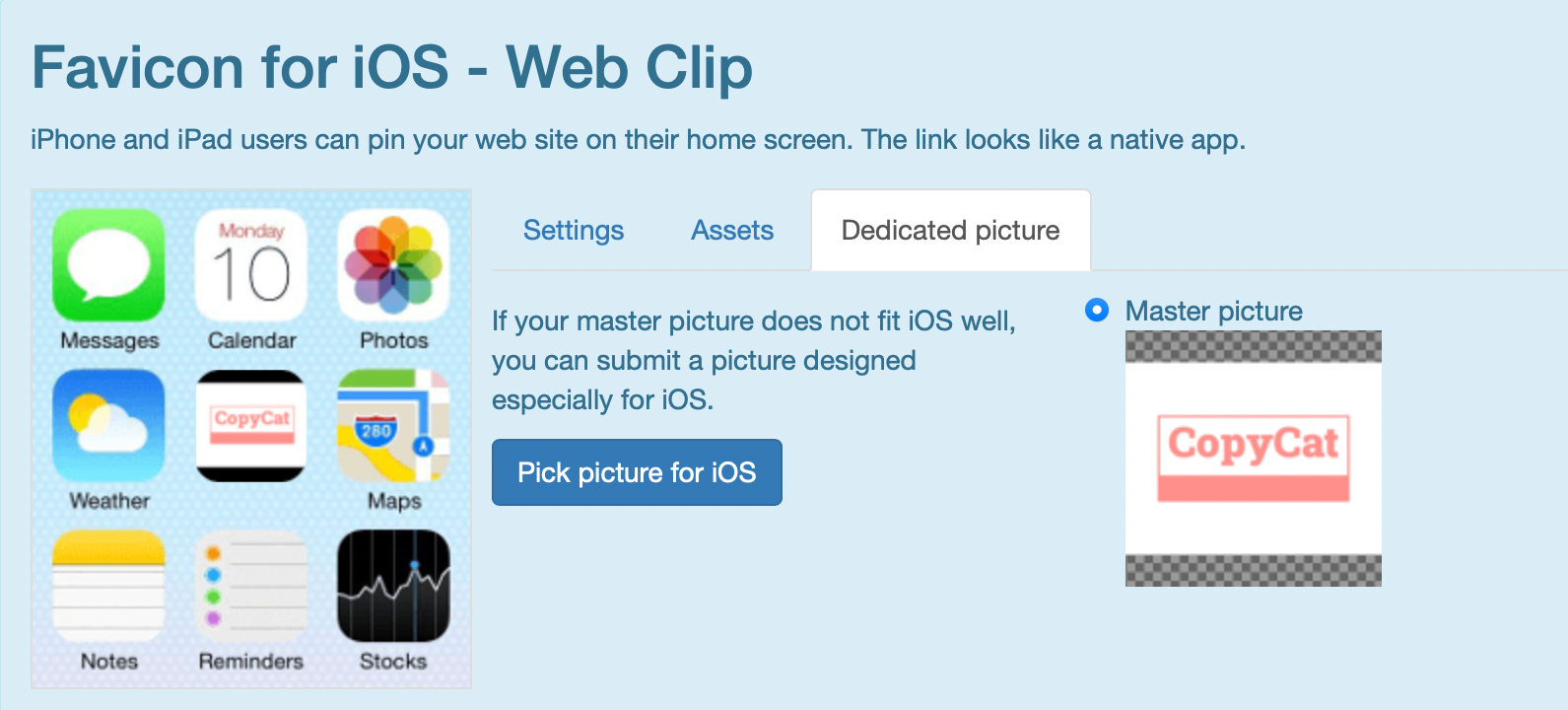
Further down, you’re able to tweak the favicon for use on the home screen. You can add margins and backgrounds, and submit an image that’s specifically designed for iOS, Android, Windows, or Safari:
Finally, you’ll find the Favicon Generator Options. Here, you can choose the location for your favicon files, compress your image, scale the icon, apply a specific app name, and more:
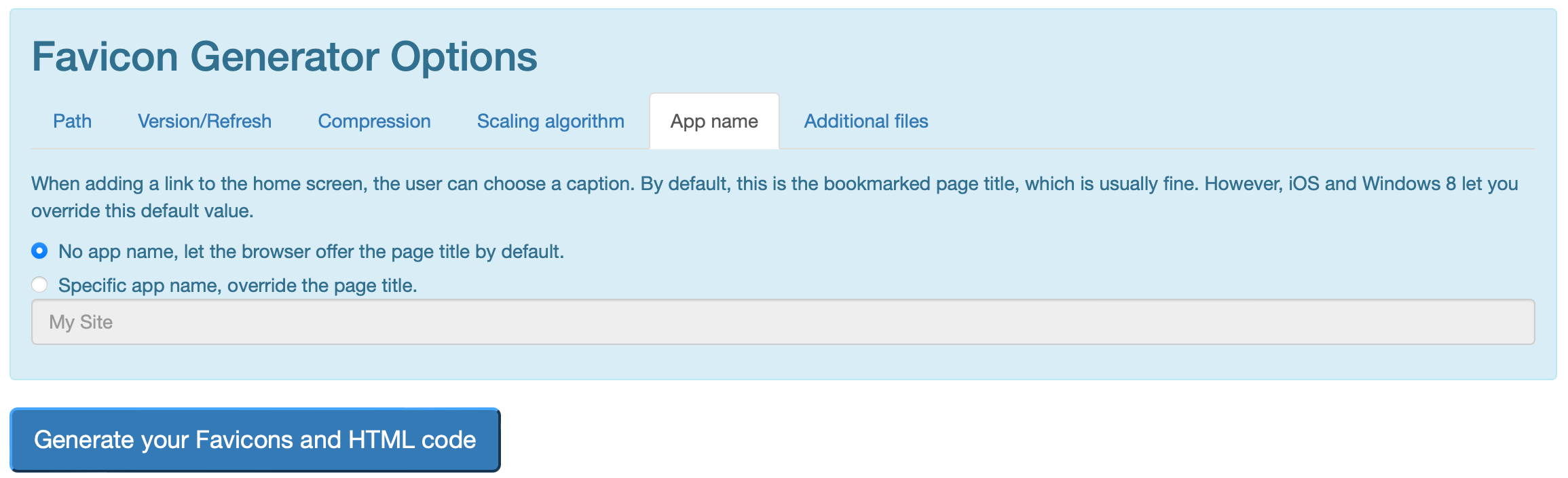
When you’re ready, click on Generate your Favicons and HTML code to download the image.
Step 2: Add Your Favicon to WordPress
Now that you’ve created your WordPress favicon image, you’re ready to add it to your WordPress site. The easiest way to do this is to use the WordPress Customizer.
However, you can also use a plugin. In this section, we’ll be covering both methods to help you choose the right option for your needs.
How to Add Your Favicon to WordPress Using the Customizer
The WordPress Customizer provides a simple way to edit important information like your site title and icon. If you’re using WordPress version 4.3 or higher, you can use the site icon feature to display your favicon.
To get started, navigate to Appearance > Customize within your WordPress dashboard. Then, click on the Site Identity tab:

Find the Site Icon section and click on Select site icon:

You can now look for the image in your Media Library (if you’ve already uploaded it), or click on Upload files to add your favicon to your WordPress site.
You might find that the image exceeds the recommended size. In this case, WordPress lets you crop the image down to the right scale:
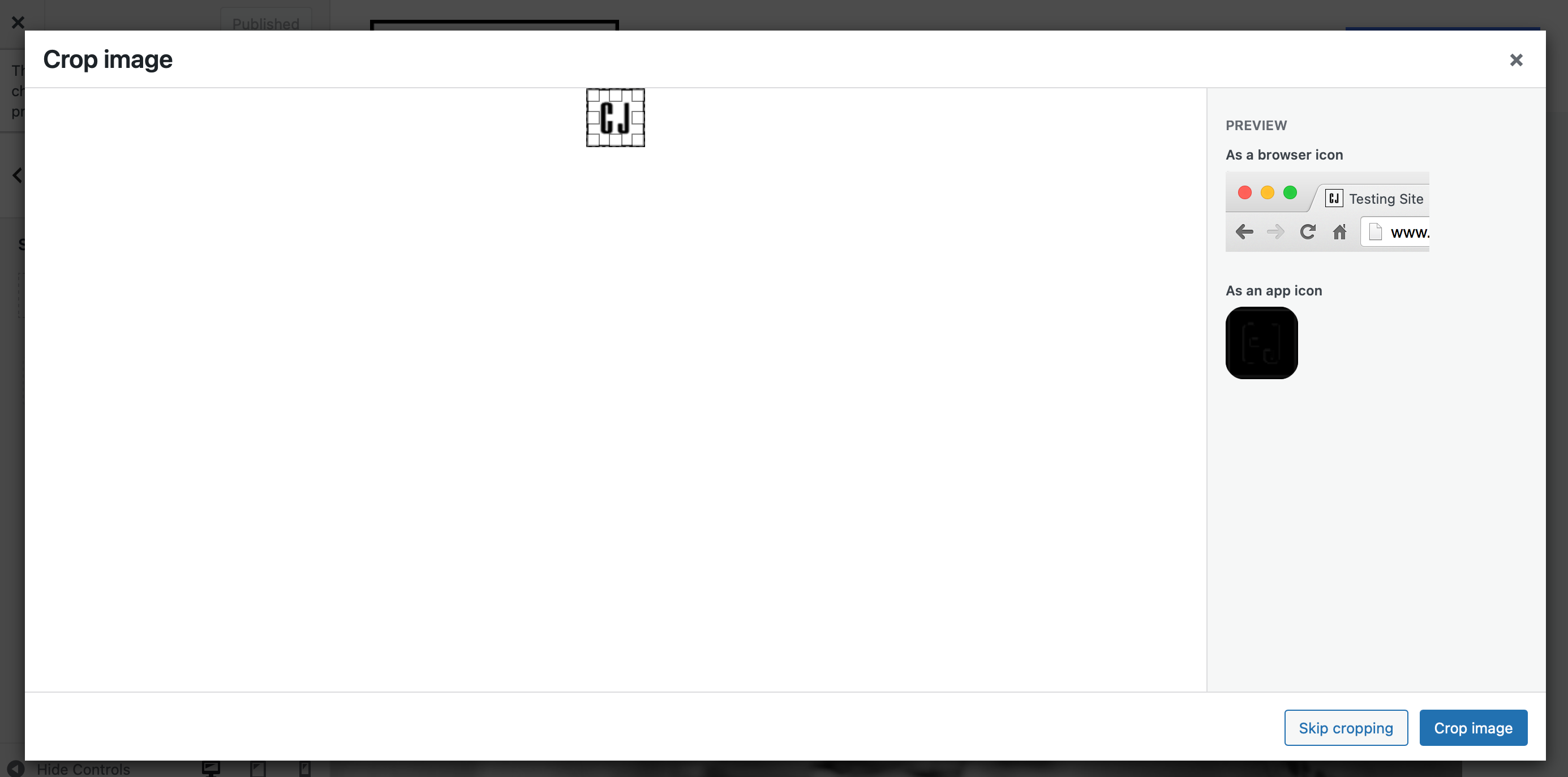
To the right of the screen, you’ll see an option to preview your WordPress favicon as a browser icon and an app icon. If you’re happy, you can go ahead and hit the Crop Image button.
Finally, make sure to click on Publish in the Customizer.
That’s it – your WordPress favicon is now live! However, you might want to visit your website on both a desktop and mobile device to ensure that the favicon is displayed correctly.
How to Add Your Favicon to WordPress Using a Plugin
If you don’t want to use the Customizer to add a favicon to your WordPress website, you can use a plugin like All In One Favicon instead.
This tool supports animated GIFs and Apple Touch icons alongside traditional image formats:

To upload the plugin, head to Plugins > Add New in your WordPress dashboard. Enter the plugin name in the search bar, then click on Install Now followed by Activate:
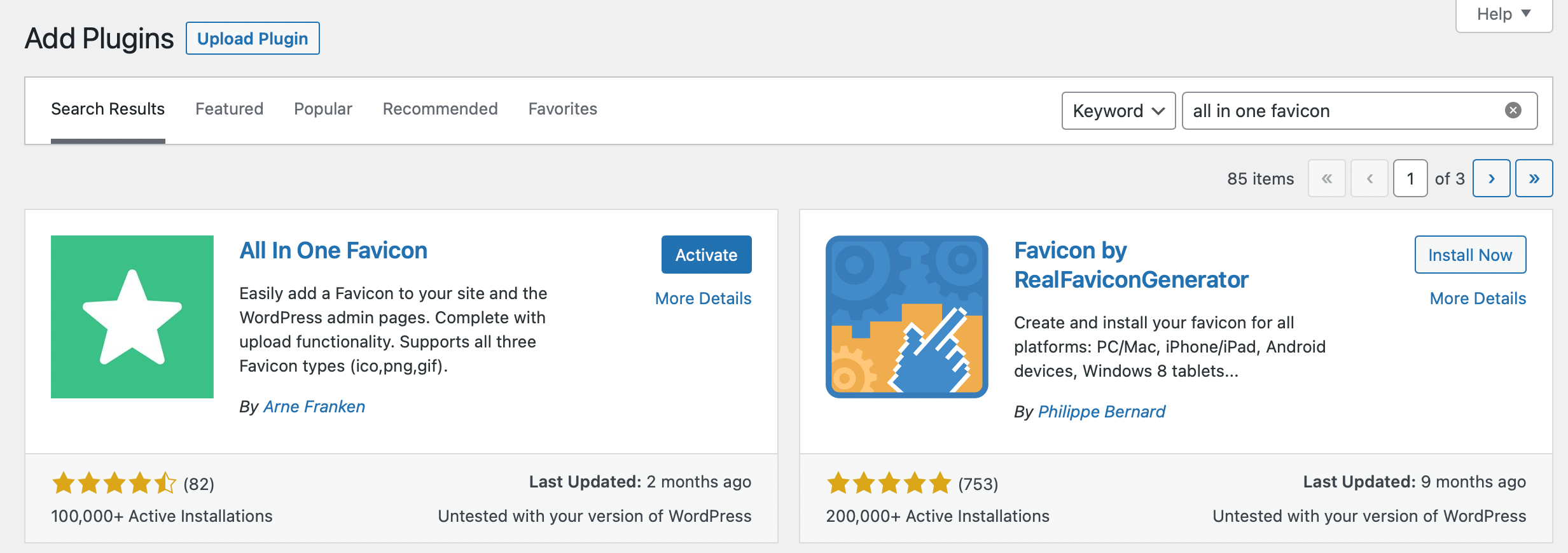
Once you’ve activated the plugin, an All in one Favicon tab will appear in your WordPress sidebar. Click on the tab to access the favicon settings:
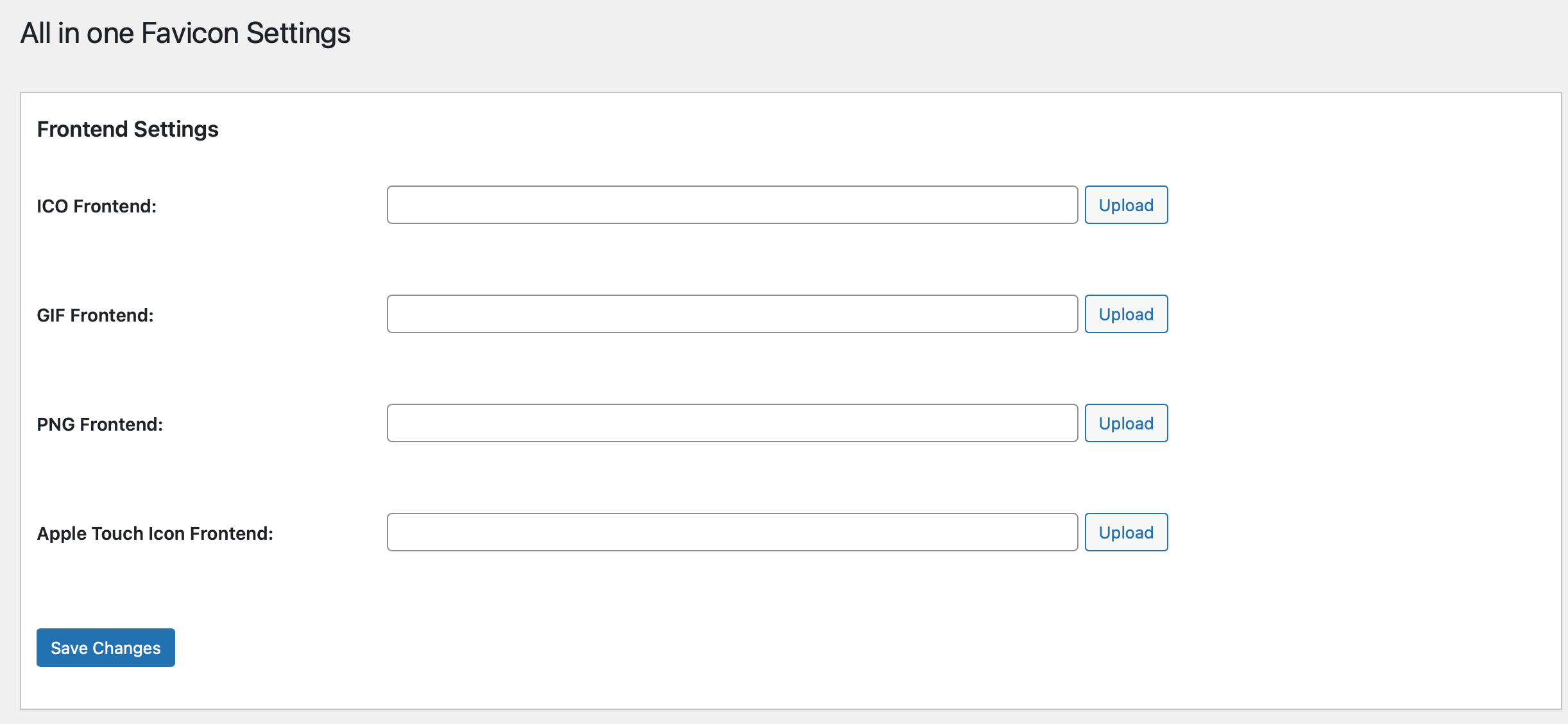
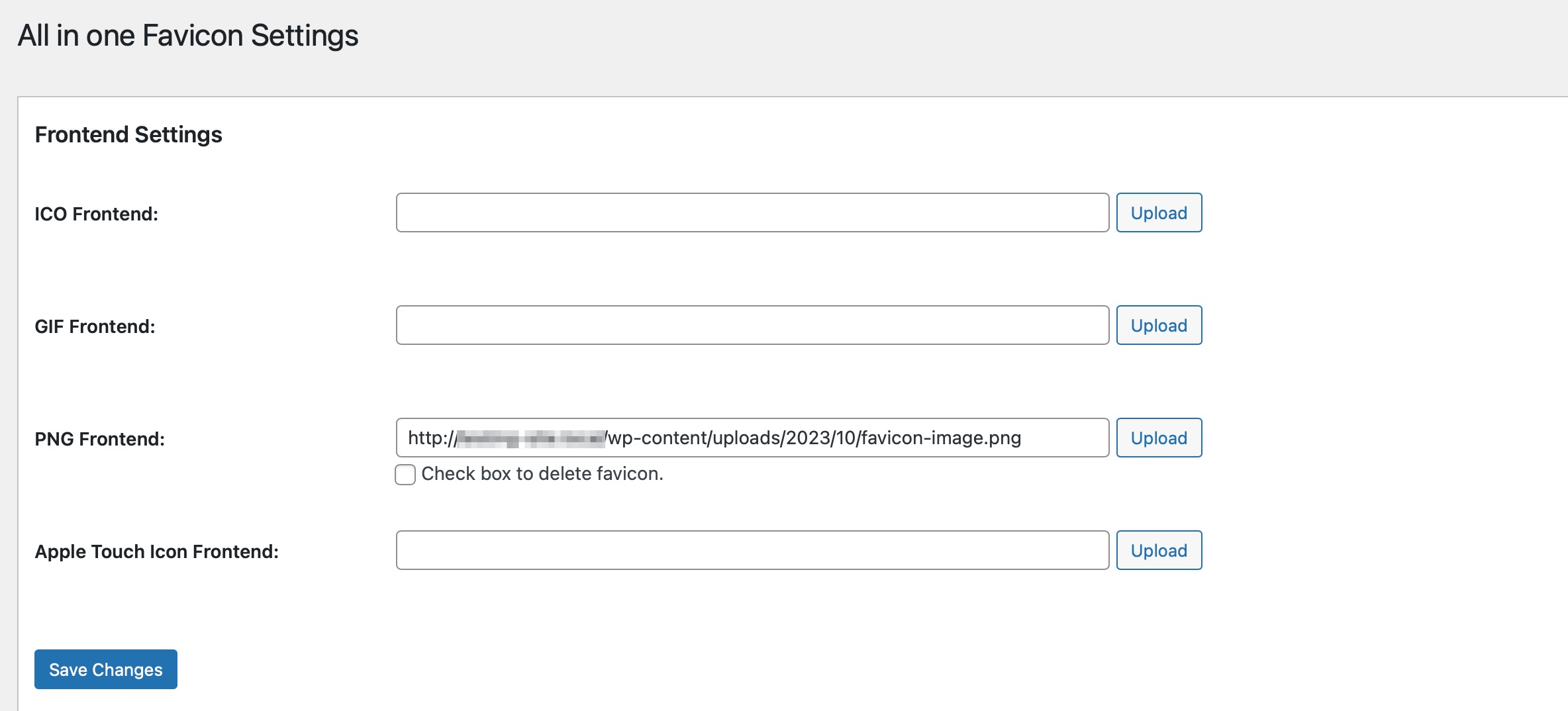
Here, you can upload your favicon to the front end of your WordPress site and the admin pages. There are separate Upload buttons depending on the type of image you’re using (such as PNG or GIF).
Upload the correct favicon type and click on Save Changes. You’ll then see that the file path has been added to the relevant favicon box:
If you uploaded an Apple Touch favicon, you can configure some additional settings, like removing the reflective shine. When you’re ready, save your changes.
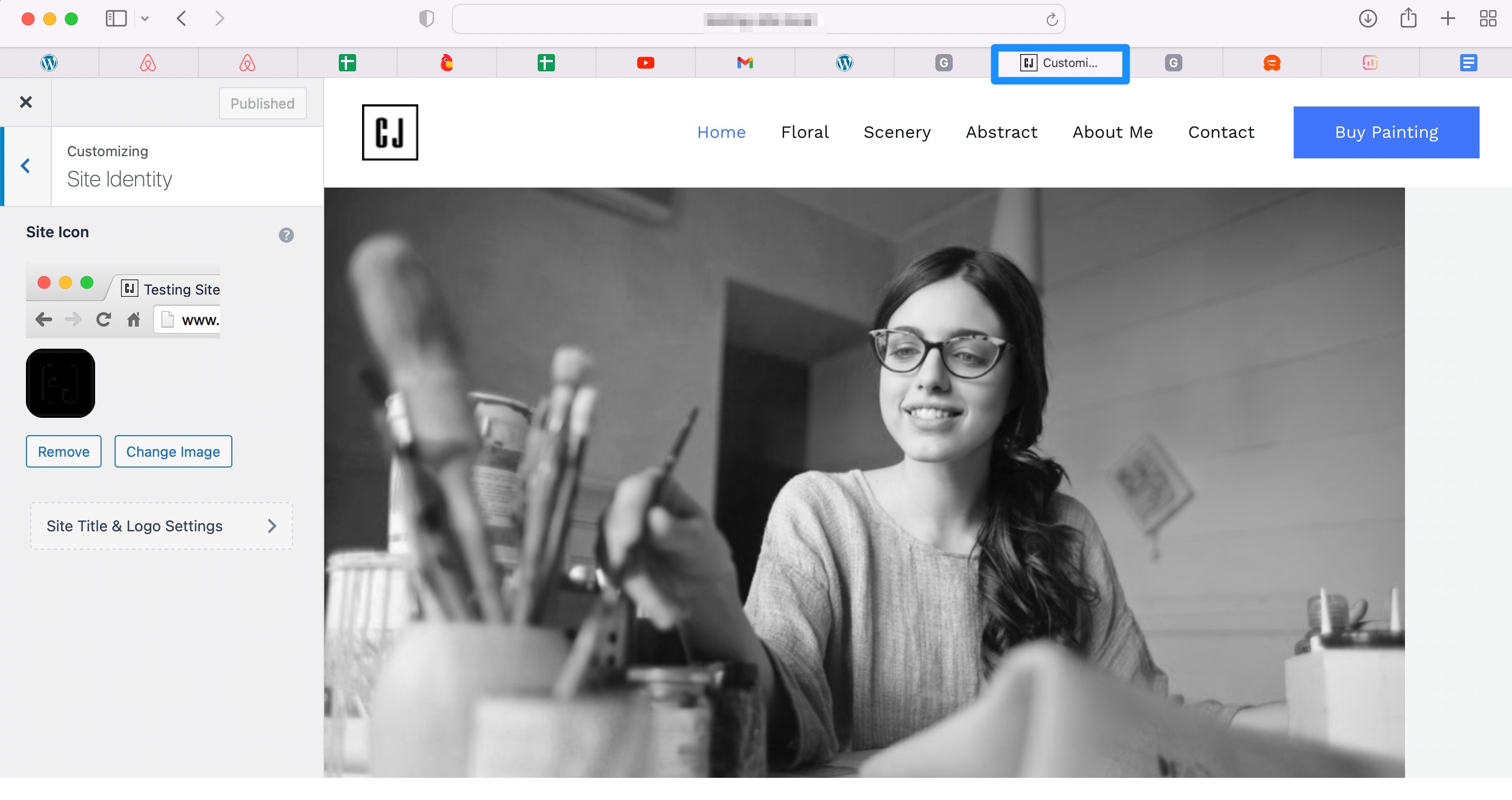
Then, open your site in a fresh tab to view the results:
If you want to remove the favicon at any point, you can return to the plugin settings and check the Delete box.
Conclusion
A favicon can make your brand more recognizable and create a cohesive aesthetic for your site. Additionally, it makes your site look more professional, which can help you build trust with customers.
To recap, here’s how to create a WordPress favicon in two easy steps:
- Create a favicon picture using your logo or a favicon generator tool.
- Add your favicon to WordPress with the Customizer or a plugin like All In One Favicon.
Do you have any questions about how to create a WordPress favicon? Let us know in the comments section below!

Sophia is a staff writer at WordCandy.co, where she produces quality blog content for WordPress plugin and theme developers, hosting providers, website development and design agencies, and other online businesses.
Leave a Reply