Your First 10 Minutes with Hermes (It’s Already on the Server)
Hermes Agent arrives already installed on a NameHero VPS. Paste your own AI key, introduce the shop in plain English, and you’re talking in about ten minutes.
On this page
I wanted an assistant that still knew my business after I closed the laptop. ChatGPT is fine while I’m sitting there. Close the lid and tomorrow I’m briefing it again from scratch.
Hermes Agent lives on a small server. It stays on. It keeps a memory.
On a NameHero VPS, Hermes is already installed. Ubuntu is ready. You are not building a server. You are having a conversation in plain English.
If you can paste a paragraph and click through a couple of forms, you can do this.
#What you’ll need
Three things:
- A Hermes Agent VPS from NameHero. Hermes is already on it. There’s a 30-day money-back if it isn’t for you
- An OpenAI or Anthropic account. That’s the service that does the thinking. You copy a key (a long password) off their site. NameHero does not give you this key
- Ten quiet minutes and one sentence about what your business actually does
#Getting started
You are not installing Hermes by hand. You are not hunting files. The NameHero plan is the assistant waiting when the server comes up.
Already have the VPS? Skip ahead to the Client Area step.
#1. Order it and open the client area
Pick a plan on the Hermes Agent hosting page. One-click order. The server comes up on Ubuntu 22.04 with Hermes already on it. No graphics card. No extra app on your laptop.
When the order finishes, log into the NameHero Client Area. Your new VPS is listed there.
#2. Use the browser terminal
There’s a terminal in the Client Area that runs in the browser. Same idea as our other VPS products. You type in a window on the site. You don’t install a separate login program.
You’ll see it in the instructions next to the server. Open that browser terminal. That’s the screen we paste into.
#3. Run the one command they show you
Setup is one command, then you connect your model. I’m not going to guess the letters. Your Client Area instructions have the exact command for your box. Copy it. Paste it. Hit enter.
If something looks stuck, don’t start Googling random commands. Live chat a SuperHero. They’re real people. That’s why this sits on our servers instead of a 40-step install I email you.
#4. Connect your own AI key
Hermes is the assistant. The brain it talks to is a model you already pay for, or you’re about to. I tell people to start with OpenAI or Anthropic. Copy a key from their site. Paste it into Hermes.
On the dashboard, two clicks. Left rail: Config is the model name. Keys is where you paste the long password. Skip the rest of that rail on day one. MCP, plugins, all of that can wait.
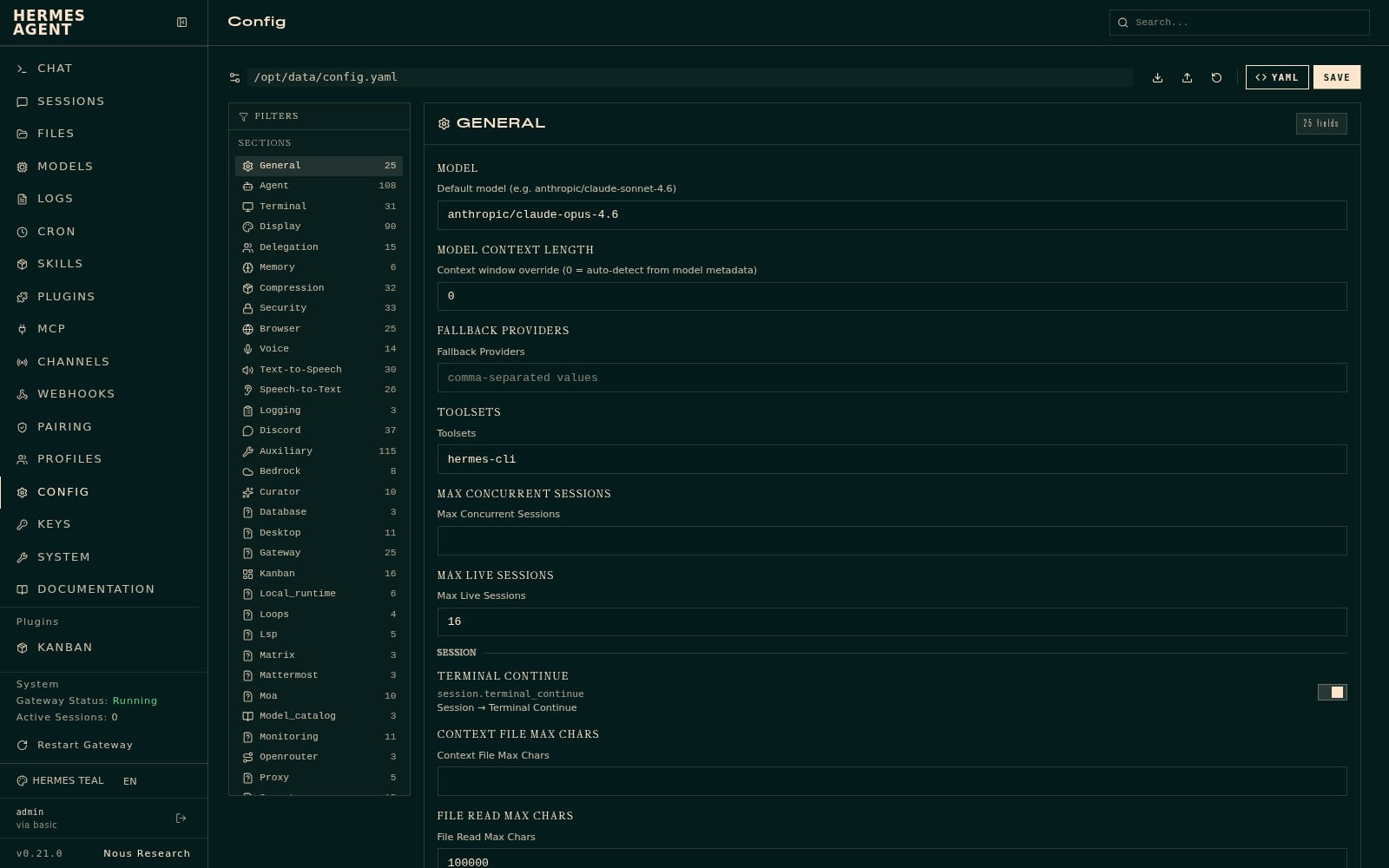
That’s Config on a NameHero box. The model field is which brain to use. If it already says something like claude-opus, leave it. Don’t hunt through the other sections.
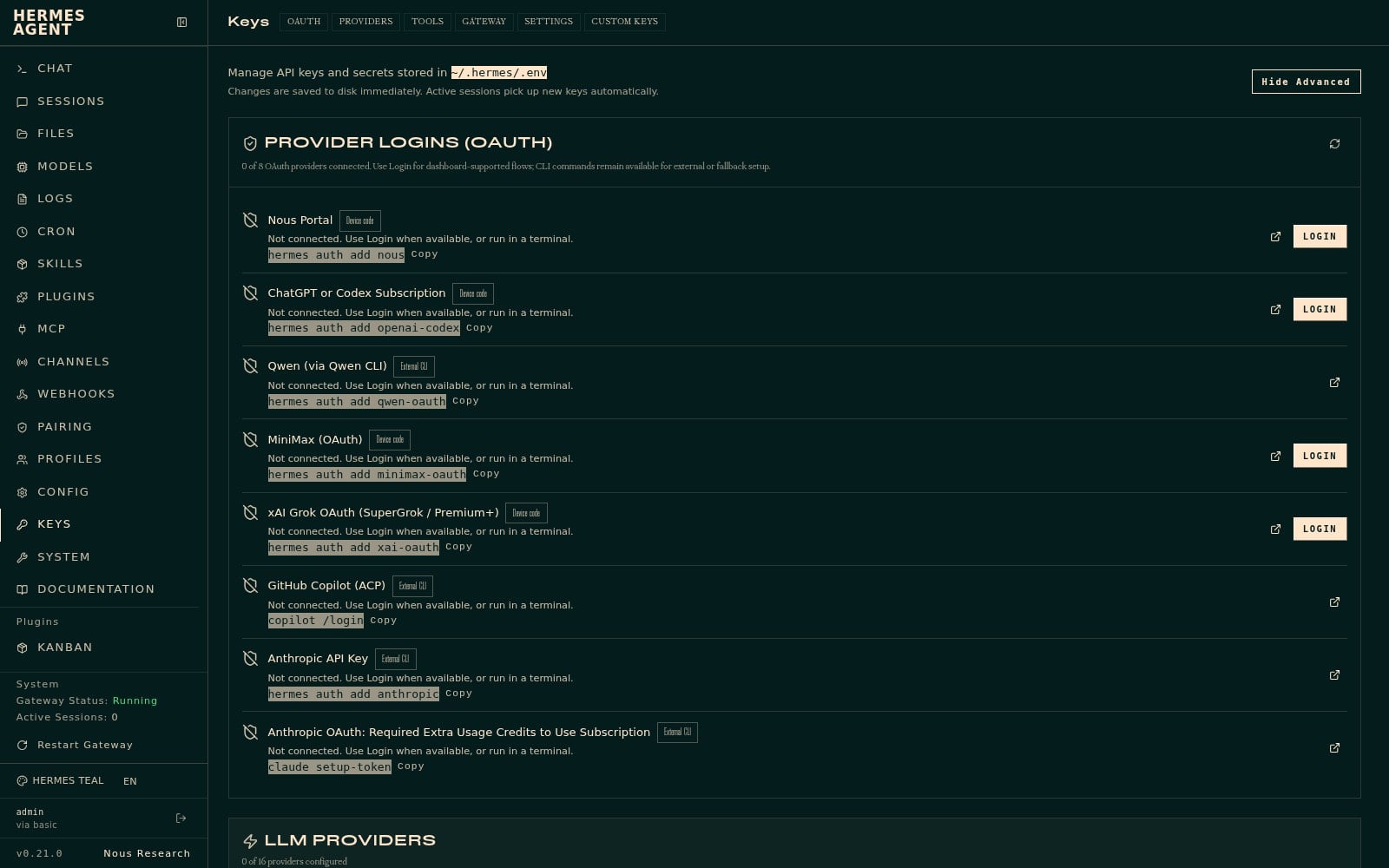
That’s Keys. OpenAI or Anthropic is enough. Paste the key. NameHero never sees it. It lives on your server.
Then talk to it.
#5. Have the first conversation
Open Chat in the left rail. Big Hermes banner. A prompt line at the bottom. Type there. If it suggests “explain this codebase,” ignore that. You’re introducing a shop, not a git repo.
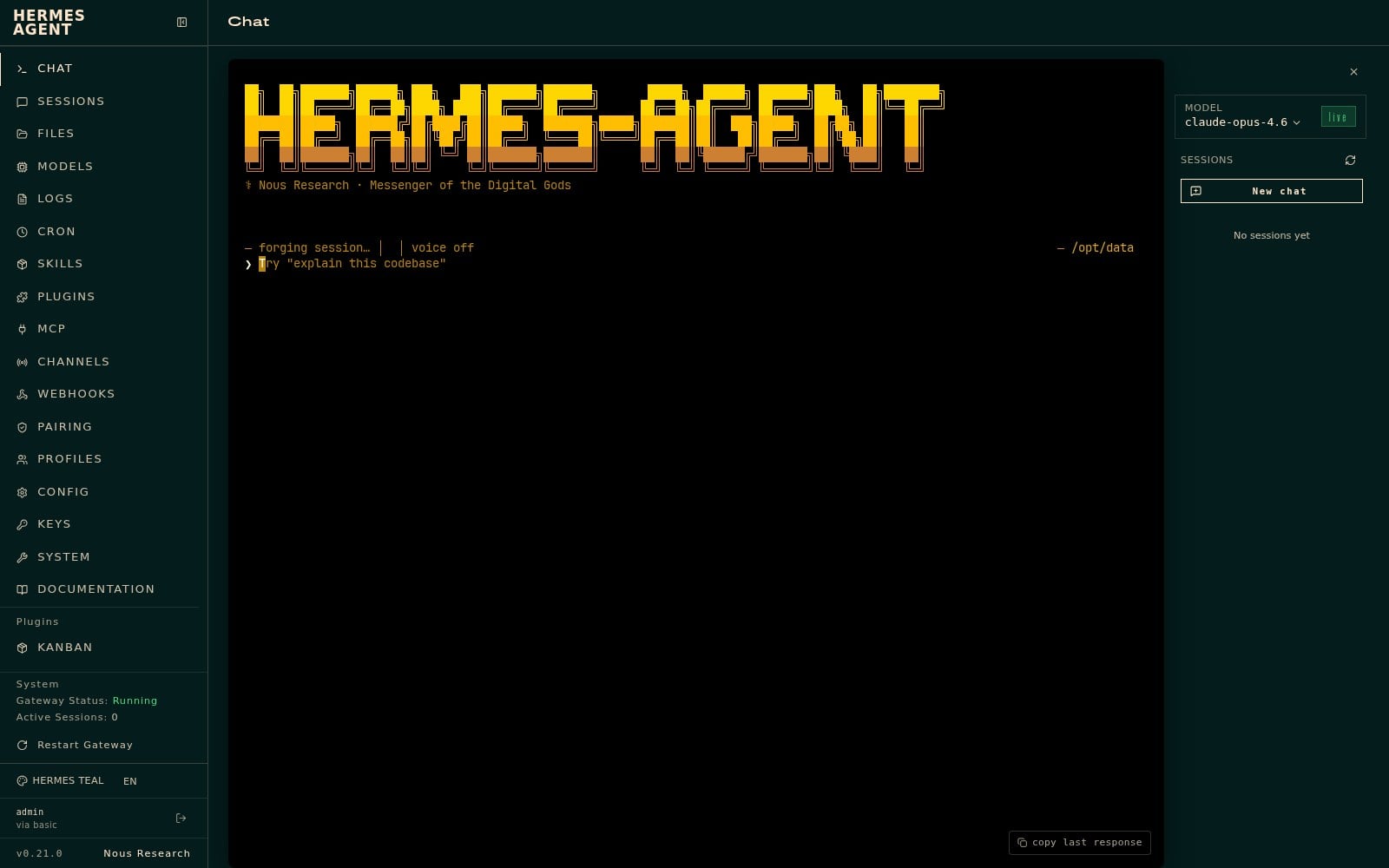
That’s Chat on a NameHero VPS, first boot. No sessions yet. You type next to the >.
Don’t ask it to “be an AI.” Tell it who you are, the way you’d tell a new person at the shop.
Paste this. Swap the facts for yours. Jewelry is the example. Photographer, bookkeeper, dance coach: change the middle. Keep the last two lines.
I’m Maria. I run a small jewelry shop. We sell handmade gold-fill pieces and vintage finds, not cheap plated stuff and not wholesale. Hours are Tuesday through Saturday, 10 to 5. Closed Sunday and Monday. Local pickup the same day if they order before 2. We ship USPS inside the US. We don’t ship custom sizes overseas. I talk like a neighbor, not a catalog. Remember this. Next time I ask you to draft a reply, use these facts without making me repeat them.
You should get a short answer back that sounds like it heard you. If it asks a follow-up, answer in one sentence.
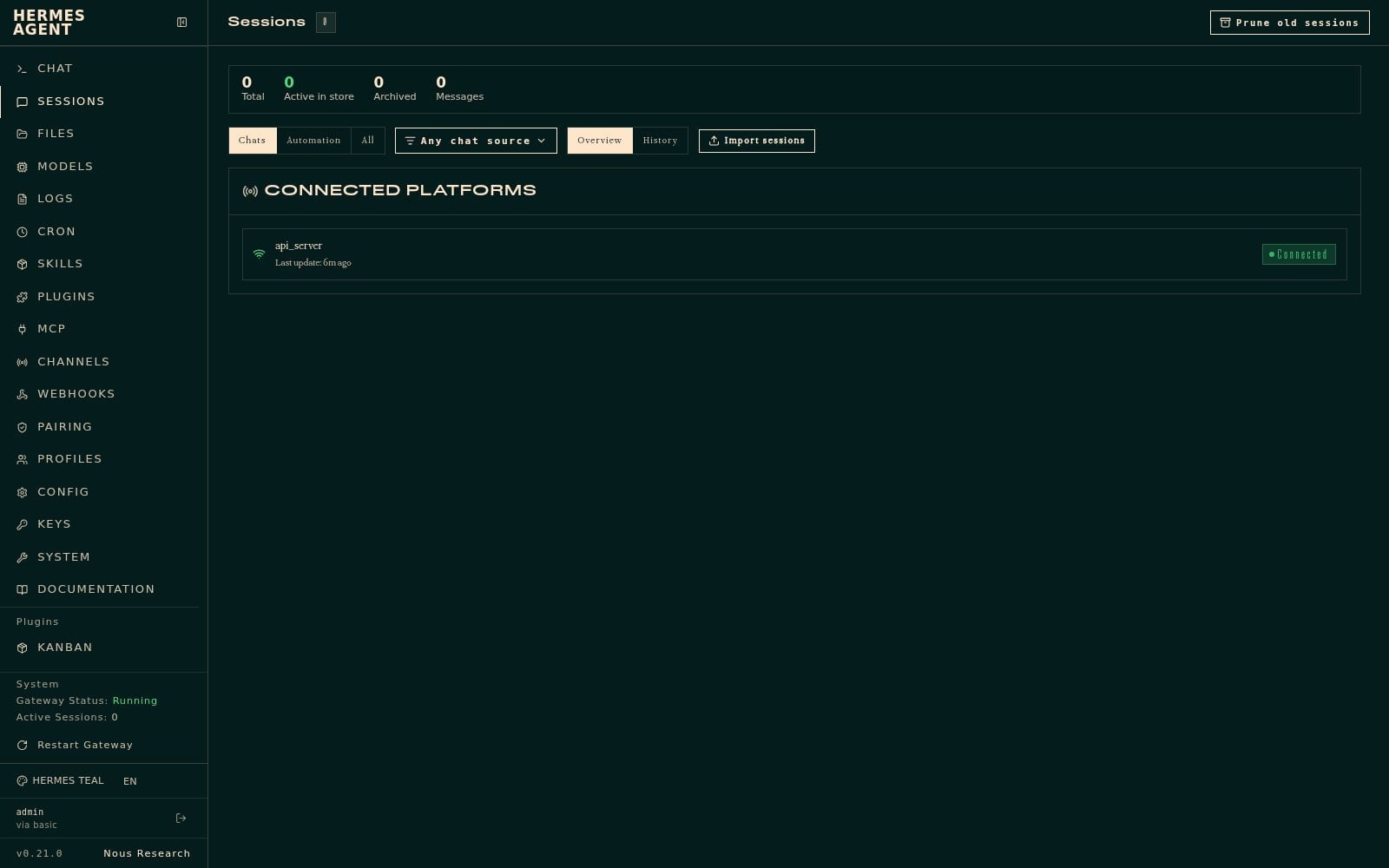
Sessions is the list of those talks. After the first paste you’ll have one. Before that it says none, which is fine.
#6. That’s ten minutes
You ordered a box that already had Hermes on it. You pasted one command from the Client Area. You pasted a key you own. You introduced the business in plain English.
You did not install anything on your laptop. The assistant is on your server, so it stays on when you close the lid.
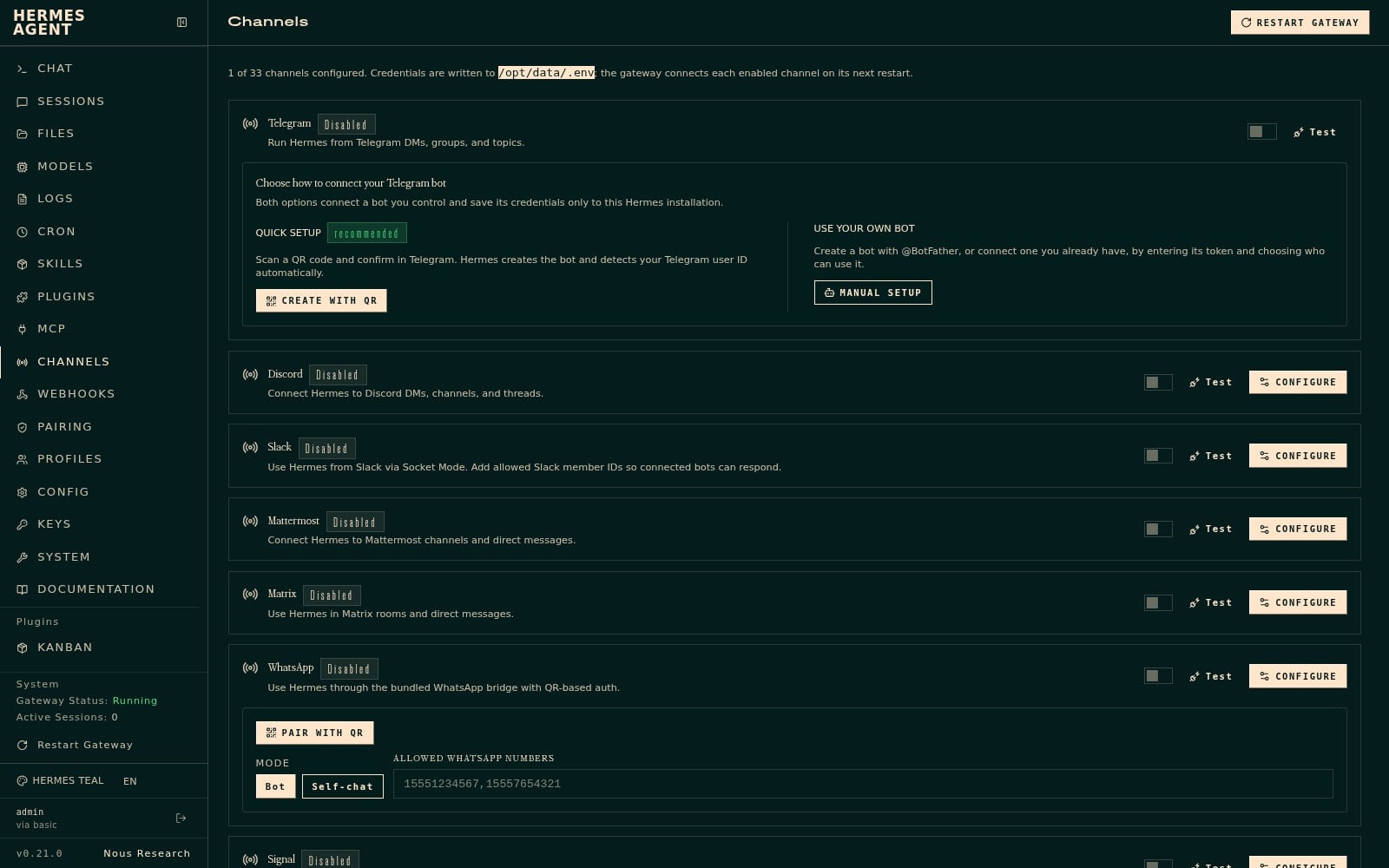
WhatsApp, Telegram, and Slack can wait. Channels is that page. WhatsApp has a Pair with QR button when you’re ready. Today you just need it to answer you and remember the shop.
#Wrapping up
Client Area, one command, one key, one paragraph. Next post is the part ChatGPT never did for me: telling it the business once so you stop repeating yourself.
If you haven’t got a box yet, grab a Hermes Agent VPS from NameHero. Hermes is already on it. SuperHeroes are still real people if something breaks.
What did you tell it on the first paste?