• Skip to primary navigation
  • Skip to main content
  • Skip to primary sidebar
NameHero® Blog

NameHero® Blog

Web Hosting Tips & Resources From NameHero

  • AI Agents
    • OpenClaw
    • Claude Code
    • n8n
    • Hermes Agent
    • Open WebUI
    • Docker
  • Hosting
    • Web Hosting
    • WordPress Hosting
    • WooCommerce Hosting
    • Enterprise Hosting
    • Email Hosting
    • HeroicGuard
    • GPU Hosting
    • Website Builder
  • VPS
    • Managed VPS
    • Unmanaged VPS
    • Flex VPS
  • Reseller
  • Gaming
  • Domains
  • Account
  • Blog Home
  • Categories
  • Authors

Brew Install Node Guide

Benjamin O'Donald

Published on: January 14, 2025

Categories: Linux Command Line 0

Table of Contents
  • What is node.js?
  • What is homebrew?
  • How to install node.js with homebrew on Linux
    • 1. Install homebrew on Linux
    • 2. Set the path for Homebrew
    • 3. Use brew doctor to verify your installation of homebrew
    • 4. Use homebrew to install node.js and npm
    • 5. Confirm the versions of both node.js and npm to verify your install

What is node.js?

Node.js is a popular open source JavaScript platform used for the creation of application environments.

There are a couple different ways to install node.js and in this article we’ll explain how to do so using the homebrew utility.

Upon installing node.js using homebrew it will also install the node package manager (npm) which is a tool used to manage packages needed for projects created in node.js.

What is homebrew?

Homebrew is a package manager created for Mac OS but also works on Linux operating systems as well.

It is used for the installation of open source software such as node.js which allows you to create an application environment.

With homebrew we’re able to use the ‘brew’ command in terminal to install open source community software.

How to install node.js with homebrew on Linux

Before we begin, we’ll need to also have homebrew installed on our Linux system.

If you already have this utility installed feel free to move onto Step 4.

1. Install homebrew on Linux

Before proceeding, this should be completed as a non root user account.

As your non root user, enter in the following command into terminal to begin the installation script of homebrew:

$ /bin/bash -c "$(curl -fsSL https://raw.githubusercontent.com/Homebrew/install/HEAD/install.sh)"

You will be prompted for your users password as well. Once entered in the install will begin.

After inputting your password you’ll need to press enter once more when prompted in order to continue:

2. Set the path for Homebrew

After the install has completed you will need to setup the path in your users .profile file. This file is located in your home directory at /home/username/.profile (shown below):

$ echo 'eval "$(/home/linuxbrew/.linuxbrew/bin/brew shellenv)"' >> /home/username/.profile

After completing the above just make sure you are within your users home directory.

If needed just run the following to change your present working directory to that location:

$ cd ~

After changing your present working directory to your users home directory use the following command to finish things up:

$ eval "$(/home/linuxbrew/.linuxbrew/bin/brew shellenv)"

3. Use brew doctor to verify your installation of homebrew

Now that we’ve installed homebrew lets verify everything went correctly by entering in the following command:

$ brew doctor

We should see the following output which indicates brew is ready for use:

4. Use homebrew to install node.js and npm

Now that we have homebrew installed we can proceed to use ‘brew node install’ to add node.js and npm onto our Linux system.

The installation of node.js and npm can be done by entering in the following command:

$ brew install node

Once it completes you should see the following output:
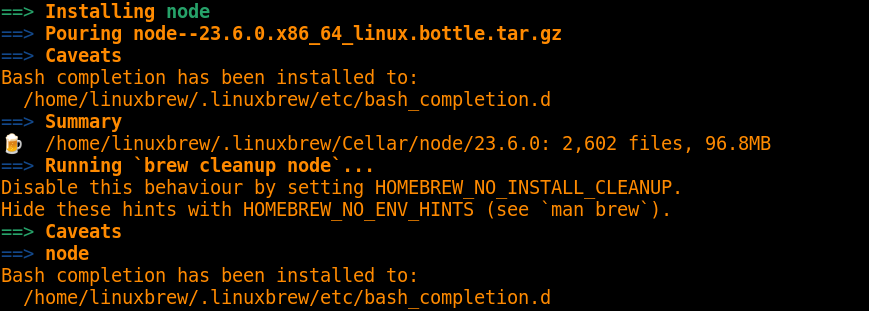
5. Confirm the versions of both node.js and npm to verify your install

Now that the installation of node.js is finished lets check our versions of both node.js and npm.

Use the following command to confirm the current node.js version installed:

$ node -v

Use the following command to confirm the current npm version installed:

$ npm -v

Related Posts

Bash Conditional Expressions: [[ vs [ vs test

In bash scripts, we use conditional statements frequently. Whether it’s in an “if fi” logic block or within a “while” or “do” loop, we evaluate statements all the time to determine whether they’re true or false, and perform various actions based on the result. True to form, there are multiple ways to do this, and […]

How to Use zsh Syntax Highlighting

In an earlier post, we discussed the basics of zsh, what it is, and how to get started. Today we’ll look at syntax highlighting in zsh, its meaning, and how to implement it. I’ll also explain why it doesn’t work well with bash, even though we can get it to work in a “hacky” way. […]

How to Use sed to Replace Strings in Files

The "Stream Editor" tool - the "sed" command in Linux, is often used to replace strings in files. Here's how to do it.

Resolving the “Fatal: Refusing to Merge Unrelated Histories” Error

The "fatal: refusing to merge unrelated histories" occurs when you try and merge an unrelated repo into your own. Here's what it means.

Reader Interactions

Leave a Reply Cancel reply

Your email address will not be published. Required fields are marked *

This site uses Akismet to reduce spam. Learn how your comment data is processed.

Primary Sidebar

Follow & Subscribe

Exclusive promos, content and more!


Most Popular Posts

NameHero’s Recommended WordPress Plugin and Theme Setup

WordPress Hosting vs. Web Hosting – What’s The Difference?

How To Increase The InnoDB Buffer Pool Size

How To Fix A Stuck All-in-One WP Migration Import

How To Add A Subdomain In Cloudflare

Top Categories

  • WordPress
  • WordPress Tutorials
  • OpenClaw Hosting
  • Enterprise Hosting
  • WooCommerce
  • Web Hosting
  • Resellers
  • Website Security
  • Website Development
  • Website Performance
  • VPS Hosting
  • SEO Tips
  • Announcements
  • Domain Registration
NameHero

NameHero® proudly provides web hosting to over 40,000 customers with 99.9% uptime to over 750,000 websites.

  • Master Card
  • Visa
  • American Express
  • Discover
  • Paypal
Products
  • Web Hosting
  • Managed VPS Hosting
  • Unmanaged VPS Hosting
  • Flex VPS Hosting
  • WordPress Hosting
  • WooCommerce Hosting
  • Reseller Hosting
  • Enterprise Hosting
  • GPU Hosting
  • Email Hosting
  • HeroicGuard
  • Domains
  • Website Builder
  • AI Agent Hosting
Help & Support
  • NameHero Blog
  • NameHero Gaming Blog
  • Support
  • Help Center
  • Migrations
  • Affiliates
  • Gaming Affiliates
  • Call 1-855-984-6263
Company
  • About Us
  • Contact Sales
  • Reviews
  • Uptime
  • We're Hiring

Copyright © 2026 Name Hero, LLC. All rights reserved.
NameHero® is a registered trademark.

  • Privacy Policy
  • Terms of Use
  • Acceptable Use Policy
  • Payment Policy
  • DMCA