
We often talk about the “sed” Linux tool on the NameHero blog because it is versatile and useful. Our tutorial on how to delete lines in sed shows you how to install sed and get started. In this article, we talk about using sed to replace text in files. Sed is uniquely suited for this kind of task because it can be used in scripting and can make changes automatically without requiring user confirmation. It’s also extremely fast since it takes lines as input one by one, allowing it to scale up to thousands of files if necessary.
Replacing text in Files
In the example below, I’ve created a file called “file.txt” with some random text. Here are the file contents:

In the above file, let’s say I want to replace the words “old text” with the words “new text”. To do this in sed, I just use the following command to get the new output:
sed 's/old text/new text/g' file.txt
This gives the following:

You can see that the output is the contents of the file with the changes having been made.
Changing the File Contents
Note, however, that the file contents haven’t yet been changed. This is by design. By default, sed doesn’t change the contents of the files, since it can be dangerous, particularly when it can affect hundreds of thousands of files at the same time. If you’ve verified that you want the changes to go through, then you can add the “-i” parameter to the command like this:
sed -i 's/old text/new text/g' file.txt
And here’s the output:

Note that this time, sed doesn’t output the contents of the file. The change has been made automatically without further output. I have to use the “cat” command to display the new file contents.
As you can imagine, this kind of functionality is both powerful and dangerous. Powerful because you can replace the contents of thousands of files in one go, and dangerous because the changes are permanent. Sed won’t ask you to confirm the changes for each file!
Using sed to Change Multiple Files at Once
In the above command, we use sed to change just a single file. But we can also use it to modify an entire directory and its subdirectories of files.
To start, we can just specify multiple files sequentially at the end of a sed command like this:
sed -i 's/old_text/new_text/g' file1.txt file2.txt file3.txt
If you have just a small number of files that you can specify manually, then this might be the easiest way to affect multiple files at once. But if you have an entire directory of files, then you must combine the sed command with the “find” command. We’ve talked about the “find” command before on NameHero, and how to use the “exec” option with “find” to affect multiple files. So if you want to impact an entire directory of files with sed at the same time, you should use a command like this:
find /path/to/your/directory -type f -exec sed -i 's/old text/new text/g' {} +
The above command will start in the folder “/path/to/your/directory” and then process all the files in the folder as well as the subdirectories. The “-type f” ensures that it only processes normal files, not directory names, symbolic links, etc. The command takes all the files one by one, and creates sed command with multiple arguments (up to the limit) and then executes everything. It’s an extremely efficient way to generate sed commands with as many files as you want.
The plus (+) sign at the end replicates the xargs functionality, so we always prefer this approach instead.
But if you thought sed was dangerous when it was affecting only a handful of files, you can imagine the damage it must wreak when carelessly applied to entire folders and subfolders. For this reason, we need to always be aware of how to use sed safely and which tools we can use to minimize the chances of things going permanently wrong.
Using sed Safely When Replacing Text in Files
Here’s a list of safety practices we need to follow when using sed to replace strings in files.
Back up the Original File
The easiest way to ensure that you don’t accidentally replace something you shouldn’t is by creating a backup copy of the original file. You can do this easily with the following command:
cp original_file.txt original_file.txt.bak
Then just use “original_file.txt” to make your changes, and if everything works as expected, delete “original_file.txt.bak”. Otherwise, delete the former and rename the latter back to the original.
Backup All Files Affected by sed
Unfortunately, the above method is useful only if you’re changing a single file. The real power of sed, as we’ve seen, comes from its ability to affect multiple files at once. If you’re looking to change text in all the files of a folder, you can’t back up each of them individually. Luckily for us, sed has a special option that automatically creates backups via the “-i.bak” flag. The command looks like:
sed -i.bak 's/old_text/new_text/g' filename.txt
The above command is identical to the regular sed command to replace strings, but now the “-i” flag has become “i.bak”, instead. This means that whenever sed replaces some text in the file, it will create a backup with the “.bak” extension. In other words, there will be a new file called “filename.txt.bak”. Here’s a screenshot:
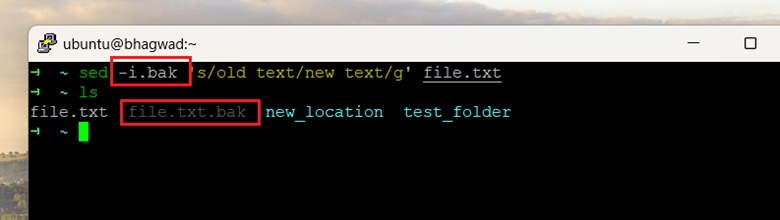
The file coloring is a bit wonky, but you should be able to see the “file.txt.bak” backup file that sed has created when it performs a replacement. This is, in my opinion, an absolute must when replacing strings in anything important. You can always delete the backup files later if all goes well, but sed has no “undo” function!
Perform a Dry Run
If the replacements you want to make are limited and scope and easily verifiable, then it might be easiest to just perform a dry run with sed without actually changing anything, and show the output on the screen. For this, simply omit the “-i” flag entirely and run something like this:
sed 's/old_text/new_text/g' filename.txt
We’ve already shown how this works in the second screenshot. Without “-i”, sed simply prints the altered contents of the file to the screen. If everything looks good, you can proceed with the “-i” flag as usual.
Use Cases for Replacing Strings with sed
The ability of sed to replace strings in multiple files is invaluable. Here are some useful situations.
Configuration File Changes
Let’s say you have a project, and you want to change the port at which it’s accessed. You’re not sure how many places or files the old port is used in. With sed, you can just use a command like this:
sed -i 's/Port 22/Port 2222/g' /etc/ssh/sshd_config
Targeting either a file or a directory to replace all instances of “Port 22” with “Port 2222”.
Sanitizing Log Files
If you want to share your log files with someone – maybe for debugging – you might consider filtering out sensitive details like IP addresses, personal data, or API calls and replacing them with asterisks, for example. With sed, you can change all these details across hundreds of large log files with a single command, and then tar and gzip all the modified log files together to send them off.
Conclusion
To replace strings in files, there’s no better tool than sed. Other tools are either more complicated to use or don’t have the advantages of sed, which operates on a line-by-line basis, rather than on a file-by-file basis. This makes sed extremely scalable, and if you use the proper safety precautions, you’ll find it an invaluable tool for project management.

I’m a NameHero team member, and an expert on WordPress and web hosting. I’ve been in this industry since 2008. I’ve also developed apps on Android and have written extensive tutorials on managing Linux servers. You can contact me on my website WP-Tweaks.com!
Leave a Reply