
In bash scripts, we use conditional statements frequently. Whether it’s in an “if fi” logic block or within a “while” or “do” loop, we evaluate statements all the time to determine whether they’re true or false, and perform various actions based on the result. True to form, there are multiple ways to do this, and bash has evolved better methods over the years after the initial problems became apparent with the older methods. Here, we look at three conditional expressions – test, [, and [[. Of these, the first two are the same – [ is a syntactic shorthand for test, but [[ is the one that’s best used these days.
Let’s see the differences between them.
The Original Conditional Expression – test
This is the original command, and it was built into the shell in 1981. Using it, we can perform basic comparisons using the following syntax:
test EXPRESSION
If the expression evaluates to the truth, it returns an exit status of 0. If it’s false, it returns an exit status of 1. If there’s an error, it returns a status of 2. The “test” command allows several operators that allow us to compare numbers, strings, and get the status of files. For example, here’s a selection of representative operators:
-f file - Checks if the file exists
-d directory - Checks if a directory exists
-r file - Checks for a readable file
-z string - Checks if the string length is zero
-n string - Checks if the string length is non-zero
number -eq number - Checks if two numbers are equals
number1 -gt number2 - Checks if the first number is greater than the second
number1 -le number2 - Checks if the first number is lesser than or equal to the second
Some of these operators might be familiar to you. In an earlier article on NameHero, we’d talked about string comparison, and we’d mentioned the “-gt” operator to compare the length of strings.
Based on this, we can run the following commands in bash:
if test 3 -gt 2; then echo "Numeric Comparison"; fi
if ! -f nonexistentfile.txt; then echo "File doesn't exist"; fi
Here’s a screenshot of the commands:
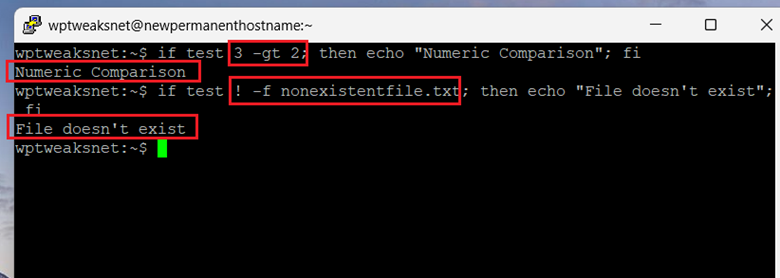
As you can see, the expressions are pretty simple, and with operators for numerics, strings, and files, it pretty much covers everything. As we’ll see further down, it has a number of quirks that make it dangerous to use, and this explains why it was superseded in the late 1990s.
But first, a quick note on the main alias of “test”.
The [] Conditional – A Syntactic Shorthand for “test”
The “test” expression by itself seems a bit clumsy. It’s not easy to demarcate visually where the expression starts and ends. Other programming languages encase their expressions in brackets, so to make it easier to parse expressions for those used to programming languages, the [] syntax was developed.
The following two expressions are the same:
test 3 -gt 2
[ 3 -gt 2 ]
So, if we replace it in our earlier command, we get this:
if [ 3 -gt 2 ]; then echo "Numeric Comparison"; fi
As you can see, this gives us the same output as the previous command:

Indeed, the [] syntax is so much more popular, precisely because it resembles programming languages so much, and it’s easy to read. Today, hardly anyone uses the “test” command as a conditional expression.
But what we often miss is that both “test” and [] have hidden pitfalls that can generate hard-to-debug errors, and waste hours of your time until you realize what went wrong. Here are the problems.
Why “test” and [] Are Problematic
Both test and its “[]” equivalent can behave in unexpected ways when using and comparing variables within the conditional blocks. These have to do with quoting and strings separated with delimiters.
Word Splitting Problems
Let’s say you have a string in a variable and you want to compare it to another string. The following seems to be the right way to do it:
[ $var = "xyz" ]
But see what happens when we try to assign multiple words to the “var” variable:
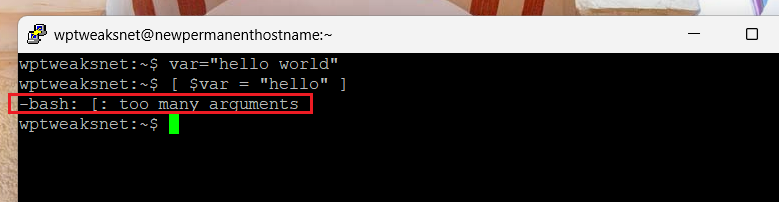
What does bash mean by “too many arguments”? Why isn’t it working?
The reason is that when bash interprets the [] conditional block, the shell performs word splitting on the variables inside it before evaluating the condition. In other words, bash is expanding the variables. So a statement like:
[ $var = "hello" ]
Becomes:
[ hello world = "hello" ]
This conditional block has four separate arguments, instead of the expected three. Normally, the block expects two arguments to compare, and one argument for the operator. This one doesn’t make sense. The code doesn’t know what you’re trying to do, so and so it throws an error.
The way to fix this is by putting the variable in quotes. Like this:
[ "$var" = "hello" ]
Now, when we run it, we don’t get an error.
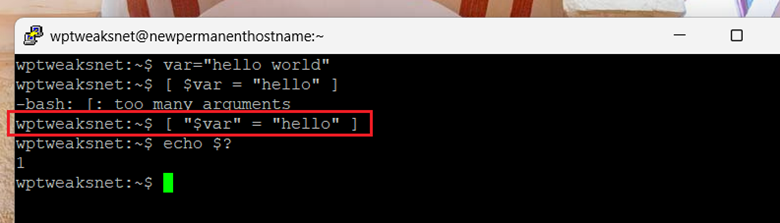
Instead, the exit status of the command is 1 – meaning false, as expected.
But word splitting is just one of the problems when using test and [].
Glob Expansion
Along with variables, bash also expands globs inside these operators. Globs are pattern-matching strings, and we can use them in conditional expressions – but “test” and [] do not support pattern matching. Consider the following command:
[ *.txt = "file.txt" ]
In the first place, we’re not even sure what this expression is supposed to be doing. Is it trying to compare “file.txt” to the literal string “*.txt”? Is it trying to see if “file.txt” matches the “*.txt” pattern? Either way, it doesn’t work. Here’s the output:

What’s happening is that bash is expanding the glob “*.txt” to include all the text files in the directory. So the command becomes:
[ file1.txt file2.txt = "file.txt" ]
Which, as we’ve seen above, is simply too many arguments.
Other Issues
The problems with “test” and [] don’t stop there. There are all kinds of other inconveniences, such as being unable to use logical operators inside the brackets, and the need for spaces around the square brackets – good practice, but it should not be necessary.
The Solution? Use [[ ]]
The modern way to solve the above problem is to use the updated syntax [[ ]] – double square brackets, instead of single ones. Now all our above examples are valid commands:
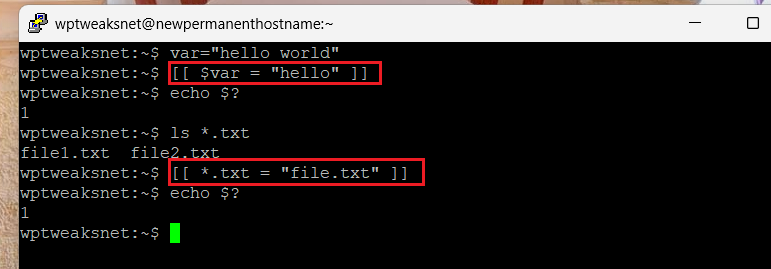
At least these don’t give errors anymore. The second command is still problematic, because the user is likely trying to match a pattern, but bash treats “*.txt” as a string. The rules around this are complex, and I won’t go into them now. Suffice to say that the proper command for pattern matching is this:
[[ "file.txt" == *.txt ]]
Now we see it working with an exit status code of “0”, as expected:
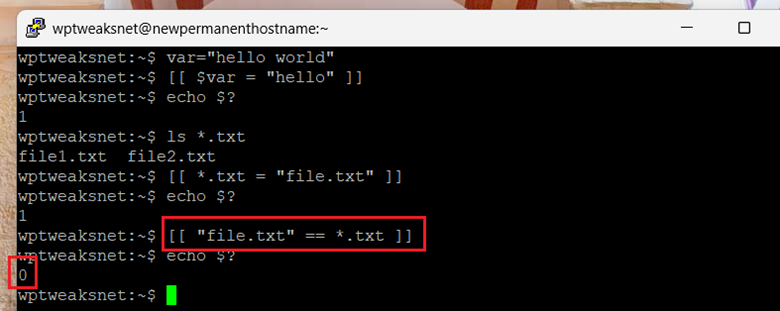
Because of this (and other) quirks, we always use double square brackets [[ ]] when evaluating conditional expressions in bash. It might have been easier to just change the definition of the single-bracket [] syntax, but that would have caused problems with legacy code, so they introduced this new syntax instead.
Conclusion
A lot of people still use single brackets – [] – for conditional expressions in bash. But these can cause unexpected problems with quotations, variable expansion, and globbing. Instead, the modern practice is to use double square brackets – [[ ]] – for conditions. This avoids all the problems with the old syntax and is much more robust. As a best practice, you should always use double square brackets in your code.

I’m a NameHero team member, and an expert on WordPress and web hosting. I’ve been in this industry since 2008. I’ve also developed apps on Android and have written extensive tutorials on managing Linux servers. You can contact me on my website WP-Tweaks.com!
Leave a Reply