All About Bash Parameter Expansion
Parameter expansion in bash is very useful when working with strings like filenames and log entries. It allows you to clean up text.
In Linux commands and scripts, we often work with structured strings. For example, path names and file names are present in just about every command. In scripts, we constantly have to manipulate and parse log files with time stamps and error codes. These strings are not standardized – each application will write its log file in its own way, and each package will store its configuration files in a separate location. Keeping all this in mind, Linux provides a set of tools that enable us to manipulate these strings, allowing us to extract the desired information quickly. This is the heart of bash parameter expansion.
The expansion lets us specify a variable and then add some parameters to the variable that modify the string in some way for further processing. Let’s see how it works.
#Components of Bash Parameter Expansions
These come in various sets, depending on the use case. Let’s examine them one by one.
Extracting Patterns
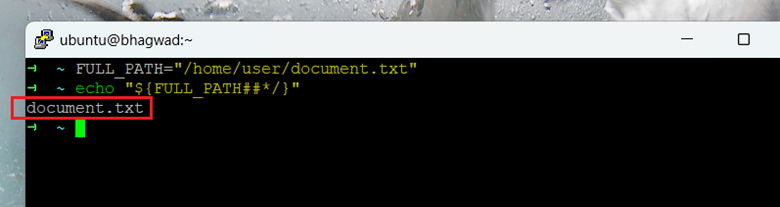
Let’s say we have a string containing a full path with the filename. What if we want to extract just the filename? Consider the following commands:
FULL_PATH="/home/user/document.txt"
echo "${FULL_PATH##*/}"
This generates the following output:

Extracting the filename
As you can see, we’ve echoed the variable “FULL_PATH”, but added a few extra characters to it to extract the filename. When we type ” FULL_PATH##*/”, the special characters tell bash what to do. Here’s a reference.
Pattern extraction allows us to either remove patterns from the start or the end of the string.
# - Remove from the start
% - Remove from the end
Additionally, we can choose to match either the longest or the shortest pattern:
# - Match the longest pattern
% - Match the shortest pattern
Combining these two, we get the following rules
${variable#pattern}: Removes the shortest matching pattern from the beginning of the string (prefix).

${variable##pattern}: Removes the longest matching pattern from the beginning of the string (prefix).

${variable%pattern}: Removes the shortest matching pattern from the end of the string (suffix).

${variable%%pattern}: Removes the longest matching pattern from the end of the string (suffix).
As for “pattern”, we use wildcards to specify it. So, for example, the following command:
echo "${FULL_PATH%.*}"
Will remove the shortest pattern from the end of the string that has a dot (.) at the beginning. In this case, that simply means removing the extension of the file. So we get:

Removing the Extension
Using these rules, we have an effective way to extract either filenames or the path from a location. For example, we can modify the above parameter to give us just the path without the filename:
echo "${FULL_PATH%/*}"

Get the Path
Pretty cool, right? Once you know how to remove patterns from the start and end of strings, many previously difficult operations become simple.
Extracting Substrings
While you can do a lot with pattern matching and extraction, sometimes you just want to remove a portion of a string at a certain index and offset. Either pattern matching isn’t good enough with wildcards, or the text you want is located in the middle of the string. For situations like this, we can extract substrings using bash parameter expansion like this:
${variable:offset:length}
The parameters are self-explanatory. The offset is the starting point at which you want to begin extraction (with the initial index position at zero), and the length is the number of positions starting from that offset. You can even specify negative lengths.
So let’s say we have a string representing a log entry, and we want to extract the time stamp. We can do this using a substring extraction because log entries for a particular file are always formatted in the same way. For example:
LOG_ENTRY="[2025-07-07 15:00:01] INFO: Operation completed."
TIMESTAMP="${LOG_ENTRY:1:19}"
Let’s say we have a script that processes log entries and extracts the time. We could, of course, use the built-in string manipulation, but that would include additional code that would impact readability, not to mention degraded performance. So we can just use the following code:
TIMESTAMP=”${LOG_ENTRY:1:19}”
This code would start the offset at “1” (skipping zero, because that’s a bracket), and then extract 19 characters starting at the offset, ending just before the final closing bracket. If you want to extract the “INFO” field instead, we just use:
MESSAGE=”${LOG_ENTRY:26}”
This code has just one number specifying the offset. In the absence of a length, bash will extract everything from that offset to the end of the line.
Search and Replace
We’ve already seen how to use tools like sed to search and replace either standalone strings or files. Sed is extremely useful in scripts, particularly when you have complex requirements or are dealing with a large number of files. But if you just want to perform a simple search and replace on a string, then parameter expansions are preferred.
Here’s the syntax to find and replace text in a string:
${variable/pattern/replacement}
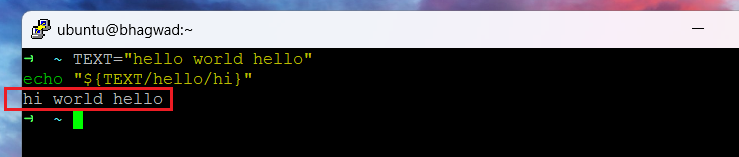
This will search for “pattern”, and change it to “replacement”. It will only affect the first instance. For example:
TEXT="hello world hello"
echo "${TEXT/hello/hi}"
The above text will replace the first instance of “hello” with “hi”, changing it to:
“hi world hello”
Replacing the First Instance
If, on the other hand, you want to replace all instances of the pattern, then you should use double slashes (//) instead, like this:
echo "${TEXT//hello/hi}"
This will generate “hi world hi”:

Replace all Instances
Note that these expressions aren’t changing the actual variable. It just changes it in the context of the expression.
Modifying the Case
Using parameter expansion, we can even change the case of string variables. A good use case is when we need to compare a string to another string entirely in upper or lower case. The syntax for that is:
${variable^^} - Change all to upper case
${variable,,} - Change all to lower case

Change to Uppercase
It’s worth noting that most of these commands work in other shells as well. For example, I enjoy using zsh as my default shell because of its syntax highlighting capabilities, but the above command won’t work with zsh. It’s a “bash-only” command. Instead, zsh uses a different syntax, like so:
${variable:u} - Change all to upper case
${variable:l} - Change all to lower case
We can see how it works, here:
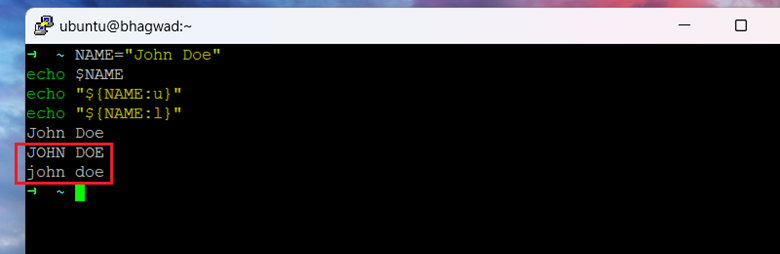
Changing case in zsh
Apart from a few quirks like this, bash and zsh have the same syntax for parameter expansions.
Performance Considerations
Bash parameter expansions are significantly more efficient than other methods that achieve the same thing. Even though sed, for example, is very fast, it pales in comparison to parameter expansion. For example, according to one user on StackOverflow, bash parameters are more than 50 times faster than an equivalent Linux tool accomplishing the same thing.
This isn’t surprising. After all, it’s well known that external tools incur a cost in terms of startup and resources. Parameter expansions are performed directly by the shell process without any additional overhead. I imagine that this performance penalty will be even more severe if you just want to use an external tool occasionally.
Another performance penalty is incurred when you pipe the output of one command to another, as “sed” and “awk” commands often do. Bash parameter expansions happen completely “in-line”, so to speak, working directly on the variable. So, if you have a choice between the usage of the tools, your application will thank you for using parameter expansions instead of sed!
#Conclusion
Bash parameter expansions are a very powerful way to manipulate strings. They’re extremely efficient, and in many cases, the resulting code is easier to read, with fewer detours. You should use them whenever possible!