
While writing commands or scripting in bash, you often need to assign long strings to variables or as arguments for commands. But strings are problematic – you often need to either expand or prevent the expansion of arguments, you sometimes need to split them across multiple lines, and they often look ugly if you need to escape special characters, or split them up, making the code hard to read. Luckily, bash has two powerful tools we can use – Heredoc and Here-string. The latter is a less powerful, but more convenient version than the former, and we prefer to use it by default. But there’s no substitute for Heredoc in many situations that we’ll look at below.
We’ve already dealt with Heredoc on NameHero, so I’ll explain Here-string first and then see how Heredoc covers up its gaps.
How to Use the Here-String Syntax
Whenever we need to feed long strings into a command that accepts input from stdin, we should consider using the Here-String syntax.
For example, let’s say we want to add the following text to a new file verbatim:
This is an apple. This is an orange. There are two of these!
Now we can create a new file and then input the context via a text editor like this:
touch newfile.txt
vi newfile.txt
[Edit and type in in the above]
Or, you could use the Here-String syntax and do it all in one go like this:
cat <<< "This is an apple. This is an orange. There are two of these!" > newfile.txt
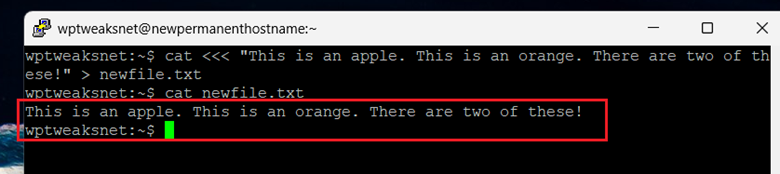
Here are the notable features of the Here-String syntax.
The Here-String syntax starts with the (<<<) symbol. You can enclose the string in either single or double quotation marks. A single quotation mark means that the entire string is treated “as-is”. No variable expansion. A double quotation mark allows you to use variables inside the string. For example:

In the above example, I’ve defined a variable called “fruit”, and in the first instance, I’ve used double quotation marks for the Here-String, and the result shows that the variable has expanded. In the second instance, I’ve used single quotation marks, and the entire string is treated literally.
The Here-String syntax can even be used for multiline next, which is extremely useful. Let’s take the above example, and split it into three lines like this:
cat <<< "This is an apple
This is an orange
There are two of these" > newfile.txt
Here’s the output:
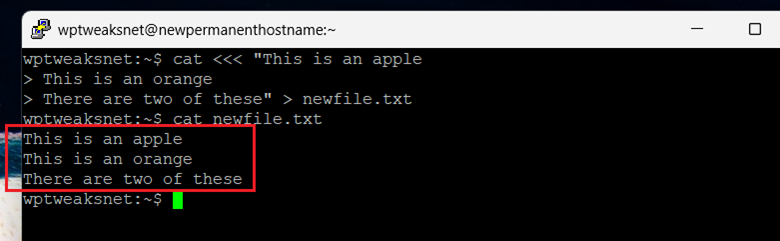
So you just press the “Enter” key to start a new line. No need to fiddle with special characters like “\n”, the Here-String syntax handles everything seamlessly.
Limitations of the Here-String Syntax
Powerful as it is, the Here-String syntax has some serious limitations. The most important one is that Here-String has no way of stripping tabs from the input. This can lead to problems if you’re not careful about cleaning some inputs. Configuration files like those of YAML, for example, expect a strict input. So let’s say you copy some text from another configuration file and try and use Here-String to paste it into a config file like this:
indented_content="    server {
   listen 80;
   server_name example.com;
}"
nginx -t <<< "$indented_content"
In this example, the first line starts with a “tab” character, and each subsequent line has tabs as well. This makes the whole thing readable, but this will generate an error for YAML-like files, expecting the JSON to be formatted in a specific way. So you’ll first need to clean the input.
Another problem concerns the escaping of special characters. Let’s say you have a long SQL query spanning multiple lines, full of single quotes and variables. You don’t want to expand any of these, so you’re forced to enclose the query in single quotes as explained above. However, now you need to escape every single quotation mark, which not only makes the whole text unreadable, but it’s also very prone to mistakes and impossible to debug.
For these reasons, we use the Heredoc syntax if necessary.
Using the Heredoc Syntax
We’ve already covered the Heredoc syntax on NameHero, so I won’t go into it too deeply. It’s not as easy to use as Here-String, since it requires the use of a “delimiter”. It looks something like this:
cat << EOF
Line 1: Hello
Line 2: World
Line 3: End of input
EOF
This will give the following output:

The important features of this are the following.
It starts with “<<“, instead of “<<<” as with Here-String. The next set of characters – in this case, “EOF” are the delimiting characters. They can be anything you choose. The string you want to input must start on a newline, and can go on for as long as you want, and have as many newline characters as necessary.
Finally, the string will end when bash finds the delimiting characters again on a separate newline, with nothing other than itself (no spaces, tabs, hidden characters). This can sometimes be tricky for debugging, if non-printable characters find their way onto the line with the ending delimiter, so watch out for that.
The Heredoc command, as shown above, allows for variable expansion, meaning you can use variables like $PATH in the string, and bash will expand them. However, if you want to disable variable expansion and pass the string “as is”, then use the following syntax.
cat << 'EOF'
Note that this time, the delimiter – EOF – is surrounded by single quotation marks (‘). Use each as necessary.
Stripping Tabs
Consider the following command:
wptweaksnet:~$ cat <<EOF
        Line 1: Hello
        Line 2: World
        Line 3: End of input
EOF
In this, each line starts with a “tab” character. This probably happened because you copy/pasted the code from somewhere. If you execute this command “as is”, here’s what you get:

As you can see, bash has printed the Heredoc string exactly as typed, which is what we expected. That’s the power of Heredoc after all – the string is passed literally. But as we’ve seen in the Here-String section, this can cause problems when you want to paste code into certain configuration files.
Helpfully, Heredoc has a syntax that instructs it to strip all leading tabs from each line. To do this, we use:
cat <<- EOF
Note the “<<-” – the usual Heredoc sign, but with a minus afterwards. If we use this for the above command, it becomes:
wptweaksnet:~$ cat <<- EOF
        Line 1: Hello
        Line 2: World
        Line 3: End of input
EOF
And this gives us the following output:

As you can see, when we run the command again with the “<<-” syntax, bash strips out the leading tab spaces from each line.
There’s no equivalent for this command in Here-String.
Conclusion
In general, Heredoc is the more powerful command, but Here-String is easy to use for quick string insertions. If you require something more specialized, then Heredoc is more flexible when you want to strip tabs or don’t want to bother with escaping quotes.
Because of the prevalence of both single and double quotes in HTML and SQL statements, I personally always use Heredoc just to be safe, since those are the strings that give me the most trouble anyway. But for readability purposes, and quick single-line commands, Here-String is almost always good enough.

I’m a NameHero team member, and an expert on WordPress and web hosting. I’ve been in this industry since 2008. I’ve also developed apps on Android and have written extensive tutorials on managing Linux servers. You can contact me on my website WP-Tweaks.com!
Leave a Reply