
In Linux, a fundamental principle is that “everything is a file.” When a process starts, all the resources available to it are designated as a file. We’ve already learned about how files in Linux are represented by inodes in the article on symbolic links vs hard links, but this article talks about the internal representation of resources as files, not actual files that sit on the disk. These resources are designated by “file descriptors”, and we can use these descriptors to change how these resources interact with the system.
The most commonly known file descriptors in Linux are the following three:
- stdin
- stdout
- stderr
These three streams are available to all processes by default. In the past, we’ve talked about how to redirect stderr to stdout, but no mention was made of file descriptors. In reality, the numbers 0, 1, and 2 that we use when referring to the above streams are the file descriptors for those streams. In this, we’ll look at how we can use these file descriptors in redirection and some other advanced use-cases.
Redirecting Streams – the Most Common Use Case
Since we’ve already covered the redirection of streams elsewhere, there’s no need to go into detail. Suffice to say that we can redirect the output of a command to a file like this:
ls > files.txt
The above command is a shorthand for “Redirect FD 1 to files.txt”. Similarly, we can redirect FD 0 by using the “<” symbol like this:
sort < list.txt
This command will tell bash to provide the contents of “list.txt” as input to the “sort” command, instead of seeking input from the keyboard.
Redirecting Semi-Permanently
When we use a command like:
ls -l > output.log
The redirection only works for a single command. If you want to redirect the output for a command after that, you have to type “< > output.log ” again. However, if you want to redirect an output once and apply it to all the subsequent commands in that bash session, you use something like this:
exec > output.log
In this command, we’re telling bash that going forward, we always want the stdout to go to “output.log” instead of the terminal. We can now type commands without the “> output.log” part after it, and bash will use the file automatically as the destination for stdout going forward, regardless of the command.
Let’s see how this works.

In this example, I first use the “exec > output.log”. Because of that, all further output is sent to “output.log” and nothing comes to the terminal. Now, before I can view the contents of “output.log”, I need to send back the output to the terminal. I can’t see the contents of the file! To do that, I type:
exec > /dev/tty
And then I can view the contents of output.log as usual.
While this is a good illustration of how to use exec, it’s not a very useful one, because without the ability to see the output on the screen, you can’t even see the output of any file or command. There are better ways to use “exec” in this way from within scripts that we’ll discuss, but this was only to show you what’s possible.
How to Use File Descriptors in Common Commands
In addition to the above three file descriptors that come by default, we can also create our own FDs. For example, the following command creates a new file descriptor that gets its data from a file. Let’s say I have a file called “input_file.txt” with the following contents:
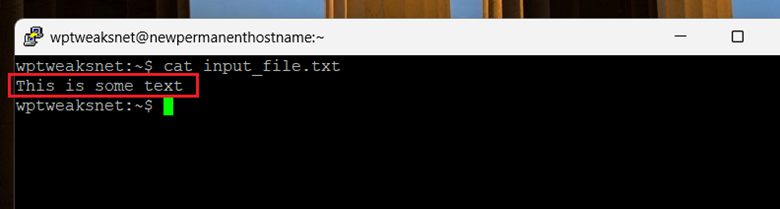
Now let’s create a new file descriptor that gets its input from this file:
exec 3< input_file.txt
The above command creates a new file descriptor called “3”, and we’re telling the kernel to associate this FD with the data stream from “input_file.txt”. It’s important to note that this file descriptor is not an alias. We can’t just use something like “vi 3” and expect to read the contents of input_file.txt. Other commands are unaware of what we’ve done. Only the kernel knows. To access the data stream via this FD, we need to use something like this:
cat <&3
And now we get the following output:
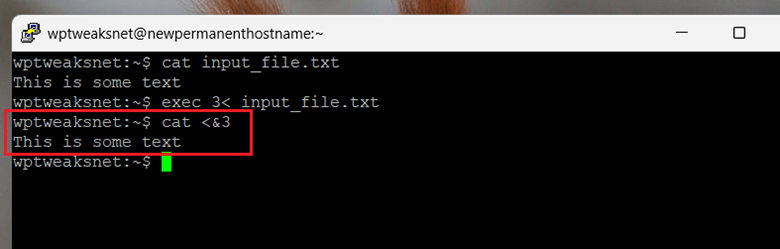
As you can see, we get the same output as before.
Accessing File Descriptors Through File Paths
Linux systems these days also provide a way to access existing file descriptors through the “/dev/fd/” directory. To see the existing file descriptors, we can use a regular “ls -l” command to see the list of existing FDs, and their links, like this:
ls -l /dev/fd/
And here’s the output:

Here, we can see that the FD we just created has its own entry in the form of a symbolic link to the file destination. This means we can use this particular path in regular commands like this:
cat /dev/fd/3
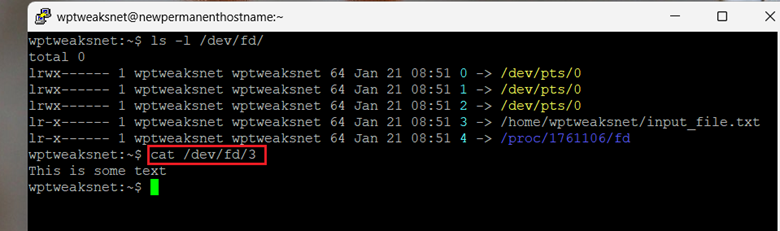
So we can see the contents of the file in this way. However, it’s best if you don’t use the FD in this way in commands like “vi”, because internally, the FD is a stream of text, and commands like vi can sometimes behave unexpectedly.
Using FDs in Scripts
The most common use of FDs is in scripts, where you want to consistently redirect stdout and stderr to files, instead of the screen. Let’s say you have a script that generates a lot of output via multiple commands. When the user runs the script, you don’t want to inundate them with a lot of screen text. Instead, you want to send everything to a file.
Normally, this wouldn’t be a problem. We can just use something like:
ls > files.txt
And the output would go to “files.txt”, instead of the screen. But if your script has a lot of commands, then you would have to append “>> files.txt” to each one of them, making it harder to read, and you also need to keep remembering to add this even later when you change the script.
Instead, we can use the exec command to redirect all the output to a file, and then, when the commands are done, we can switch it back. Here’s an example:
Step 1: Back up the existing target of stdout. This way, we can revert to these destinations when our commands have finished:
exec 3>&1
So far, nothing has changed.
Step 2: Send all output to a log file from here on out:
exec > backup_log.txt
Step 3: Execute our output-heavy commands:
echo "Starting Backup"
tar etc…
gzip etc…
echo "Backup Complete"
Step 4: Now we switch the target of stdout back to wherever it was before we executed our commands:
exec 1>&3
echo "The backup is finished. Check backup_log.txt for details."
And all is back to normal. The user can access “backup_log.txt” to see the output if they’re interested. Note that we didn’t redirect stderr, so the user will still see if something went wrong on the screen. The “backup_log.txt” file is only for reference.
Conclusion
FDs can be a bit hard to wrap your head around. But once you get the hang of them, it’s easy to see why they can be useful in scripts. You need to be careful not to accidentally redirect stdin to a file using an “exec” command, causing your sessions to crash, though!

I’m a NameHero team member, and an expert on WordPress and web hosting. I’ve been in this industry since 2008. I’ve also developed apps on Android and have written extensive tutorials on managing Linux servers. You can contact me on my website WP-Tweaks.com!
Leave a Reply