
If you’ve been administering a Linux server for even a little while, you know that bash processes are sequential. You type a command, you wait for it to finish, and then you start another command. This isn’t a fundamental limitation of Linux, of course – Linux has been multitasking right from the beginning, stemming from its Linux roots. It’s just that the default bash environment lends itself naturally to sequential tasks because of its text-based CLI. But that doesn’t mean you can’t run background processes. Bash has a robust set of job control tools that allow you to send processes into the background, retrieve them into the foreground, check the stats of background jobs, and more.
Foreground and Background Job Terminology
In bash, the foreground job is the command that’s currently running. Most commands are quick, of course, and appear to run instantaneously. But several commands can take a long time to complete, like script compilation, installations, backup processes, and more. These foreground tasks block further input until they are completed or ask for more information. Because of this, only one foreground job can run at a time.
Background tasks are those that run in the background and don’t accept input from the terminal. They continue to send their output to the terminal, however, which is often problematic. We’ll see later how to deal with this issue.
Bash Job Control Commands
Here are the basic job control commands in Bash.
Ctlr+z - Suspends the currently running job
bg - Sends the most recently suspended job into the background
fg - Brings a background job into the foreground
[command] & - Start the command and immediately send it into the background
jobs - Lists the current jobs along with their job number
Now let’s see how to use these commands for regular operations.
Using Job Control Commands
Let’s say I have a long-running command – for my example, I’m just going to use “sleep”:
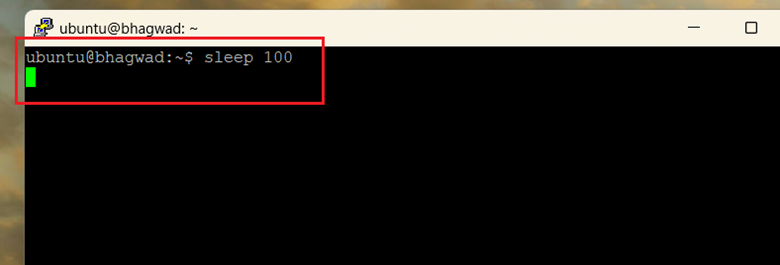
Here, I’ve run a sleep command that blocks any further input for 100 seconds. That’s a long time! What if I want to run another command in the meantime? To do this, I put the foreground job (in this case, sleep) into the background by pressing:
Ctrl+Z

Here you can see that we’ve returned to the command prompt, and the sleep command is in the background. The [1] next to it indicates the job number. We can now run our regular commands.
This only suspends the job, however. It’s not running anymore. To let it continue running in the background, we type:
bg
After we’re done running our commands, we can bring back the command that we had previously put to sleep using:
fg
This has the following output:

You can see that after we ran our other commands and typed “fg”, the sleep command came into the foreground, and now our input is blocked once again.
We can also suspend multiple jobs at once. For example, I’m going to put several sleep commands into the background one after the other:
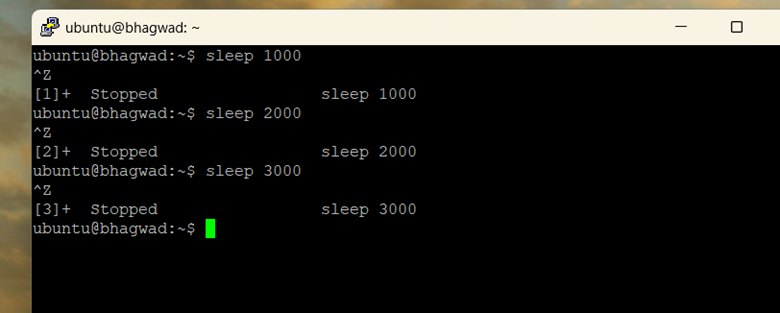
In this screenshot, you can see that I’ve started three different sleep commands and put each of them into the background with Ctrl+Z. While I work on other stuff, the others are continuing on in the background.
At any point in time, you can see which jobs are currently in the background using this command:
jobs
Which gives us this:

As expected, there are now three commands in the background, each of which has its own job ID. Note that these job IDs are distinct from process IDs. We can use these job IDs to bring back any one of these commands into the foreground. For example, if we want to bring the second command we stopped with job ID [2] into the foreground, we type:
fg 2

As you can see, we’ve brought back the second job with the “sleep 2000” command from the background into the foreground.
And finally, we can kill an existing job using the command:
kill %[job_number]
So if I want to get rid of the second sleep command, I type:
kill %2
And this happens:

As you can see, the second job has been terminated. If I now try and bring the second job into the foreground with “fg 2”, I get this message:
no such job
As shown here:

Now that we’ve seen how this works, let’s look at some use cases.
Use Cases for Bash Job Controls
While there might be better alternatives to bash job controls from a robustness point of view, the convenience is unparalleled. Here are some use cases that illustrate this.
Quickly Checking Some Information in the Middle of Another Task
Let’s say you’re editing a configuration file in Vim. Suddenly, you’re unsure of the exact path of some directory. What do you do? You don’t want to save your changes, exit, and then come back, because the file isn’t complete. And if you’ve already made significant changes to the file, you probably don’t want to lose your work.
In such a situation, pressing Ctrl+Z and suspending Vim is a super-easy and intuitive solution. Just suspend Vim into the background, check what you need to check, copy the full path, and then resume it with “fg”. Problem solved! The entire thing can be done in seconds with minimal interruption to your work.
Unexpectedly Long-Running Commands
Sometimes you never know how long a command is going to take. You might seriously underestimate the time it takes for a command like rsync to run. Even if you realize it’s going to take 5 minutes, that’s five minutes of staring at your screen, waiting for the command to terminate. Instead, it’s more efficient to just send the task into the background and continue with other tasks while it completes.
To do this, we first suspend the job with:
Ctrl+Z
Then we send it running into the background with:
bg
In short, the power of bash job controls lies in its flexibility.
Dealing with the Output of Background Jobs
The one problem with bash job controls regards the output. If we have a long-running process that we’ve suspended and sent into the background, it continues to send its output to the terminal, even when you have other stuff going on. For example, here’s a little script that keeps sending messages to the terminal every two seconds.

You can see that, despite it being in the background, and despite my being able to execute other commands, the output from the background job is still being sent to the terminal. This means that if a command has constant output, like a list of files being backed up, you won’t have any peace as it continues to run in the background and keeps sending its output to the terminal, messing up your other tasks.
There’s no solution to this, unfortunately, other than running the command to redirect its output either to a file or by discarding its output like this:
Redirect output to a file:
my_long_running_script.sh > script_output.log 2>&1 &
Or discard it entirely:
my_silent_script.sh > /dev/null 2>&1 &
Both these commands redirect the regular output and the error streams to a file and to the discard pile, respectively. To understand the syntax, see my earlier article on redirecting stderr to stdout.
But if you’ve already started your command without the above redirections, and you can’t restart the command, then you’re out of luck.
Conclusion
Bash job controls allow you to expand the sequential nature of the command line to incorporate multitasking. It’s not as full-fledged as a GUI interface, but it’s surprisingly versatile. If you want a more powerful solution, then you should use something like tmux instead. But for most ad hoc scenarios, you can easily suspend and send processes into the background, while you continue to work on other stuff in the foreground.

I’m a NameHero team member, and an expert on WordPress and web hosting. I’ve been in this industry since 2008. I’ve also developed apps on Android and have written extensive tutorials on managing Linux servers. You can contact me on my website WP-Tweaks.com!
Leave a Reply