

Encountering an issue with your website can feel a bit like running into a dead end without a map.But, if your site is powered by WordPress, you’ve got a built-in GPS to help you find your way out of potential issues: the WordPress Recovery Mode.
In this detailed guide, I’ll explain WordPress Recovery Mode, when and how to use it, and some practical tips to get your WordPress site back on track.
What Is WordPress Recovery Mode?
Think of WordPress Recovery Mode as your website’s safety net.
When a critical error occurs—perhaps from a plugin or theme that doesn’t play nice—WordPress smartly detects this and switches to Recovery Mode.
Recovery Mode allows you to address and resolve issues related to plugins or themes that may be causing these critical errors.
When a problem arises that would typically render your admin area inaccessible, WordPress Recovery Mode kicks in. This handy feature ensures that you can still access your WordPress dashboard and troubleshoot.
Why Would You Even Need WordPress Recovery Mode?
Recovery Mode is essentially WordPress’s way of helping you fix your site without needing to deactivate plugins or themes manually via FTPs (File Transfer Protocols) like FileZilla.
It’s extremely useful for non-technical users who find themselves staring and panicking at a whole list of error messages and a white screen.
Step-by-Step Guide To Using WordPress Recovery Mode
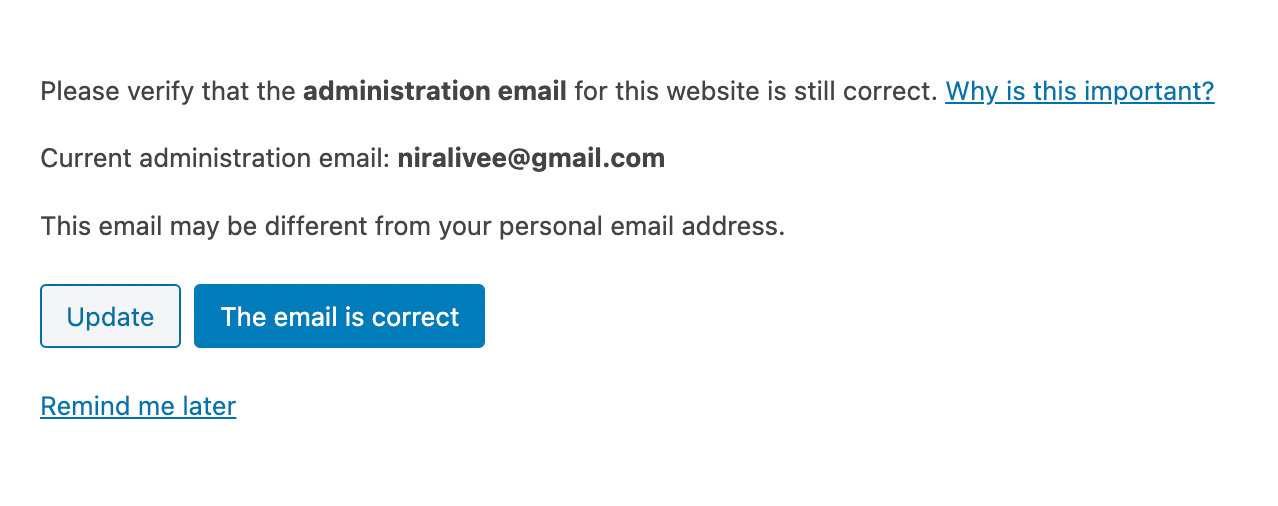
Here’s a straightforward method to handle Recovery Mode:
#1. Check Your Email
Once WordPress detects an issue causing a fatal error, it sends an email to your WordPress administration email address. This email includes a link that directs you to Recovery Mode.
How Can You Access The WordPress Recovery Email?
To make sure this email lands in the right inbox, you can take some preventative action and ensure that the admin email setup in your WordPress account is correct. Default admin settings are usually set to [email protected].
Head to settings in your WordPress dashboard and then click ‘General’. Make sure that the ‘administration email address’ section has the correct email entered here.

In case you don’t receive the recovery email, you can head to this URL below:
Make sure that you replace the term ‘yourwebsite.com‘ with your domain when adding recovery URL manually. In most cases, this link will lead you to a WordPress login, such as the one in the screenshot below.
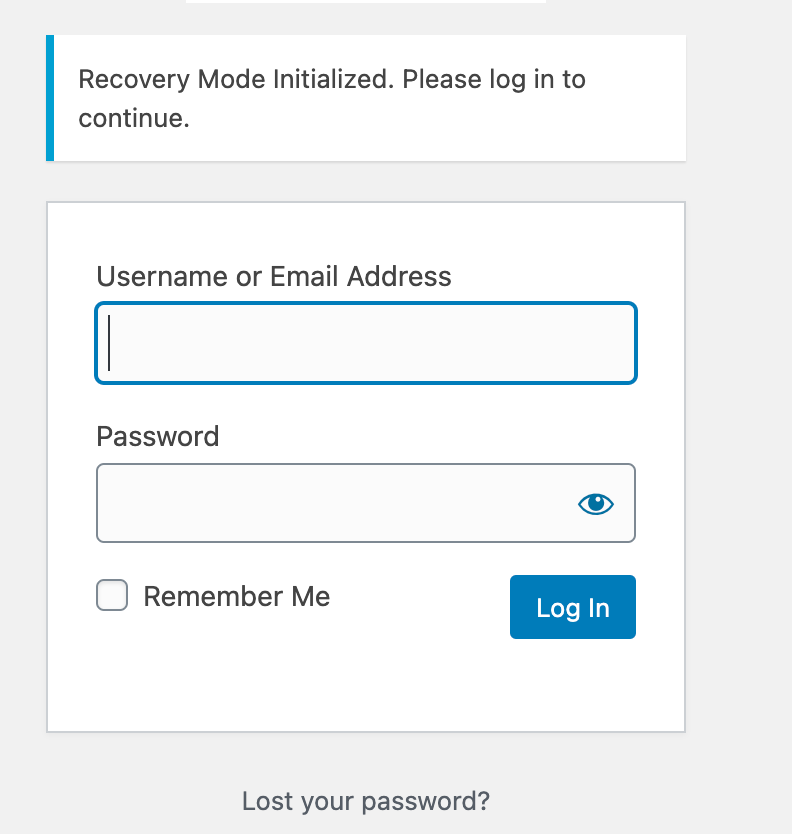
When will this link not work for you? If you set a custom login page for your WordPress site instead of ‘/wp-login’, then you can try adding ‘/action=enter_recovery_mode‘ to the end of your custom login link.
#2. Click The WordPress Recovery Mode Link
By clicking the link and logging in, you’ll find yourself back in your site’s admin area, where WordPress has already identified and isolated the problem, whether it’s a theme or a plugin causing the error.
#3. Resolve The Issue(s)
Within the WordPress admin dashboard, you’ll see a notification about the problem.
Deactivating Plugins
One of the first steps in troubleshooting is to deactivate recently updated or installed plugins. If you’re not sure which plugin is the culprit, you can deactivate them one by one. After each deactivation, check your site to see if the problem persists.

Switching Themes
If deactivating plugins doesn’t solve the issue, the next step is to switch your theme to a default WordPress theme. Issues can sometimes arise from themes after an update or when a theme doesn’t play well with other plugins you have installed.
#4. Exit Recovery Mode:
Once you’ve fixed or deactivated the problematic element, Recovery Mode turns off automatically. However, if you still need time, Recovery Mode stays active for 24 hours after accessing the link from your email.
There’s a red button at the top of your dashboard that you can click to exit recovery mode.
WordPress Recovery: Frequently Asked Questions
Is Safe Mode The Same Thing As Recovery Mode?
It’s easy to conflate these two, but they’re not the same thing. Safe Mode, a feature in various software, limits functionality to troubleshoot. WordPress Recovery Mode, however, focuses on isolating problematic extensions while keeping your site operational.
Unlike Safe Mode offered by specific plugins like WPSafe and Divi’s Safe Mode, Recovery Mode does not deactivate all plugins and themes. It isolates the issue and deactivates only the problematic theme.
What if Recovery Mode Didn’t Solve Your Problem?
Sometimes, Recovery Mode isn’t enough. If that’s the case, don’t panic. Manually disabling all plugins via FTP and switching to a default theme can help narrow down the issue.
We’ve got a handy free guide for technical users on this topic that you can check out here.
But if your site is still down and errors persist, I suggest that you contact your hosting provider or a professional WordPress support service as your next step.
Pro tip: Take detailed notes. Track what changes you make in Recovery Mode, as this can help you or a professional understand what repairs have been attempted.
I cannot stress this last line enough— always ensure your site is backed up regularly. This way, if something goes wrong, you can restore it to a previous version.
Conclusion:
WordPress Recovery Mode is a testament to the platform’s user-friendly design, offering a safety net for when things go south.
I hope that this guide helps you understand and troubleshoot recovery mode better. With the right approach and a bit of patience, most issues can be resolved, ensuring your site remains operational and effective.
Remember, a reliable hosting service is also key to a smooth-running WordPress site. Consider NameHero’s WordPress hosting plans for a seamless, secure, and speedy hosting solution that complements your WordPress experience perfectly.
The best way to handle WordPress issues is to try and prevent them in the first place. Regular backups, keeping themes and plugins updated, and avoiding the use of nulled themes/plugins are all best practices that can help keep your site running smoothly.
Solid hosting can often be the first line of defense against errors that lead your site into Recovery Mode. Visit NameHero’s WordPress hosting plans to explore how you can secure your site’s future.

Nirali has over a decade of experience working in marketing with startups in a variety of sectors, including e-commerce, ed-tech, and SaaS. She has a keen understanding of the unique challenges and opportunities facing early-stage companies and a track record of developing effective content strategies that drive growth and engagement.
Leave a Reply