

Setting the correct timezone on your Ubuntu system is crucial for maintaining accurate time and date information, which is essential for scheduling tasks, logging events, and ensuring proper system functionality.
In this guide, we will walk you through the process of setting the date, time zone, and time, as well as configuring NTP. We will cover this from both the GUI (Graphical User Interface) and the command line.
Introduction
In Ubuntu, users have the convenience of adjusting their system’s timezone through both the desktop environment and the command line interface. Whether you prefer a graphical approach or a command-based configuration, Ubuntu offers straightforward methods to set the timezone, date, and time according to your location and preferences. This guide will walk you through the step-by-step process of setting the timezone in Ubuntu, covering both desktop and command line methods. From adjusting the date and time settings to configuring the Network Time Protocol (NTP) for accurate time synchronization, you will learn how to ensure your Ubuntu system is accurately configured to reflect the correct timezone.
Set Via Desktop GUI
Setting the timezone, date, and time through the Ubuntu desktop environment offers a user-friendly interface for managing time-related settings. Here’s how you can adjust these settings using the graphical interface:
- Open Settings
- Go to the Date & Time tab as shown in the screenshot below:
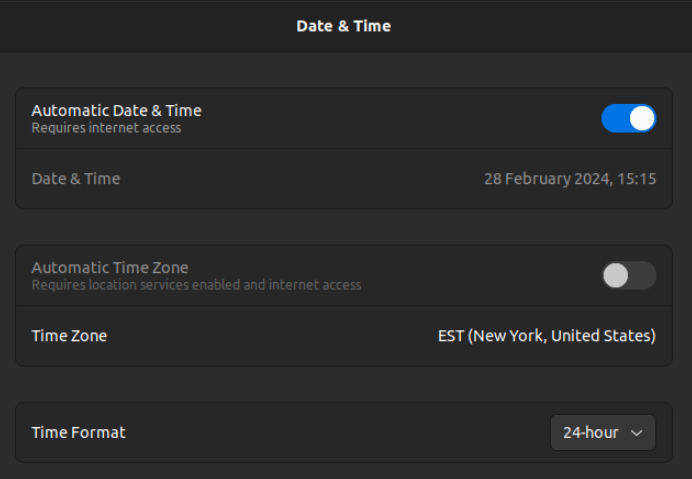
Automatic Date/Time
For devices that are mobile like laptops where you may be traveling with them, I would recommend checking the Automatic Date & Time as well as Automatic Time Zone.
I acknowledge there are times this you can’t use these or times when it may not be ideal, below are the steps on how to manually set the date and time.
Setting Date And Time:
Note: If Automatic Date & Time is enabled you won’t be able to manually set the date and Time.
- Click on the Date & Time Section and it will pull up the window shown below:
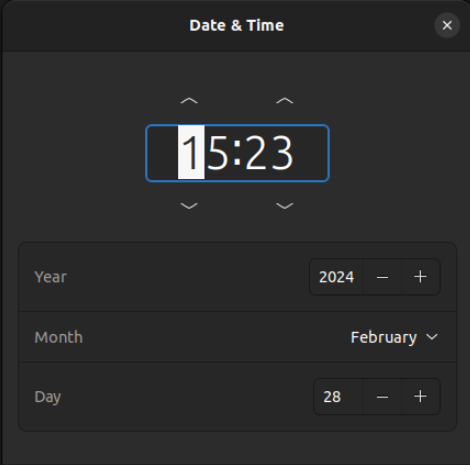
- From here set the desired date and time and close out of the window.
Setting Timezone:
Note: If Automatic Time Zone is enabled you won’t be able to manually set until first unchecking it.
- Click the Time Zone section it will bring up the window below:
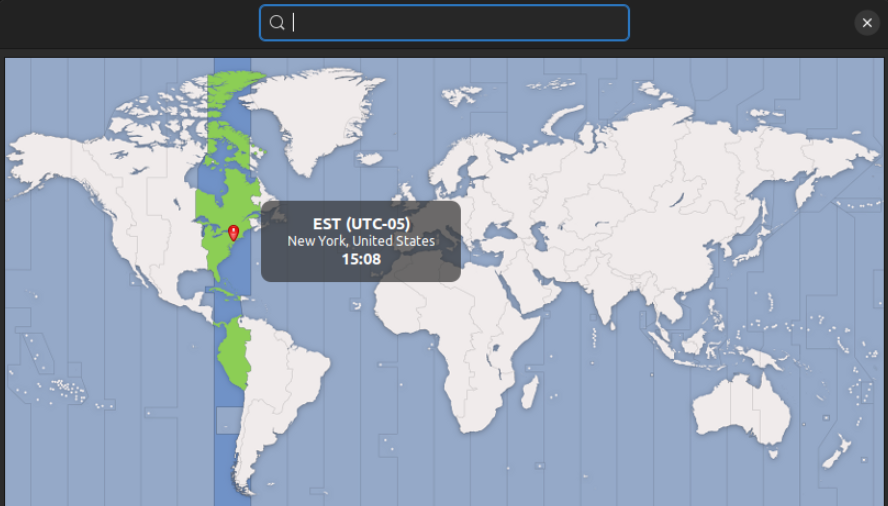
- There are two options either clicking around on the map or using the search bar at the top.
- Once you have the Time Zone selected you just need to close the window.
Set Via The Commands Line
Setting the timezone and adjusting the date and time using the timedatectl command in Ubuntu provides a comprehensive way to manage time-related settings efficiently. Here are the steps to change the timezone, date, time, and how to use NTP instead of manually setting the date/time.
Setting Date And Time:
To adjust the system’s date and time using timedatectl, you can use the set-time option followed by the desired date and time format. For example, to set the date to February 28, 2024, and time to noon, use the following command:
sudo timedatectl set-time '2024-02-28 12:00:00'
Setting Timezone:
To change the timezone through timedatectl, you can use the set-timezone option followed by the desired timezone. For example, to set the timezone to America/New_York, use the following command:
sudo timedatectl set-timezone America/New_York
Configuring NTP (Network Time Protocol):
To configure NTP for time synchronization using timedatectl, you can use the set-ntp option followed by either “yes” or “no” to enable or disable NTP synchronization. For example, to enable NTP synchronization, use the following command:
sudo timedatectl set-ntp yes
Verification
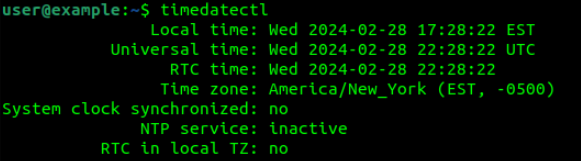
Use the timedatectl command to display the current system time, including the timezone information and system status. Open a terminal and enter:
timedatectl
Verify that the displayed time information aligns with expected values.
Below is an example of what the output looks like after running the command.
Conclusion
In this guide, we have explored managing time-related settings on your Ubuntu system, covering essential aspects such as setting time zones, configuring date and time parameters, and managing Network Time Protocol (NTP) synchronization. By mastering these elements, you can ensure that your system maintains accurate timekeeping, essential for various tasks and system operations.
Remember, accurate timekeeping is not just about displaying the correct time; it impacts system logs, scheduling tasks, network interactions, and overall system functionality.

Embracing a lifelong passion for technology since childhood, CJ delved into the intricate workings of systems, captivated by the desire to understand the unknown. This innate curiosity led to his discovery of Linux, a revelation that resonated deeply. With more than 7 years of on the job experience, he’s honed his technical skills as a Geek and Senior Linux Systems Administrator.
Leave a Reply