


The “DNS Server Not Responding” error prevents you from loading one or multiple websites. This error is not caused by the site you’re trying to access but by your device’s configuration. To solve it, you’ll need to understand what triggers it.
Domain Name Servers (DNS) enable you to enter a URL in your browser’s navigation bar and access the corresponding page. If the browser is unable to connect to the DNS, you’ll keep running into this error until you fix the connection between these two components.
In this article, we’ll explain what the “DNS Server Not Responding” error is and what causes it. We’ll also show you how to troubleshoot it. Let’s get to work!
What Is the “DNS Server Not Responding” Error?
When you enter a URL in a browser, it connects to a DNS server to look it up. The DNS takes the URL and tells the browser what IP address corresponds to it. This process makes it possible to navigate the web using domains instead of IP addresses.
DNS servers are located in various countries. Some are maintained by Internet Service Providers (ISP) or private companies. The DNS server that you use will correspond to your device’s configuration.
The “DNS Server Not Responding” error means that your browser can’t establish a connection to the DNS server that it’s configured to use. If that connection fails, the browser won’t be able to access the website as it won’t know how to resolve the address:
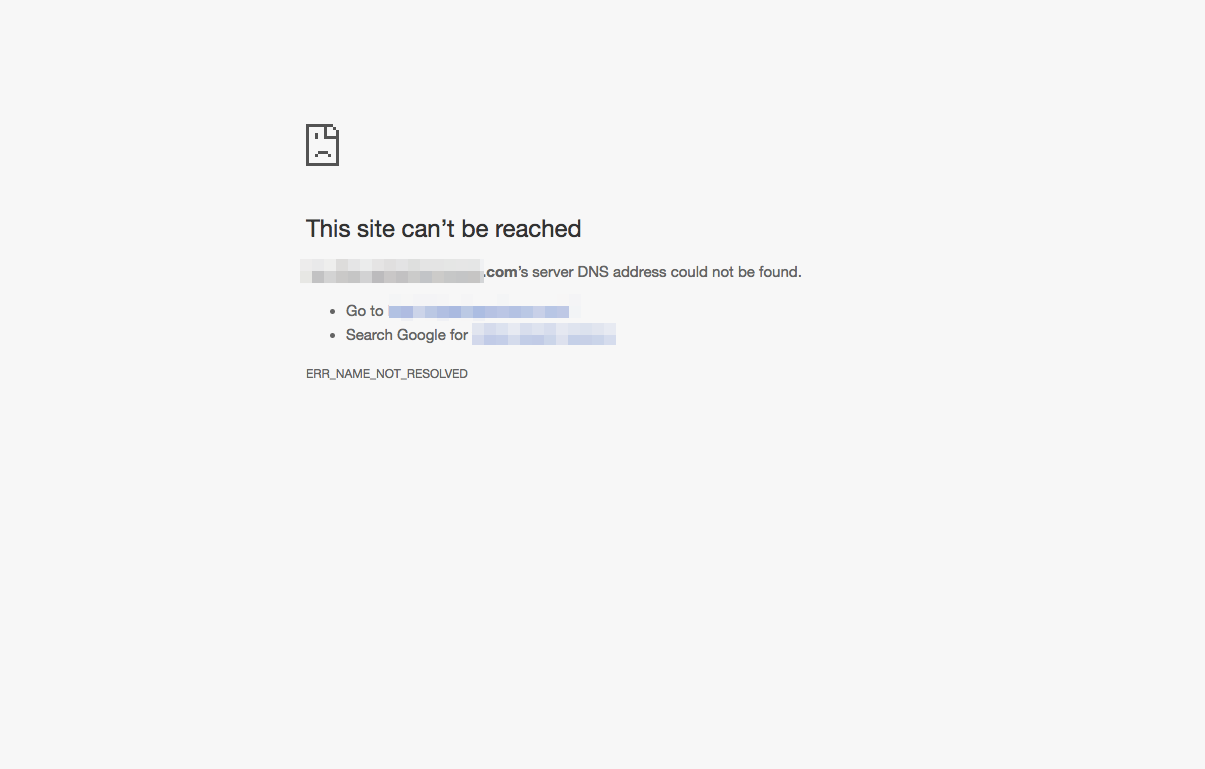
You might run into this error for a specific site or all of them – it depends on whether the error is caused by your device’s configuration or by a problem with the DNS itself. However, the problem is more likely to be your device.
Note that there are other DNS errors you might run into (for different reasons). Some examples include the “DNS_PROBE_STARTED” and the “DNS_PROBE_FINISHED_NXDOMAIN” errors.
How to Fix the “DNS Server Not Responding” Error (4 Ways)
Before we troubleshoot this error, we recommend that you try switching browsers, restarting your device, and starting your computer in safe mode. In some cases, it might be a temporary issue.
If neither solution works, you’ll want to follow each of the following methods in the order they appear.
1. Disable Your Firewall and Antivirus
Your device’s firewall and/or antivirus software can block DNS requests if it thinks they might be malicious. This is typically a false positive, and the solution is to disable the software.
We don’t recommend disabling either your firewall or antivirus software as a long-term solution. Ideally, you’ll disable both options and immediately check to see if it has resolved the issue:
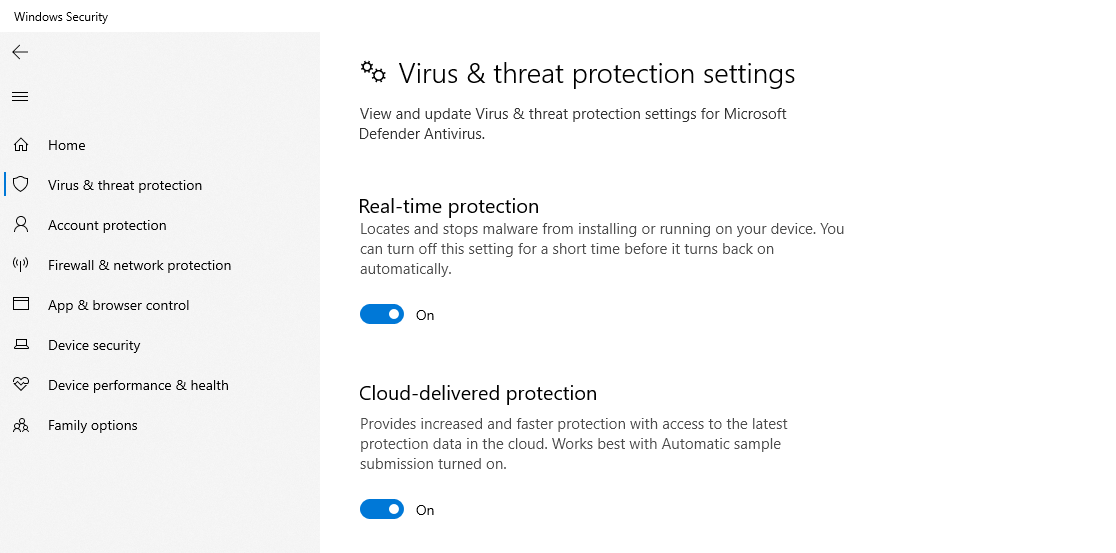
If it does, then you’re likely dealing with a temporary problem. In Windows, the built-in firewall will re-enable itself automatically after a while to keep the device safe.
In most cases, temporarily disabling your firewall and antivirus software will solve the issue. If it doesn’t, you can move on to the next method.
2. Disable Your Virtual Private Network (VPN)
Using a VPN can boost your privacy and online security. However, VPNs can sometimes cause problems with your internet connection as well as DNS issues.
Some VPNs reroute DNS lookups or queries through their servers. If the VPN’s DNS servers are unreachable, it can lead to errors on your end.
Checking if your VPN is causing the “DNS Server Not Responding” error is relatively straightforward. Disable the VPN and try to access the website that returned the error to see if it persists.
If the error is gone, you can safely assume the problem lies with your VPN. This doesn’t necessarily mean you need to switch VPNs. Give it some time and try using the VPN again once its DNS issues have been fixed.
3. Flush the DNS Cache
When your device performs a DNS lookup, it typically stores the IP address information that it receives in a local cache. This is called the DNS cache.
In Windows, you can check the contents of the local DNS cache by using the ipconfig /displaydns prompt in the command line:
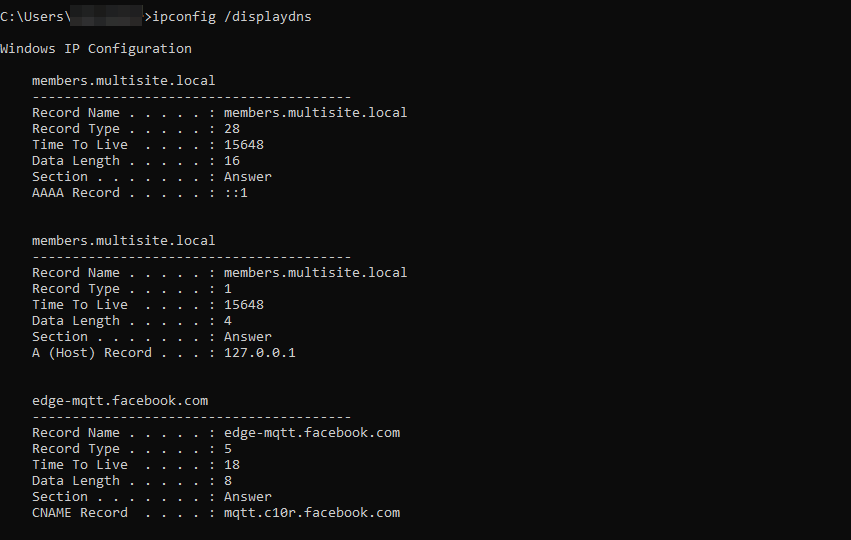
This cache can help you navigate the web faster, as your default browser won’t have to perform DNS lookups for websites you’ve already visited. However, like all caches, it’s a good idea to flush it once in a while.
In the case of the “DNS Server Not Responding” error, flushing the cache will force your browser to contact the DNS server again. This can be useful if the problem is already fixed but your device is still returning the error, as it’s relying on the cache instead of performing a full lookup.
To flush the DNS cache in Windows, you’ll need to open the Command Prompt app (you can find it through the search bar). Once you’re in, use the following command:
ipconfig /flushdns
Flushing the DNS cache in other operating systems works differently. Check out this guide on how to flush the DNS cache in Linux if you’re using a Linux distro.
After you flush the DNS cache, check to see if the “DNS Server Not Responding” error persists. If it does, it’s time to change your DNS server settings.
4. Change Your DNS Server
Changing your DNS server address can typically solve most DNS-related issues. Switching to an alternate DNS server can also sometimes help improve page loading times. This is because some public DNS servers are better geared for performance than your ISP’s DNS server.
To set an alternative DNS server in Windows, open the Network & Internet settings from the control panel. Then, click on Change adapter options:
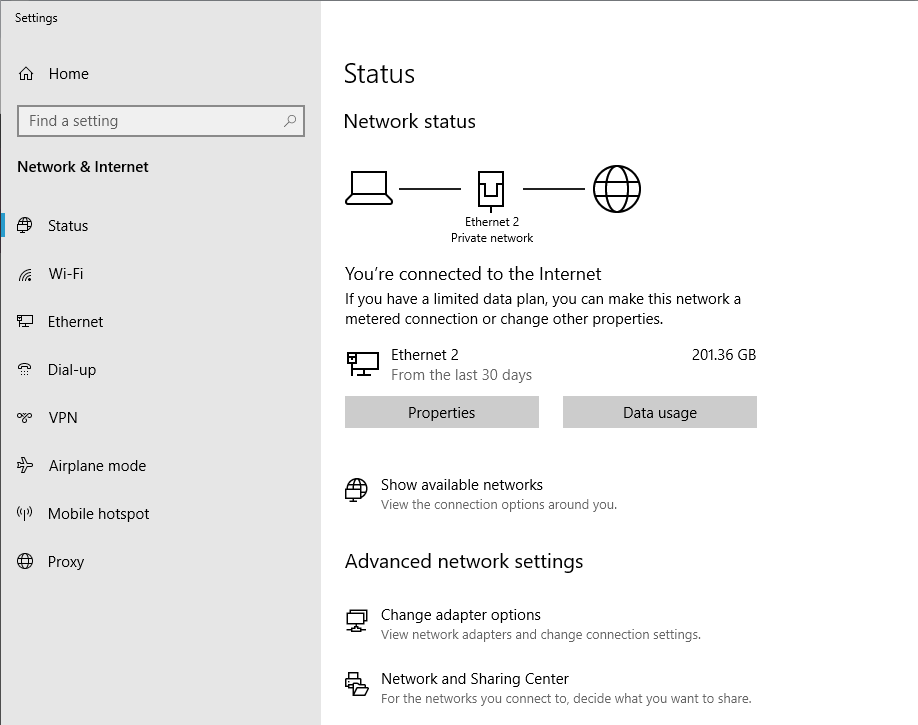
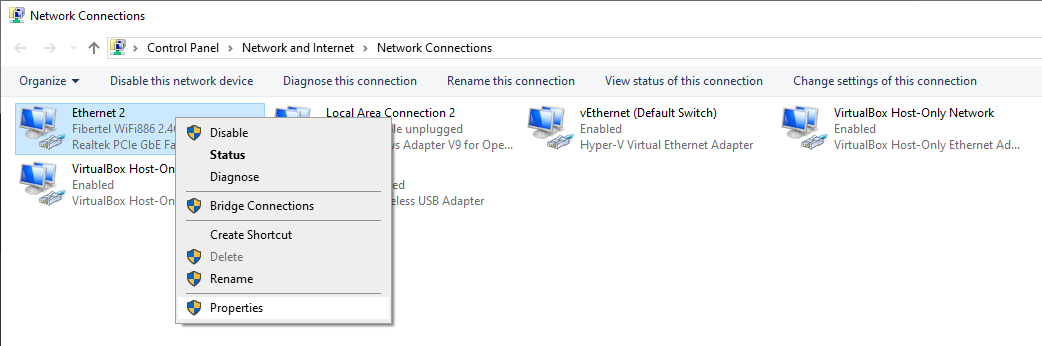
A new window will open, showing a list of all available connections on your device. Identify your primary internet connection and right-click on it to select the Properties option:
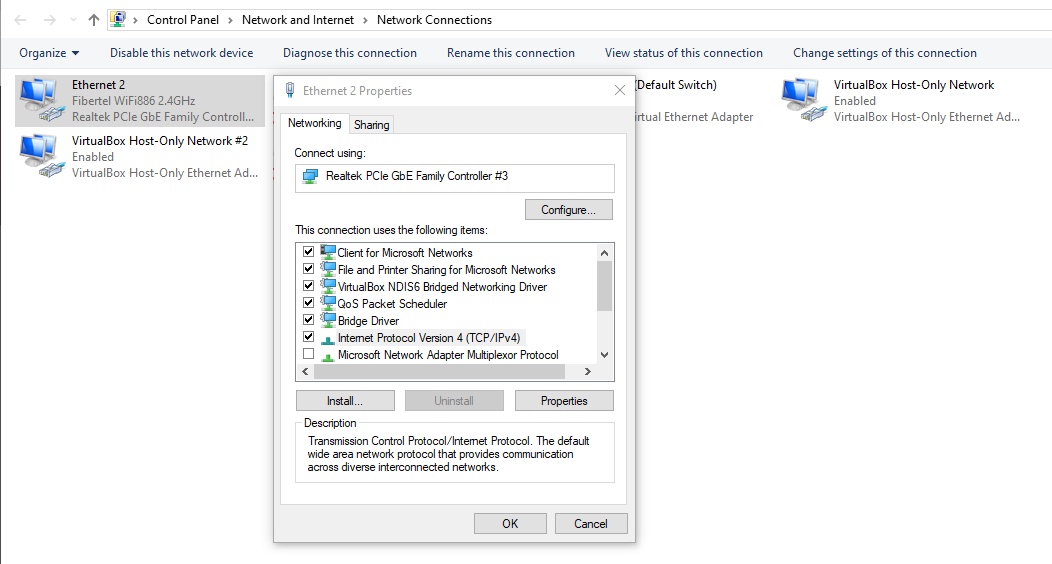
In the next window, go to the Networking tab and select the Internet Protocol Version 4 (TCP/IPv4) option, then click on Properties:
In this next window, you can configure whether Windows should obtain an IP address for your connection automatically. If you look below that setting, you’ll see an option to configure your default DNS server:
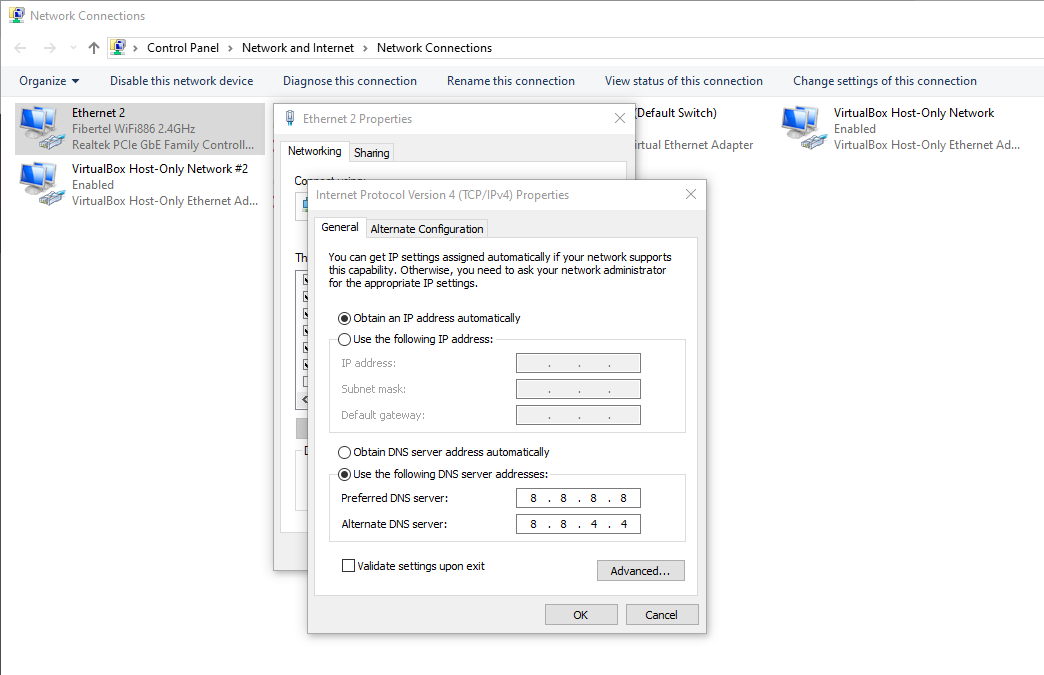
You can configure your device to use a custom DNS server as well as a backup in case the first DNS server fails. The following DNS server addresses are some of the most popular options on the web (and they’re all free to use):
- Cloudflare: 1.1.1.1 and 1.0.0.1
- Google Public DNS: 8.8.8.8 and 8.8.4.4
- OpenDNS: 208.67.222.222 and 208.67.220.220
In practice, any of these DNS server options should provide great performance and reliability.
Once you enter the new DNS settings, save the changes and try visiting the website again.
The Importance of Web Hosting for Website Performance
Your choice of web hosting can have a significant impact on your site’s performance. While this is not directly linked to your DNS settings, using the right service can help ensure that your site rarely experiences downtime.
NameHero offers a selection of hosting plans that prioritize performance and security. These include regular shared hosting plans, WordPress-specific options, and Virtual Private Servers (VPS).
Thanks to NameHero’s intuitive control panel, you’ll be able to troubleshoot the occasional error more effectively.
Additionally, you get access to 24/7 support via live chat, phone, or email. NameHero specialists can help you troubleshoot most issues that prevent users from accessing your site, including the “DNS Server Not Responding” error.
Conclusion
The “DNS Server Not Responding” error is usually caused by your device’s configuration. While it prevents you from accessing a website, it’s quite easy to fix.
To recap, here are four things to try when you encounter this error:
- Disable your firewall and antivirus.
- Disable your VPN.
- Flush the DNS cache.
- Change your DNS server.
Do you have any questions about how to fix the “DNS Server Not Responding” error? Let’s talk about them in the comments section below!

Sophia is a staff writer at WordCandy.co, where she produces quality blog content for WordPress plugin and theme developers, hosting providers, website development and design agencies, and other online businesses.
Leave a Reply