

When it comes to commanding attention in the professional sphere, LinkedIn wins hands down as the social media platform you need to be on. It’s a bustling marketplace where personal branding intersects with business acumen.
But have you come across the frustration of meticulously crafting your LinkedIn post only to find that the link preview doesn’t show up? This article is your guide to understanding LinkedIn’s link previews with the help of the LinkedIn Post Inspector.
Introduction
The first digital handshake must be firm in a world where social media posts can lead to career-changing opportunities. For the LinkedIn user, this often means ensuring that every post you share and every link you hope will drive engagement is presented at its best.
Before the Post Inspector, users had to rely on LinkedIn’s automatic link preview, which often led to misaligned images, outdated content snippets, and sometimes even complete chaos. Post Inspector offers a cleaner, more polished experience, ensuring your shared content always looks its best.
What Is The LinkedIn Post Inspector?
The LinkedIn Post Inspector is a free diagnostic tool by LinkedIn that shows you how your website’s content appears when shared on LinkedIn.
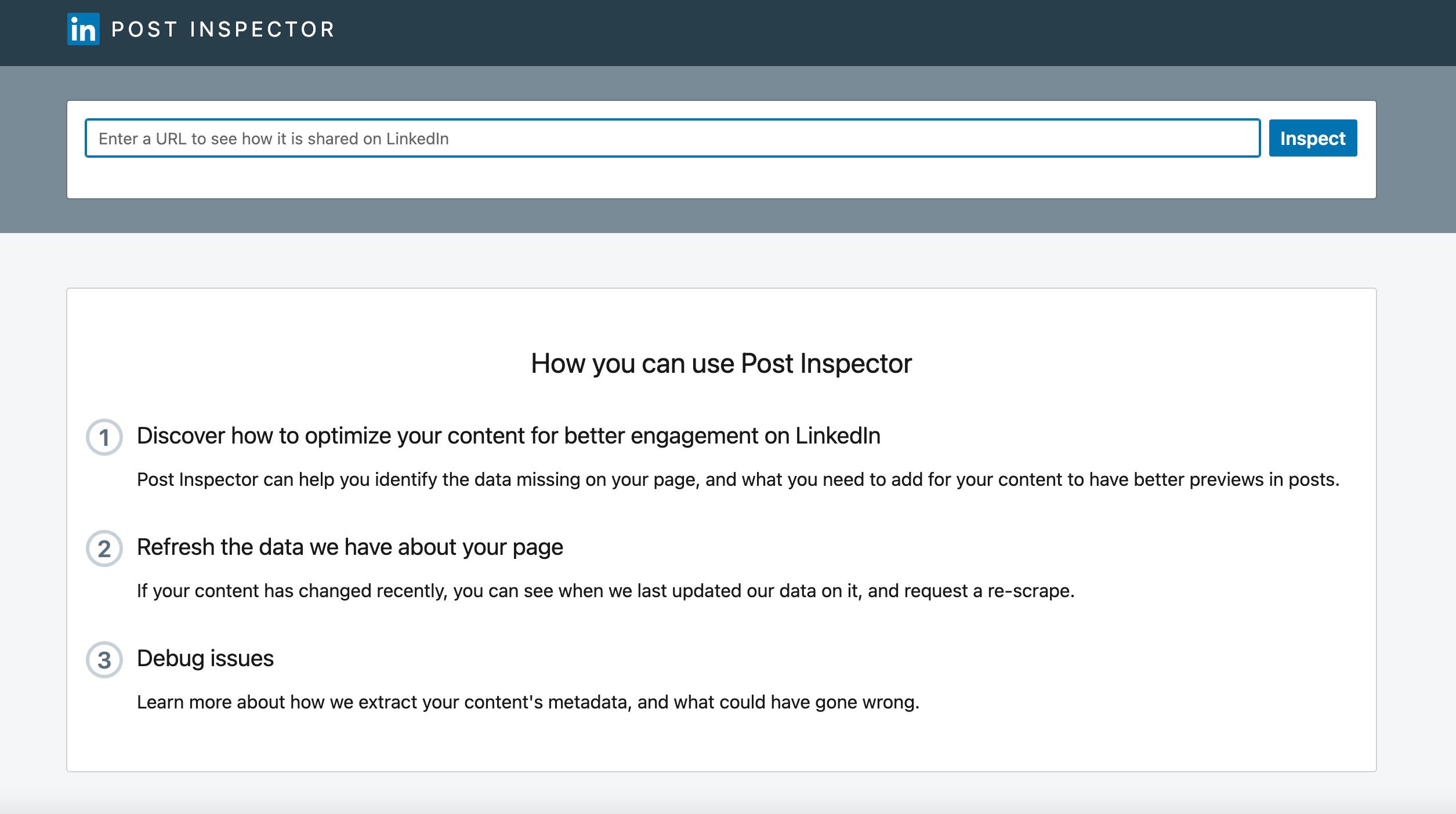
By entering the URL you intend to share and ensuring the metadata is correctly set, you can access the link preview’s headline, description, and image. It’s akin to a virtual dressing room where you tailor your content’s look before it struts onto your LinkedIn stage.
Why should you even care about LinkedIn post previews?
Posts with attractive previews receive higher click-through rates, potentially leading to increased website traffic, sales, or profile visits. In my opinion, the LinkedIn Post Inspector isn’t only about aesthetics; it’s also about optimizing your online marketing strategy.
Whether you are sharing a blog post, service, or product page, the link preview acts as the first point of contact between your audience and your content.
Does Linkedin Post Inspector Accept Any Links?
The LinkedIn Post Inspector accepts a broad range of links, from the most niche professional blogs to the landing page of a Fortune 500 business. You can even test out YouTube video links or specific blog links on the tool like I did below.
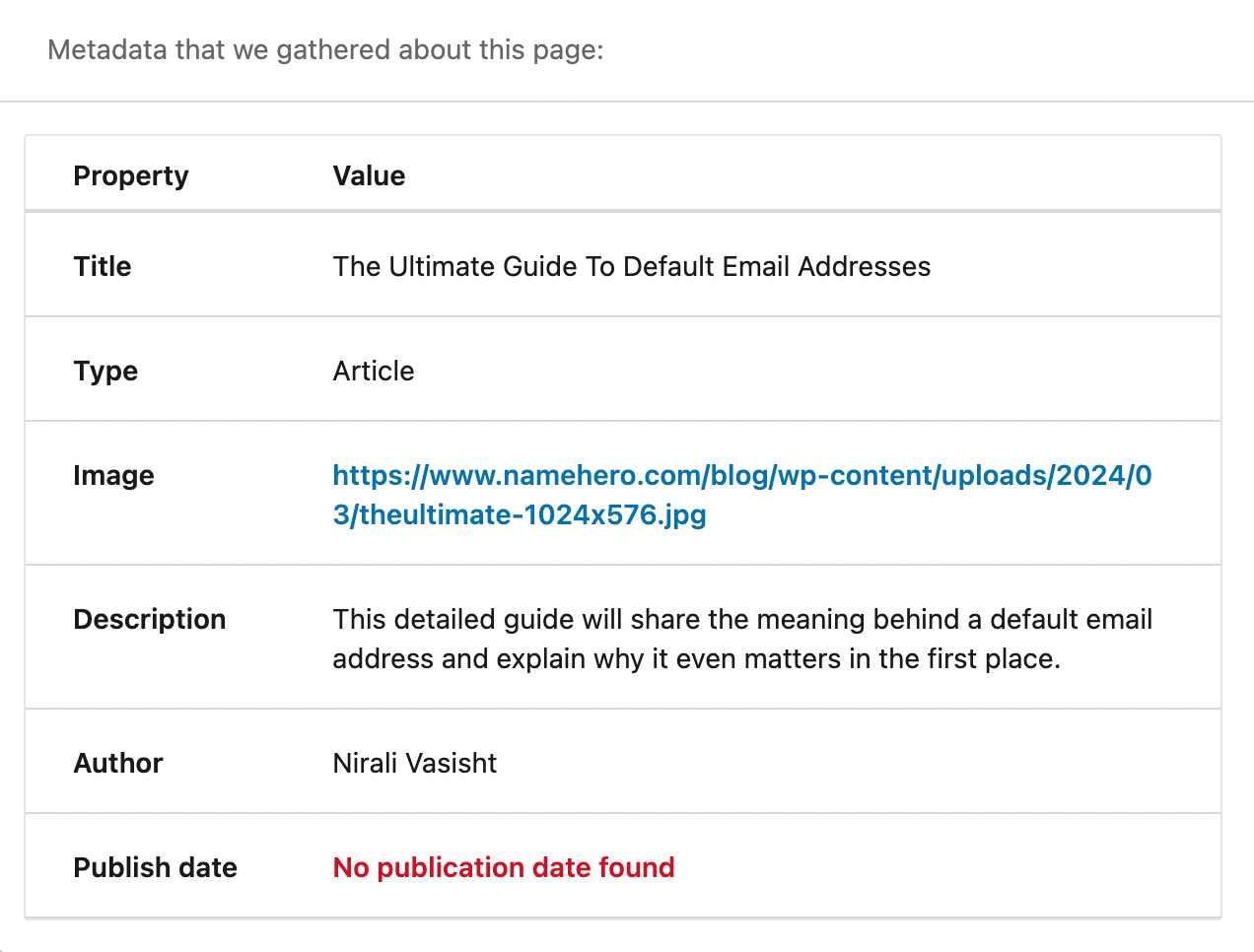
This flexibility ensures that regardless of your industry, there’s a space for your content to shine – provided you know how to polish it.
How to Use LinkedIn Post Inspector
Using LinkedIn’s Post Inspector is a breeze. You paste the desired URL into the Inspector’s interface, review and edit its preview, and then share your improved post with the LinkedIn community.
First, log in to your LinkedIn account and find the Post Inspector within the LinkedIn Marketing Developer Platform.
Next, paste a link from your website into the designated field and click “Inspect.”
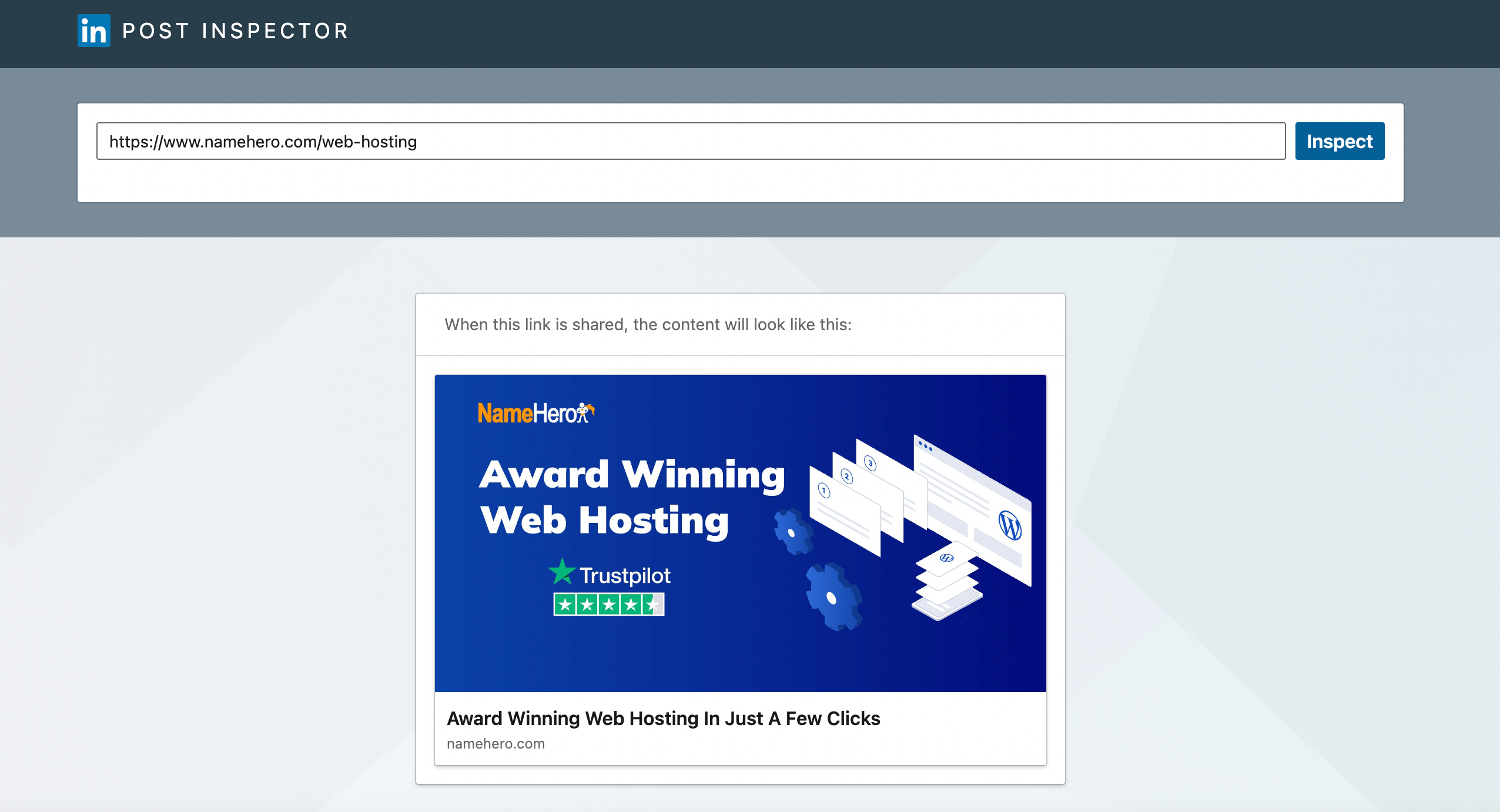
Review the elements of the link preview, including the title, description, and image. Then, head to your website and make edits as necessary by simply clicking on the section you want to change.
When you’re satisfied with the appearance, click “Save” to update your link preview, and then share the updated post to your LinkedIn page.
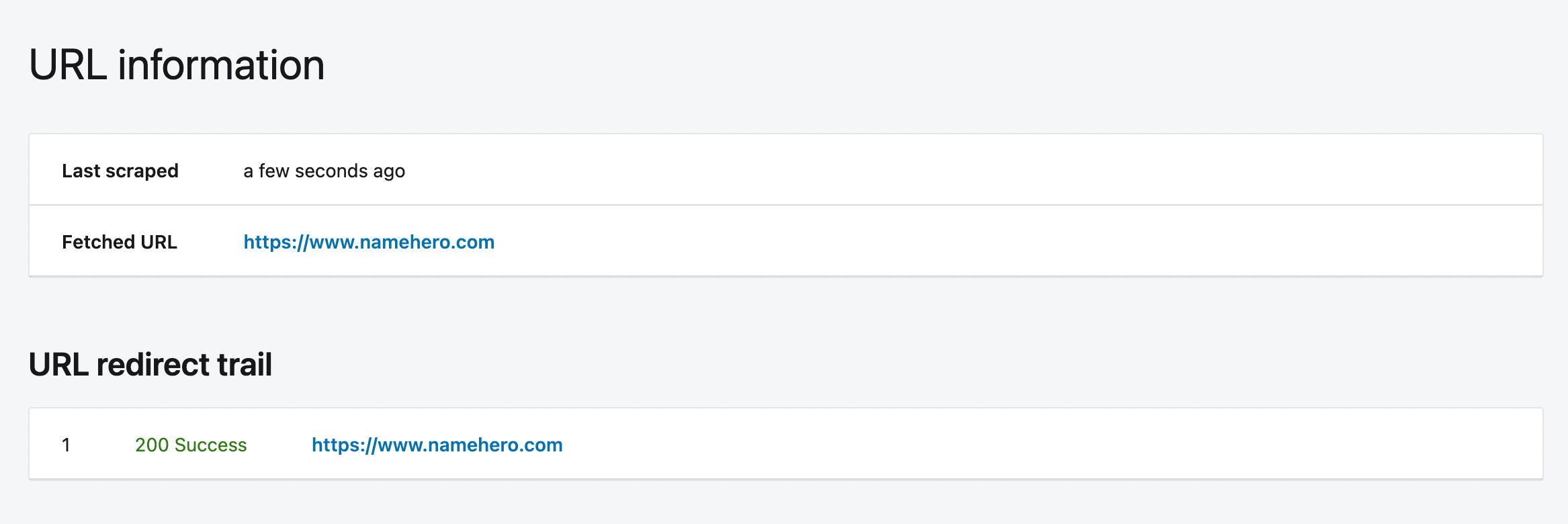
Each step may seem rudimentary, but we all know that the details can make or break a post.
Common LinkedIn Post Inspector Issues
Alas, not every digital walk in the park is sunshine and roses. Professional platforms are just as prone to hiccups as any other digital system. If you’re facing challenges with your LinkedIn Preview, it’s usually due to one of a handful of issues.
Steps to fix OG Meta Tags Using WordPress
If you’re a WordPress user, managing open graph meta tags (OG tags) is a matter of updating your post with the right content. OG tags determine the image, title, and description that LinkedIn fetches when it scrapes your URL for a preview.
I recommend WordPress’s Yoast SEO plugin. It is perfect for WordPress newbies and provides a straightforward interface for tweaking your meta data without wading into the HTML directly.
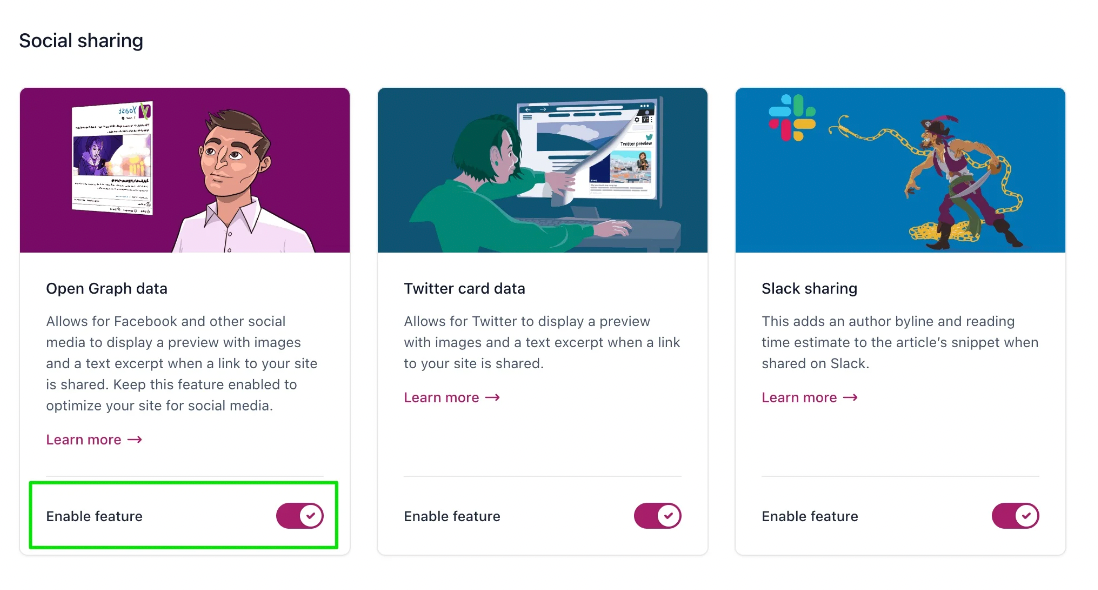
What should you do if the LinkedIn post inspector stops working?
If the Post Inspector proves obstinate, start with the basics. Ensure your browser is updated, and clear the cache and cookies. If the problem persists, access LinkedIn through a private or incognito window.
But if the problem persists, ensure your browser’s extensions or plugins aren’t interfering. Toggle off all Chrome extensions and then try again.

If none of these fixes work, you might need to be patient as LinkedIn’s team resolves any issues with its servers.
Why Is My LinkedIn Post Preview Not Showing Up?
The failure of a LinkedIn post preview to show may stem from invalid or incomplete Open Graph (OG) meta tags on the page you’re sharing. These tags convey essential information about the page’s content, but if LinkedIn cannot access them, it cannot generate a preview.
Double-check the presence and accuracy of these tags in your page’s HTML.
Can I Change The Link Preview Image and Title?
LinkedIn pulls the title, description, and image for link previews from OG meta tags, but it allows for manual tweaking using the LinkedIn Post Inspector.
You can’t change the image source directly within LinkedIn, but you can edit the preview with an updated image on your website, and that change will be reflected in the Inspector’s toolkit.
Conclusion
Whether you’re a seasoned marketer or freshly navigating the professional social media sphere, LinkedIn’s capacity for engagement is a powerful tool in your arsenal.
I hope this guide helps you resolve any issues with the LinkedIn post inspector. But remember, even the most engaging preview won’t do much if your website doesn’t load or isn’t secure. Make sure a trusted, secure partner hosts your website.
NameHero’s WordPress hosting offers unmatched speed, security, and reliability for your WordPress website. With unlimited bandwidth, free SSL certificates, and 24/7 customer support, NameHero is the perfect choice for businesses of all sizes.
Pair your LinkedIn posts with a website or blog hosted by NameHero. With NameHero’s suite of WordPress hosting packages, we make sure your online presence is as professional and high-performing as you are. Happy sharing!

Nirali has over a decade of experience working in marketing with startups in a variety of sectors, including e-commerce, ed-tech, and SaaS. She has a keen understanding of the unique challenges and opportunities facing early-stage companies and a track record of developing effective content strategies that drive growth and engagement.
Leave a Reply