

Google Chrome offers a smooth browsing experience with a user-friendly interface and has extensive customization options through extensions. However, users occasionally run into the ERR_ADDRESS_UNREACHABLE error when accessing websites. This error message indicates that the Google Chrome browser cannot access the specified web address because it doesn’t exist or due to temporary connectivity issues.
In this article, we’ll explore the common causes of the ERR_ADDRESS_UNREACHABLE error message and provide step-by-step solutions to resolve this issue in Google Chrome.
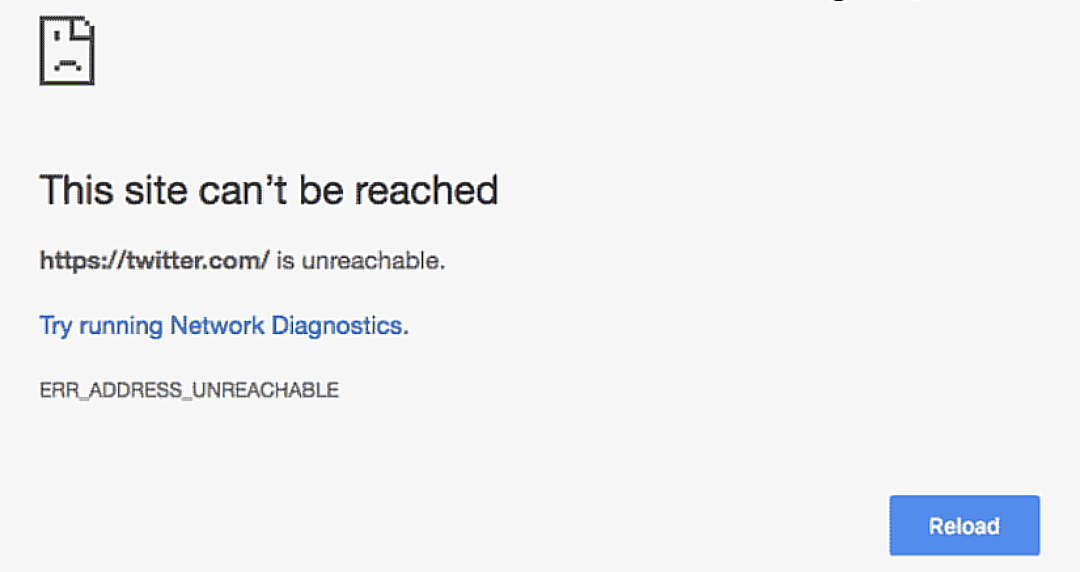
Common causes of ERR_ADDRESS_UNREACHABLE error message
Before diving into the solutions, let’s understand the possible causes of why you could run into the ERR_ADDRESS_UNREACHABLE error. These may include:
- Corrupted site data in the DNS or browser cache
- Chrome extensions that block access to websites
- Router stuck in an error state
- Proxy server interfering with the connection
How to fix ERR_ADDRESS_UNREACHABLE error message
1. Restart Your Router
The first step to resolve the ERR_ADDRESS_UNREACHABLE error is to restart your router. Because sometimes, the router can get stuck in an error state which prevents Google Chrome from loading web pages.
Follow these steps to restart your router:
- Turn off your router by switching off the power button or unplugging it from the power source.
- Wait for at least 30 seconds before turning it back on or plugging it in.
- Allow your computer to reconnect to the internet.
- Open Google Chrome and attempt to load the problematic web page.
If the error persists, move on to the next method.
2. Try Using an Alternative Browser
It’s essential to determine if the error is specific to Google Chrome. To do this, try using one of the other popular browsers. You can either download a different browser such as Mozilla Firefox or Opera or try loading the website on preinstalled Microsoft Edge, and see if the issue persists.
Follow these steps to use an alternative browser:
- Download and install an alternative browser (e.g., Mozilla Firefox or Microsoft Edge) if you don’t have one on your systems.
- Open the alternative browser and attempt to load the problematic web page.
If the web page loads successfully in the alternative browser, the issue is likely specific to Google Chrome. In this case, proceed to the next methods (3 and 4) to resolve the error in Chrome. However, if you keep getting the same error message, switch to methods 5-7.
3. Clear the Chrome Browser Cache
The browser cache stores data related to websites you visit which helps in faster loading times on subsequent visits. However, outdated or corrupted data in the cache can trigger errors like ERR_ADDRESS_UNREACHABLE. Clearing the Chrome browser data can resolve this error message if it’s because of a corrupted cache.
Follow these steps to clear the Google Chrome browser cache:
- Click on the three dots in the top-right corner of the browser window.
- Select More tools > Clear browsing data
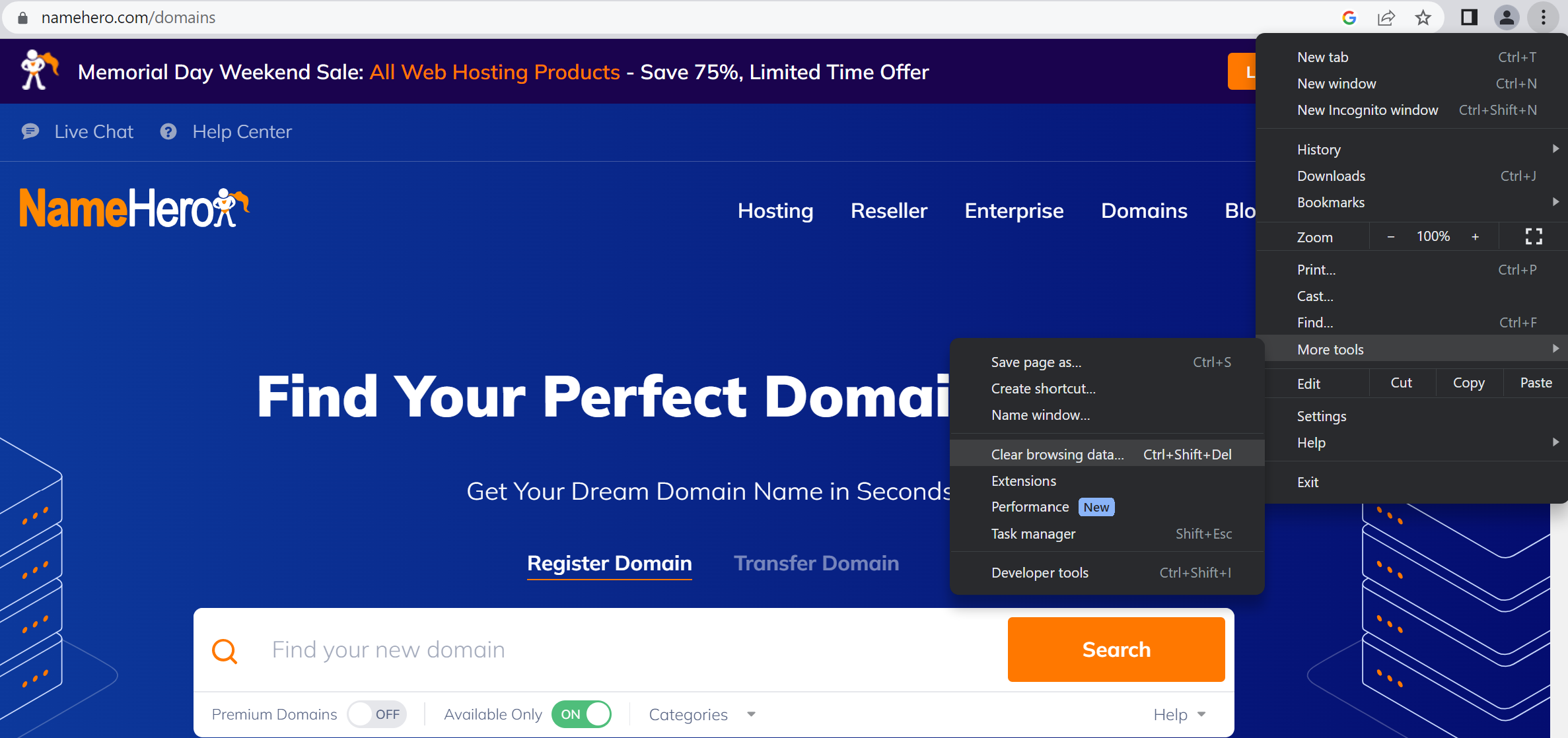
- In the popup window, make sure to select Cached images and files.
- Choose a time range (e.g., All time) to clear cached data.
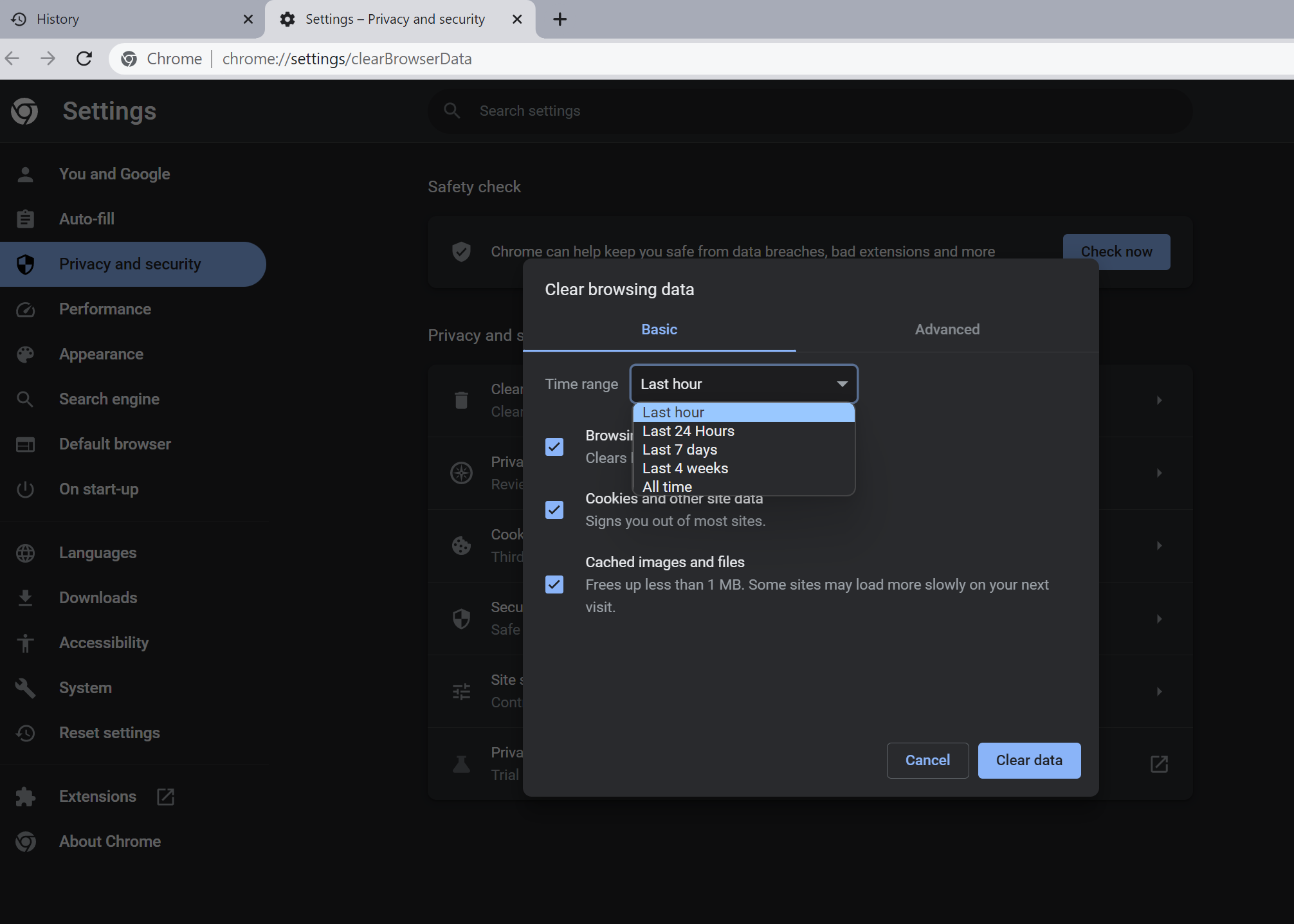
- Click on Clear data.
After clearing the cache, reload the problematic web siteto see if the error has been resolved. If not, proceed to the next method.
4. Disable Chrome Extensions
Corrupt Chrome extensions can cause conflicts, leading to the “ERR_ADDRESS_UNREACHABLE” error message. In this case, you’ll have to temporarily disable all your Chrome extensions and then see if you still get the above error message. If the error goes away, one or more of your Google Chrome extensions likely cause the problem, and you’ll have to remove them to fix your browser.
Follow these steps to disable Chrome extensions:
- Click on the three dots in the top-right corner of the browser window.
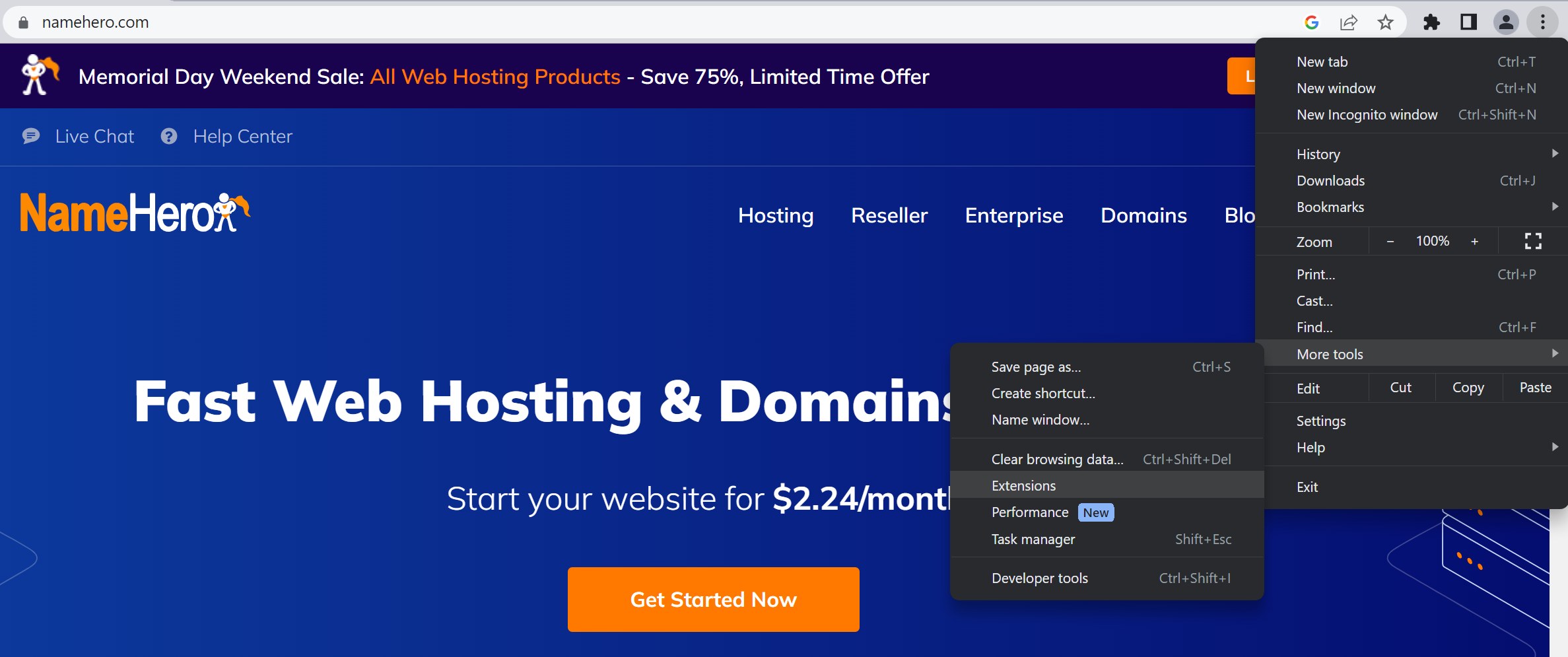
- Select More Tools > Extensions.
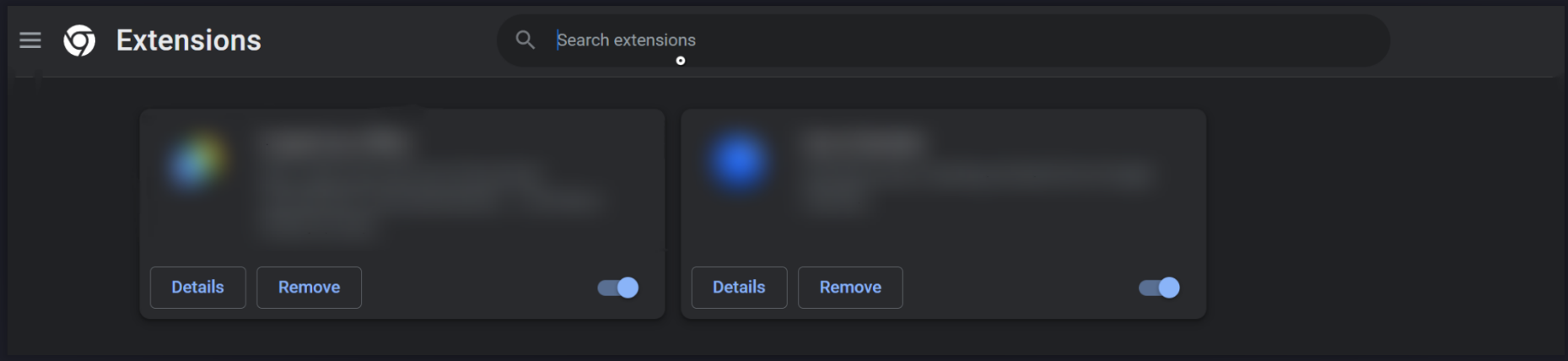
- Locate each extension, and click on the toggle switch next to it to disable it.
- Reload the problematic website to see if the error has been resolved.
If the error is resolved after disabling extensions, then one of the Chrome extensions is the cause of the error message. However, if you use many extensions, you’ll have to re-enable them individually, reloading the website after each to identify the problematic extension. Once you identify the problematic extension, you can remove it or look for an alternative.
5. Clear the DNS Cache and Change DNS Settings
Another way you can try to fix ERR_ADDRESS_UNREACHABLE error is to flush Chrome’s DNS cache.
But, what is DNS cache? DNS or Domain Name System is responsible for translating domain names (e.g., www.example.com) into IP addresses that your system can understand. Every time you visit a website, your computer performs a DNS lookup to determine the IP address associated with the domain name. The DNS lookup process can be time-consuming and to optimize performance, systems, and web browsers implement a DNS cache.
The process of clearing the DNS cache removes the stored DNS records from the cache, forcing your operating system to perform fresh DNS lookups when accessing sites. Thus, if the “ERR_ADDRESS_UNREACHABLE” error is due to an issue with your DNS cache or setting, this step will resolve the issue.
To clear DNS cache from your browsing history, go to chrome://net-internals/#dns and select ‘Clear host cache’ button.
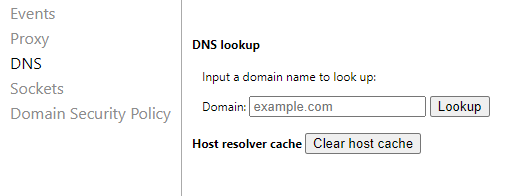
However, if this step doesn’t resolve the issue, you might want to check the DNS settings of your system.
Follow these steps to change DNS Settings on Windows:
- Open the Control Panel on your Windows device.
- Go to “Network and Internet” and then select “Network and Sharing Center” or “Advanced network settings”
- Under Related settings, click on “More network adapter settings.”
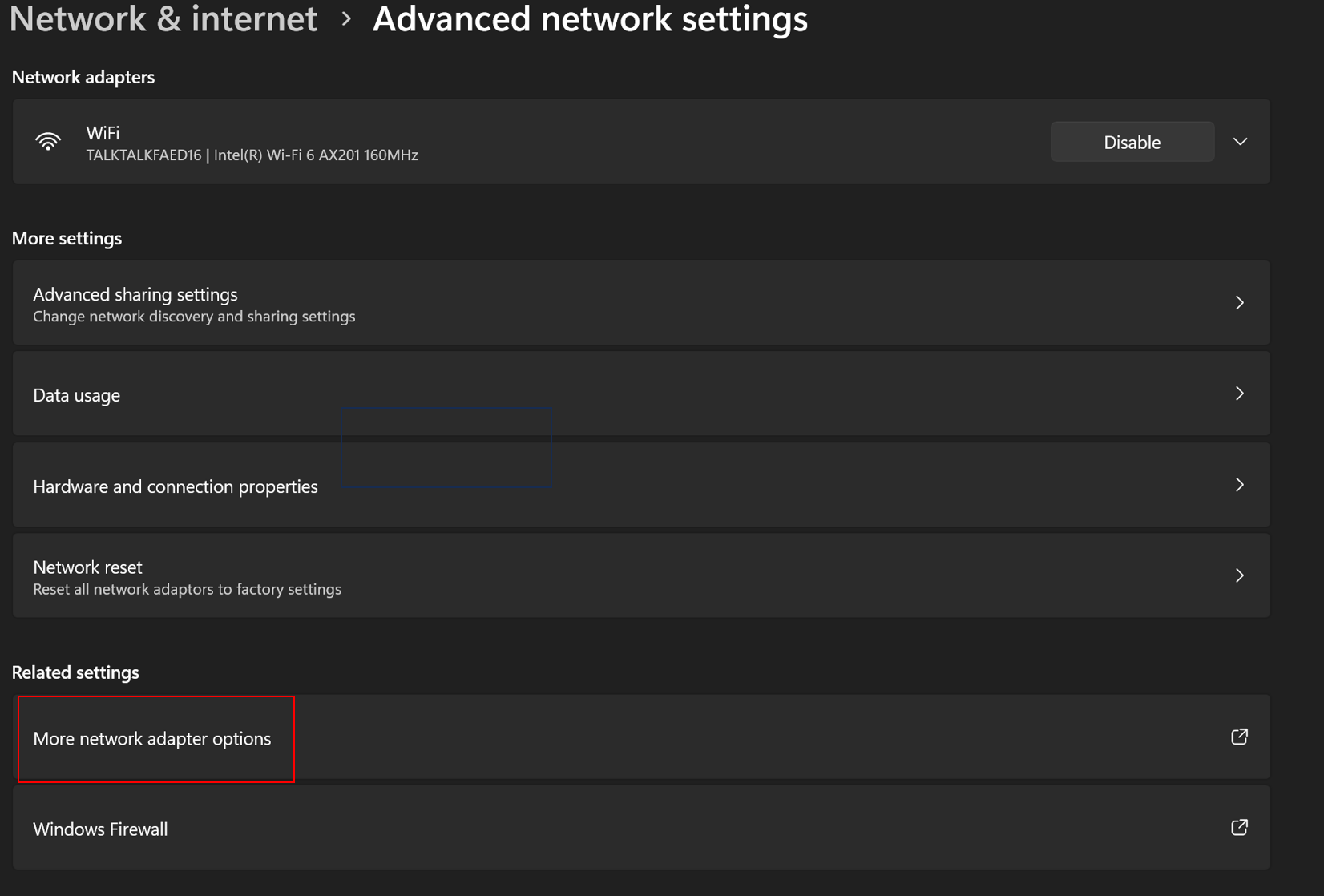
- Right-click on your network and choose “Properties” from the dropdown menu.
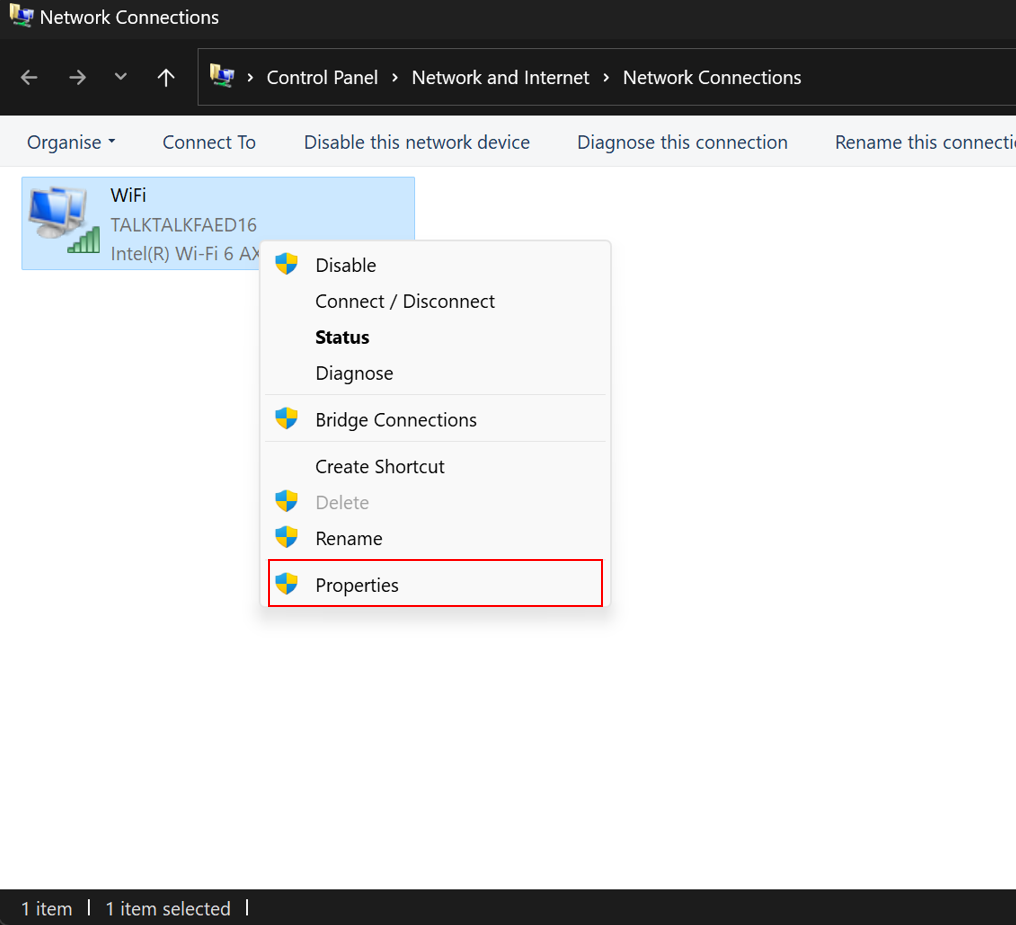
- In the network properties window, select “Internet Protocol Version 4 (TCP/IPv4)” and click on “Properties.”
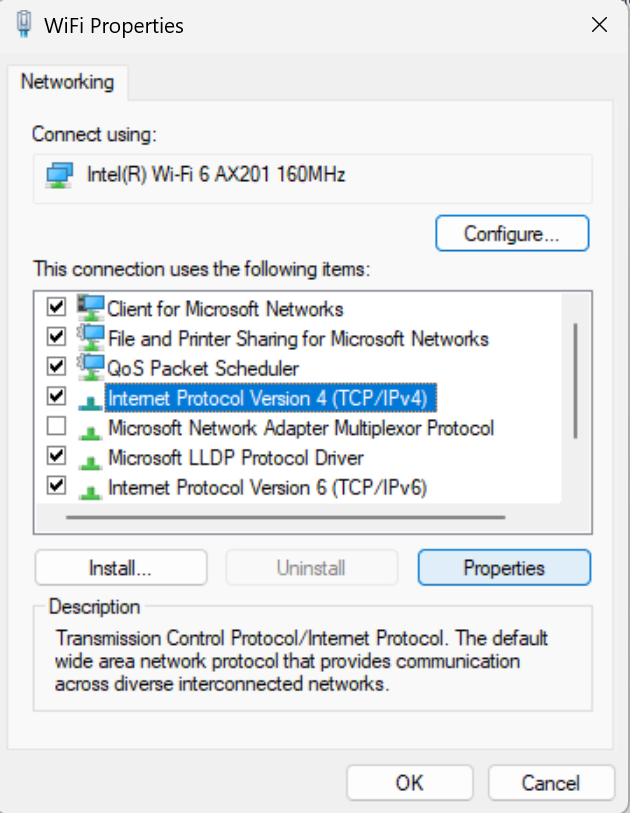
- Choose the option “Use the following DNS server addresses.”
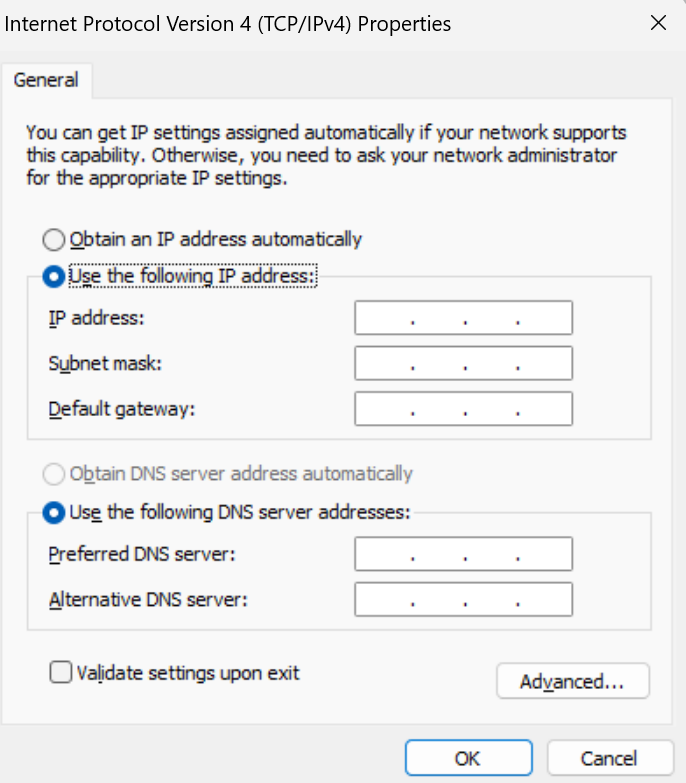
- Enter “8.8.8.8″ in the Preferred DNS server box.
- Enter “8.8.4.4” in the Alternate DNS server box.
- Click “OK” to save the changes.
After following these steps, you will have cleared the DNS cache and changed the DNS settings in Google Chrome. Try reloading your website to check if clearing host cache and checking DNS server settings has resolved the error.
6. Disable the Proxy Server
A proxy server is an intermediary server that acts as a gateway between your computer and another server, which can be a website or online service.
It plays various roles such as receives and handles browser requests, while also safeguarding the server’s data. It can also conceal your IP address for security reasons. However, there are instances where a proxy server might hinder your ability to connect to a website, triggering the ERR_ADDRESS_UNREACHABLE error. To find if the proxy server is causing an error, you’ll have to disable it.
Here are the steps to disable the proxy server in Google Chrome:
- Open Google Chrome.
- Click on the three vertical dots in the top-right corner of the browser window to open the menu.
- From the menu, select “Settings.”
- Scroll down and click on “System.”

- Under the “System” section, click on “Open your computer’s proxy settings.” This will open the proxy settings in your operating system.
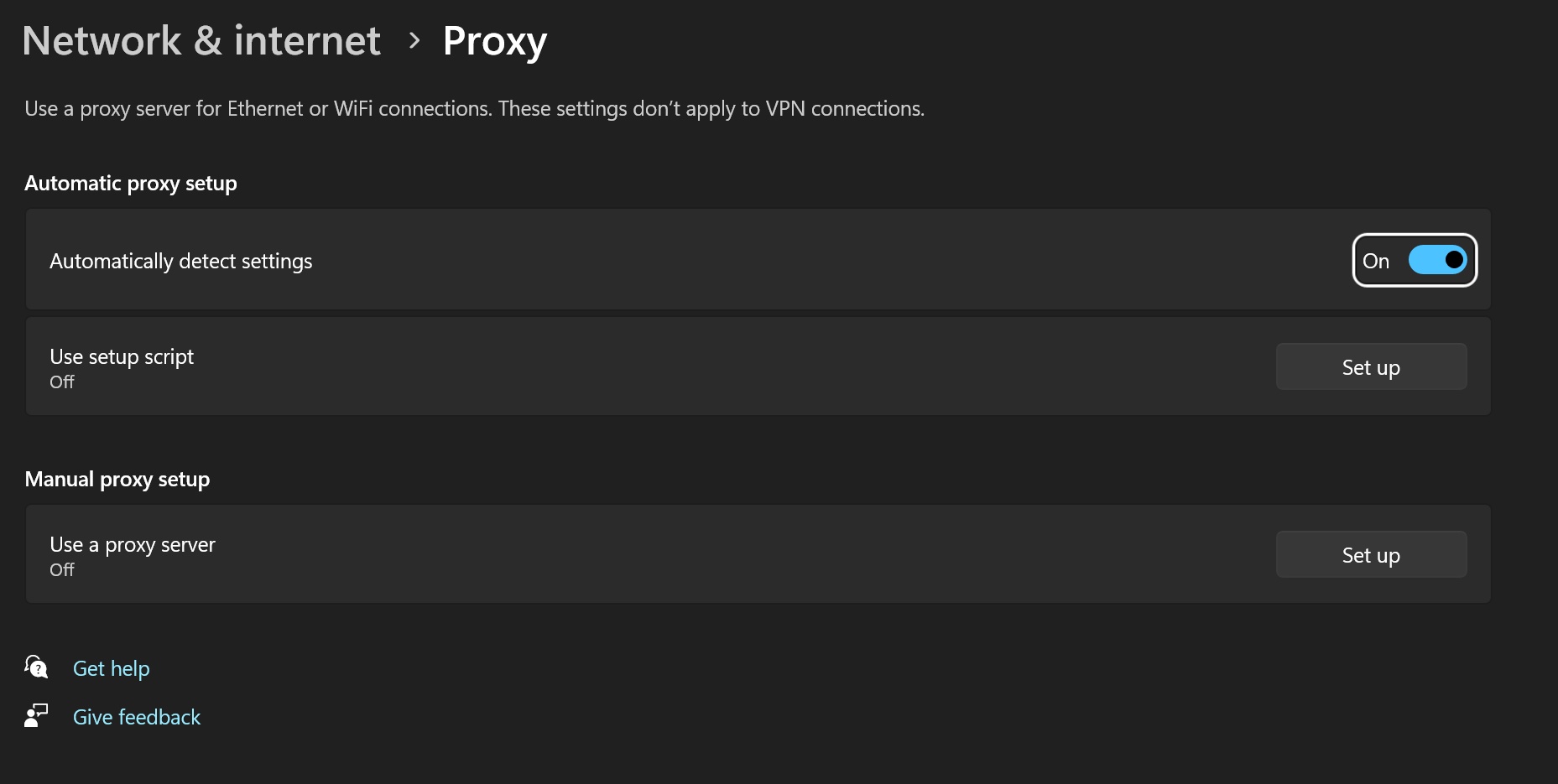
- In the Windows proxy settings window, make sure the toggle switch next to “Automatically detect settings” is switched off.
- Also, ensure that the toggle switch next to “Use a proxy server” is set to off.
After following these steps, you will have disabled the proxy server in Google Chrome. This can help resolve issues related to connectivity and the ERR_ADDRESS_UNREACHABLE error.
7. Run the Windows App Troubleshooter
If none of the above methods were successful in solving the ERR_ADDRESS_UNREACHABLE error message, the problem could lie in your Chrome browser.
To see if the Google Chrome browser is the cause of the ERR_ADDRESS_UNREACHABLE error, run the troubleshooter.
Follow these troubleshooting methods to fix ERR_ADDRESS_UNREACHABLE error:
- Open Windows Settings and click on “System.”
- Scroll down and click on “Troubleshoot.”
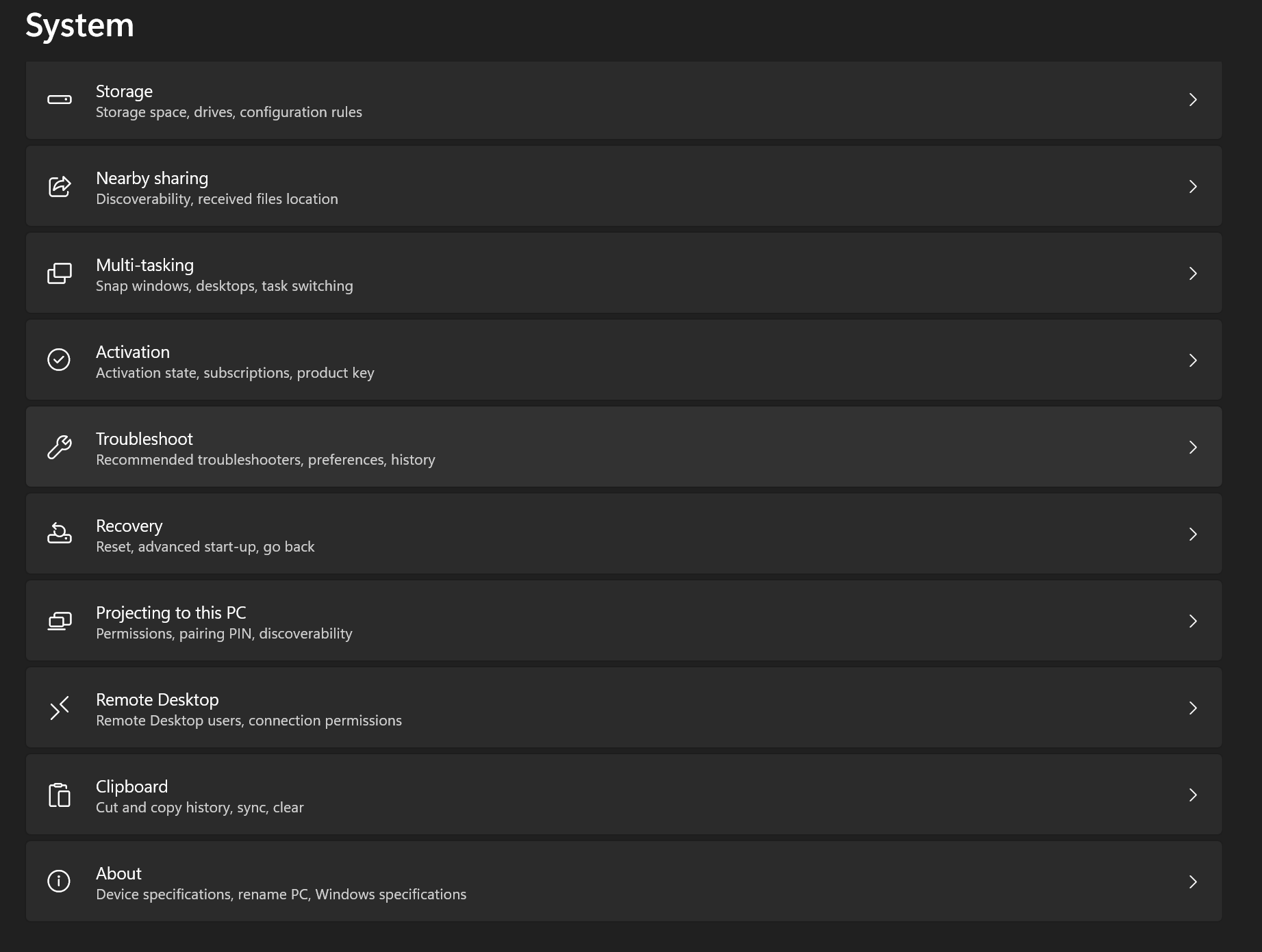
- Scroll down and click on “Other troubleshooter.”

- Locate the section titled “Windows Store Apps” and click on it.
- Click on the “Run” button to start the Windows App Troubleshooter.
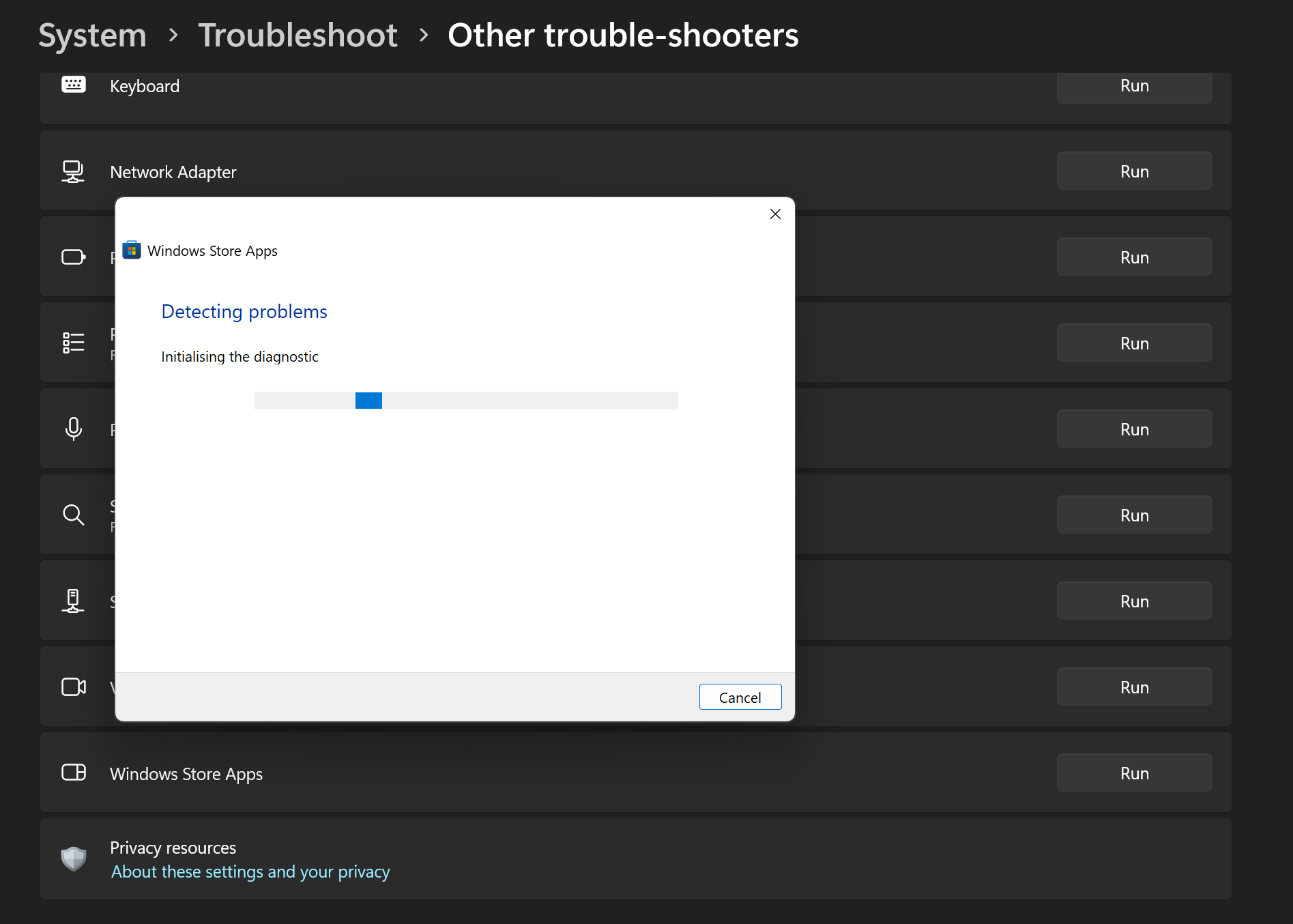
- Wait for the troubleshooter to analyze and diagnose any issues with Windows Store Apps, including Google Chrome.
- After a few seconds, the troubleshooter will either display more information about the problem it found or provide a message stating that it couldn’t identify any issues.
If the troubleshooter identifies a problem, follow the provided instructions to fix it, and your ERR_ADDRESS_UNREACHABLE error code should now be resolved.
Conclusion
In conclusion, encountering the ERR_ADDRESS_UNREACHABLE error in Google Chrome can be frustrating, but you can follow several steps to resolve the issue. The first thing to do when you encounter ERR_ADDRESS_UNREACHABLE error is to restart your browser or switch to a different browser. If the error still persists, you can always move to other solutions, such as troubleshooting methods, disabling Chrome extensions, and clearing the DNS cache.

How to work that Web I put under the box section